Eigenschaften der Prozessgeometrie

Dashboard
Das Process geometry Dashboard bietet eine vollständige Übersicht und Details aller Prozessgeometrieelemente des Werkstücks. Es kann sowohl aus der Werkstückvorbereitung als auch aus der Offline-Programmierung Arbeitsumgebung geöffnet werden, wobei es zwischen diesen eine leicht unterschiedliche Funktionalität bietet.
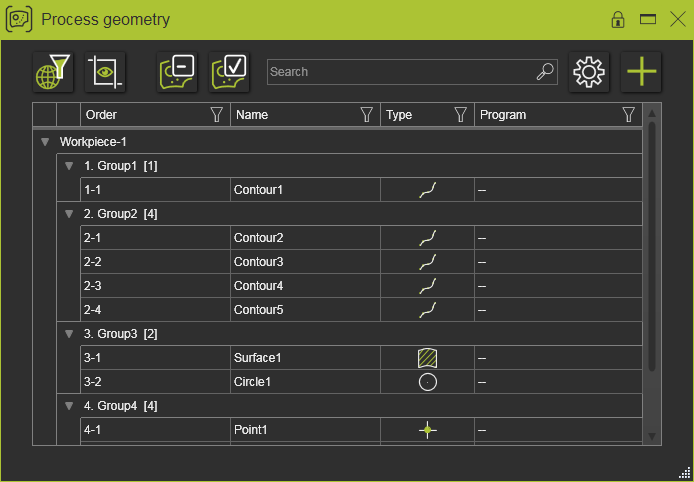
Das Dashboard ist ein tabellarischer Datensatz, der alle Prozessgeometrieelemente und deren Attribute anzeigt.
Die Tabelle verfügt über vier Standardspalten.
| Reihenfolge | Die Reihenfolge der Gruppen und innerhalb jeder Gruppe die Reihenfolge der Prozessgeometrieelemente. Gruppen- und Prozessgeometrie-Identifikatoren haben systemseitige Standardnamen. Der Gruppenname, nicht jedoch seine Nummernkennung, kann bearbeitet werden. |
| Name | Namen der Prozessgeometrieelemente. Standardnamen werden bei der Erstellung der Prozessgeometrie zunächst vergeben. Der Name kann durch Klicken in das Namensfeld der Prozessgeometrie bearbeitet werden. Leere Namen sind zulässig. |
| Typ | Der geometrische Typ der Prozessgeometrie, dargestellt durch ein Symbol. Der Typindikator unterscheidet zwischen Punkten, Konturen, Flächen und den regulären Formtypen Kreis, Schlitz, Rechteck, Sechseck und Schlüsselloch. |
| Programm | Der Programmablauf eines Controllers, wenn die Prozessgeometrie programmiert wurde. Hier können mehrere Abläufe angezeigt werden. |
Die Tabelle kann um zusätzliche Spalten mit weiteren bekannten oder benutzerdefinierten Attributen erweitert werden.
Die Tabellenzeilen listen die vorhandenen Prozessgeometrieelemente auf.
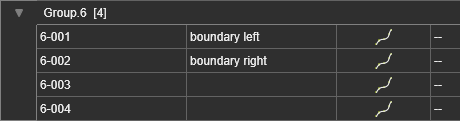
Die Elemente sind in Gruppen zusammengefasst. Jeder Gruppenbezeichner zeigt seinen Standardnamen sowie die Anzahl der enthaltenen Prozessgeometrieelemente an. Die Gruppe selbst kann mit dem Dreieckssymbol vor dem Gruppennamen ein- oder ausgeklappt werden.
Anzeige
Für Komfort oder eine bessere Anzeige kann die Spaltenbreite angepasst werden. Ziehen Sie einfach die rechte Seitenbegrenzung der Spalte nach links oder rechts, um die Breite zu verändern.
Jede Spalte kann verwendet werden, um die Tabelle zu sortieren. Ein einfacher Klick in die Spalte startet die Sortierung. Anschließend erscheint ein Symbol, das die Sortierreihenfolge anzeigt.
| Erster Klick | Displays an ascending sort of the table. The arrow symbol points up.  |
| Zweiter Klick | Displays a descending sort of the table. The arrow symbol points down.  |
| Dritter Klick | Displays the default, unsorted table. There is no arrow symbol.  |
Beim Auf- oder Absteigend-Sortieren der Tabelle werden die Gruppenzeilen ausgeblendet. Nur in der unsortierten Anzeige werden die Gruppenzeilen angezeigt. Eine Ausnahme von dieser Regel ist die Order-Spalte; beim Sortieren in dieser Spalte werden die Gruppenzeilen stets angezeigt.
Die Tabelle kann ebenfalls gefiltert werden. Jede Spalte verfügt auf der rechten Seite über ein Filtersymbol. Ein Klick auf das Symbol öffnet das Filterfenster.
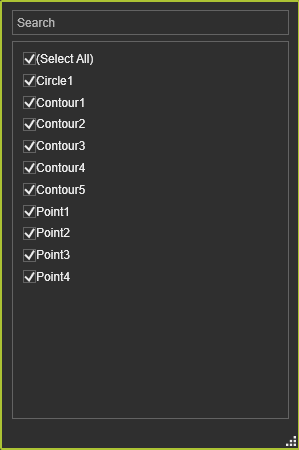
Hier kann die Spalte gefiltert werden, indem die verfügbaren Elemente ausgewählt oder abgewählt werden, um sie in den Filter einzubeziehen oder auszuschließen. Der Filter wird automatisch während der Auswahl in dieser Liste angewendet.
Darüber hinaus bietet das Filterfenster die Möglichkeit, den angewendeten Filter zurückzusetzen (Alle auswählen) oder nach einem bestimmten Zeichenfolgen in der Tabelle zu suchen und diesen als Filter anzuwenden.
Sobald die Tabelle gefiltert wurde, ändert das Symbol in der Spalte seinen Zustand, um dies anzuzeigen.

Filter können über mehrere Spalten angewendet werden.
Ein globaler (tabellenweiter) stringbasierter Filter kann mit der Such-Option angewendet werden.

Die Eingabe eines beliebigen Strings durchsucht und filtert die Tabelle dynamisch nach passenden Ergebnissen. Das Löschen des Suchstrings setzt den Tabellenfilter zurück.
Oben links im Dashboard befinden sich einige globale Anzeigeumschalter.
 | Der Tabellenfilter wird auch auf die 3D-Welt angewendet. |
 | Die Kameraperspektive richtet sich neu aus, d.h. sie zentriert die ausgewählte Prozessgeometrie in der 3D-Welt. |
 | Globaler Filter zur Anzeige nur der nicht programmierten Prozessgeometrie sowohl in der Tabelle als auch in der 3D-Welt. |
 | Globaler Filter zur Anzeige nur der programmierten Prozessgeometrie sowohl in der Tabelle als auch in der 3D-Welt. |
Kreuzauswahl
Kreuzhervorhebung beim Überfahren mit der Maus sowie Kreuzauswahl zwischen der 3D-Prozessgeometrie und dem Element in der Tabelle sind implementiert. Mehrfachauswahl wird unterstützt.
Wenn eine Prozessgeometrie in der 3D-Welt ausgewählt wird, die im Ansichtsfenster der Dashboard-Tabelle noch nicht sichtbar ist, wird die entsprechende Zeile automatisch in den Sichtbereich gebracht.
Optionen

Die Options-Taste öffnet ein Fenster.
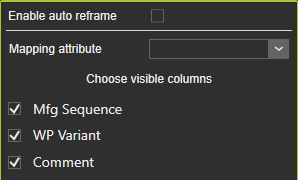
| Zuordnungsattribut | Das Attribut, das berücksichtigt wird, wenn die vorhandene Prozessgeometrie durch ein neues Werkstück oder den Import von PG ersetzt wird. Die neue PG mit übereinstimmendem Mapping-Attribut ersetzt dann die vorhandene. |
| Sichtbare Spalten auswählen | Schalter zum Ein- oder Ausschalten der Anzeige der Attributspalten in der Tabelle. Die Standardspalten werden stets angezeigt. |
In der Werkstückvorbereitung

Der Add new attribute-Befehl öffnet ein kleines Fenster, um eine benutzerdefinierte Attributspalte zur Tabelle hinzuzufügen.
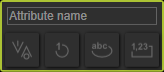
| Attributname | Der Name des neuen Attributs muss hier eingegeben werden. |
| Attributtyp | Wählt den Typ des Attributs: boolean, integer, real oder text. |
Sobald der Name des neuen Attributs eingegeben wurde, wird der Attributtyp-Auswahl verfügbar. Die Auswahl des erforderlichen Typs erstellt das Attribut, schließt das Fenster und fügt es der Liste hinzu.
Der Attributname kann einem neuen Attribut nur einmal zugewiesen werden. Mehrere Attribute mit demselben Ein Attribut mit demselben Namen kann nicht erstellt werden, auch nicht wenn sie unterschiedlichen Typs sind.
Die Arbeit an dieser Arbeitsstation ermöglicht auch das Gruppieren und Sequenzieren der Prozessgeometrieelemente.
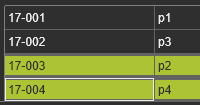
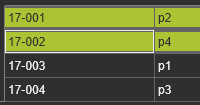
Wenn eine Prozessgeometriezeile (oder mehrere Zeilen) ausgewählt und nur leicht weggezogen wird, erscheint ein Fenster. Es zeigt an, wie viele Zeilen nun betroffen sind.
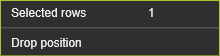
Das Ziehen zu einer anderen Zeile in einer beliebigen Gruppe aktualisiert die Informationen und zeigt zwei kleinere Pfeile vor dieser Zeile an. Die Abwurfposition gibt an, ob die gezogene Zeile vor oder nach der Zeile platziert wird, auf die sie fallen gelassen wird.
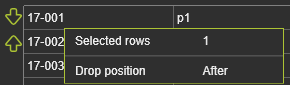
Nach der Sequenzierung wird die Auftrags-ID der Gruppe neu berechnet.
| Vor | Nach |
|---|---|
 |  |
Die Ziehsequenzierung kann durch Ziehen weg von der Order-Spalte abgebrochen werden. Sobald das Sequenzfenster und die Pfeile verschwinden, kann die Zeile abgelegt werden, ohne sie neu zu ordnen.
Leere Gruppen können nicht existieren. Daher wird eine Gruppe, die nach dem Verschieben der Prozessgeometrie leer bleibt, automatisch gelöscht. Elemente werden automatisch aus der Tabelle gelöscht.
Wenn die Tabelle in einer beliebigen Attributspalte sortiert ist, außer in der Spalte Reihenfolge, wird die Sequenzierung Die Funktionalität ist deaktiviert.
Alternativ zur Drag-Funktionalität kann die Gruppierung und Sequenzierung auch im Pie-Menü der ausgewählten Prozessgeometrie gestartet werden.



Mit dem Befehl Entfernen kann auch auf Gruppenebene gearbeitet werden. In diesem Fall wird die Gruppe mit allen ihren Mitgliedern entfernt. Die Aktion kann mit dem Befehl Rückgängig gemacht werden. Mitglieder werden entfernt. Die Aktion kann mit dem Befehl Rückgängig gemacht werden.
In der Offline-Programmierung
Die Arbeit im OLP-Arbeitsbereich öffnet das Dashboard im Nur-Lese-Modus. Das bedeutet, dass alle Attribute mit Ausnahme des Name-Attributs hier nicht geändert werden können. Ebenso können keine neuen Attribute hinzugefügt werden. Auch die gesamte Sequenzierungsfunktionalität, wie sie im Arbeitsbereich Werkstückvorbereitung verfügbar ist, ist hier nicht aktiviert. Die allgemeinen Anzeigeoptionen zum Sortieren und Filtern können verwendet werden.
Auf der ausgewählten Prozessgeometrie oder in der Gruppenzeile öffnet sich das Pie-Menü mit folgendem Inhalt.