Lehren

Dashboard
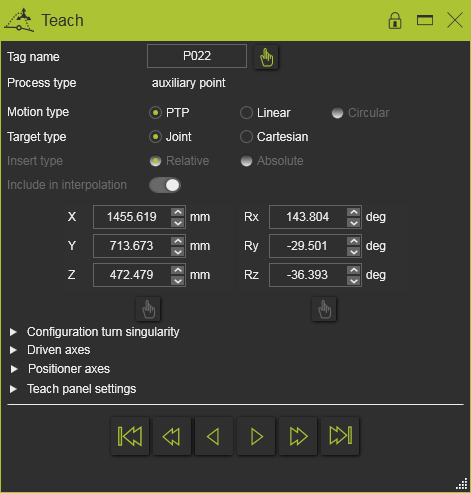
Der Teach-Befehl öffnet das Teach-Dashboard. Die Bewegung des Werkzeugmittelpunkts (TCP) der Ressource entlang des Werkzeugpfads kann mit diesem Dashboard gesteuert werden.
Zielposition
Dieser Abschnitt des Dashboards zeigt die Informationen des ausgewählten Werkzeugweg-Elements, die Zielposition des Werkzeugwegs an.
| Name des Tags | Name des Tags. Der Name kann hier geändert werden. |
| Prozesstyp | Der Typ des Tags, global unterteilt in Off-Process-, In-Process- und Hilfspunkte. |
| Bewegungsart | Die Bewegung zum Tag: PTP Linear Kreisförmig. |
| Zieltyp | Das Ziel des Tags; d.h. die Definition der Position über: Gelenkwerte kartesische Koordinaten. |

Einige Parameter sind mit einem Handsymbol versehen. Wenn der Parameter geändert wurde, wird dieses Symbol aktiviert, um die Änderung anzuzeigen, wie im folgenden Beispiel:
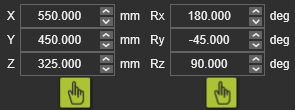
Das Drücken des aktivierten Handsymbols setzt den Parameter auf seinen ursprünglich berechneten Wert zurück.
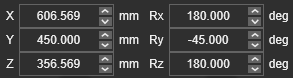
Die kartesischen Koordinaten des Ziels werden unterhalb der Typanzeige dargestellt. Standardmäßig werden diese Koordinaten während der Berechnung des Werkzeugpfads oder beim Einfügen von Hilfsmarken erzeugt.
Konfiguration
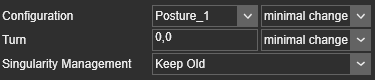
In diesem Block werden die Ressourcenkonfigurationsinformationen angezeigt und können geändert werden. Wie im untenstehenden Beispiel. Je nach Ressourcentyp umfasst dies deren Konfiguration, deren Drehzustand und das Singularitätsmanagement.
Angetriebene Achse
In diesem Block werden die angetriebenen Achsen des Roboters oder der Maschine angezeigt. Die Ressource kann über diese einzelnen Achsen durch Bewegen des Schiebereglers oder durch Eingabe eines Wertes im Parameterfeld programmiert werden.
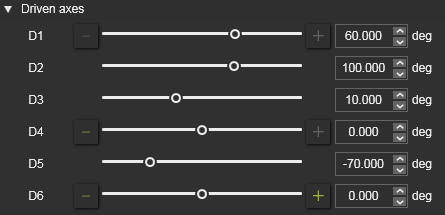
Wenn die angetriebene Achse eine  - oder
  -Taste anzeigt, bedeutet dies, dass ihr Wert durch einfaches Drücken der Taste um eine Umdrehung erhöht oder verringert werden kann.
Externe Achse
In diesem Block sind die lehrbaren Achsen externer Ressourcen, wie eines Werkstückpositionierers oder einer Roboterachse, aufgeführt. Ihre Werte können auf dieselbe Weise wie bei der angetriebenen Achse geändert werden.

Teach-Einstellungen
Einige spezielle Einstellungen stehen für das Teach-Verfahren zur Verfügung. Einige davon sind auch im OLP-Container des General settings vorhanden. Der Übersichtlichkeit halber sind sie hier ebenfalls aufgeführt.
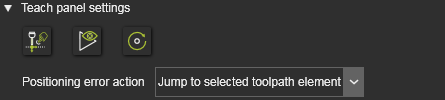
| TCP beibehalten | Aktiviert = Der Werkzeugmittelpunkt folgt der Änderung der gelehrten externen Achsen. Deaktiviert = Der Werkzeugmittelpunkt bleibt während des Lehrens einer externen Achse an seiner ursprünglichen Position. |
| Positionierungsmodi im Teach | Aktiviert = Simulationsbasierte Positionierung. Eine Hintergrundsimulation aller Programme wird ausgeführt, um die Positionen aller eingebundenen Roboter oder Maschinen zum Simulationszeitpunkt zu bestimmen. Im Falle eines Problems während der Simulation muss entschieden werden, wie weiter vorgegangen wird. Die Aktion wird hier festgelegt. Deaktiviert = Gelenkwert-Positionierung. Beim Teachvorgang wird die Position des Werkzeugmittelpunkts über die Gelenkwerte der Ressource definiert. Dies erfolgt nur im aktiven Programm. |
| Werkzeugwegänderung anwenden | Aktiviert = Änderungen, die in der 3D-Ansicht oder in diesem Bedienfeld vorgenommen werden, werden dynamisch angewendet und der Werkzeugweg wird automatisch neu berechnet. Deaktiviert = Änderungen erfordern eine manuelle Bestätigung, um den Werkzeugweg neu zu berechnen. |
| Simulation bis zum Fehler | Die Simulation stoppt an der (ersten) Störungsposition und der TCP wird dort platziert, um das Problem hervorzuheben und den Fokus darauf zu legen. |
| Zum ausgewählten Werkzeugweg-Element springen | Die Simulation wird beendet und der TCP wird durch Anwenden der Gelenkwerte an der ausgewählten Position platziert. |
Navigation
Die Auswahl eines TPE in der 3D-Ansicht zeigt dessen Informationen im Teach-Dashboard an. Anstatt jedoch jeden TPE in der 3D-Ansicht auszuwählen, ermöglicht der Navigator am unteren Rand des Dashboards, mit einfachen Mausklicks durch den Werkzeugpfad zu navigieren.

 | Nächste | Schreitet zum nächsten Tag im Werkzeugpfad vor. |
 | Vorherige | Schritte zum vorherigen Tag im Werkzeugweg. |
 | Operationsende | Springt zum letzten Tag der Operation. |
 | Operationsbeginn | Springt zum ersten Tag der Operation. |
 | Nächste Operationsgruppe | Springt zum ersten Tag der nächsten Vorgangsgruppe. |
 | Vorherige Operationsgruppe | Springt zum ersten Tag der vorherigen Arbeitsgruppierung. |
Das Teach-Dashboard kann nur geöffnet werden, wenn das Ereignis- und Teach-Kommando in der Funktionssymbolleiste aktiviert wurde. wurde aktiviert.
