Ressourcen-Home-Positionen

Kinematische Ressourcen sind in der Regel keine statischen Komponenten, das heißt, ihre Form ändert sich aufgrund der Bewegung ihrer kinematischen Gelenke. Wie jede andere Ressource spiegelt ihr Design jedoch einen bestimmten Zustand wider, das heißt eine bestimmte Position der kinematischen Kette. Dieser Zustand ist nicht zwangsläufig die Position, die der Benutzer zu diesem Zeitpunkt benötigt.
Mit dem Home position Dashboard kann die kinematische Kette der Ressource innerhalb ihrer Grenzen auf jede gewünschte Position eingestellt werden, und diese Position kann als sogenannte Home-Position gespeichert werden. Eine solche Home-Position kann als Startpunkt für die Simulation verwendet werden.
Kinematische Positionen bearbeiten
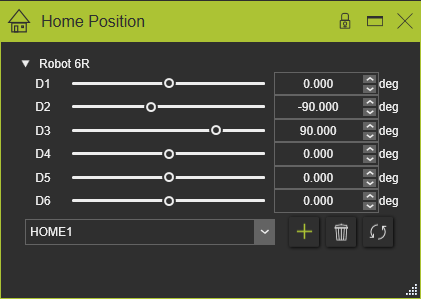
Das Dashboard zeigt die Ressource, dargestellt durch ihren Namen, mit allen angetriebenen kinematischen Gelenken. Für jedes Gelenk stehen einige interaktive Steuerungen zur Verfügung, um die Position zu ändern.
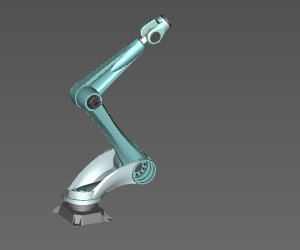
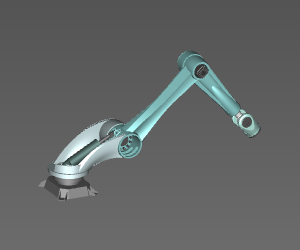
Der Schieberegler kann seitlich gezogen werden, wobei die ganz linke und ganz rechte Position den Grenzbewegungswerten des Gelenks entsprechen. In der 3D-Ansicht bewegen sich das Gelenk und die angeschlossenen Objekte entsprechend. Der aktuelle Positionswert wird während des Ziehens des Schiebereglers aktualisiert.
Falls das kinematische Modell der Ressource aus gekoppelten Achsen besteht, sind die Gelenkgrenzen dieser Achsen wird während der Simulation dynamisch neu berechnet.
 |  | |
 |  |
Ein Linksklick auf die Schiebereglerleiste verschiebt das Gelenk ebenfalls in die Position, die der Stelle auf der Schiebereglerleiste entspricht, an der der Benutzer ausgewählt hat.
Und schließlich kann das Wertefeld einschließlich seines Auf- und Ab-Spinners verwendet werden, um die Gelenkposition zu ändern. Der gewünschte Wert kann direkt in das Feld eingegeben werden.

Ausgangspositionen
Der untere Bereich des Dashboards dient dazu, bestimmte Positionen der Vorrichtung zu speichern, um eine Position bei Bedarf abrufen zu können, ohne die Vorrichtung interaktiv zu dieser Position bewegen zu müssen.

Um eine vordefinierte Position der Ressource als sogenannte Home-Position zu speichern, muss ein Name in das Textfeld eingegeben werden. Durch Drücken der Hinzufügen-Schaltfläche  wird diese Position unter dem angegebenen Namen gespeichert. Falls der Name bereits existiert, erscheint eine Fehlermeldung, und es muss ein anderer Name eingegeben und durch erneutes Drücken der Hinzufügen-Schaltfläche bestätigt werden. Die soeben erstellte Home-Position wird automatisch zur aktiven Position.
Durch Klicken auf die Dropdown-Schaltfläche im Namensfeld wird die Liste aller definierten Home-Positionen geöffnet. Die gewünschte Position kann hier ausgewählt werden, um sie aktiv zu machen. Im 3D-View wird die Ressourcenposition auf die ausgewählte Home-Position aktualisiert.
Definierte Home-Positionen können aus der Liste entfernt werden. Die Home-Position muss aufgerufen werden, um aktiv zu werden. Das Drücken der Entfernen-Befehlsschaltfläche  entfernt die Definition. Das bedeutet, dass nur die gespeicherte Home-Position entfernt wurde. Die Vorrichtung selbst bleibt in ihrer Position wie vor dem Entfernen der Definition.
Eine Home-Position ist eine statische Definition der Werte aller angetriebenen Gelenke der Ressource, festgelegt zum Zeitpunkt des Speicherns der Home-Position. Das Ändern einer Gelenkposition, entweder in diesem Dashboard oder durch jede andere interaktive Manipulation wird die Definition der Home-Position nicht aktualisiert. Wenn es erforderlich ist, die Definition der Home-Position zu ändern, muss die Schaltfläche Update-Befehl gedrückt werden. Um die Definition der Home-Position zu ändern, muss die Schaltfläche „Aktualisieren“ gedrückt werden.

Die Namen der Home-Positionen können nicht geändert werden. Um dies zu tun, muss die Home-Position als aktiv ausgewählt werden. Anschließend löschen, wodurch es aus der Liste entfernt wird, jedoch die Ressource an ihrer Position verbleibt. Das Eingeben eines neuen Die Eingabe eines Namens und das erneute Speichern haben diese Home-Position unter einem neuen Namen neu erstellt.