Prozesssimulation Bildgebung

Armaturenbrett
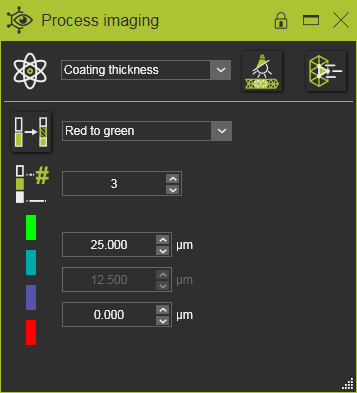
Das Simulationsergebnis wird direkt auf dem PSO visualisiert. Das Process Imaging Dashboard bietet mehrere Nachbearbeitungswerkzeuge, um das Simulationsergebnis bevorzugt darzustellen und somit eine Analyse zu ermöglichen.
Physikalischer Parameter
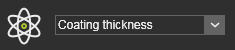
Aus der Dropdown-Liste kann der physikalische Parameter ausgewählt werden, der angezeigt werden soll. Es kann jeweils nur ein Parameter auf dem PSO angezeigt werden.
Der Inhalt der Liste der anzeigbaren physikalischen Parameter hängt vom aktiven Prozessmodell ab, das simuliert wird.
| Physikalischer Parameter | Beschreibung | Verfügbar im Prozessmodell | |
|---|---|---|---|
| Abdeckung | Zeigt an, welche Ressource (Roboter/Maschine), Pistole oder Bürste in Betrieb ist. Wenn mehrere Geräte aktiv sind, wird nur das zuletzt wirksame Gerät angezeigt. | Alle Prozessmodelle | |
| Abdeckzeit | Zeigt die Kontaktzeit des Prozessmodells am simulierten Objekt an. | Alle Prozessmodelle | |
| Beschichtungsdicke | Zeigt die Dicke des auf das simulierte Objekt aufgesprühten Materials an. |  | Spritzabscheidung |
| Echte Farbe | Zeigt die Realfarbe des simulierten Objekts nach dem Sprühen an. | | Spritzabscheidung |
Farbpaletten
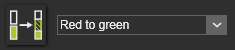
Das anzuwendende Farbschema für die Bildgebung kann aus der Dropdown-Liste der verfügbaren Schemata ausgewählt werden.
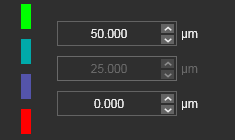
Jeder Parameter kann in einem anderen Farbschema dargestellt werden. Offensichtlich ist der Wertebereich für jeden Parameter unterschiedlich. Die Anzeige jedes einzelnen Parameters, d. h. das Farbschema, die Anzahl der Schwellenwerte und der Wertebereich, wird beibehalten und im Werkstückdokument gespeichert. Daher muss das Farbschema beim Öffnen des Dokuments an einem anderen Arbeitsplatz nicht mit exportiert werden.
Farbschemata werden beim Start der Anwendung geladen. Die Definitionsdatei ColorAttributes.xml ist benutzerspezifisch und befindet sich im Verzeichnis %LOCALAPPDATA%\CENIT\FastSuite.
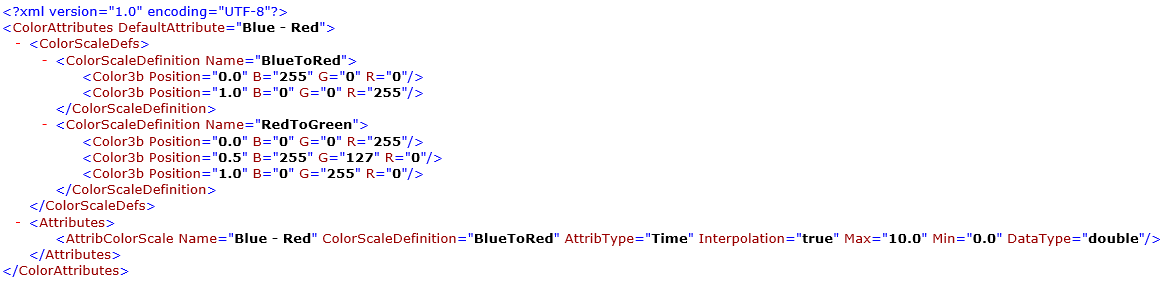
| Attribut | Beschreibung | Bemerkung |
|---|---|---|
| Standardattribut | Name des standardmäßig beim Start angezeigten Farbschemas. | |
| FarbschemaDefinition | ||
| Name | Name der Farbschema-Definition. | |
| Farbe3b | RGB-Wert der Farbe an einer bestimmten Position im Bereich. | Farben können an Positionen im Bereich zwischen 0,0 und 1,0 definiert werden. Zwischen den Positionen wird die Farbe interpoliert. Mindestens 2 Farbpositionen sind erforderlich. |
| AttribColorScale | ||
| Name | Der Name des Farbschemas, wie er im Dashboard angezeigt wird. | |
| Datentyp | Der Typ der Werteattribute | |
| Min / Max | Die Werte, die den Farbpositionen 0,0 und 1,0 zugewiesen sind. | |
| Interpolation | Das Farbschema wird im Schwellenwert- oder Verlaufsstil angewendet. | Falsch = Schwellenwert-Stil Wahr = Verlauf-Stil |
| AttribType | Das Farbschema wird auf einen physikalischen Parameter angewendet. | Attribut wird derzeit nicht verwendet. |
| FarbschemaDefinition | Bezieht sich darauf, welche Farbschema-Definition angewendet wird. |
