Arbeitsbereich Ein- / Ausblenden umschalten

Die Arbeitsbereiche werden typischerweise während der Arbeit an der 3D-Geometrie verwendet. Zur Vereinfachung kann es sehr nützlich sein, wenn Teile der Geometrie (vorübergehend) ausgeblendet werden können. Das bedeutet, dass nichts anderes als diese geometrischen Objekte von einem Arbeitsbereich in den anderen verschoben wird. Die Objekte selbst werden dabei überhaupt nicht beeinflusst, es handelt sich lediglich um eine visuelle Operation. Da jeweils nur ein Arbeitsbereich gleichzeitig angezeigt werden kann, kann der Benutzer zwischen ihnen wechseln.
In den meisten (Hauptebenen-)Pie-Menüs gibt es eine Toggle Show/Hide-Taste, die zwischen diesen beiden Arbeitsbereichen umschaltet. Um den Unterschied zwischen dem Anzeigearbeitsbereich und dem Ausblendearbeitsbereich grafisch zu kennzeichnen, wird dem Ausblendearbeitsbereich eine hellgraue, halbtransparente Abdeckung über die 3D-Ansicht gelegt.
| Arbeitsbereich Anzeigen | Arbeitsbereich Ausblenden |
|---|---|
 |  |
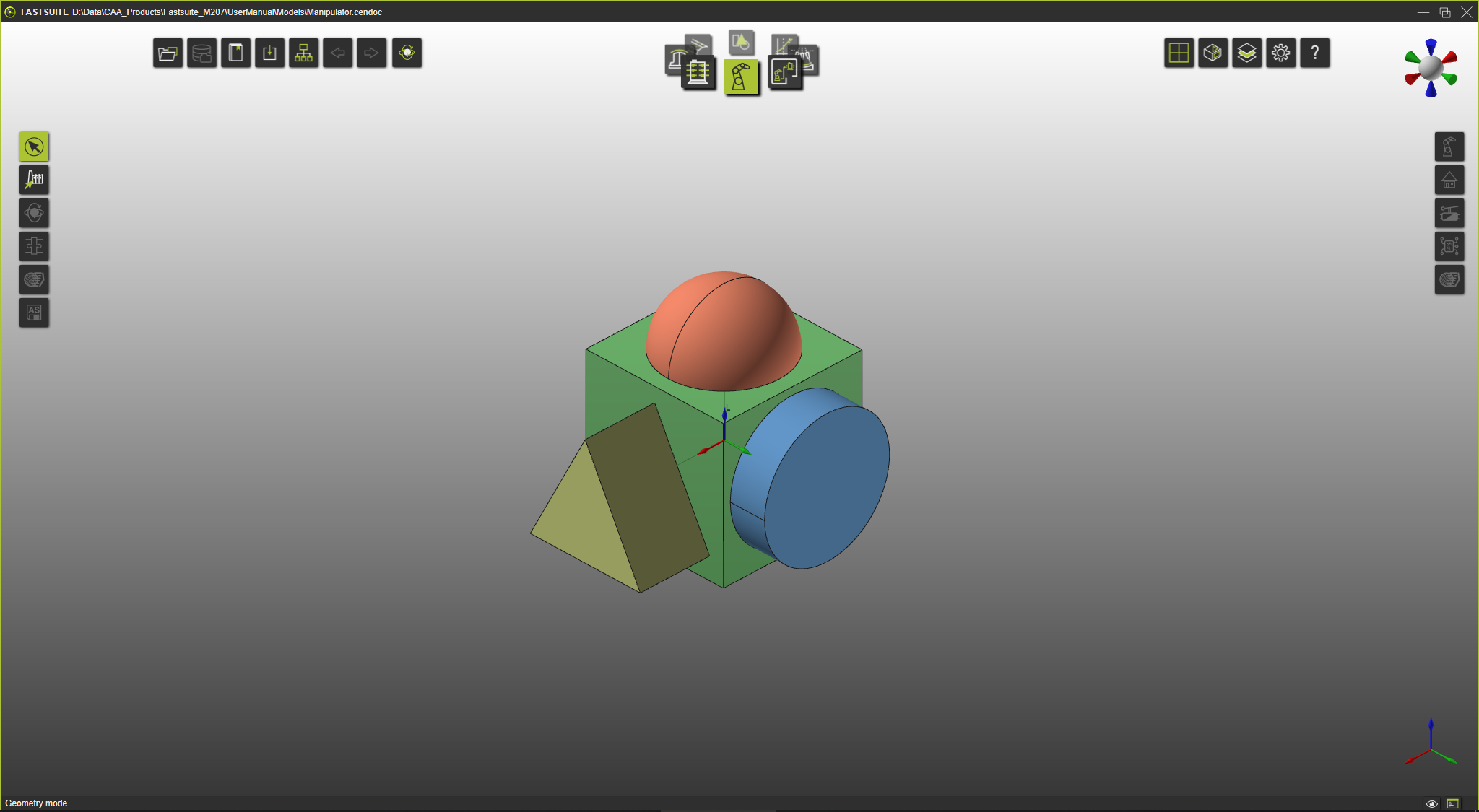 | 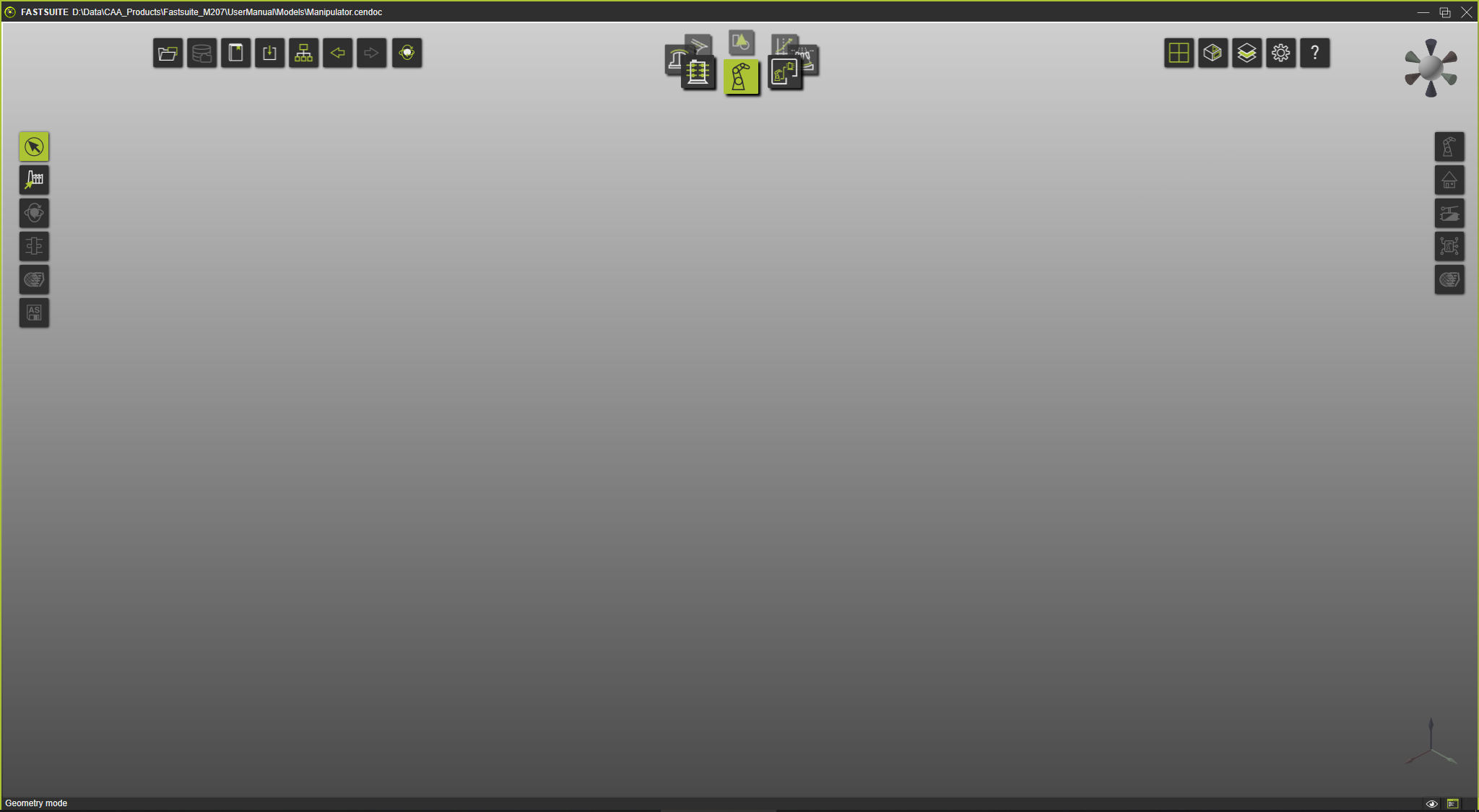 |
Obwohl man im Verstecken-Arbeitsbereich arbeiten kann, werden alle Simulationsergebnisse, wie Spuren, angezeigt. immer und ausschließlich im Show-Arbeitsbereich.
Der Befehl verfügt außerdem über eine zweite Ebene mit Schaltern zum Ein- oder Ausblenden von Gruppen nicht-geometrischer Objekte. Die Ebene kann durch Auswahl des äußeren Rings des Kreis-Menüs geöffnet werden.
Der Inhalt dieser Ebene unterscheidet sich geringfügig zwischen den verschiedenen Betriebsarten.
