Simulationseinstellungen

Armaturenbrett
Mit dem Befehl Settings können mehrere spezifische Simulationsoptionen definiert werden. Die Einstellungen sind in mehrere Ebenen unterteilt.
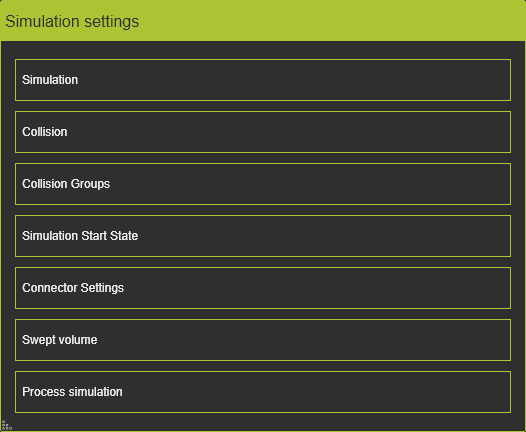
Simulation

| Simulationsgeschwindigkeit | Die Anzeigegeschwindigkeit der Simulation auf dem Bildschirm. Es kann ein Wert zwischen 0,1 und 10 eingestellt werden. Unter gleichen Bedingungen läuft eine Simulationsgeschwindigkeit von 10 etwa 10-mal schneller auf dem Bildschirm als bei Geschwindigkeit = 1. |
| Simulationsschrittgröße | Die Schrittgröße beim manuellen Zurück- oder Vorspulen durch die Simulation. |
Es wird empfohlen, die Simulationsgeschwindigkeit relativ niedrig zu halten, wenn die Simulation in in Kombination mit der Kollisionsanalyse. Einige kleinere Kollisionen oder knappe Ausweichmanöver könnten nicht ausreichend erkannt werden, wenn die Simulation schnell läuft. Bei hoher Simulationsgeschwindigkeit werden kleinere Kollisionen oder knappe Ausweichmanöver möglicherweise nicht ausreichend erkannt.
Kollision
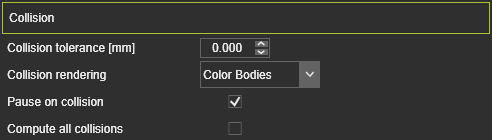
| Kollisions-Toleranz (mm) | Die Toleranz zwischen zwei Gruppen, wenn eine Kollision erkannt wird. Der Wert ist der Abstand zwischen den Gruppen. Ein Wert von 0 entspricht einem Kontakt. |
| Kollisionsdarstellung | Option if the colliding geometry has to be colored or not when collision is detected.  |
| Pause bei Kollision | Kontrollkästchen, um eine Bewegungsbildsimulation an der Position zu stoppen, an der eine Kollision erkannt wurde. Zum Fortsetzen muss die Wiedergabetaste erneut gedrückt werden. |
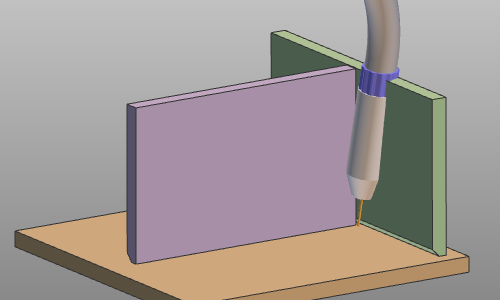
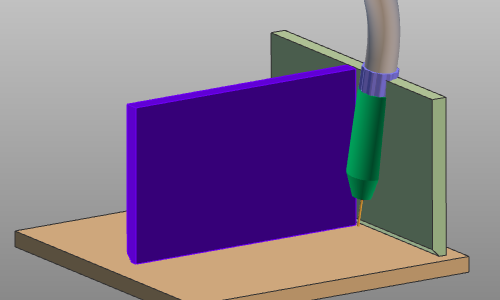
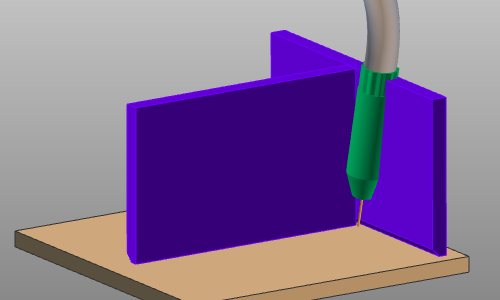
| Alle Kollisionen berechnen | Bei jedem Schritt der Simulation werden die Kollisionsprüfungen durchgeführt, und es können mehrere mögliche Kollisionen an beliebigen Positionen der simulierten Körper (d. h. Kollisionsgruppen) auftreten. Ist diese Option deaktiviert, wird die Kollisionsanalyse im Simulationsschritt sofort beendet, sobald eine Kollision erkannt wurde, unabhängig davon, ob gleichzeitig weitere Kollisionen auftreten können. Ist die Option aktiviert, wird die Kollisionsberechnung fortgesetzt und alle im Simulationsschritt auftretenden Kollisionen angezeigt. Siehe das folgende Beispiel. |
| Situation | Alle Kollisionen berechnen: Aus | Alle Kollisionen berechnen: Ein |
|---|---|---|
 |  |  |
Kollisionsgruppen
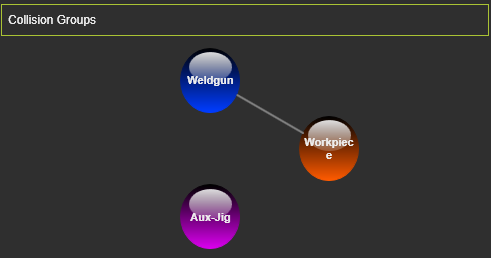
In diesem Container werden die definierten Kollisionsgruppen und Prüfungen angezeigt.
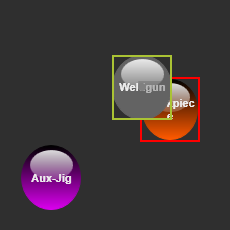
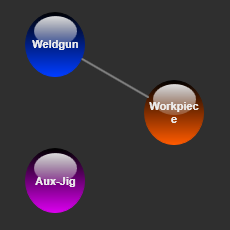
Jede Gruppe wird durch eine Punktgrafik dargestellt, die dieselbe Farbe wie die Geometrie in der 3D-Ansicht hat. Eine weiße Linie, die zwei Gruppen verbindet, zeigt die Prüfddefinition an. Das Überfahren eines solchen Punkts hebt die entsprechende Gruppe in der 3D-Ansicht hervor.
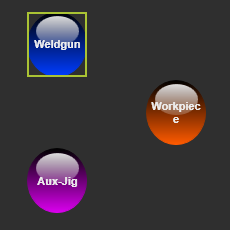
Die Prüfdefinitionen können hier verwaltet werden. Durch Auswählen eines Gruppenpunkts wird ein Aktivierungsrechteck darum angezeigt. Nun kann der Punkt auf einen anderen Punkt gezogen werden, um ihn darauf abzulegen. Wenn keine Prüfverbindung vorhanden war, wird eine erstellt. Wenn eine Prüfverbindung vorhanden war, wird sie gelöscht.
| Auswählen | Ziehen | Definiert prüfen |
|---|---|---|
 |  |  |
Kollisionsgruppen selbst werden direkt im 3D-View im Betriebsmodus verwaltet. _Kollisions_gruppe aktiviert.
In diesem Container ist es auch möglich, eine definierte Kollisionsgruppe zu entfernen. Mit der Verwendung der  -Taste wird die ausgewählte Gruppe aus den Definitionen entfernt.
Simulationsstartzustand
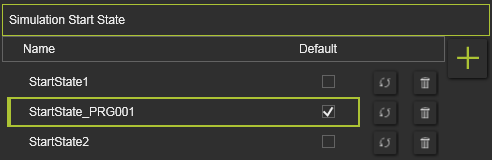
Der Standard-Startzustand kann hier einfach durch Aktivieren des Kontrollkästchens „Standard“ festgelegt werden. Es ist offensichtlich, dass nur ein Zustand als Standard festgelegt werden kann.
Beim Erstellen wird dem Startzustand ein Standardname zugewiesen. Dieser Name kann durch Doppelklick darauf und Ändern des Textes modifiziert werden.
Startzustände können hier verwaltet werden.
 | Hinzufügen | Fügen Sie die aktuelle Position aller Komponenten als neuen Startzustand hinzu. |
 | Entfernen | Entfernen Sie den ausgewählten Startzustand aus der Liste. |
 | Aktualisieren | Aktualisieren Sie unvollständige Zustandsinformationen. |
Obwohl dadurch der Startzustand nicht als Standard festgelegt wird, bewirkt die Auswahl eines Startzustands in der Liste, dass der 3D-Aufbau auf diesen Zustand geändert wird. ändert das 3D-Layout auf diesen Zustand.
Anschlusseinstellungen

In diesem Container wird eine Liste aller verfügbaren Connector-Instanzen angezeigt. Für jeden Controller im Projekt kann hier die aktive Simulationsverbindung definiert werden, in der die Simulation ausgeführt wird.
Verdrängtes Volumen
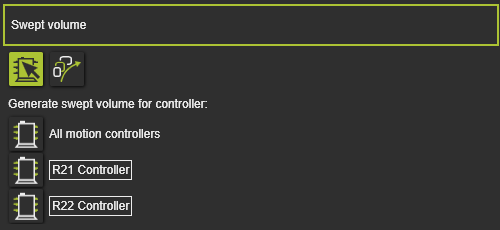
In diesem Container wird definiert, für welchen Controller (Programme) das Swept-Volume erstellt wird. Es ermöglicht, nur diejenigen Swept-Volumes zu erstellen, die mit dem ausgewählten Controller in Zusammenhang stehen.
Es gibt zwei Modi, zwischen denen gewechselt werden kann:
 | Steuerungsauswahl Wählen Sie aus der Liste der vorhandenen Steuerungen die Steuerung(en) mit ihren Programmen aus, für die die definierten Swept Volumes berechnet werden. Steuerungen können einfach durch Drücken der Schaltfläche vor ihrem Namen ausgewählt oder abgewählt werden. |
 | Alle Definitionen des Verdrängungsvolumens Für alle Verdrängungsvolumendefinitionen im Projekt wird die Berechnung ausgeführt. |
Prozesssimulation
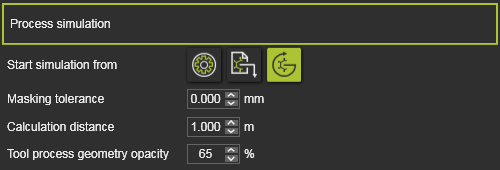
Hier werden die Einstellungen für die Prozesssimulation definiert.
| Simulation starten ab | When the simulation is started, the physical parameter(s) on the process simulation object is calculated. The starting value of that parameter can be:  Initial value of process simulation object Initial value of process simulation object  Value as stored in the workpiece document Value as stored in the workpiece document  Continue from current value Continue from current value |
| Maskierungstoleranz | Wenn sich überlappende Elemente auf dem Prozesssimulationsobjekt maskieren, ignoriert die Simulation diese Maskierungselemente, die sich innerhalb des Toleranzfeldes befinden. |
| Berechnungsabstand | Die maximale Länge, ausgehend vom technologischen Bezugsrahmen, bis zu der das Werkzeugprozessmodell reicht. Zum Beispiel die Kegellänge eines Sprühpinsels. |
| Transparenz der Werkzeugprozessgeometrie | Die Transparenz der 3D-Geometrie, die das Werkzeugprozessmodell während der Simulation darstellt, wie zum Beispiel ein Spritzlackierkegel. |
