Prozesssimulation Bildgebung

Armaturenbrett
Der Process imaging-Befehl öffnet das Dashboard, das die Darstellung des Prozesssimulationsobjekts steuert.
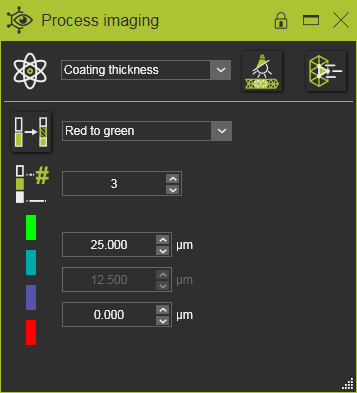
Das Prozesssimulationsobjekt ist in gewisser Weise ein spezielles Element. Es verfügt nicht über eine einfache Darstellung wie reguläre Elemente, beispielsweise Geometrie. Da das Objekt das Ergebnis der physikalischen Parameter von (verschiedenen) Prozesssimulationen widerspiegelt, muss seine Darstellung dynamisch sein. Das Dashboard ist die Steuereinheit dieser Darstellung.
Physikalischer Parameter

Dieser Block zeigt, welcher physikalische Parameter derzeit auf dem Prozesssimulationsobjekt angezeigt wird. Aus der Dropdown-Liste kann der erforderliche Parameter zur Analyse ausgewählt werden.
Farbpaletten
In diesem Block kann festgelegt werden, wie die Darstellung der Prozesssimulation für den oben ausgewählten Parameter erfolgt.
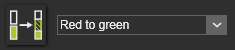
Das anzuwendende Farbschema für die Bildgebung kann aus der Dropdown-Liste der verfügbaren Schemata ausgewählt werden. Das Schema wird anschließend im Dashboard angezeigt.
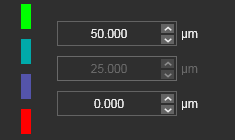
Die Schaltfläche vor dem Farbschema-Auswahlfeld ist ein Umschaltknopf, mit dem der Render-Modus des Schemas gewechselt wird. Sie schaltet die Darstellung zwischen festen Schwellenwertfarben (Schaltfläche nicht gedrückt) und einem sanften Farbverlauf zwischen den Farben des Schemas (Schaltfläche gedrückt). Das folgende Beispiel zeigt den Unterschied.
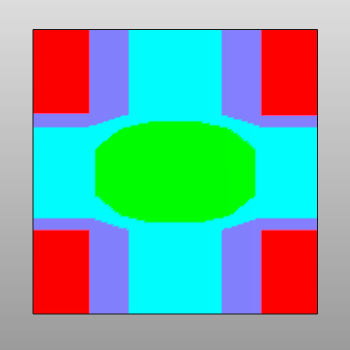 |  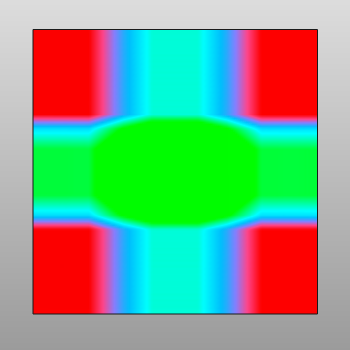 |
 |  |
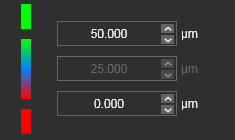
Die Farbbereichsgrenzen werden durch editierbare Felder unterstützt, um die Minimal- und Maximalwerte des physikalischen Parameters festzulegen, die diesen Farben zugeordnet sind. Automatisch wird jeder andere Zwischenfarbton innerhalb des Schemas einem Wertebereich zugewiesen. Alle Werte, die kleiner als das Minimum sind, werden mit derselben Farbe wie das Bereichsminimum dargestellt, und alle Werte, die größer als das Maximum sind, werden mit derselben Farbe wie das Bereichsmaximum dargestellt.

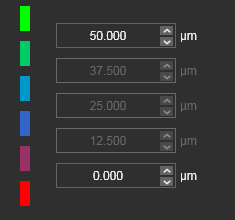
Mit dieser Zahl kann die Anzahl der Schwellenwerte im Farbschema definiert werden, wobei mindestens zwei erforderlich sind. Jeder zusätzliche Schwellenwert stellt den interpolierten Prozentsatz des globalen Wertebereichs dar, wie im folgenden Beispiel gezeigt. Bei der Verlauf-Darstellung entsprechen die Farben einem linear interpolierten Prozentsatz des Wertebereichs zwischen den Grenzen der Verlauf-Farben.
Abdeckungsabbildung
Als Ausnahme von dem oben Genannten zeigt der physikalische Parameter Coverage einen anderen Inhalt. Hier wird das tatsächliche Gerät angezeigt, d. h. der Roboter oder die Maschine, die Pistole oder die Bürste, die während der Simulation das Prozesssimulationsobjekt abgedeckt hat. Und falls mehrere Geräte verwendet werden, wird selbstverständlich das zuletzt in Kontakt gekommene angezeigt.
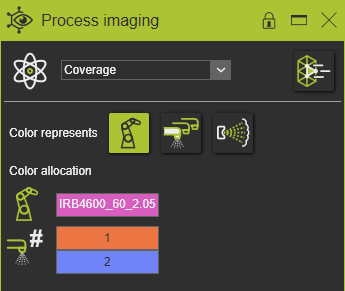
Die erste Zeile definiert, welcher Gerätetyp, d.h. welche Geräteebene, angezeigt wird.
| Gerätetyp | Beschreibung |
|---|---|
 Robot/Machine ID Robot/Machine ID | Zeigt die Abdeckung durch die betriebenen Roboter oder Maschinen an. |
 Gun number Gun number | Zeigt die Abdeckung durch die im Werkzeug definierten aktiven Guns an. |
 Brush number Brush number | Zeigt die Abdeckung durch die Verarbeitungsbürsten an den Vorrichtungen an. |
Das Drücken der Geräte-Taste schaltet die Bildgebung auf dem PSO auf diesen Gerätetyp um.
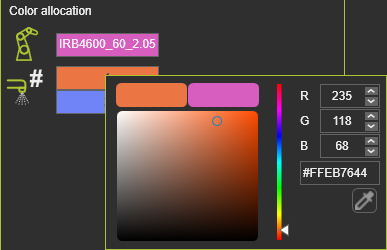
Die Verarbeitungs- und Abbildungsfarbe der Bürsten wird in den Prozess-Tabellen des Controllers definiert. Die Abbildungsfarben für die anderen Geräte können hier zugewiesen werden. Durch Auswahl des Namensfeldes des Geräts wird der Farbwähler geöffnet, um die gewünschte Farbe für die Abdeckungsdarstellung zu ändern.
Darstellung

Das Rendering verwendet Lichtquellen und Schattierungseffekte, um den (geometrischen) Objekten einen bestimmten 3D-realistischen Eindruck zu verleihen. Die Kombination dieses Renderings mit der 3D-Manipulation (Schwenken, Drehen und Zoomen) kann dazu führen, dass die Prozesssimulation in (leicht) abweichenden Farben angezeigt wird, als im Farbschema definiert. Obwohl dies ein rein visueller Effekt auf dem Bildschirm ist, kann er bei der Interpretation der Ergebnisse irreführend sein.
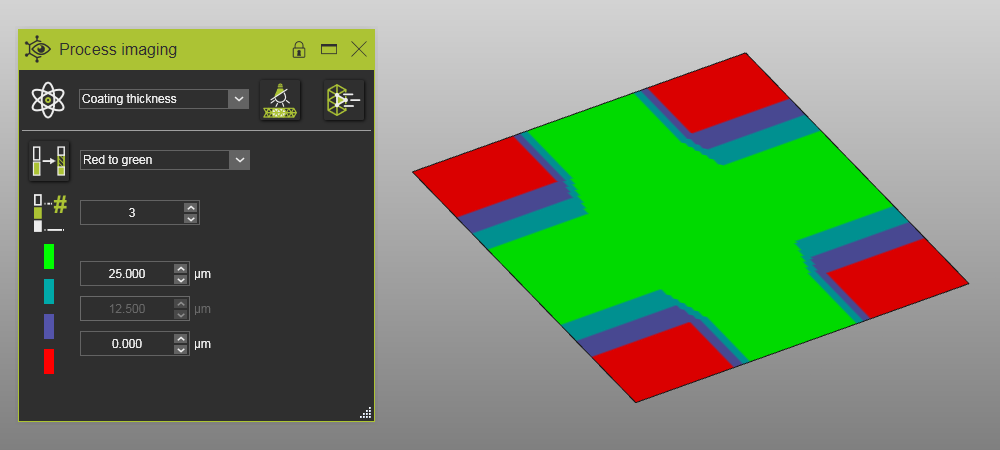
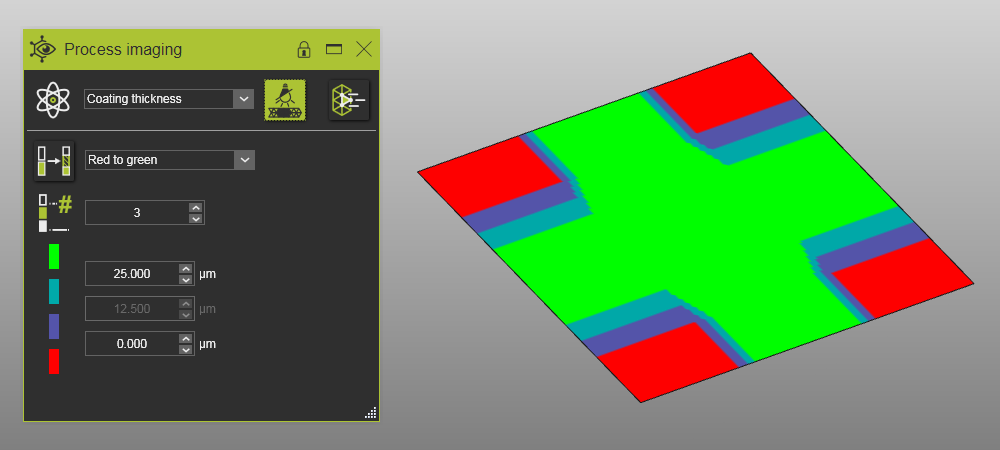
Die beleuchtete Darstellung ist eine Funktion, die diese 3D-Darstellungseffekte auf der Prozesssimulationsgeometrie ignoriert. Durch Drücken der Optionsschaltfläche wird die beleuchtete Darstellung ein- oder ausgeschaltet.
| Deaktivierte beleuchtete Darstellung | Aktivierte beleuchtete Darstellung |
|---|---|
 |  |
Wertanzeige

Diese Option ermöglicht die detaillierte Analyse des physikalischen Parameters am Prozesssimulationsobjekt. Das Drücken der Umschalttaste aktiviert dessen Funktionalität. Anschließend werden beim Überfahren des Objekts mit der Maus die lokalen Werte angezeigt.