Schweißkontur-Prozessgeometrie

Befehl
Mit dem Welding contour process geometry-Befehl kann eine spezielle Konturprozessgeometrie für Lichtbogen- oder Laserschweißen erstellt werden. Es handelt sich um eine reguläre Kontur, die über andere Suchmethoden generiert wird und einige zusätzliche, schweißspezifische Merkmale enthält.
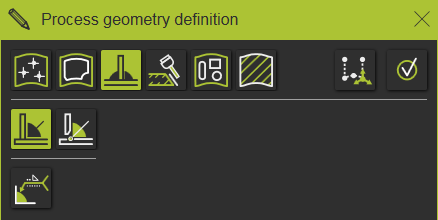
Die Definition der Prozessgeometrie umfasst zwei verschiedene Methoden.
 | Kontursuche Sucht nach einem Kontur, wenn ein Kurvenelement ausgewählt wurde. |
 | Konturprojektion Projiziert eine Oberflächenbegrenzung auf eine andere Oberfläche. |
Unterhalb der Suchmethode werden weitere verfügbare Optionen angezeigt.
 | Lichtbogenschweißnaht Öffnet das Schweißnaht-Cockpit, um die Prozessinformationen der Schweißnaht einzustellen. Speziell für die Lichtbogen- und Laserschweißtechnologien. |
Kontursuchmethode
Diese Methode funktioniert nur bei Werkstücken, die aus mehreren Körpern bestehen. Baugruppen aus verschiedenen, mehreren Werkstücken können mit dieser Methode nicht verarbeitet werden.
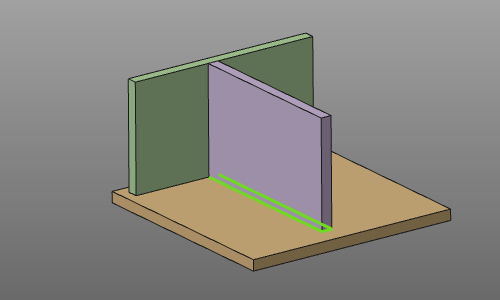
Die Auswahl des Konturs unterstützt entweder die Auswahl eines einzelnen Elements oder eine Kontursuche, um die maximal mögliche Lösung zu finden, d. h. bis zu dem Punkt, an dem eine Box-Bedingung auftritt. Das Aufrufen des Pie-Menüs in der 3D-Ansicht ermöglicht den Wechsel zwischen diesen Modi.
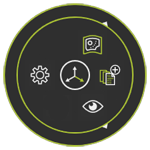


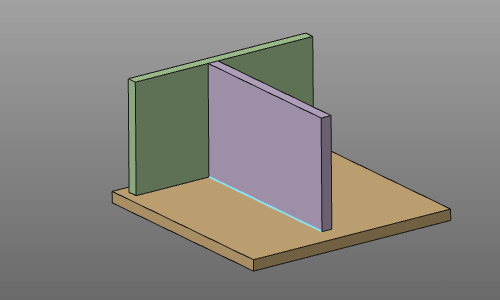
Das Auswählen eines Elements der Kontur führt automatisch entweder zu diesem einzelnen Element oder zur gesamten Kontur, ohne dass weitere Interaktionen des Benutzers erforderlich sind.
| Start | Ergebnis im aktiven Suchmodus |
|---|---|
 |  |
Die Methode kennt eine Option.
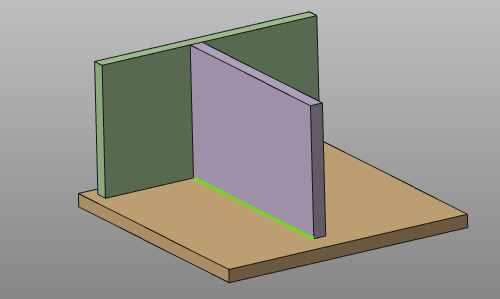
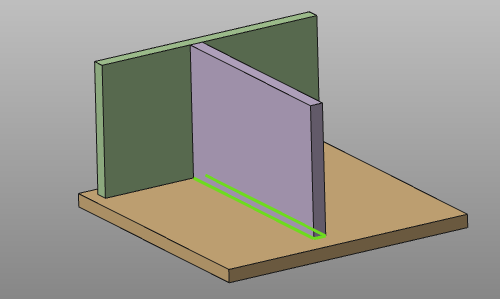
 | Alle Kanten durchsuchen | Aus Wenn der Suchmodus deaktiviert ist, wird die Prozessgeometrie automatisch auf dem ausgewählten (einzelnen) Konturelement erstellt. Wenn der Suchmodus aktiviert ist, startet die Konturauswahl die Suche, um die vollständige mögliche Kehlnähtlösung zu finden. Die Kontursuche stoppt automatisch, wenn andere Körper eine Art von Interferenz oder Kollision verursachen würden. |
| Ausgeschaltet | On |
|---|---|
 |  |
Diese Methode ist für Situationen vorgesehen, in denen die zu schweißenden Teile keine gemeinsame Kante zur Erzeugung der Prozessgeometrie aufweisen. Dies tritt üblicherweise in Fällen auf, in denen die Körper nicht perfekt aneinanderliegen, das Werkstück aus mehreren Körpern oder Baugruppen besteht oder die Form des Schweißteils keinen offensichtlichen Schweißkontur aufweist, wie im folgenden Beispiel.
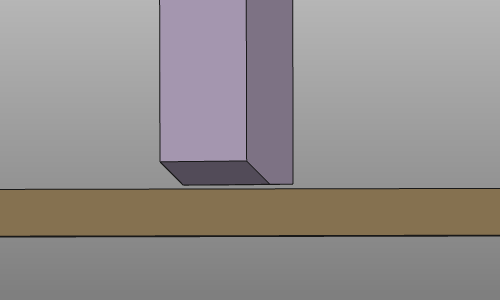
Das Prinzip dieser Methode besteht darin, dass die (nächste) Oberflächenbegrenzungskante auf eine andere Oberfläche projiziert wird, um den Schweißkontur zu erstellen.
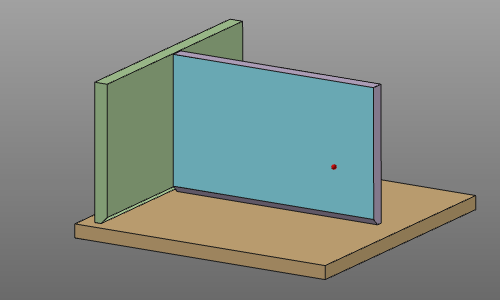
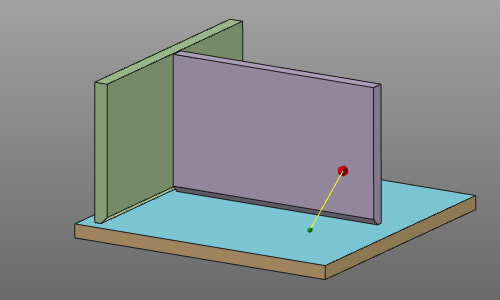
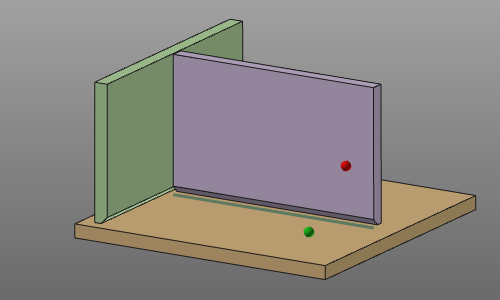
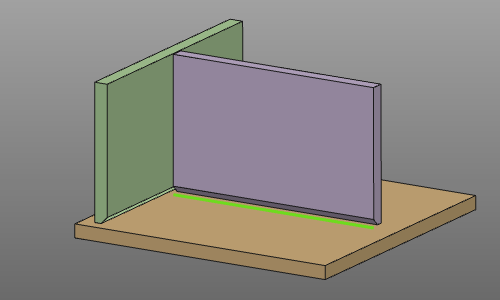
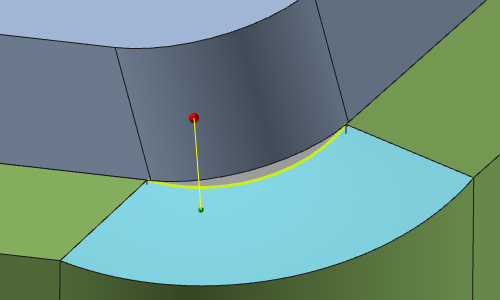
Wenn der Befehl gestartet wurde, erscheint eine kleine Kugel am Mauszeiger. Üblicherweise muss der Zeiger zunächst auf die Anfangsfläche gezogen werden, die den Konturverlauf für die Prozessgeometrie enthält. Das Auswählen dieser Fläche erfolgt durch Klicken bei gedrückter Maustaste, wobei die Fläche mit einer roten Kugel markiert wird. Während die Maustaste gedrückt bleibt, wird der Zeiger auf die Fläche gezogen, auf die die Kontur projiziert werden soll. Es erscheint ein Ziehstrahl. Das Loslassen der Maustaste auf dieser Fläche hinterlässt eine grüne Kugel als Indikator; ein Paar wurde gebildet und die resultierende Projektionskontur wird angezeigt. Die Bestätigung im Panel Prozessgeometrie-Definition, mit der  -Taste oder mit dem Bestätigungsbefehl im Pie-Menü, erzeugt die Prozessgeometrie.
| Ausgangsfläche auswählen | Ziehen auf die Empfangsfläche | Loslassen, um Ergebnis zu erstellen | Prozessgeometrie erzeugen |
|---|---|---|---|
 |  |  |  |
Während der Projektion des Konturs auf die Empfangsfläche sucht die Methode nach der maximal möglichen Lösung. Situationen wie das Einfassen mit anderen Teilen des Werkstücks bestimmen das Endergebnis, wie im folgenden Beispiel dargestellt.
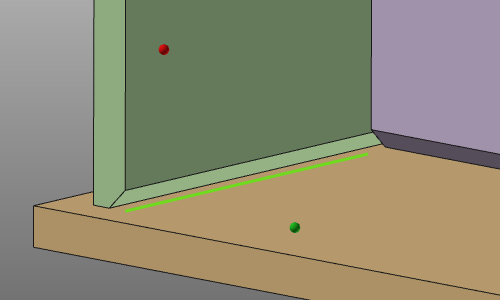
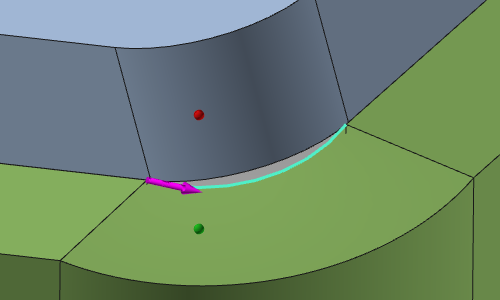
Bei der Auswahl der Anfangsfläche bestimmt die Position auf diesem Element die Richtung der Ergebnis-Kontur, die später die Anfangsrichtung bei der Programmierung einer Operation auf dieser Prozessgeometrie sein wird. Diese Richtung wird an der nächstgelegenen Endposition der Kontur festgelegt. Der magentafarbene Pfeil zeigt die Richtung an.
Ein Klick auf den Pfeil kehrt die Richtung um.
Wenn die Auswahlreihenfolge der beiden Teile nicht zu einem projizierten Kontur führt, wird das System automatisch versuchen, eine Lösung zu finden, indem es in die andere Richtung projiziert, d. h. die nächstgelegene Grenze der zweiten Oberfläche auf die erste Oberfläche projiziert. Somit wird die Reihenfolge der… automatisch versuchen, eine Lösung zu finden, indem in die andere Richtung projiziert wird, d. h. die nächstgelegene boundary of the second surface will be projected onto the first surface. Thus; the sequence of Die Auswahl der beiden Flächen macht keinen Unterschied.
Vor der Bestätigung zur Erzeugung der Prozessgeometrie kann die Reihenfolge wiederholt werden, um eine kontinuierliche Mehrfachkonturlösung zu erstellen. Mit dem Undo-Befehl kann der zuletzt erstellte Projektionskonturabschnitt wieder entfernt werden.
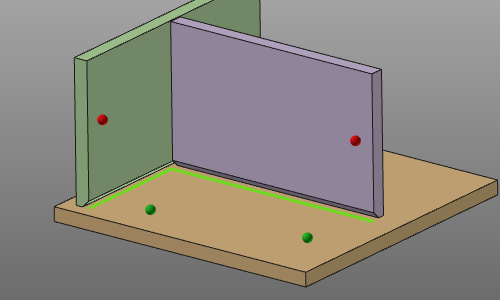
Lücken, die in einer Mehrfachkonturlösung auftreten, werden automatisch mit einem linearen Segment geschlossen.
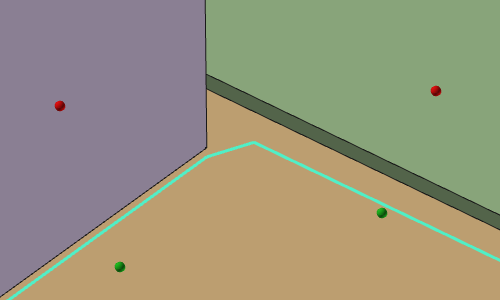
Die Methode kennt eine Option.
 | Analyse der Box-Schweißung | Wenn aktiviert, analysiert das System, ob die Prozessgeometrie zu Beginn oder am Ende des Schweißkonturs in eine Box-Situation gerät. In einem solchen Fall werden die Box-Schweißattribute zur Prozessgeometrie hinzugefügt. |
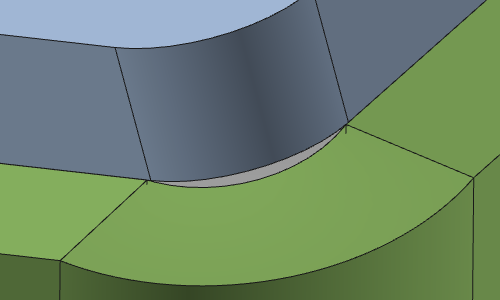
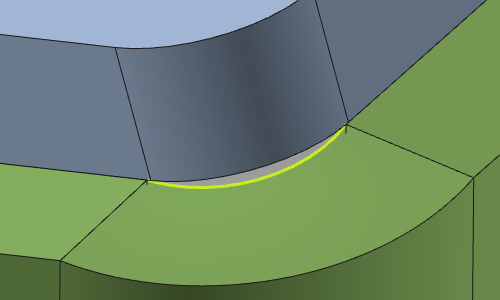
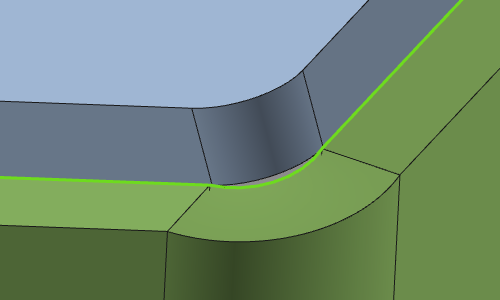
Die Qualität der ursprünglichen CAD-Daten des Werkstücks kann der Grund dafür sein, dass keine Lösung für den projizierten Konturverlauf gefunden wird. In einem solchen Fall besteht die Lösung darin, zunächst das Konturelement auszuwählen und anschließend die Auswahl- und Ziehoperation zu wiederholen. Die Kontur wird verwendet, um die Prozessgeometrie zu erzeugen, und die Flächen dienen zur Berechnung des Schweißwinkels zwischen den Bauteilen.
| Fall ohne Lösung | Kontur auswählen | Auswählen und Ziehen | Ergebnis |
|---|---|---|---|
 |  |  |  |
Diese Methode kann mit der standardmäßigen Pick-and-Drag-Methode kombiniert werden, um den vollständigen erforderlichen Schweißkontur zu erstellen.
Während der Arbeit in der OLP-Arbeitsumgebung und mit aktiviertem Anzeige-Filter für die Werkzeugdarstellung kann die Werkzeugdrehung mit den Pfeiltasten auf der Tastatur dynamisch angepasst werden.
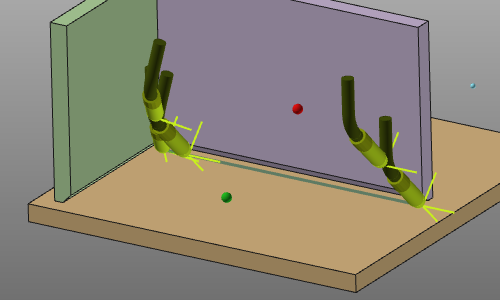
  | Linke oder rechte Taste | Dreht die Werkzeugorientierung um die Normalachse um 90 Grad im Uhrzeigersinn oder gegen den Uhrzeigersinn. | 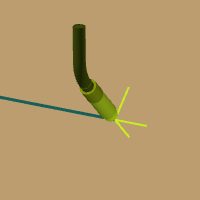 | 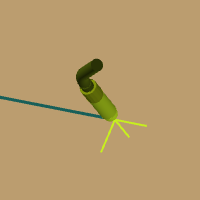 |
  | Pfeil nach oben oder unten | Dreht die Werkzeugausrichtung um die Normalachse um über 180 Grad im Uhrzeigersinn oder gegen den Uhrzeigersinn. | | 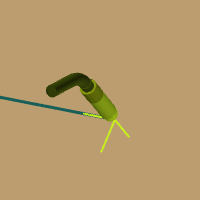 |
Der resultierende Prozessgeometrie wurden einige zusätzliche Attribute zugewiesen, die bei der Programmierung eines Werkzeugpfads darauf Anwendung finden. Diese Attribute werden in der Tabelle des Prozessgeometrie-Dashboards angezeigt und können dort modifiziert werden.
Die contour search-Methode fügt der Prozessgeometrie die Box-Schweißattribute hinzu.

Die contour projection-Methode fügt der Prozessgeometrie die Attribute für das Kasten-Schweißen und den Werkzeugwinkel hinzu.

In Kombination mit dem arc weld seam definition werden diese Nahtattribute angezeigt.

Derzeit kann eine bestehende Prozessgeometrie für Kehlnähte im Zusammenhang mit Konturänderungen nicht modifiziert werden. Selbstverständlich kann das Prozessgeometrie-Objekt entfernt werden.
Seine Attribute für die Offline-Programmierung können im Prozessgeometrie-Dashboard geändert werden.
Die Erstellung der Prozessgeometrie ist auch im OLP-Arbeitsbereich möglich. Dies dient der Bequemlichkeit, um nicht ständig zwischen Werkstückvorbereitung und OLP-Arbeitsbereich wechseln zu müssen.
Beim Erstellen einer Prozessgeometrie für eine Kehlnähte im OLP-Arbeitsbereich wird nicht nur die Prozessgeometrie berechnet. Im selben Vorgang wird unmittelbar danach ein Werkzeugweg generiert, ohne dass eine weitere Interaktion des Benutzers erforderlich ist. Der Werkzeugweg wird mit den Programmierstandardeinstellungen berechnet, die für die aktuell angewendete Technologie festgelegt sind, wobei deren spezifische Attribute berücksichtigt werden. Diese Attribute haben Vorrang vor den Programmierstandardeinstellungen.
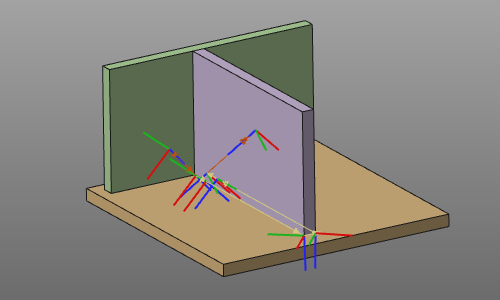
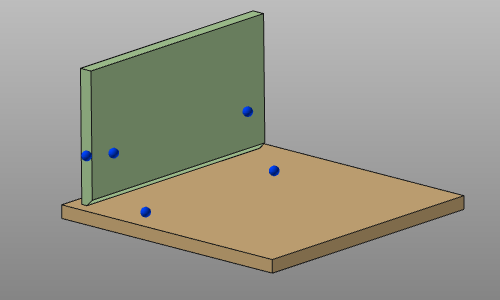
Bei der Definition des Schweißkonturs ist es möglich, die Definition von Berührungspunkten einzubeziehen, die zur Erkennung und Kalibrierung der Schweißnaht verwendet werden. Diese Berührungspunkte werden durch Auswählen auf der Oberfläche hinzugefügt. Die Position der Mausklicks wird dann gemessen, um die Koordinaten des Berührungspunkts zu bestimmen. Mit dem Undo-Befehl können die zuletzt erstellten Berührungspunkte wieder entfernt werden.