Werkzeugbahninterpolation

Interpolation
Interpolation ist eine Gruppe von Algorithmen mit dem Ziel, eine gleichmäßige und schrittweise Änderung einer Achse eines Werkzeugbahn-Elements zu berechnen. Die Interpolation kann auf Kontur-Werkzeugbahnen (1-dimensional) oder oberflächenbasierte Werkzeugbahnen (2-dimensional) angewendet werden.
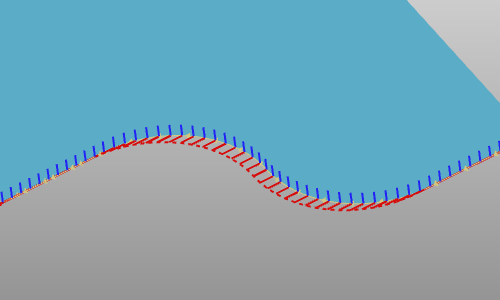
Es stehen mehrere Interpolationstypen zur Verfügung:
-
Kartesische Interpolation für normale Orientierung
-
Kartesische Interpolation für Tangentenorientierung
-
Kartesische Interpolation für Versatzposition
-
Interpolation des Werts der externen Achse
-
Ruckoptimierung (C-Achse) für Maschinen
Die kartesische Interpolation unterstützt zwei verschiedene Modi: absolute und relative Interpolation. Eine angewandte Interpolation kann zwischen diesen Modi umgeschaltet werden, was eine automatische Neuberechnung der Interpolation auslöst.
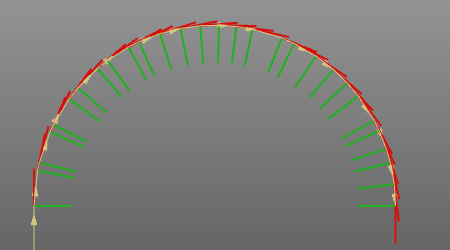
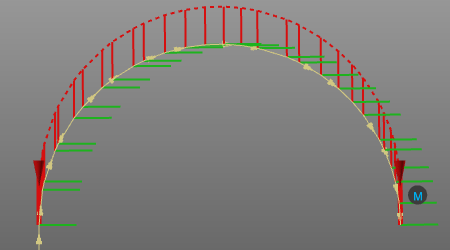
Für jedes Werkzeugweg-Element innerhalb des Interpolationsintervalls wird der proportionale Wert für die Modifikation (Verschiebung oder Rotation) berechnet. Bei der absoluten Interpolation wird der proportionale Wert unter Verwendung des globalen Koordinatensystems als Referenz angewendet.
| Start | Absolute Interpolation |
|---|---|
 |  |
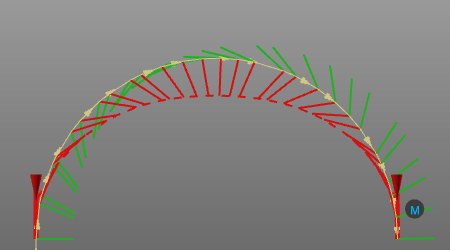
Bei einer relativen Interpolation wird der proportionale Wert unter Verwendung der ursprünglichen lokalen Position und Orientierung des Werkzeugweg-Elements als Referenz angewendet. Das bedeutet, dass eine relative Interpolation nur dann Wirkung zeigt, wenn mindestens eine Position innerhalb des Interpolationsbereichs programmiert wurde, d. h. eine veränderte Orientierung aufweist.
| Start | Relative Interpolation |
|---|---|
|  |
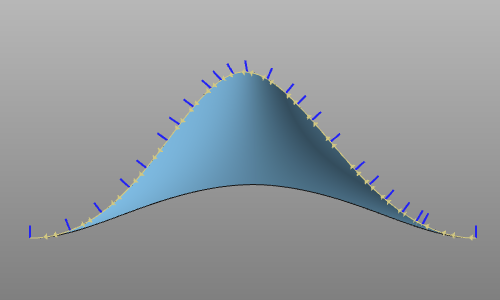
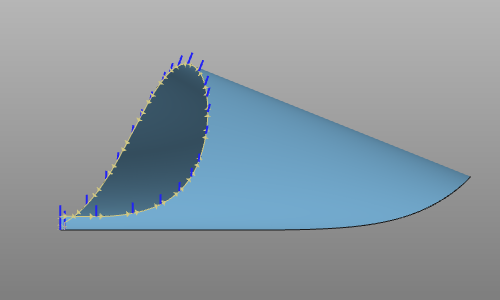
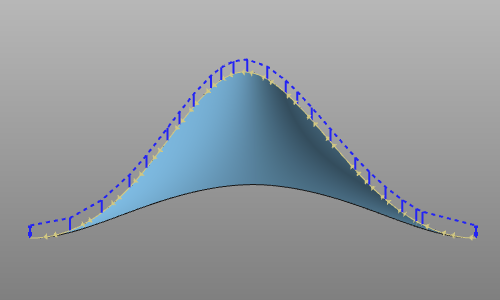
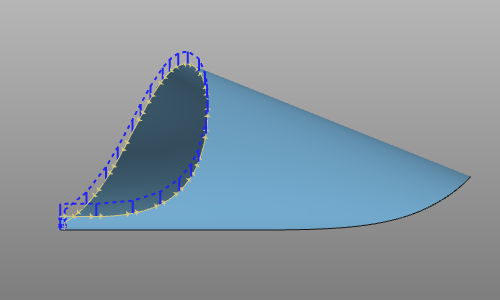
Die Normaleninterpolationsmethode interpoliert die (blauen) Normalrichtungen der Werkzeugbahnpositionen. Sie rotiert die Normalrichtung schrittweise von derjenigen am Anfang des Interpolationsbereichs zur Richtung am Ende des Bereichs, sodass der Winkel zwischen den einzelnen Normalen minimal ist.
Die Rotation erfolgt in der Ebene, die durch die anderen beiden Stützachsen des Werkzeugweg-Elements definiert ist. Die Orthogonalität des Achsensystems mit interpolierter Normalenrichtung bleibt aufrecht erhalten, und die Richtung ihres Tangentenvektors wird so bestimmt, dass eine minimale Abweichung von der ursprünglichen Tangentenrichtung gewährleistet ist.
| Ursprünglicher Werkzeugweg | Normaleninterpolation |
|---|---|
  |   |
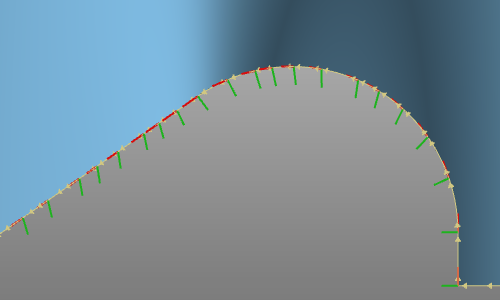
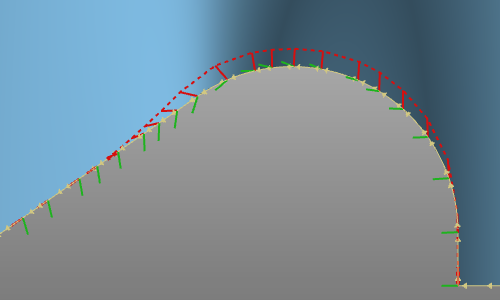
Die Tangenteninterpolationsmethode interpoliert die (roten) Tangentenrichtungen der Werkzeugbahnpositionen. Sie rotiert die Tangentenrichtung allmählich über die Normalachse von der Richtung am Beginn des Interpolationsbereichs zur Richtung am Ende des Bereichs, sodass der Winkel zwischen den einzelnen Tangenten minimal ist.
| Ursprünglicher Werkzeugweg | Tangentialinterpolation |
|---|---|
 |  |
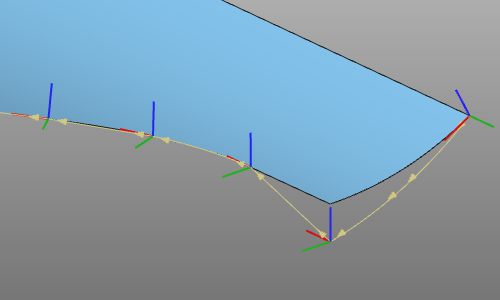
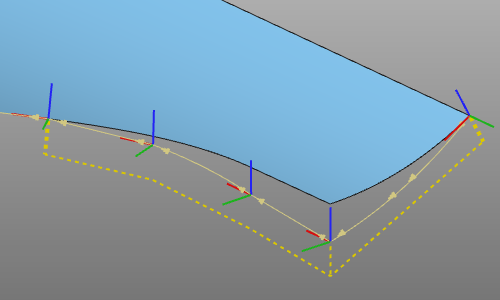
Die Offset-Interpolationsmethode interpoliert die Werkzeugbahn- (Offset-) Positionen. Die Interpolation wird im Koordinatensystem des für die Werkzeugbahn verwendeten Basisrahmens berechnet. Die Abweichung von einer Anfangselementposition auf der ursprünglichen Werkzeugbahn wird bestimmt, und dazwischenliegende Positionen werden als ihre jeweiligen Anfangspositionen plus einer linearen Kombination der Stützoffsets berechnet. Die Kombinationen werden jedoch so gewählt, dass das Ergebnis eine glatte Kurve bildet, anstatt eines einfachen Polygons.
| Ursprünglicher Werkzeugweg | Versatzinterpolation |
|---|---|
 |  |
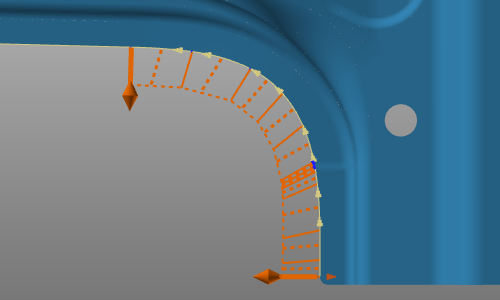
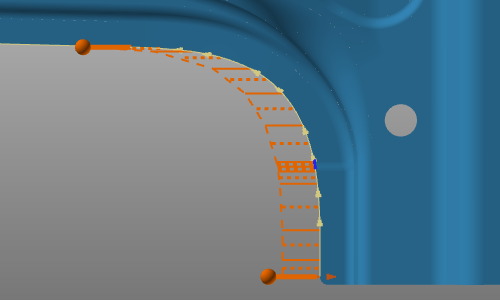
Die Jolt-Interpolationsmethode interpoliert die C-Achse, manchmal auch als A-Achse bezeichnet, der Maschinenrotation. Sie unterstützt zwei Modi: smooth und fix.
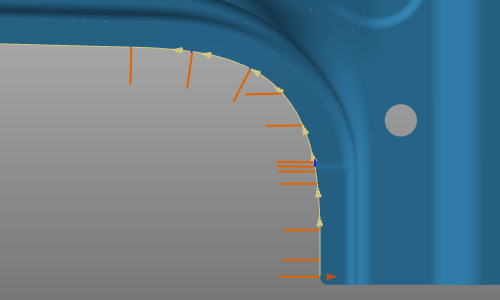
Der Modus „Smooth“ interpoliert die Achse über ihr Intervall, zwischen der Start- und Endposition dieses Intervalls, so dass die Änderung allmählich erfolgt.
Der Fix-Modus setzt die Achse an allen Positionen im Intervall auf den Wert der Startposition.
| Sanft | Fixieren |
|---|---|
 |  |
Die Optimierung wird an einem ausgewählten Werkzeugweg-Element gestartet. Die Markierungen der verfügbaren Interpolationen erscheinen.
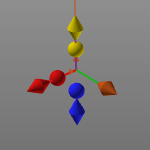
| Interpolation | Modus | Marker |
|---|---|---|
| Kartesisch normal | Absolut | Blauer Rhombus |
| Relativ | Blaue Kugel | |
| Kartesischer Tangent | Absolut | Rotes Rhombus |
| Relativ | Rote Kugel | |
| Kartesischer Versatz | Absolut | Gelbes Rhombus |
| Relativ | Gelbe Kugel | |
| Externer Achswert | Absolut | Braunes Rautezeichen |
| Ruckoptimierung | Sanft | Oranger Rhombus |
| Festgelegt | Orange Kugel |
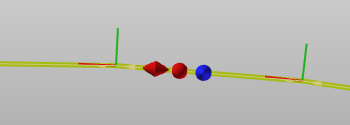
Für jede externe Achse wird ein separates Rhombus angezeigt. Beim Überfahren des Rhombus mit dem Mauszeiger wird angezeigt, für welche Achse es gilt, wie im folgenden Beispiel dargestellt.

Nachdem der Interpolationstyp ausgewählt wurde, wird die Endposition durch Auswahl eines zweiten Werkzeugbahn-Elements festgelegt. Die Interpolation wird berechnet und die Werkzeugbahn aktualisiert.
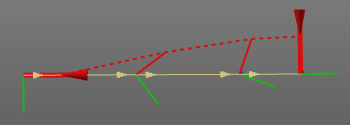
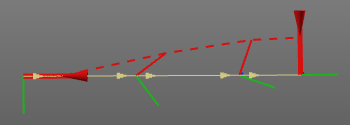
Das Interpolationsintervall wird als eine Art Stachelschweinkurve an den interpolierten Werkzeugweg-Elementen dargestellt. Die Start- und Endposition, die Stützpunkte der Interpolation, sind durch einen Zylinder mit konischem Ende markiert. Alles in der entsprechenden Farbe des Interpolationstyps. Die Stützpunkte werden nur angezeigt, wenn die Interpolation ausgewählt, d.h. aktiv in Bearbeitung ist.
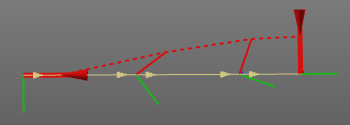
Die absolute Interpolation ist an einer gepunkteten Stachelschweinkurve erkennbar, die relative Interpolation an einer gestrichelten Stachelschweinkurve.
| Absolut | Relativ |
|---|---|
 |  |
Innerhalb des Intervalls können Stützpunkte hinzugefügt (oder gelöscht) werden, um die Interpolation zu modifizieren. Das Teach-in eines Werkzeugbahn-Elements innerhalb eines Intervalls wandelt dieses Element in einen Stützpunkt der Interpolation um, wenn die gelehrte Änderung den Interpolationsparameter beeinflusst. Gleiches gilt, wenn eine Änderung eines Werkzeugbahn-Elements, die den Interpolationsparameter beeinflusst, entfernt wird. In diesem Fall wird der Stützpunkt ebenfalls entfernt. Bei jeder Hinzufügung oder Entfernung eines Stützpunkts wird die Interpolation automatisch neu berechnet.
Weitere Änderungsfunktionen sind auf der Intervall-Stachelschweinkurve verfügbar. Das Pie-Menü kann hier geöffnet werden.



Bei manuell hinzugefügten Stützen kann das Pie-Menü aufgerufen werden, um die Stütze (nicht das Werkzeugbahn-Element selbst) aus der Interpolation zu entfernen.

Entlang eines Werkzeugwegs können mehrere Interpolationsintervalle unterschiedlicher Typen erstellt werden. Intervalle verschiedener Interpolationstypen können sich sogar überschneiden.
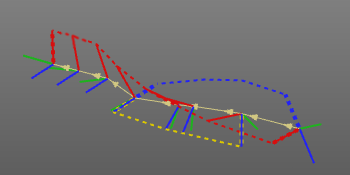
Intervalle desselben Typs können sich niemals überlappen, sondern nur aneinandergrenzen. In diesem letzten Fall wird die Interpolation bleiben getrennt; sie werden nicht zusammengeführt.
Die reguläre Konturinterpolation kann auf den Oberflächen-Werkzeugweg angewendet werden. Das Intervall muss definiert werden, und anschließend wird die Interpolation berechnet.
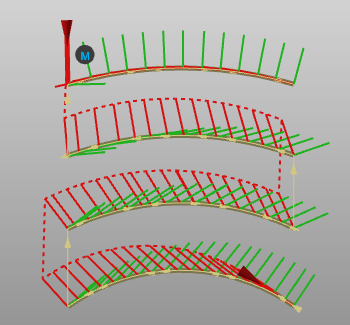
Der Oberflächen-Werkzeugweg besteht jedoch aus einer Reihe paralleler Spuren. Die Interpolation kann dann auch in einem zweidimensionalen Ansatz unter Verwendung der Spuren angewendet werden.
Anstelle eines Werkzeugbahn-Elements wird eine Spur ausgewählt, um das Interpolationsintervall zu starten. In diesem Fall erscheinen die Markierungen an der Spur. Eine weitere Spur muss ausgewählt werden, um das Intervall festzulegen.
Jede unterstützende Spur wird einzeln interpoliert. Anschließend werden alle dazwischenliegenden Spuren proportional interpoliert, wobei die interpolierten unterstützenden Spuren als Referenz dienen. Das folgende Beispiel zeigt die Wirkung der zweidimensionalen Interpolation.
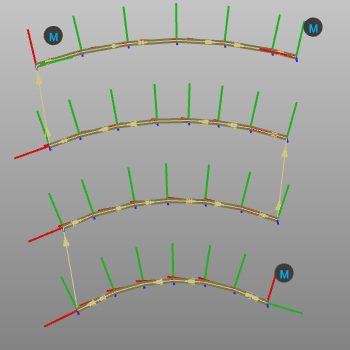 | 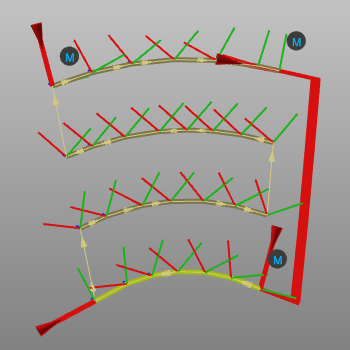 |
Das Interpolationsintervall wird in der Farbe des Interpolationsalgorithmus angezeigt und umfasst die Intervallvorrichtungen.
Beim Einlernen eines Werkzeugbahn-Elements auf einer Nicht-Stützspur wird diese Spur automatisch zur Stützspur und die Interpolation wird sofort neu berechnet. Andere Änderungen der Oberflächen-Werkzeugbahn-Interpolation erfolgen analog zur Konturinterpolation durch Aufrufen des Pie-Menüs an den Interpolationssymbolen.
Anfahr- und Abfahrpositionen sind Teil der Spur. Daher erfolgt eine Interpolation über die Werkzeugwegspuren. beinhaltet die Einfahr- und Ausfahrpositionen.
