Toolpath quality evaluation

Quality evaluation
Quality evaluation is a process in which each toolpath position is analyzed and evaluated against a set of certain predefined target criteria.
The quality evaluation is executed automatically after each computation of a toolpath or toolpath modification. This includes simple manual interactions like changing an attribute or teaching a position up to optimization processes like path interpolation.
In general the quality evaluation is performed on the whole toolpath. However, when criteria are not valid on sections of the toolpath, they are automatically excluded from the evaluation at that section. For example, the process angle has no importance on off-process sections, like the approach or retract. The calculation and evaluation therefore has been deactivated on these sections of the toolpath.
To avoid incorrect evaluation or incident validation, the quality evaluation on legacy toolpath data has been limited to the target criteria that were implemented at the time of toolpath creation and storage. All newer target criteria then are deactivated by default.
Target criteria
A target criteria has been defined by:
-
an evaluation parameter function that returns the value of the criteria that is being evaluated
-
a specific setup of quality value ranges for this evaluation parameter.
There are 4 value ranges (maximum) for each criteria.
 | Good (green) The value range of the criteria that is defined as good. There is no necessity to improve here. |
 | Acceptable (yellow) The value range of the criteria that is defined as acceptable. Although the result is acceptable, it is advised to improve here. |
 | Critical (orange) The value range of the criteria that is defined as critical. It is strongly recommended to modify, to improve the toolpath. |
 | Invalid (red) The value (and above) of the criteria that is defined as not acceptable. It is mandatory to modify, to improve the toolpath. |
The following target criteria are supported, but there presence depends on the applied technology and type of machine or robot:
| Criteria | Description | Value range | Remark | |
|---|---|---|---|---|
 | Unreachability | Evaluates unreachable situations of the robot or machine. | Good or invalid. | The evaluation against this criteria is always being performed. |
 | Collision | Evaluates collision situations. | Good or invalid. | The evaluation against this criteria is only being executed when the Collision analysis switch in the simulation player toolbar has been activated. |
 | Singularity | Evaluates singularity situations of the robot or machine. | Good or invalid. | The evaluation against this criteria is always being performed. |
 | Process angle deviation | Evaluates the process angle deviation from its reference value. | Angle ranges from good to invalid. | |
  | Tool angle deviation (arc welding technology) | Evaluates the tool angle deviation from its reference value. | Angle ranges from good to invalid. | |
  | Travel angle deviation (arc welding technology) | Evaluates the travel angle (tangent direction) deviation from its reference value. | Angle ranges from good to invalid. | Only available when the process angle deviation criteria has been replaced by separated work and tool angle criteria. |
  | Work angle deviation (arc welding technology) | Evaluates the work angle (bi-tangent direction) deviation from its reference value. | Angle ranges from good to invalid. | Only available when the process angle deviation criteria has been replaced by separated work and tool angle criteria. |
 | Axis limit proximity | Evaluates the proximity to the limits of the axis of the inverse kinematic chain of the (manufacturing) resource. Separated evaluation value range for linear and circular joint axis. | Linear distance or angular ranges from good to invalid. |  Required to ensure that small differences between the computed and real axis positions do not lead to possible failure (limit reached) or other axis issues of the resource. Required to ensure that small differences between the computed and real axis positions do not lead to possible failure (limit reached) or other axis issues of the resource. |
 | Axis speed | Evaluates the axis speed of all driven axis as a (absolute) difference between the start and the end motion between positions. | Percentage ranges from good to invalid. | |
 | Axis minimal delta (point based technology) | Evaluates all robots axes movements on consecutive toolpath elements | Percentage ranges from good to invalid. | The goal is to reduce the change in each axis as much as possible. This is Expert mode attribute |
 | Tool angle minimal delta (point based technology) | Evaluates tool tangent orientation on consecutive toolpath elements | Angle ranges from good to invalid. | This ensures smoother transitions in tool orientation. This is Expert mode attribute |
Costs evaluation
To be able to compare different toolpath situations or to optimize the toolpath, the quality of the toolpath is also being expressed in a costs factor. This is a neutral value, not any sort of currency.
Each target criteria has been given a certain costs function. This can be a linear, a parabolic function or anything else, as the example below shows.
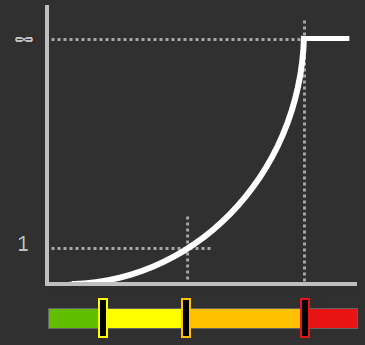
The quality range equals a costs value of:
| Good (green) There are no costs; i.e. costs are 0. |
| Acceptable (yellow) Costs value between 0 and 1. |
| Critical (orange) Costs value from 1 up to infinite (∞). |
| Invalid (red) Costs are infinite (∞). |
At each toolpath position the costs are calculated for each analyzed criteria and then summed up. To avoid the influence of having different number of toolpath positions, depending on different kind of modifications, such as the approximation of the underlying geometry, each individual position costs is multiplied by the distance of the toolpath of that position. Finally, the total costs of an operation is the sum of its individual position costs. This is then done for each operation, each operation group and finally for the complete program.
The result is being displayed in the Toolpath dashboard and is updated immediately after any modification of the toolpath.

Because each modification might impact the overall costs, a trend symbol indicates the costs change compared to its previous value.
 | Value has been increased; i.e. higher costs effect |
 | Value remained the same; i.e. neutral or no effect |
 | Value has been decreased; i.e. lower costs effect |
Be aware that changing the range of a target criteria or disabling it from the quality evaluation will also effect the calculated costs.
Defining target criteria
The target criteria for the evaluation of a certain program, i.e. in the technology, are provided in a separate tech tab in the Programming defaults and Active program dashboards. Besides the standard, general quality criteria, this tab may include technology specific criteria.
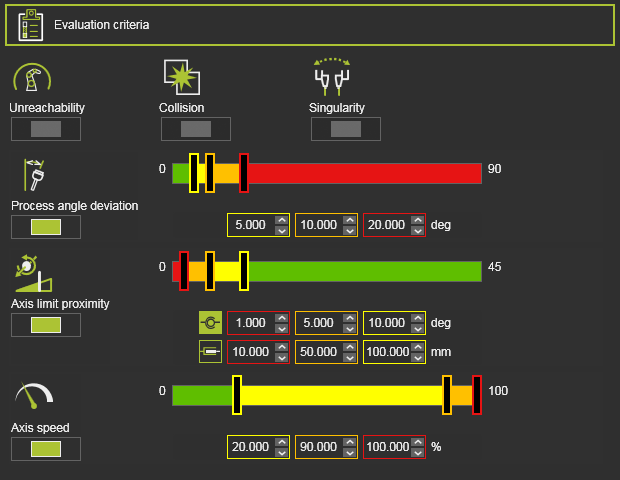
Each criteria has a switch button to include it in or exclude it from the quality evaluation.
Criteria that have a configurable value range can be defined individually. The limit values of each range can be modified by either moving the color slider in the bar or by editing the values directly below the slider bar.
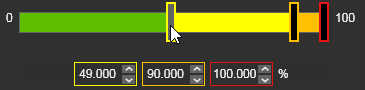
The criteria range represents a decision marker to keep or modify the analyzed toolpath position.
| Start of no-go area |  | What value must never be exceeded? |
| Start of critical area |  | Which value should not be exceeded if possible? |
| Start of valuation |  | Up to what value does the ideal (green) range extend? From which value is the status still okay, but no longer ideal? |
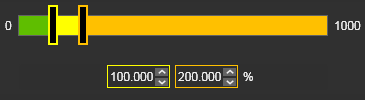
A special case is the axis speed criteria. In those technologies where the axis speed, in combination with the (de-) acceleration, does not have big impact on the process itself, like in most point based operations, there is no need to define the invalid red range. In such case the range does not show that invalid level.
Incidents
The Active program and the Toolpath monitor dashboard show the criteria incident list.

The incident icon informs about the evaluation result of that specific criteria. The incident icon is also a switch button to display or hide the evaluation result of that specific criteria.
Not displaying an incident does not mean that incidents of that criteria do not exist!
Quality display
Incidents are usually displayed in the Active program dashboard, the Toolpath monitor dashboard and on the 3D toolpath by coloring and presenting the incident information.
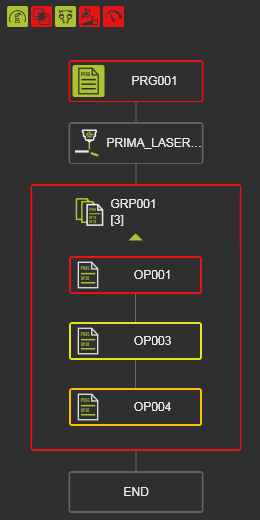 | 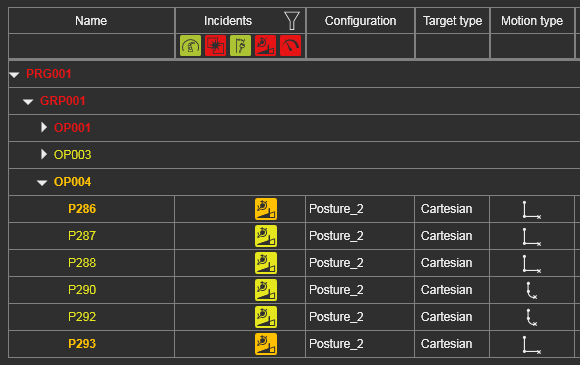 | 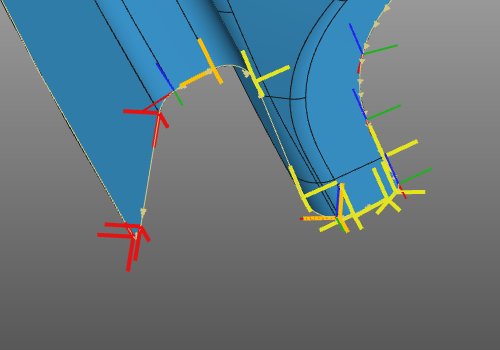 | ||
| Active program | Toolpath monitor | 3D toolpath |
Toolpath elements, operations, groups and programs that have quality incidents are colored with the highest (severest) incident level of its evaluation.
Hovering over an element opens a pop-up window with detail information about the incidents at that element.
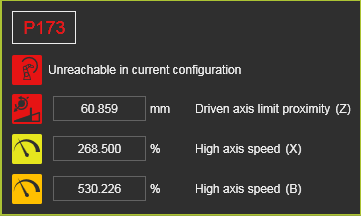
The display of the incidents can be set in three different levels.
 | Display only the failure level. |
 | Display the failure and critical levels. |
 | Display all quality levels. |
Not displaying a quality level does not mean that incidents with that evaluated level do not exist!

