Resource behavior model

Dashboard overview
With the Resource behavior dashboard it is possible to view and edit the behavior model of the resource that will be used for offline programming and simulation. An identical signal port image of the physical resource can be created in this dashboard.
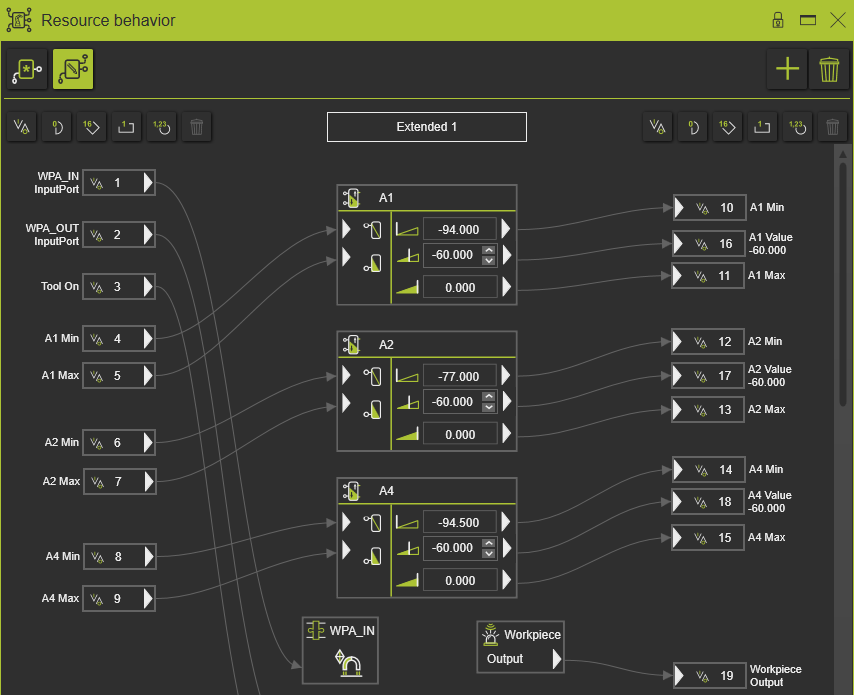
The dashboard has the following content:
| Top toolbar | |
 | The selector list of defined behavior models. The highlighted icon displays the active behavior model that is applied to the simulation and programming. |
 | Function bar to manage extended behavior models  Add an extended behavior model Add an extended behavior model  Delete the active extended behavior model Delete the active extended behavior model |
| Behavior model | |
| Left side | |
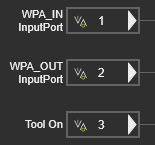 | The left section shows the resource in-ports that will be connected to controller out-ports. |
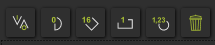 | Function bar to add or modify the connection ports. |
| Middle section | |
 | On top the name of the behavior model is displayed. A standard name is given at creation. Picking the field enables to modify the name. |
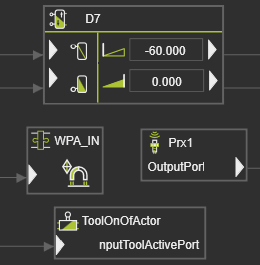 | All relevant adapters, actors and sensors that play a role during simulation are displayed here. The picture at the left side might show not all possible available behavior components. |
| Right side | |
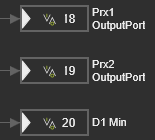 | The right section shows the resource out-ports that will be connected to controller in-ports. |
| Function bar to add or modify the connection ports. |
The Default behavior model is automatically built and cannot be modified.
Ports
With the corresponding function bar, in- and out-ports can be added to the model. The new port is given the next sequential number of the in- or out-port list.
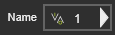
The port can be given any proper name by picking and modifying it.
The symbol represents the port type.
 | Boolean |
 | 8-bit Byte |
 | 32-bit Real / Float |
 | 16-bit Integer |
 | 32-bit Integer |
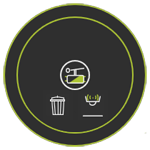
A selected port can be removed from the list with the Delete command button in the function bar. However, hovering over a port also enables to open a Pie menu with the Delete command.
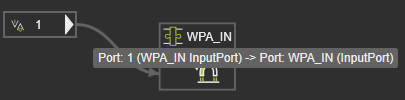
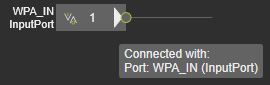
Information about the port and its connection will be displayed when hovering over the port.
Adapters, actors, sensors and tool process
Hovering over the object changes the mouse indicator into the pan mode. Now it can be dragged to re-arrange the display of the behavior model.
Information about the object and its connection(s) will also be displayed.

Kinematic joint actors
The display of the joint actors is a box with information. Its behavior is like all the other actors and sensors, but it includes some additional interactive commands.
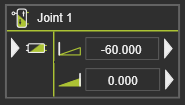
Picking the name of the joint sets the cursor to edit it here, not only in the Resource properties dashboard.
A Pie menu can be opened to access more functionality.
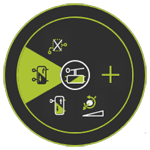
 Add sensor
 Change type to joint value
 Change type to mono-stable
 Change type to bi-stable
 Change to no behavior
Also on an additionally inserted sensor port the Pie menu can be opened.


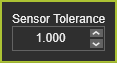
Furthermore, the detection tolerance of manually defined, additional sensors can be modified. A default detection value is given at creation. Clicking the right mouse button on the sensor value opens a small window to change the detection tolerance of the sensor.
If the actor is a mono-stable type, the Pie menu on the active direction symbol has a command to inverse that active direction.


Connections
Picking or hovering over a port or actor highlights it and shows a green circle at that location from where a connection can be created.

The circle can be picked and dragged. A connection curve is drawn. Then releasing it on the opposite port will create the connection. It is obvious that only ports of the same type can be connected.
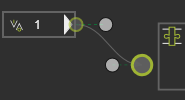
This sequence of picking, dragging and dropping works in both directions.
Connections can be selected to modify them. Markers are shown and can be dragged to redraw the connection curve.
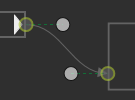
Connections can be deleted by picking an end point circle and dragging it away from the port or actor, by calling the Pie menu on the connection to use the Delete command, or by picking the connection and pressing the  key.
key.
Information about the connection will be displayed when hovering over it.