Join the faces

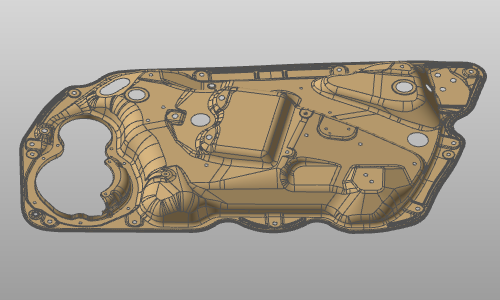
The Join the faces command joins the selected faces into a new body.
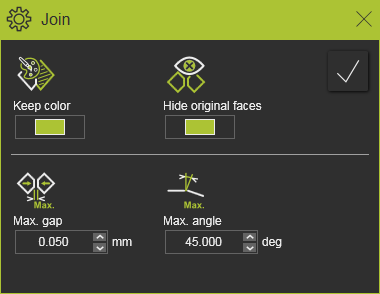
After the command has been started, a small window appears.
| Visualization | ||
 | Keep color | The result body of joined faces will have the same color as the face from where the command has been executed. |
 | Hide original faces | The original faces of the result body will be moved to the hide workspace. |
| Propagation criteria | ||
 | Max. gap | The propagation merges the adjacent face when the gap between the edges is smaller than the defined distance value. |
 | Max. angle | The propagation merges the adjacent face when the angle between both edge normals is smaller than the defined value. |
Before the join is being executed, the face selection can be extended or reduced.
With the CTRL-key additional faces can be added to the selection, or preselected faces can be removed from the selection. And with use of the trap capabilities the selection can be extended with a pick and drag operation.
The selection can also be extended over propagation. For that the pie menu has to be called on a selected face.

 Activate the Manipulator
 Include the complete body
 Propagation by color
 Propagation based on continuity
 | Include the complete body | Selects all the faces that belong to the same body. |
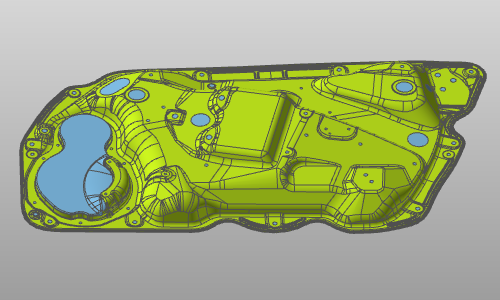
 | Propagation by color | Selects all adjacent faces with the same color, with respect to the applicable propagation parameters. |
 | Propagation based on continuity | Selects all adjacent faces, with respect to the applicable propagation parameters. |

After the selection has been completed, the join result can be generated by pressing the Execution button at the top right corner of the window.
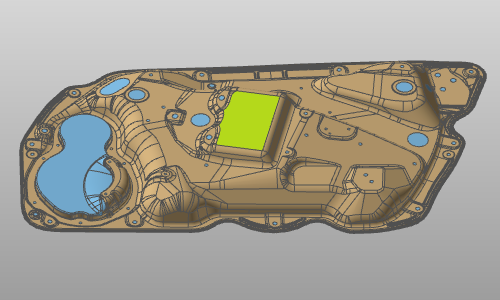
Example:
| Start Join | Propagation by color | Joined faces |
|---|---|---|
 |  |  |
It is very well possible to build a joined result that has been computed from multiple non-adjacent faces. In that case a warning message appears: