Attach the geometry

With the Attach bodies command the selected geometrical body, or bodies, can be linked to a joint or frame.
Attach geometry to a resource
After the command has been started, the joint or frame to which the geometry has to be attached has to be selected.
While attaching the geometrical bodies to a joint or frame, these bodies automatically are given a same default color. It is to support the user and make visible what bodies are attached already and what geometry is still unattached. Each color refers to a different parent joint or frame. With the attach-color of the geometry, the kinematic joint is also given another color to indicate that geometry has been attached to it.
| Pick bodies | Select joint or frame | Result |
|---|---|---|
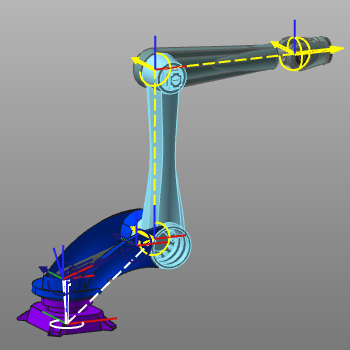 | 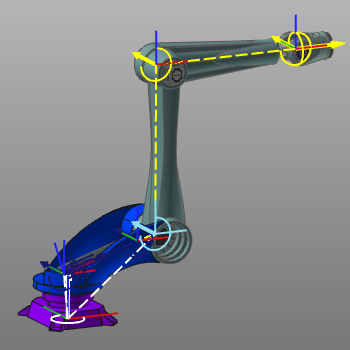 | 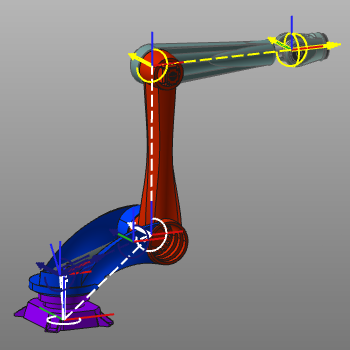 |
This color mode is switched off automatically once another command is started.
Attach geometry to a controller
When the command is being executed the geometry, and its location, is automatically linked to the root frame of the controller.
While attaching the geometrical, these bodies automatically are given a same default color. It is to support the user and make visible what bodies are attached already and what geometry is still unattached. This color mode is switched off automatically once the Attach geometry command is left.
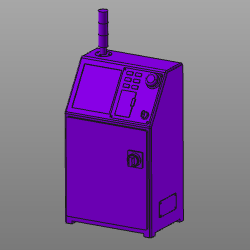
This color mode is switched off automatically once another command is started.
Attach geometry to a workpiece
When the command is being executed the geometry, and its location, is automatically linked to the root frame of the workpiece.
While attaching the geometrical, these bodies automatically are given a same default color. It is to support the user and make visible what bodies are attached already and what geometry is still unattached. This color mode is switched off automatically once the Attach geometry command is left.
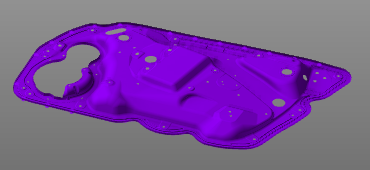
This color mode is switched off automatically once another command is started.
Although this command is the next in line of the toolbar, it is not mandatory to first create the kinematic chain and then import the geometry to attach it. It very well can be convenient to import the geometry first and use it (center points, edges, etc.) to align the joints of the kinematic chain directly with the geometry.