Measurements

Measuring
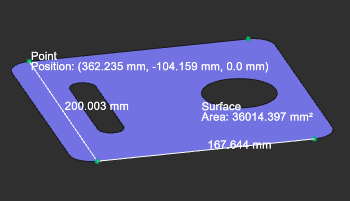
Measurements are temporary elements to show some specific information on or between (non-) geometrical objects. Besides the standard geometrical objects such as points, curves and surfaces, including their elements like vertex and edges, the software also supports other objects for measurement, like adapters, process geometry and toolpath elements. To measure these objects the Operation mode has to be switched to the Measurement mode.
Create
On an object, or element of an object, the Pie menu can be opened to find the available measure functions.
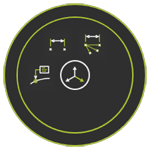


The result is one or more measurement features.
On measurement
Hovering over the measurement accesses the Pie menu.
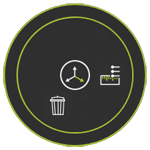


A measurement can be copied to the clipboard to be used in other editor applications. The measurement object has to be selected first after which the standard Ctrl+C key combination will place a copy of the object text to the clipboard.
Display
The measurement is displayed as text with supporting elements where needed.
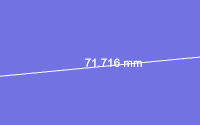
The color and size of the measurement text can be changed in the color settings.
The information of a measurement is displayed in a small, separate window.
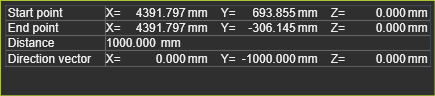
Also from this window the measurement info can be copied to the the clipboard.
Measurements are only displayed while working in the Measurement Operation mode. They are however temporary. As soon as leaving the mode, all existing measurements will be removed. While working in the mode, the measurements can be shown or hidden with the standard display tools and functions that the software includes.


