Events and teach

Teach
The Events and teach command is used to manipulate the position, the motion and the behavior of the resource’s tool center point (TCP) along an initially computed toolpath.
When the command is started, the TCP, together with the interactive teach manipulator, is placed at the first position of the last created operation of the active program.
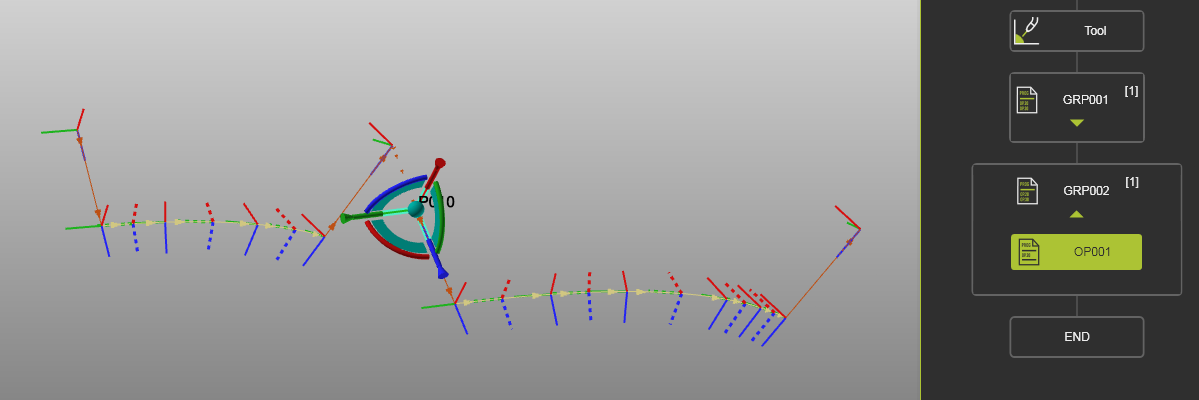
Teaching now can be done by both in the 3D space by either selecting a toolpath element or by opening the pie menu while hovering over it, or in the Teach panel. Often a combination of 3D interaction and Teach panel is used.
Multiple selection of toolpath elements is supported. The manipulator will be placed on the ‘first’ element of the range. However, not all teach commands can be used on a selection of multiple elements.
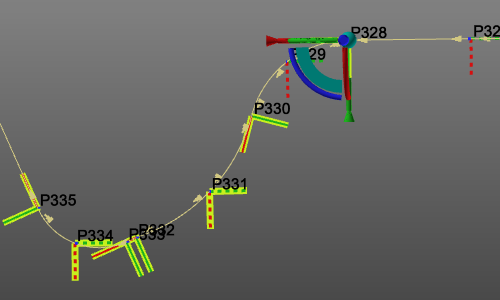
Teaching is highly flexible way to define and modify the toolpath of in- and out-process operations. It supports to teach situations where multiple robots or machines are in place in such a way that while teaching the positions of the other devices are displayed to see the effect of the teach manipulation in the most complete perspective.
Teaching toolpath positions
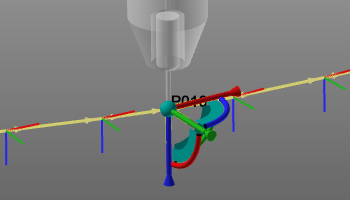
When a toolpath element is selected, the teach manipulator with its attached resources is placed on that position. Dragging or otherwise moving the manipulator will move the toolpath element. A position modified event symbol is placed near the element.
| Select TPE | Move |
|---|---|
 | 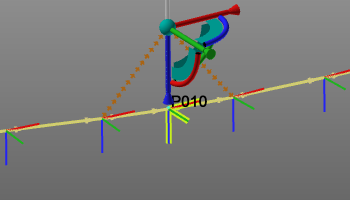 |
Depending on the setting, this change will be applied automatically and the path will be updated, or it needs to be confirmed by calling the pie menu on the center of the manipulator and executing the Confirm command.
That pie menu includes several other commands for the manipulated position.
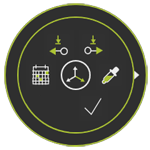


Hovering over a toolpath element enables a pie menu with additional functionality.
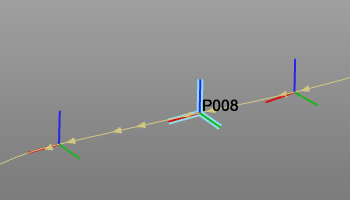



And hovering over the toolpath itself, the connection element between two positions, enables another pie menu.


On a surface based toolpath, the track is highlighted when hovering over it. In that case this pie menu will be displayed.
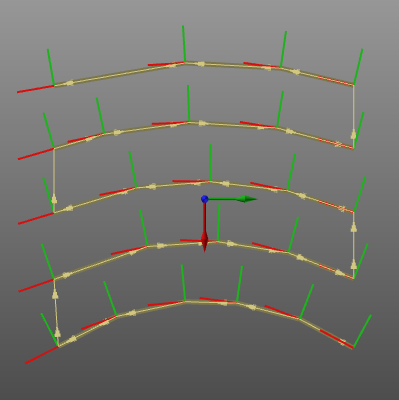
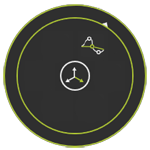
A method of teaching is to compute interpolations over a toolpath interval between two positions. Hovering over an interpolation interval opens a pie menu with some interpolation edit functions.


Teaching a resource
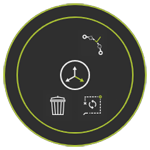
Hovering over a resource opens a pie menu with limited functionality to teach that resource.

Events
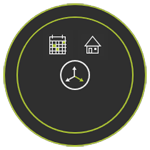
Teach actions generate an event that is displayed at the position. Hovering over such an event symbol displays the content of that event. The pie menu can be opened here.

Toolpath quality evaluation
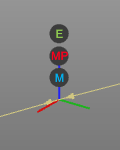
When the toolpath quality analysis has run and the incidents are set to be displayed, each toolpath position element is colored with the corresponding incident level.
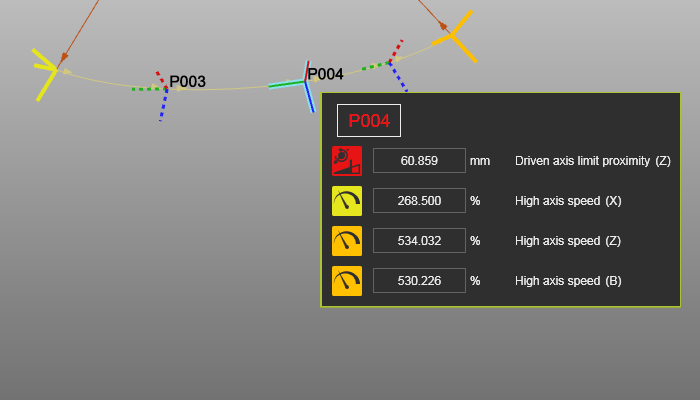
Hovering over such incident evaluated toolpath element will open a message window with information about the failure, like in the example below.