Program manager

Dashboard
For the active manufacturing setup (resources and controller) multiple programs can be created for which tool paths can be generated. With the Programs dashboard, these programs are configured and managed.
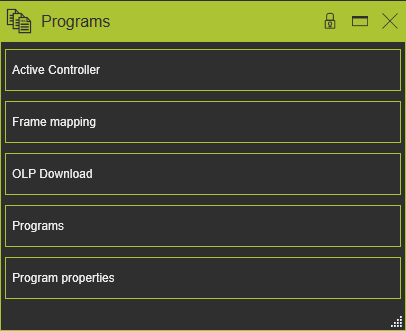
Active controller
In this container the current active controller is displayed for which the programs are generated. If the layout has multiple manufacturing resources with the individual controllers, like in a workcell, the active controller can be set here by selecting the wanted one from the drop down list.

Frame mapping
The container shows all the base and tool frames that are present within the workcell. Selecting a frame in the dashboard cross-highlights it in the 3D View.
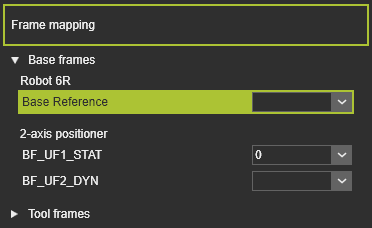
For each of the frames the drop down list can be opened to set the number. This number is being used by many robot and machine manufacturers as reference information in the program and might be convenient for downloading or uploading the program.
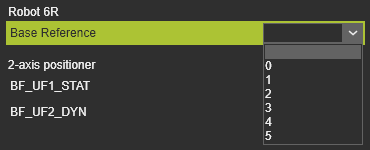
The number corresponds with the Maximum frame profiles attribute that has been specified for the controller. It should be obvious to understand that a number can only be assigned once to a frame. If it had been assigned already to another frame, that particular frame will be reset.
OLP download
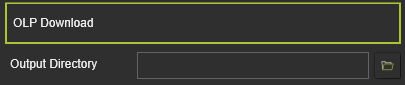
In this container the path can be set where the program download will be stored.
Programs
In this container the programs (not their content) are managed.
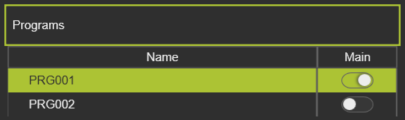
A list of available (created and / or loaded) programs is shown, where the green marked program is the currently active one. Simply selecting another program makes that one active for generating tool paths, other viewing or editing activities.
A simple left button mouse click on the active program opens the name editor to change the name if wanted.
Programs are of the type Main or Sub. Sub programs can represent a program sequence that will be part of a main program. In the Active program dashboard they can be loaded into an active main program. Once a sub program has been included into another program it cannot be set to the type Main. Switching the program type is done with the state control  .
.
Starting with R2026.1.1, the Enable program organization command is available.
Pie menu
A Pie menu can be opened on the program object.



And in the empty space of the container another Pie menu can be opened.
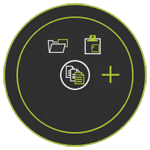


In the Active program dashboard, the program can be locked against unwanted changes. This locked state is also indicated here, as in the example below.

When working in the Onsite Editor workbench, some of the above mentioned commands and functionalities are not available!
Program properties
The Program properties container shows some information about the active program.
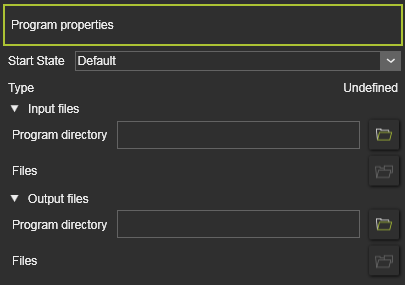
| Start state | The simulation start state of the active program can be set here. |
| Type | The information of the program status. The options are: |
| Program directory | The location, i.e. folder of the input or downloaded files. In no path has been defined here, the path from the OLP Download container will be used. |
| Files | Lists the available files in the folder. The input files to simulate can be selected. A list of downloaded files is presented in the output files. |
| Unidentified | A new program without any further information. |
| Loaded | A simulation file (.c file) has been loaded in the program. The program can be simulated but there is no toolpath. The information is shown in the Input files section. |
| Programmed | Process geometry has been used to generate a toolpath. The information is shown in the Output files section. |
When working in the Onsite Editor workbench, this container is not available!