Editing
Editing
In general all commands, UI’s and dashboards have the same behavior. Changes made in the 3D View, editing parameter fields in panels, etc. will immediately take effect and will update the necessary geometrical objects or other objects and features within the application. The UI (Pie menu, dashboard, etc.) typically does not need to be closed with some kind of OK or confirmation button to have the command being executed and modifications being implemented. Changes can be made undone with the Undo command.
Selection, any started command can be interrupted completely with the  key on the keyboard.
For convenience however, some attributes or parameters are grouped. Think about the X,Y and Z coordinates of the manipulator for example. In such case one can edit all values before the modification is applied.
When hovering over an attribute that belongs to a group, a frame appears to indicate it.
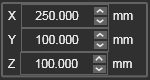
Any value within the group can be edited, without immediate execution. Each modified value is marked in green. Thus; all values of a group can be modified upfront the action.
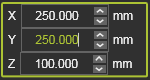
Pressing the  key on the keyboard or clicking anywhere outside the group will then apply all (new) values.
Tool tip

Command icons, command buttons are provided with a tool tip. The tool tip is a small textual information block, explaining the name or function behind the command button. This tool tip appears after a small time delay while keeping the mouse over the button. It automatically disappears when leaving the button or after a fixed time period while still having the mouse over the button,
The tool tip can show more information than just the command name or short explanation. In case a command cannot be executed, usually visible when the command icon is grayed out, the tool tip text box displays some additional information, as the example below shows.
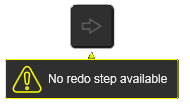
The extended tool tip will also appear when placing the mouse over the text in the console line.
Active command
It can always be verified which command has been started and is active at that moment. The console line informs about the command or expected action by the user. A visual indication will be that the running command remains in highlight mode while being activated.
 |  |
| Normal | Activated |
Some command icons do not start an interactive function directly but have a switch or toggle purpose. Particular those commands that have some graphical display capability. Similar to the active mode of a command, the color of the icon indicates the toggle state of it.
 |  |
| off/inactive | on/active |
In the tool tip of the command it usually can be read and concluded if a command has such toggle function.