Attributes
Attributes
An attribute is a characteristic piece of information about the object it refers to.
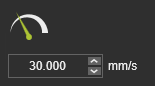
Display
The attribute is displayed as an object with a representing icon and a value field, i.e input field.
Graphically the system has three display modes for an attribute.
| Normal | Mouse over | Selected / Edit |
|---|---|---|
| 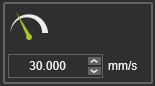 | 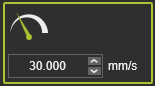 |
When wanting to edit the value, simply the attribute has to be selected, or picked. The mouse then automatically is focused on the value field. Depending on the attribute type, the value can be changed manually, with using the value spinners or by selecting it from the predefined value drop down list.
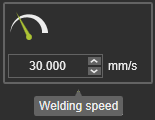
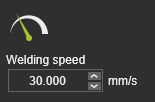
Hovering over an attribute will show its name, i.e. tool tip. These names can be displayed permanently (on / off) with the F5-key, or by calling the Pie menu.

| Tool tip | Permanent display |
|---|---|
 |  |
Type
Although basically all attributes have the same purpose, the software supports different types of attributes. The most clear difference is the display of these types
| Attribute | Description | Display |
|---|---|---|
| Numerical value | A numerical, measurable parameter with units. | |
| Numerical value | A numerical value without units. | 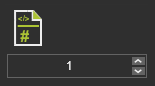 |
| Textual value | A string of characters. | 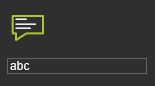 |
| Combo box | A predefined set of values to select from. The value can be numerical or textual. | 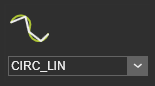 |
| Toggle box, or Switch | A toggle value to switch between. For example On/Off or True/False. | 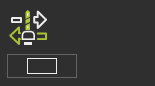 |
| Information only | The value shows some information but does not have an (editable) value field. | 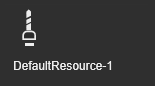 |
State
By the visualization of the attribute one can read its state.
| State | Description | Display |
|---|---|---|
| Normal edit | The value can be edited. | |
| Read only | The value cannot be edited. The attribute value may be the result of other attributes. | 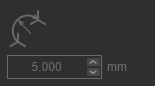 |
| Inactive | The attribute is a child of another attribute. Its active or inactive state depends on the value of its parent attribute. In inactive state its value cannot be edited. | 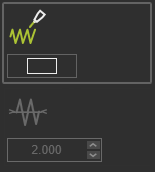 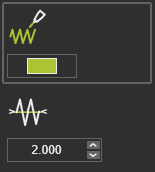 |
Value inheritance
The value of an attribute can be used in relationship to other components, objects or activities, like in downstream processes or in parent-child relations. In such a case the receiving attribute inherits the value of the original (parent) attribute.
This inheritance state of an attribute shows an additional Edit button inside the attribute object.
| Inherited | Description | Display |
|---|---|---|
| Inherited value | The value is inherited from the parent attribute. It is locked against editing. | 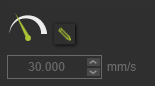 |
| Inherited overwrite | The value is inherited originally but can be edited. | 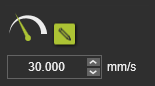 |
By default, i.e. at creation, the inherited attribute has the same value as its parent attribute and cannot be overwritten; it is locked. Pressing the Edit button will release the lock. The original inherited value can now be overwritten. Pressing the Edit button again will reset the value back to its original inherit-value. To know the value of the original inherited value, hover the mouse over the button and wait for the tooltip to appear.
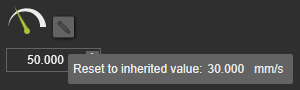
Changes made to an attribute value are directed automatically to its related child attributes.
Tech tab
A Tech tab is a grouped package of attributes that have a common context or subject. This package is represented by a command button to open or close the package.
Tech tabs can be applied in all kinds of dashboards where attributes are being used, such as the Programming defaults in the OLP workbench.

Each Tech tab has at least one container. Such a container is a set of attributes with a related content.
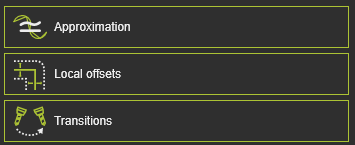
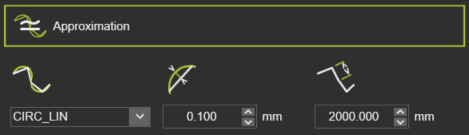
Containers can be expanded to show its content or collapsed to minimize the display.
| Collapsed | Expanded |
|---|---|
 |  |
