Material picker

With the Material picker command, the color and photo-rendering effects of the geometry can be modified.
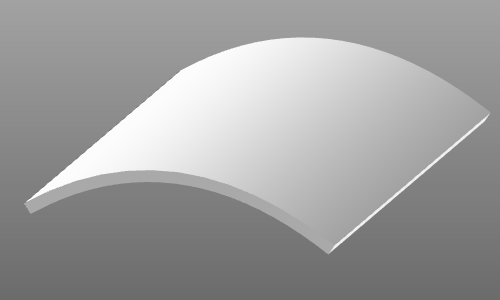
When being executed the material picker panel appears.
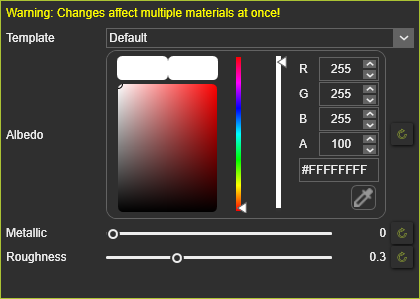
The panel has various options to influence the visual representation of the geometry.
| Template | The desired visual effect can be picked from a list of predefined material properties. These definitions can be managed in the Material editor of the Settings. | |
| Albedo | The rendering (reflection) color can be modified here. It can be picked from the color table or its (known) RGB or Hex value can be inserted in the editor fields. Furthermore, the transparency of the color can be modified too with either the right slider or by entering the A value (between 0 and 100) in the field. The value 0 means full transparent, the value 100 means full solid. | 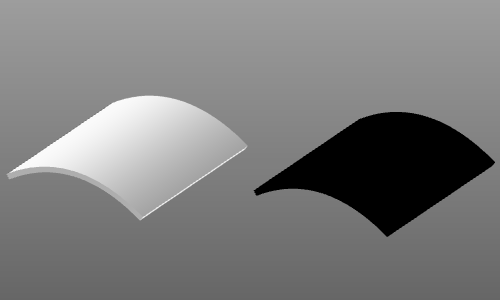 |
| Additional options for photo-realistic rending: | ||
| Metallic | The reflection of light. The more ‘metallic’, i.e. towards a value 1, the more the reflection of the incoming environmental light. | 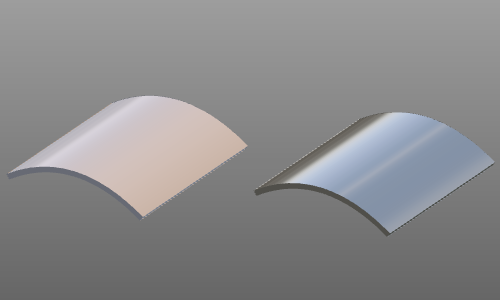 |
| Roughness | The diffuse reflection. The more ‘roughness’, i.e a value towards 1, the more diffuse the reflection of the incoming environmental light. | 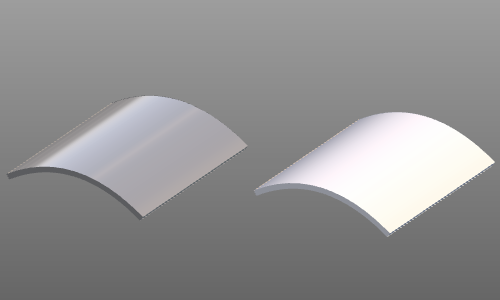 |
Photo-realistic rendering is only visible with the Rendering level Medium and High.

With the Color picker it is possible to take the color from any mouse position on screen. Just grab the color picker while pressing down the left mouse button and drag it onto the desired screen pixel. The color table dynamically displays the found color. Confirmation is simply done by releasing the left mouse button.

With the Reset button, the individual modified properties can be set back to the original values of the selected template material.
