Toolpath display filter

With the Show the toolpaths button the toolpath elements are displayed or hidden.
| Show | Hide |
|---|---|
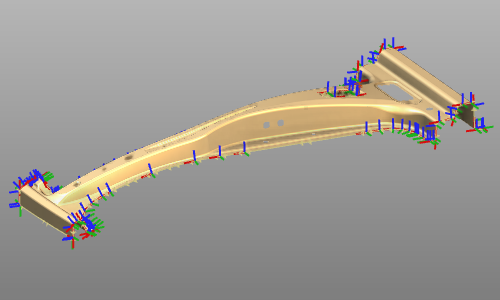 | 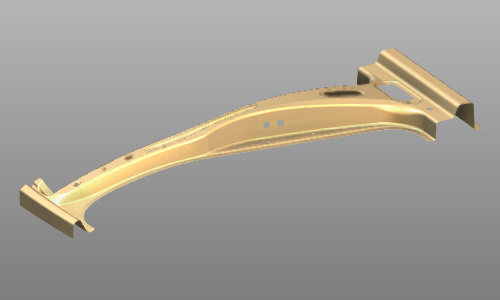 |
The Toolpath and operations options include additional features to show (parts of) the toolpath.
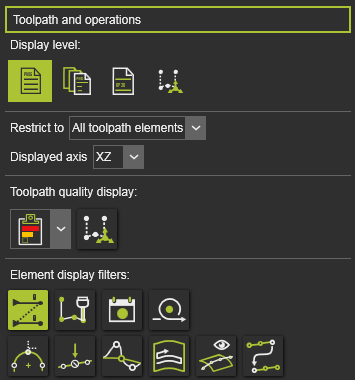
Display level
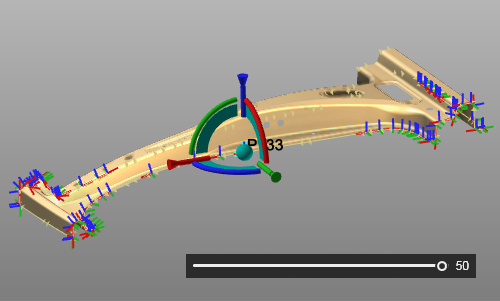
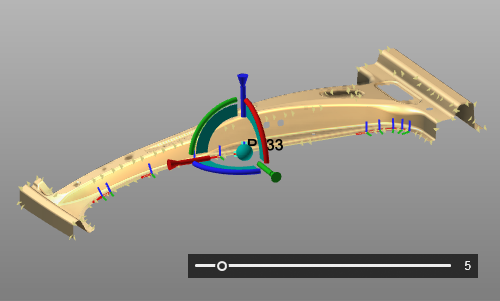
This is an option that can be used when teaching and simulating the toolpath. By default the program content is displayed. But one can switch to set the focus of display on operation groups of the program, the operations or on the individual toolpath elements. Displaying with focus on one of these sub levels of the program activates a slider in the filter interface. With the slider, the number of following elements (operation or operation groups) in both directions, as seen from the current element, are displayed. The other elements are hidden.
The slider corresponds with the number of elements along the toolpath. At the most left position there will be one following element shown. The slider at its most right position shows all the toolpath elements.
 |  |
Restrict to
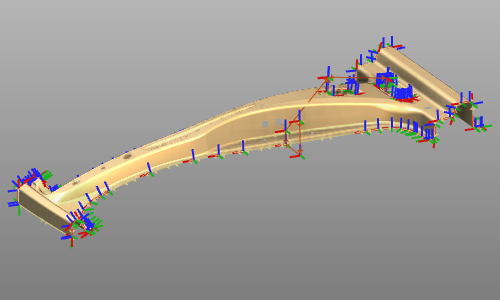
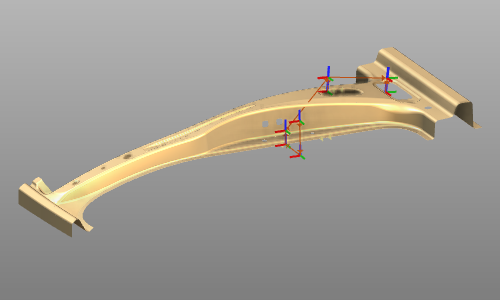
This is an additional option to restrict the toolpath display to certain elements of the toolpath. In the drop down selector the restriction option can be picked and set.
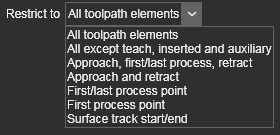
Example:
| All toolpath elements | Approach, first/last process, retract |
|---|---|
 |  |
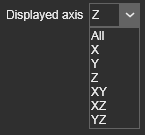
Displayed axis
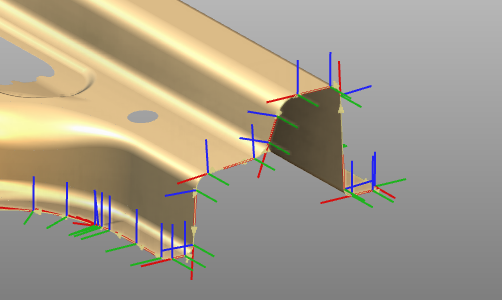
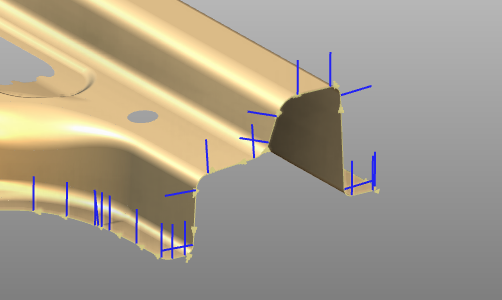
With the option one can pick from the drop down selector which axes of the toolpath element are being displayed..
Example:
| All | Z |
|---|---|
 |  |
Toolpath quality display
These options are used to display the toolpath quality evaluation incidents.
From the drop down list the preferred display level can be set.
 | Display only the failure level. |
 | Display the failure and critical levels. |
 | Display all quality levels. |
With the option button at the right side of the display level, the incidents are marked on the 3D toolpath.
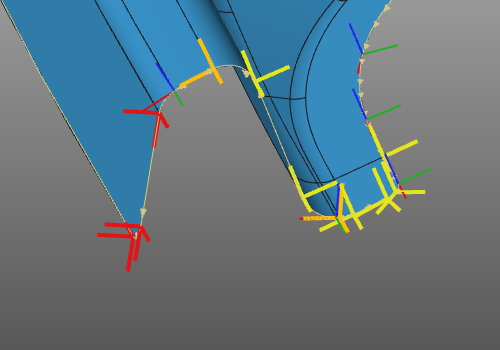
The quality display on the 3D toolpath can also be turn on or off with the keyboard shortcut

Element display filters

With the Show / Hide the operation sequence lines and numbers option the operation sequencer information is being displayed or hidden. The operation visualization itself is not effected.
| Show | Hide |
|---|---|
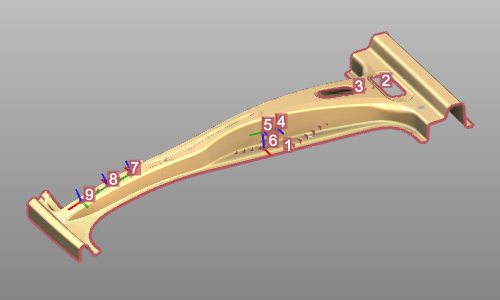 | 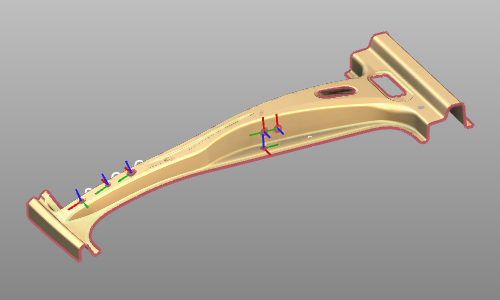 |

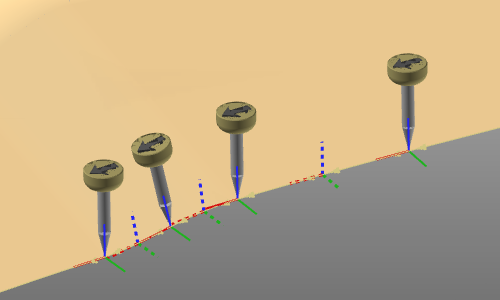
With the Show / Hide the tool representation option a 3D representation of a tool is being displayed or hidden at the toolpath positions. This representation shows the position and orientation of the tool.
There are two representations available; an welding torch for the arc welding technology and a default tool for all other technologies. The cad models, in JT format, are located in the folder <install folder>\Resources\Models\Widgets\Technology in the installation folder.
| Welding torch | Default tool |
|---|---|
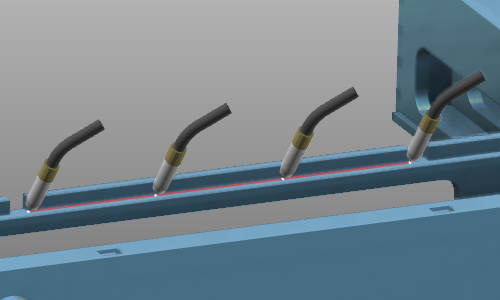 |  |

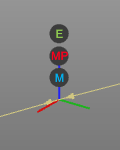
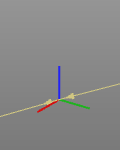
With the Show / Hide the toolpath element symbols option the event symbols are displayed or hidden.
| Show | Hide |
|---|---|
 |  |

With the Show / Hide the operation cycle as representation option some toolpath (operation) cycles will be displayed as an ordinary toolpath with toolpath elements or as alternative representations, to minimize the amount of toolpath elements that are displayed.
The arc welding touch positions make use of this filter capability
| Representation | Standard |
|---|---|
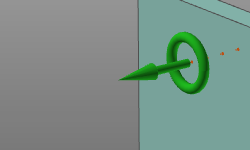 | 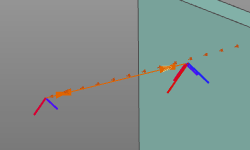 |
This representation display however only applies to all unselected operations. The touch operation that has been picked, either in the 3D space or in a dashboard, will automatically be displayed with the standard toolpath axes to show all its individual positions.

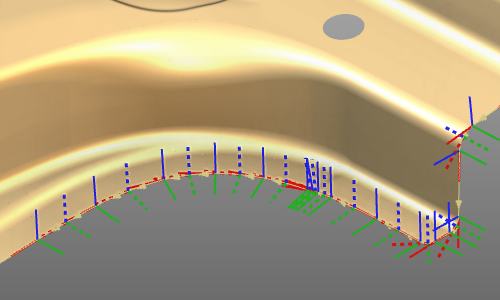
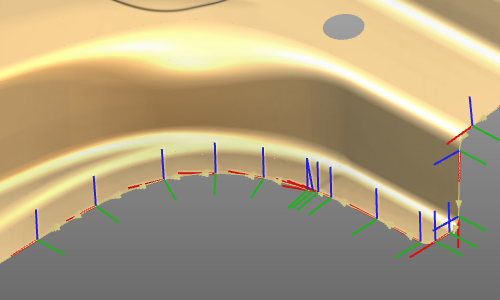
With the Show / Hide the via points option the toolpath (circular) via point elements can be displayed or hidden.
| Show | Hide |
|---|---|
 |  |

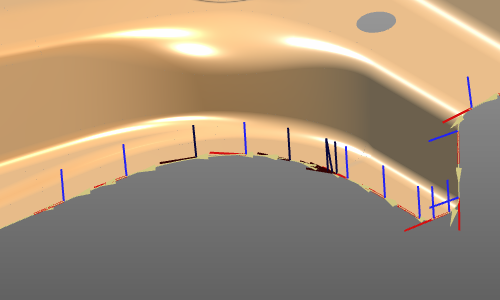
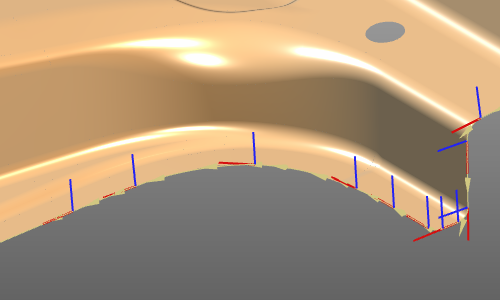
With the Show / Hide suppressed elements option the suppressed elements, i.e. toolpath positions can be displayed or hidden.
| Show | Hide |
|---|---|
 |  |

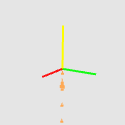
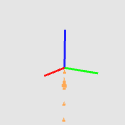
With the Show / Hide singularity optimized axis option this axis can be displayed or hidden.
| Show | Hide |
|---|---|
 |  |

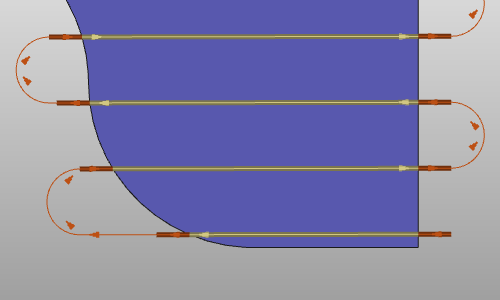
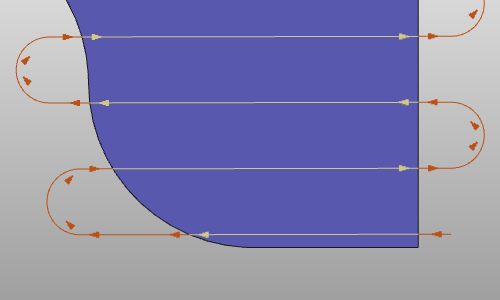
The Show / Hide the toolpath tracks option only applies on surface based toolpaths. With the option the tracks on the surface are displayed or hidden.
| Show | Hide |
|---|---|
 |  |

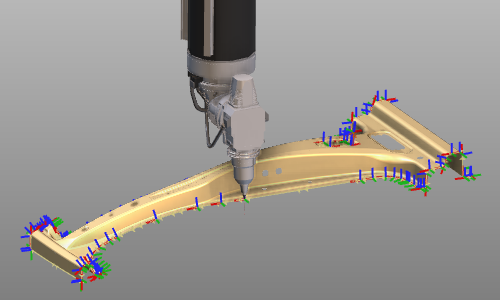
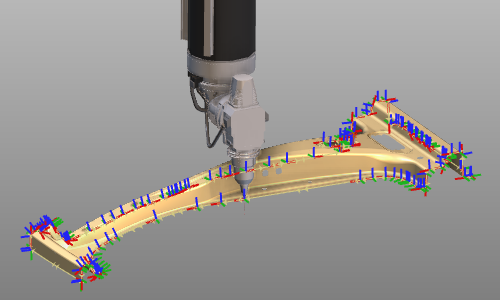
The Render the whole toolpath on top option is a possibility to always show the toolpath elements on top of the screen in any camera view direction, regardless if they would have been covered by any other geometry in front of the camera view.
| De-activated | Activated |
|---|---|
 |  |

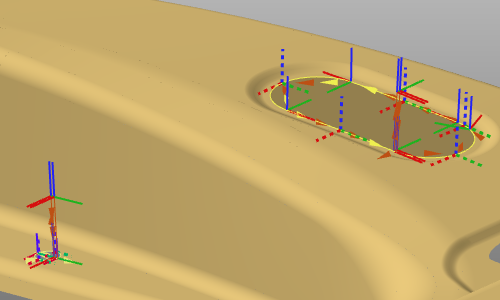
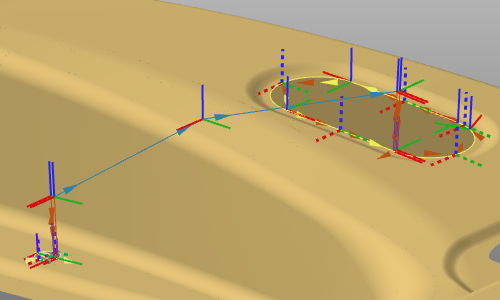
With the Show / Hide the operation link path option the link paths between operations are displayed or hidden.
| De-activated | Activated |
|---|---|
 |  |