View Compass

Main view
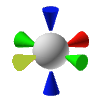
The colored cone objects of the View Compass represent the main axis system of the global coordinate system (global frame). The red cone for the X-axis, the green cone for the Y-axis and the blue cone for the Z-axis. Each cone is a pick-able object
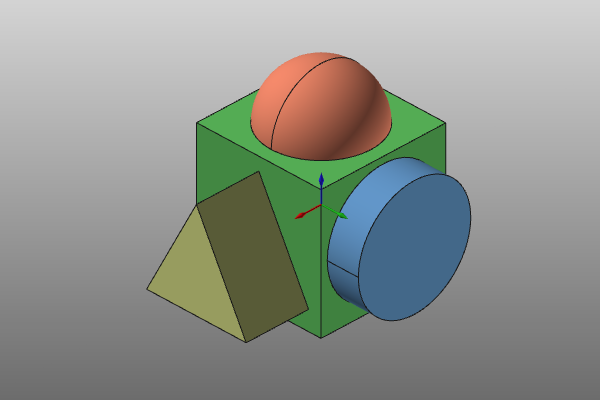
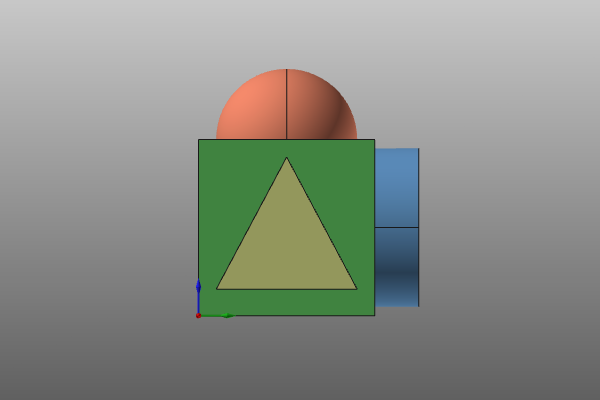
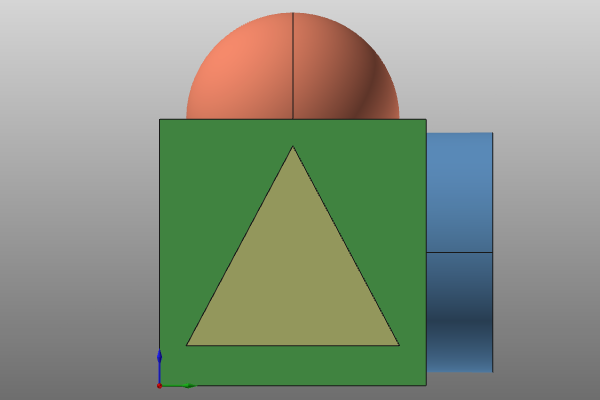
Picking a cone with the left mouse button will automatically change the camera view point to its corresponding main predefined view (+X, -X, +Y, -Y, +Z,-Z). The zoom factor however does not change while changing to one of these main views. Picking a cone with the middle mouse button will also change the camera view point to the corresponding predefined view. It will however re-size the view zoom factor to a default value where all the 3D data of the model will become visible. This applies only for the 3D data that lies within the Show area of the 3D View. A side effect of the last interaction is that the whole model is automatically centered in the 3D View
| Random view | Main View | |
|---|---|---|
|  | |
 |   + +   |  |
| +   |  |
Iso view
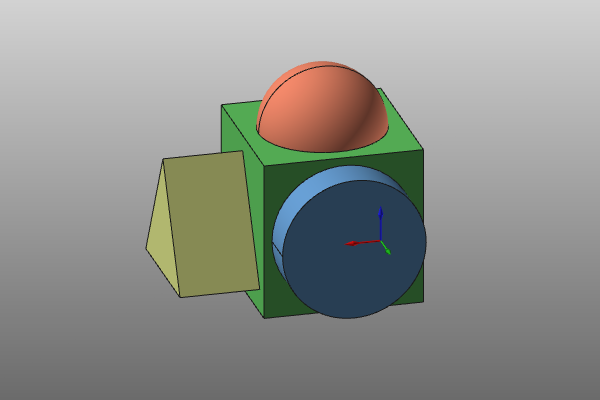
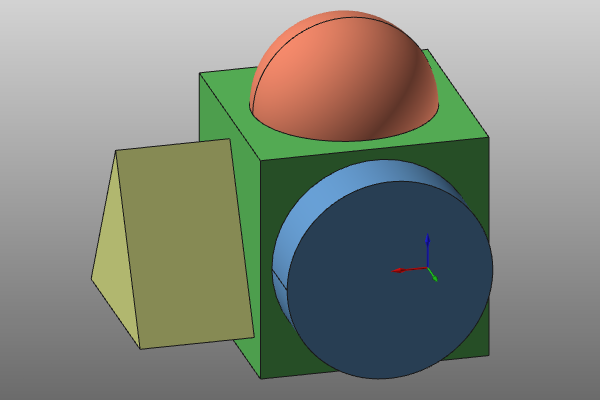
The center sphere of the View Compass also can be used for 3D manipulation. Picking the center sphere with the left mouse button will automatically set the camera position to an iso view. But keeping the zoom factor the same as before the action. The second way is picking the center sphere with the middle mouse button. In that case not only the camera position will be set to the predefined iso view. It will also re-size the view to a default zoom factor where all the 3D data of the model will become visible. This applies only for the 3D data that lies within the Show area of the 3D View. A side effect of the last interaction is that the model is automatically centered in the 3D View.
| Random view | Iso view | |
|---|---|---|
|   + + |  |
| + |  |