Simulation player

Player toolbar
Like any other (digital) player, the Simulation player has a row of buttons to control the running simulation.
  | Play Partial play | Computes the simulation and starts the motion picture. A normal simulation starts at the initial position of the program and runs the full program. A partial simulation, a from-to simulation, starts at the selected position (program, operation group, operation or TPE) and runs to the end of the selection. |
 | Pause | When the simulation is running, the Play button switches to Pause mode to (temporary) interrupt the simulation. |
 | Reset | Stops the running simulation and resets the components back to their starting position. |
 | Step back | To play the simulation in inverse direction in the individual steps of the simulation computation. |
 | Step forward | To play the simulation in normal, forward direction in the individual steps of the simulation computation. |
 | Simulation speed | To set the speed with which the simulation is going to be displayed on screen. This is not to be confused with the actual speed and lead time of the program itself. A value from 0,001 to endless can be set. Under equal circumstances, a simulation speed of 10 roughly runs 10 times faster on screen than with speed = 1. |
Progress bar
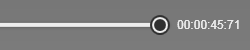
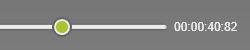
Below the buttons the Simulation player has a progress bar. While running a simulation the progress knob remains at its most right position on the bar to indicate the last reached step of the simulation. This knob can be used to step back and forward in the part of the simulation that has been showed at that moment. The knob has to be picked with the left mouse button and than can be dragged sideways over the progress bar. At the right side of the progress bar also a clock is displayed to show the elapsed time of the program at that moment.
 |  |
The progress bar also includes two markers that appear when the first simulation is started for the project.
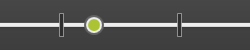
These markers determine the simulation range that will be taken for a next activity or command; for example when saving the project as animated 3DPDF. The marker can be picked and dragged to any simulation position.While setting the markers the 3D simulation shows exactly the current position within the entire simulation.
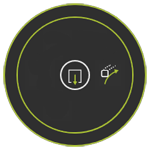
The progress bar includes a pie menu to execute the swept volume computation.

Partial simulation
By default the simulation player is set to run a full simulation, meaning from the start position of the equipment to the last position of the manufacturing program. It is however possible to simulate only a portion of that complete trajectory.
In the OLP Program dashboard an operation group can be selected to run a partial simulation. The simulation runs for only the content of that group. When applied, the Play button changes to Partial play.
Because the partial simulation is kept in memory, one can switch between full play and partial play. Picking the (Partial) Play button with the left mouse button and dragging the mouse up while pressed will show the other play button above the active one. Releasing the mouse button there will change the play mode.
| Pick | Drag | Release |
|---|---|---|
 |  |  |
Settings

| Simulation speed | The display speed on screen of the simulation. A value between 0,1 and 10 can be set. Under equal circumstances, a simulation speed of 10 roughly runs 10 times faster on screen than with speed = 1. |
| Simulation step size | The step size when manually stepping back or forward through the simulation. |
It is recommended to keep the simulation speed relatively low when the simulation is run in combination with collision analysis. Some smaller collisions or narrow escapes might not be seen adequately when the simulation runs fast.