Freie Suche mit Kontrollpunkten
Die Kontur wird durch eine Reihe frei platzierter Kontrollpunkte definiert, die auf der Oberfläche oder dem Drahtgitter liegen. Die Suchmaschine verbindet diese Kontrollpunkte mit einem Kurvenelement.
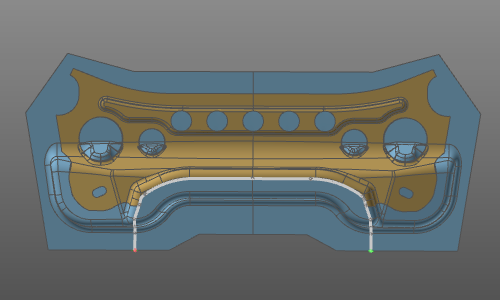
Obwohl die Methode auf der Verbindung von zwei Kontrollpunkten basiert, unterstützt sie auch die Verbindung dieser Punkte entlang von Kanten und Kurven. Dadurch wird die Erstellung des erforderlichen Konturs mit maximaler Flexibilität ermöglicht. Dies kann entweder ein offener oder ein geschlossener Kontur sein.
Es werden mindestens zwei Kontrollpunkte benötigt, um die Kontursuchmaschine zu starten. Diese können auf einer Oberfläche platziert werden, basierend auf dem WYSIWYG-Prinzip, oder durch Auswahl einer Kante oder Kurve. Der allgemeine Arbeitsablauf zum Erstellen der Kontur bleibt jedoch derselbe.
Um von einem Anfangspunkt auf einer Oberfläche zu starten, muss das Pie-Menü auf der gewünschten Oberfläche geöffnet werden, um den ersten Kontrollpunkt zu setzen.
 Manipulator aktivieren
 Starten Sie die Kontursuche mit Kontrollpunkten
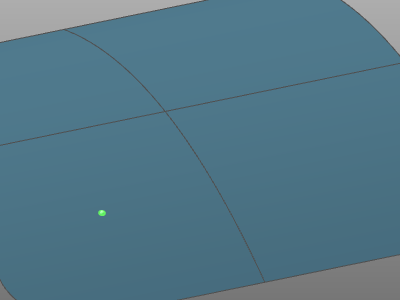
Der Kontrollpunkt wird als (grüne) Kugel dargestellt.
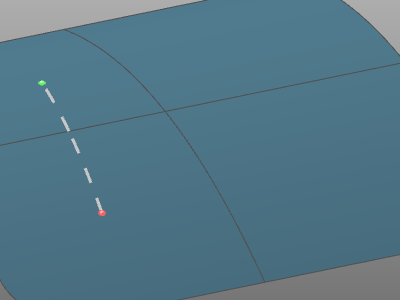
Ab dort können zusätzliche Kontrollpunkte sowohl auf der Oberfläche als auch an einer Kante oder Kurve eingefügt werden. Der anfängliche Startpunkt wird rot dargestellt, alle Zwischenpunkte sind grau und der Endpunkt wird grün dargestellt. Die Verbindungen zwischen den Kontrollpunkten, die den gesamten Konturverlauf bilden, werden sofort berechnet und angezeigt.
| Anfangskontrollpunkt | Zweiter Kontrollpunkt | Und mehr … |
|---|---|---|
 |  | 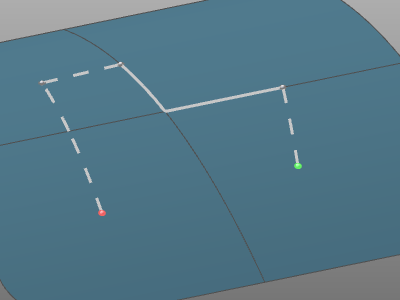 |

Mit der Ausführen-Taste im Kontursuchfeld wird die gefundene Lösung dauerhaft übernommen. Die Standard-Tastenkombination für diese Taste ist die Verwendung der  -Taste auf der Tastatur.
Der Arbeitsablauf kann ohne Lösung durch Drücken der  -Taste auf der Tastatur beendet werden.
Die Suchmaschine versucht, zwei Kontrollpunkte miteinander zu verbinden, um die Kontur oder einen Teil der Kontur zu erstellen. Da verschiedene Lösungen möglich wären, verwendet die Suchmaschine eine Strategie, um ein Ergebnis zu finden. Die Software unterstützt vier Strategien.
| Strategie | Beschreibung | Beispiel |
|---|---|---|
 | Oberflächenaußenkante Sucht nach der kürzesten Lösung über die Außenkanten der Referenzflächen. Siehe den weißen Konturverlauf im Bild. | 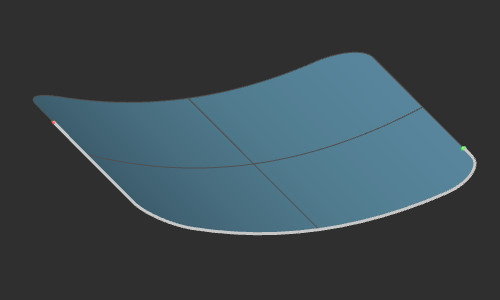 |
 | Innere Kanten der Oberfläche Sucht nach der kürzesten Lösung über die inneren Kanten der Referenzflächen. | 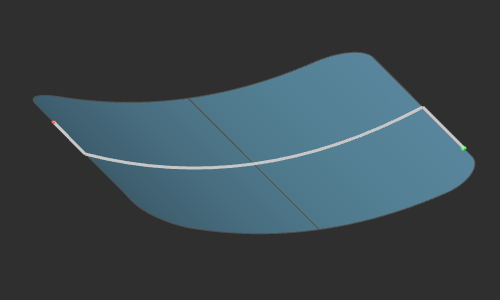 |
 | Kürzeste Entfernung Sucht nach der Lösung mit der kürzesten Entfernung zwischen den Kontrollpunkten über die Referenzflächen hinweg. | 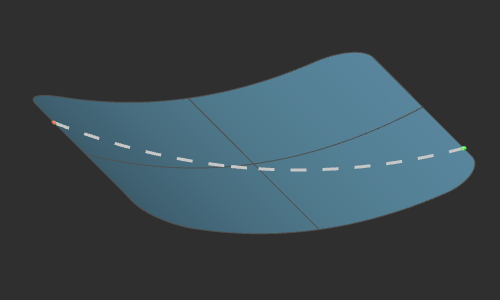 |
 | Gerade Erstellt die gerade, lineare Verbindung zwischen den Kontrollpunkten, unabhängig von einer Referenzfläche. | 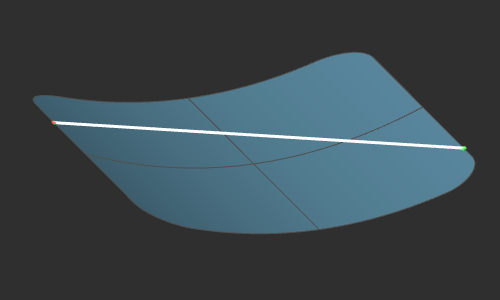 |
Die oben dargestellten Strategien sind in der Reihenfolge ihrer Priorität aufgeführt. Standardmäßig ist bei der Erstellung eines neuen Konturs die Suche entlang der äußeren Begrenzung, die nach der kürzesten Strecke entlang dieser Begrenzung sucht, die voreingestellte Strategie. Kann diese jedoch nicht angewendet werden oder führt sie zu keiner möglichen Lösung, wird die zweite Strategie in der Reihenfolge angewendet. Führt auch diese Strategie zu keinem Ergebnis, wird die letzte Strategie angewendet, bei der die Kontrollpunkte linear verbunden werden, also mit der kürzest möglichen Entfernung zwischen ihnen.
Sobald eine Lösung gefunden wurde, kann die Strategie für jedes Konturelement individuell festgelegt werden.
Grenz- und Innenkanten oder Kurven können nur gefunden werden, wenn mindestens zwei Kontrollpunkte in Die Sequenz muss genau auf der Begrenzungs- oder Innenkante liegen.
Kontursuche an Kanten und Kurven
Die Kontursuche kann auch direkt an einer Oberflächenkante oder Kurve gestartet werden. In diesem Fall muss das Kreis-Menü geöffnet werden, um die Suchstrategie festzulegen.

- Manipulator aktivieren
 Tangential entlang der Kanten suchen
 Nach Kante suchen
 Suche nach äußerer Begrenzung
 | Tangential entlang der Kanten suchen Sucht entlang der Kanten oder Kurven, solange die tangentialen Bedingungen erfüllt sind. | 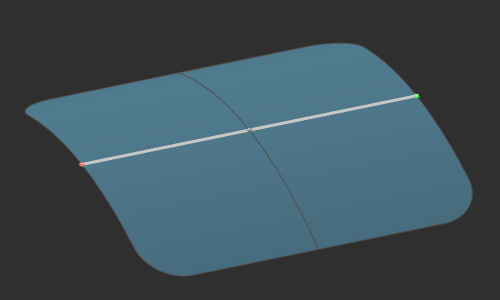 |
 | Suche nach Kante Wählt die ausgewählte Kante oder Kurve aus. | 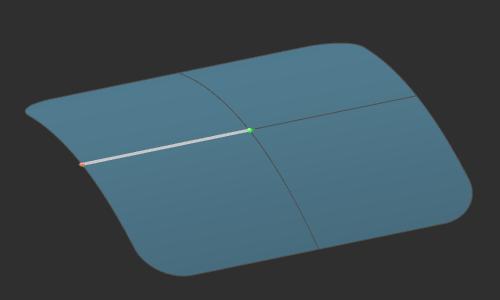 |
 | Suche nach äußerer Begrenzung Sucht die äußere Begrenzung der Referenzfläche in Bezug auf die tangentialen Bedingungen dieser Begrenzung. | 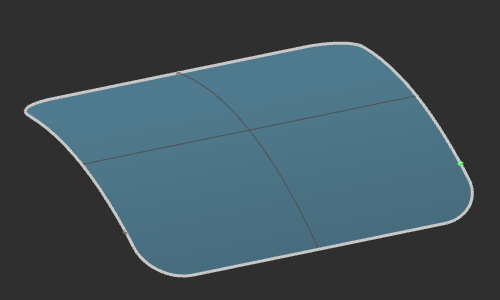 |
Während der Kontursuche werden entlang der Lösung mehrere Kontrollpunkte erzeugt.
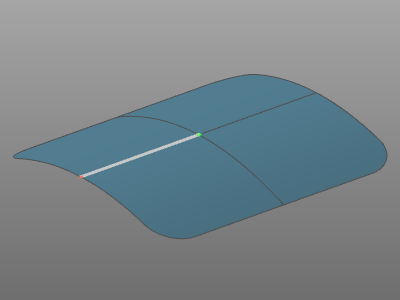
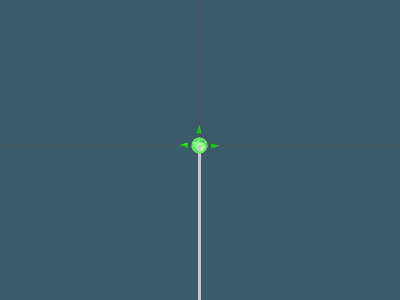
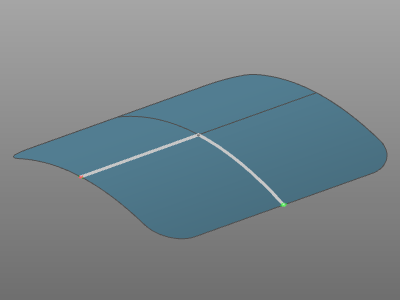
Wenn Kanten oder Kurven zur Suche verwendet werden und der Kontrollpunkt sich am Scheitelpunkt dieser Kante oder Kurve befindet, werden grüne Kegelmarkierungen angezeigt. Jede dieser Markierungen zeigt eine mögliche Richtung an, in der die Kontursuche fortgesetzt werden könnte. Die Auswahl einer solchen Markierung erweitert die Lösung.
| Richtungsmarker
| Nach Auswahl | Richtungsmarkierungen | Nach der Auswahl |
|---|---|---|
 |  |  |
Suchparameter
Die Suchmaschine verwendet die folgenden Parameter, um die resultierende Kontur zu finden und zu erstellen:
 | Tangentialer Stetigkeitswinkel | Die automatische Kontursuche stoppt, wenn der Tangentialwinkel zwischen der bereits gefundenen Kontur und einem nächsten Kurvenelement größer als der angegebene Wert ist. |
 | Max. Abstand | Die automatische Kontursuche stoppt, wenn der Abstand zwischen der bereits gefundenen Kontur und dem nächsten Kurvenelement größer als der angegebene Wert ist. |
 | Durchbiegung für Prüfung der regulären Form | Toleranz oder zulässige Abweichung, um einen gesuchten geschlossenen Kontur in eine (bestmögliche) reguläre Formkontur, wie beispielsweise einen Kreis oder ein Rechteck, umzuwandeln. |
 | Eindeutige Lösung | When multiple possible solutions exist to merge adjacent surfaces, activating the option results in the solution where the angle between the adjacent surfaces is the smallest.  |
 | Körper zerlegen | Bodies can be disassembled in single surfaces, to generate other domains. 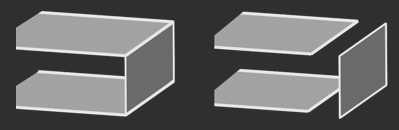 |
Kontur bearbeiten
Es gibt viele verschiedene Möglichkeiten, die gefundene Konturlösung zu modifizieren.
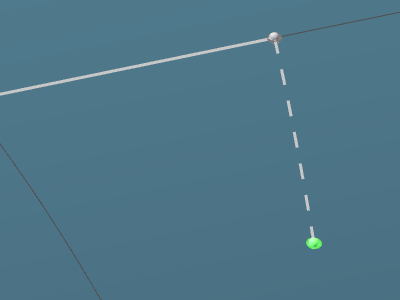
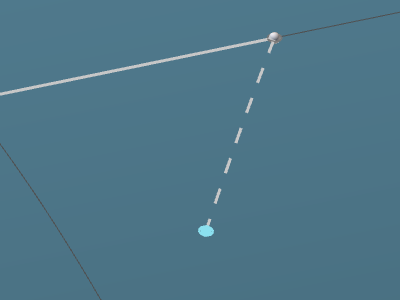
Jeder Kontrollpunkt kann frei bewegt werden. Das Auswählen eines solchen Punktes ermöglicht es, ihn überall über der Referenzfläche zu verschieben.
| Steuerpunkt auswählen | Bewegen |
|---|---|
 |  |
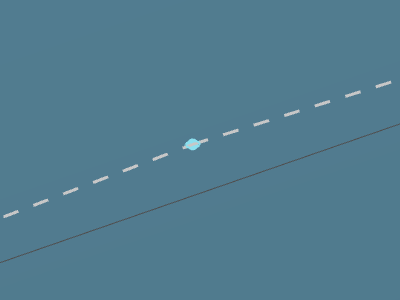
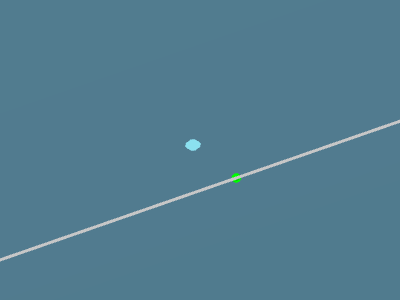
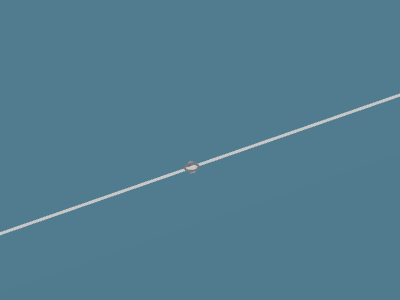
Wenn Sie es in die Nähe einer Kante oder Begrenzung bewegen und die

-Taste erscheint ein grüner Marker, um es genau auf dieses Element zu setzen. Das Loslassen des Kontrollpunkts platziert ihn dann exakt auf der Grenze.
| Steuerpunkt auswählen | Drücken der Shift-Taste | Loslassen |
|---|---|---|
 |  |  |
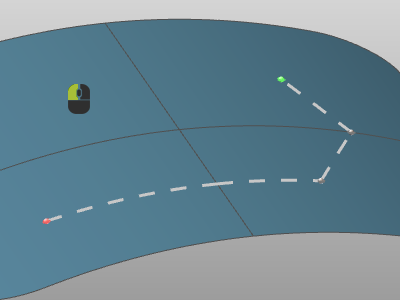
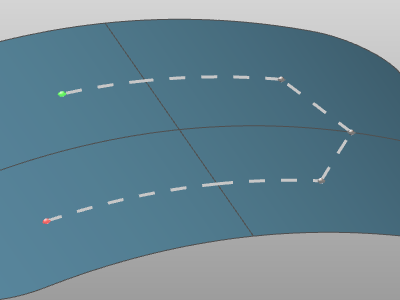
Neue Kontrollpunkte können dem bestehenden Kontur hinzugefügt werden. Das Auswählen eines neuen Punktes auf der Oberfläche erweitert die Kontur vom letzten Punkt aus.
| Position wählen | Kontur erweitert |
|---|---|
 |  |
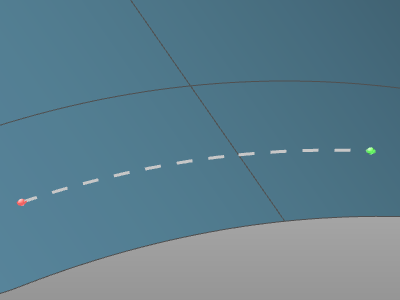
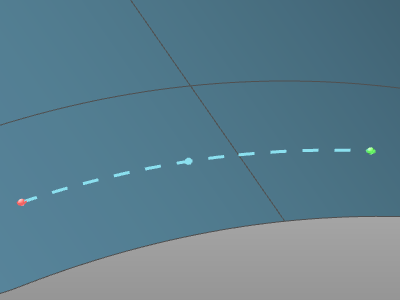
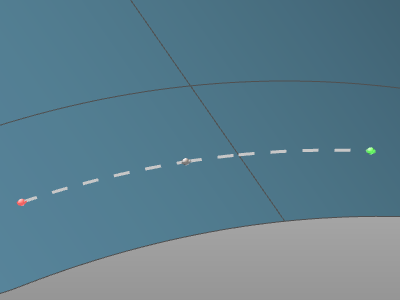
Und während Sie mit der Maus über ein Verbindungselement schweben, wird durch Drücken der linken Maustaste die Verbindung an dieser Stelle geteilt und ein zusätzlicher Kontrollpunkt erzeugt.
| Verbindung | Darauf zeigen und drücken | Zusätzlicher Kontrollpunkt |
|---|---|---|
 |  |  |
Zusätzliche Funktionen sind in den verschiedenen Pie-Menüs verfügbar.
Am Kontrollpunkt enthält das Pie-Menü:

- Manipulator aktivieren
 Konturrichtung umkehren
 Verknüpfen Sie den Kontrollpunkt neu
 Steuerpunkt entfernen
 Kontur schließen
Und bei einem Verbindungselement enthält das Kreis-Menü:



Suche über Lücken hinweg
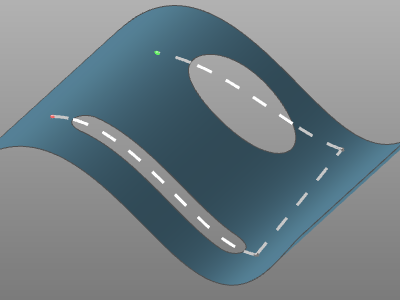
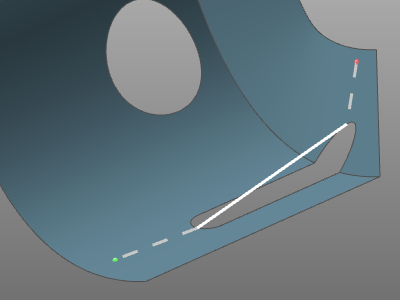
Die Kontursuche ist eine intelligente Vorrichtung, die Lücken und Löcher in der Referenzfläche überbrücken kann.
Wo immer möglich wird die Lücke oder das Loch durch Nutzung der (interpolierten) Informationen der Bezugsfläche geschlossen. Andernfalls wird die Lücke oder das Loch durch eine gerade Verbindung geschlossen.
| Interpolierte Lückenüberbrückung | Gerade Überquerung der Lücke |
|---|---|
 |  |

