Ressourceneigenschaften

Armaturenbrett
Der Resource-Befehl öffnet das Dashboard mit der vollständigen Ressourcendefinition, Eigenschaften und Attributen. Die Informationen sind auf fünf Container verteilt und können hier bei Bedarf überprüft oder geändert werden.
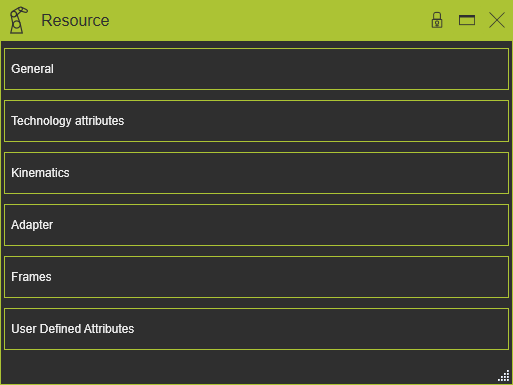
Allgemein
Dieser Container öffnet die allgemeinen Informationen der Ressource.
Die Ressource verfügt über die folgenden allgemeinen Attribute. Bei der Erstellung der Ressource werden die Standardwerte für die Attribute von der Software abhängig von der gewählten Ressourcentype vorgegeben. Die Attribute werden in der Dashboard-Funktion des Resource Builder Workbench angezeigt und können dort bearbeitet werden.

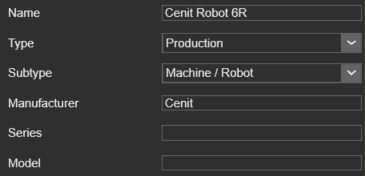
Der General-Container öffnet sich mit einer vertikalen Liste aller im Bauteil definierten Attribute, die durch ihre Namen angezeigt werden. Die Auswahl eines dieser Attribute zeigt dessen Eigenschaften, sortiert in zwei Gruppen. Eine Hervorhebung mit einem Kreuz erscheint in der 3D-Ansicht sowie das Dashboard-UI.
| Attribut | Beschreibung | Bemerkung |
|---|---|---|
| Name | Der Name der Ressource | Ein Name für die Ressource ist zwingend erforderlich. |
| Typ | Der Typ der Ressource gemäß der Klassifikation. | |
| Untertyp | Der Subtyp der Ressource gemäß der Klassifikation. | |
| Hersteller | Der Name des Herstellers der Ressource. | Das Attribut kann leer gelassen werden. |
| Serie | Der Serienname der Ressource. | Das Attribut kann leer gelassen werden. |
| Modell | Der Modellname der Ressource. | Das Attribut kann leer gelassen werden. |
Abhängig vom (Sub-)Typ der Ressource verfügt diese über zusätzliche Attribute.

| Attribut | Beschreibung | Gilt für |
|---|---|---|
| Technologie | The manufacturing technology for which the resource has been designed or for which it will be set up. 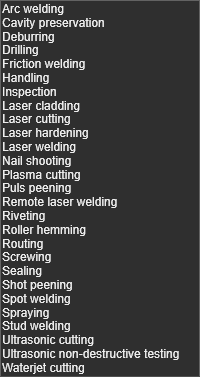 |  Robots and machines Robots and machines  End effector End effector  Tool Tool |
Technologieattribute
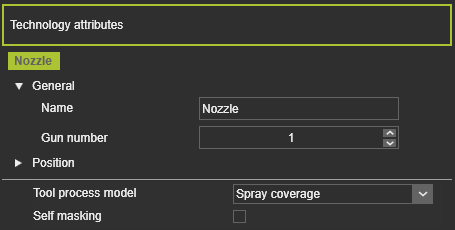
Dieser Container öffnet die Technologieattribute der Ressource. Für bestimmte Technologien ist eine Werkzeugressource in der Lage, eine mathematische Darstellung, d. h. ein Modell des Fertigungsprozesses, zu erzeugen. Mit diesem Modell kann eine Prozesssimulation berechnet werden, um die Wirkung und den Einfluss dieses Prozesses auf einen Werkstückbereich zu analysieren, beispielsweise die Beschichtungsdicke eines Lackiervorgangs.
Der Inhalt dieses Containers kann je nach Technologie unterschiedlich sein. Das obige Bild zeigt ein Beispiel.
Da das Prozessmodell eine Technologiereferenz als Ursprung für die Berechnung benötigt, gibt es einen Abschnitt mit diesen Bezugsrahmen. Von jedem Bezugsrahmen der Ressource werden die Attribute angezeigt und können hier geändert werden.
| Attribut | Beschreibung | Bemerkung |
|---|---|---|
 | ||
| Name | Der Name der Referenz. | Ein leerer Name ist zulässig. |
| Pistolennummer | Die Nummer des Prozessauslasses. | Ein Werkzeug kann mehrere Guns, mehrere Prozessauslässe haben. |
 | ||
| X, Y, Z | Die X-, Y- und Z-Koordinaten der Referenz. | Die Koordinaten sind auf das globale Koordinatensystem der Komponente eingestellt. |
| Roll (X), Nick (Y), Gier (Z) | Die Roll-, Nick- und Gierausrichtung der Referenz. | Die Orientierungwinkel werden auf das globale Koordinatensystem der Komponente eingestellt. |
Der zweite Abschnitt im Container enthält die technologiespezifischen Attribute. Dieser Abschnitt kann fehlen.
Der Container erscheint im Dashboard nur, wenn die zugewiesene Technologie auf der Werkzeugressource vorhanden ist. unterstützt ein Prozesssimulationsmodell.
Kinematik
Dieser Container öffnet die kinematischen Informationen der Ressource. Der Editor zeigt die einzelnen Gelenke und deren Definition. Die Auswahl eines Gelenks hebt das Gelenk im 3D-View sowie dessen Namen in der Liste hervor.
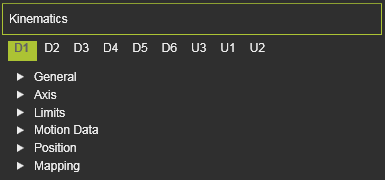
Der Kinematics-Container öffnet sich mit einer Liste aller innerhalb der Komponente definierten Attribute, die durch ihre Namen angezeigt werden. Die Auswahl eines dieser Attribute zeigt dessen Eigenschaften, sortiert in sechs Gruppen. Eine Kreuzhervorhebung im 3D-View und das Dashboard-UI erscheinen.
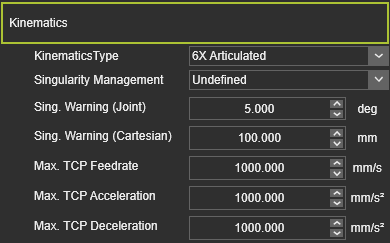
Falls die Ressource ein Produktionstyp mit einem kinematischen Skelett ist, enthält der Kinematic-Container einige spezifische Verhaltensattribute.
| Attribut | Beschreibung | Gilt für |
|---|---|---|
| Kinematiktyp | The characteristics of the kinematic behavior of the resource. 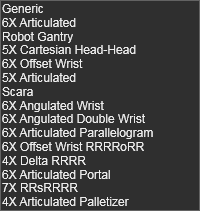 | Robots and machines |
| Singularitätsmanagement | Das Verhalten der Ressource, wenn sie ihre Singularitätsposition erreicht. | Robots and machines |
| Sing. Warnwinkel | Der Gelenkwinkel, bei dem eine Warnung angezeigt wird, wenn die Ressource sich der Singulärposition nähert. | Robots and machines |
| Sing. Warnung Kartesisch | Der Abstand, bei dem eine Warnung angezeigt wird, wenn die Ressource sich der Singulärposition nähert. | Robots and machines |
| Max. TCP-Vorschubgeschwindigkeit | Die Betriebsgeschwindigkeit des TCP der Ressource; Wert in mm/s. | Robots and machines |
| Max. TCP-Beschleunigung | Die maximale Beschleunigung des TCP; Wert in mm/s². | Robots and machines |
| Max. TCP Verzögerung | Die maximale Verzögerung des TCP, Wert in mm/s². | Robots and machines |
Ein kinematisches Gelenk verfügt über die folgenden Basisattribute. Bei der Erstellung des Gelenks werden die Standardwerte für die Attribute von der Software festgelegt, abhängig von der Wahl des Gelenktyps. Die Attribute werden in den Dashboard-Funktionen der verschiedenen Arbeitsbereiche angezeigt und sind dort bearbeitbar, die die Erstellung kinematischer Gelenke unterstützen.
| Attribut | Beschreibung | Bemerkung |
|---|---|---|
| ||
| Name | Der Name des Gelenks. | Ein leerer Name ist zulässig. |
| Kinematischer Typ | The type of the joint according to the classification as described above.  | |
| Gelenktyp | The class of the joint according to the classification as described above. 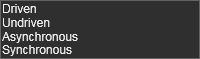 | |
| Aktueller Wert | Der aktuelle Wert der Bewegungsfähigkeit, bezogen auf seine Entwurfsposition. | Wert in mm oder Grad. |
 | ||
| Indizierte Achse | Ein Schalter zur Einstellung, ob die Achsenbewegung, die Achsenposition indiziert ist, d. h. in vordefinierten Schritten statt einer freien Bewegung erfolgt. Wenn aktiviert, erscheinen die folgenden Attribute: | Gilt nur für den asynchronen Gelenktyp |
| Schrittgröße | Der inkrementelle Wert, um den die Achse zur nächsten Position bewegt wird. | |
| Versatz | Der Startwert als Versatz von der anfänglichen niedrigsten Position. Die indizierten Schritte werden dann von dieser Versatzposition aus ausgeführt. | |
 | ||
| X, Y, Z | Der Bewegungsvektor des Gelenks. | Die Koordinaten sind auf das globale Koordinatensystem der Komponente eingestellt. |
 | ||
| Minimum, Maximum | Der minimale und maximale Wert der Gelenkbewegung. | Wert in mm oder Grad. |
 | ||
| Geschwindigkeit | Die Geschwindigkeit, mit der das Gelenk sich bewegt. | Wert in mm/s. |
| Beschleunigung | Die Beschleunigung des Gelenks, um seine Geschwindigkeit zu erreichen. | Wert in mm/s². |
| Verzögerung | Die Verzögerung des Gelenks bis zum Stillstand. | Wert in mm/s². |
| ||
| X, Y, Z | Die X-, Y- und Z-Koordinaten des Gelenks. | Die Koordinaten sind auf das globale Koordinatensystem der Komponente eingestellt. |
| Roll (X), Nick (Y), Gier (Z) | Die Roll-, Nick- und Gierausrichtung der Vorrichtung. | Die Orientierungwinkel werden auf das globale Koordinatensystem der Komponente eingestellt. |
 | ||
| Aktuellen Wert definieren | Definiert den Wert, den die aktuelle Position darstellen muss. Dieser kann vom Wert gemäß dem Design oder einer anderen Informationsquelle abweichen. | Wert in mm oder Grad. |
| Versatz zum mathematischen Modell | Definiert den Wert, um den die aktuelle Position gegenüber dem mathematischen Modell, das die Software zur Positionsgenerierung verwendet, versetzt werden muss. | Wert in mm oder Grad. |
Adapter
Dieser Container öffnet die Adapterinformationen der Ressource. Der Editor zeigt die einzelnen Adapter und deren Definition. Die Auswahl eines Adapters hebt diesen im 3D-View sowie seinen Namen in der Liste hervor.
Der Adapter verfügt über die folgenden Basisattribute. Bei der Erstellung des Adapters werden die Standardwerte für die Attribute von der Software abhängig von der Wahl des Adaptertyps vorgegeben. Die Attribute werden in einer der Dashboard-Funktionen der verschiedenen Workbenches angezeigt und können dort bearbeitet werden, die die Erstellung von Adaptern unterstützen.
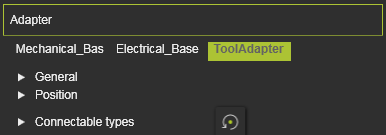
Der Adapter-Container öffnet sich mit einer vertikalen Liste aller innerhalb der Komponente definierten Attribute, die durch ihre Namen angezeigt werden. Die Auswahl eines dieser Attribute zeigt dessen Eigenschaften, sortiert in zwei Gruppen. Eine Kreuzmarkierung im 3D-View und das Dashboard-UI erscheinen.
| Attribut | Beschreibung | Bemerkung |
|---|---|---|
| ||
| Name | Der Name des Adapters. | Ein leerer Name ist zulässig. |
| Typ | The type of the adapter according to the classification. 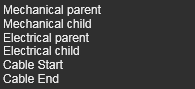 | |
| Kapazität | Definiert, wie viele Adapter an diesen angeschlossen werden können. | Gilt nur für Adapter des Steckdosentyps. |
| ||
| X, Y, Z | Die X-, Y- und Z-Koordinaten der Vorrichtung. | Die Koordinaten sind auf das globale Koordinatensystem der Komponente eingestellt. |
| Roll (X), Nick (Y), Gier (Z) | Die Roll-, Nick- und Gierausrichtung der Vorrichtung. | Die Orientierungwinkel werden auf das globale Koordinatensystem der Komponente eingestellt. |
 | Definiert, welche Klassen von Komponenten an diese Vorrichtung angeschlossen werden können. Auswahl erfolgt über das entsprechende Klassen-Symbol. | Gilt nur für mechanische Steckdosenadapter. Der Befehl „Zurücksetzen“ stellt die Definition auf die Basiseinrichtung zurück. |
The resource classes.  | Das Auswählen des Kategorie-Symbols setzt alle Komponenten der Kategorie. | |
The classes humans, controller and workpiece.  |
Rahmen
Dieser Container öffnet die Rahmeninformationen der Ressource. Der Editor zeigt die einzelnen Rahmen und deren Definition an. Die Auswahl eines Rahmens hebt diesen im 3D-View sowie seinen Namen in der Liste hervor.
Der Rahmen verfügt über die folgenden Basisattribute. Bei der Erstellung des Rahmens werden die Standardwerte für die Attribute von der Software festgelegt, abhängig von der Wahl des Rahmentyps. Die Attribute werden in einer der Dashboard-Funktionen der verschiedenen Arbeitsbereiche angezeigt und können dort bearbeitet werden, die die Erstellung von Rahmen unterstützen.
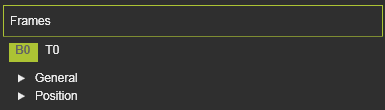
Der Frames-Container öffnet sich mit einer vertikalen Liste aller innerhalb der Komponente definierten Attribute, dargestellt durch ihre Namen. Die Auswahl eines dieser Attribute zeigt dessen Eigenschaften, sortiert in zwei Gruppen. Eine Querverknüpfung im 3D-View und das Dashboard-UI erscheinen.
| Attribut | Beschreibung | Bemerkung |
|---|---|---|
| ||
| Name | Der Name des Rahmens. | Ein leerer Name ist zulässig. |
| Typ | The type of the frame according to the classification as described above.  | |
| Vision-Rahmen | Der Rahmen wird als zusätzliche Werkzeugreferenz zugewiesen. | Gilt nur für (Ressourcen-)Werkzeugvorrichtungsrahmen. Vision-Rahmen werden in verschiedenen Anwendungen, Technologien oder Funktionen für spezielle Lösungen verwendet, wie beispielsweise die Kalibrierung der Lichtbogenschweißnaht. |
| ||
| X, Y, Z | Die X-, Y- und Z-Koordinaten des Rahmens. | Die Koordinaten sind auf das globale Koordinatensystem der Komponente eingestellt. |
| Roll (X), Nick (Y), Gier (Z) | Die Roll-, Nick- und Gierausrichtung des Rahmens. | Die Orientierungwinkel werden auf das globale Koordinatensystem der Komponente eingestellt. |
Benutzerdefinierte Attribute
Dieser Container öffnet die benutzerdefinierten Attribute der Ressource. Der Editor zeigt die Attribute und deren Definition an. Benutzerdefinierte Attribute können hier hinzugefügt, geändert und gelöscht werden.
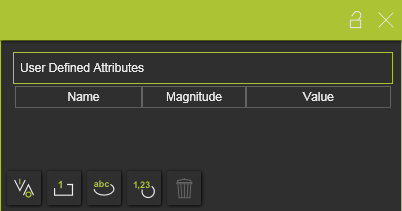
Es gibt vier Haupttypen von benutzerdefinierten Attributen.
| Typ | Beschreibung | Bemerkung | |
|---|---|---|---|
| Boolesch |  | Ein Attribut, das entweder den Wert True oder False hat. | The value is set True by pressing the value button 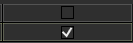 |
| Ganzzahl |  | Eine ganze Zahl verschiedener Größenordnungen. Für jede Größenordnung wird die Einheit automatisch festgelegt und angezeigt. | A drop down list is available to specify the required magnitude 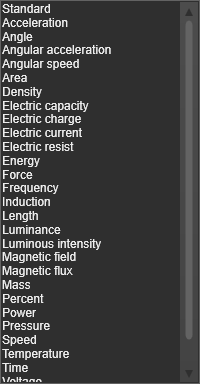 |
| Zeichenkette |  | Ein textbasiertes Attribut. | |
| Gleitkommazahl |  | Eine reelle Zahl unterschiedlicher Größenordnungen. Für jede Größenordnung wird die Einheit automatisch festgelegt und angezeigt. | Eine Dropdown-Liste, wie bei dem Integer-Attribut, steht zur Verfügung, um die spezifische Größe anzugeben. |
Das benutzerdefinierte Attribut kann durch Klicken auf die Schaltfläche für den Attributtyp hinzugefügt werden. Das Attribut wird der Liste hinzugefügt und erhält einen Standardnamen sowie einen Standardwert. Durch Auswahl des Namens oder Werts kann dieser geändert werden.
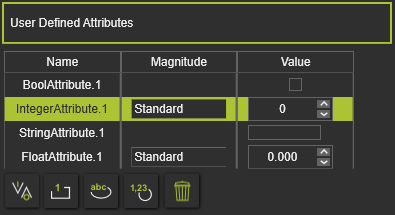
Das aktuell aktive, ausgewählte benutzerdefinierte Attribut kann durch Drücken der Löschen-Befehlsschaltfläche  entfernt werden.
