Signalportzuordnung

Dashboard-Übersicht
Mit dem Port mapping Dashboard ist es möglich, die Portverbindungen zwischen Steuerungen und Ressourcen, die elektrisch im Layout verbunden sind, einzusehen und zu bearbeiten. Dadurch kann die Signalzuordnung zwischen den Komponenten identisch zur realen Situation definiert werden.
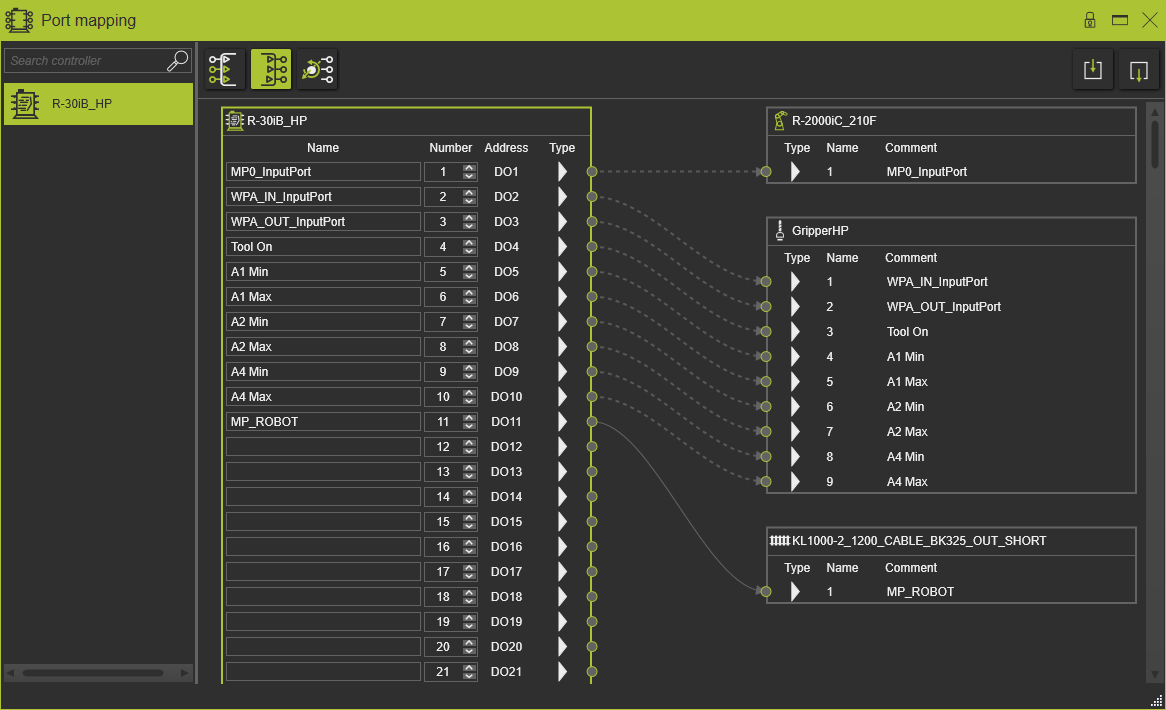
Das Dashboard enthält folgende Inhalte:
| Linke Seite | |
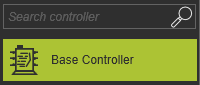 | Liste aller Steuerungen im aktiven Layout. Die ausgewählte Steuerung, für die die Ports angezeigt werden, ist hervorgehoben. Mit der Suchfunktion oben in diesem Abschnitt kann ein Suchbegriff eingegeben werden, um nach passenden Steuerungen zu suchen. |
| Rechte Seite | |
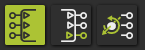 | Oben befindet sich der Selektor, um einen bestimmten Teil der Controller-Ports anzuzeigen. Es kann zwischen den logischen Eingangs- und Ausgangsports sowie den Ressourcen-Gelenkports umgeschaltet werden. |
| Unterhalb des Port-Selectors wird die Zuordnungsübersicht der verfügbaren und belegten Ports mit ihren Verbindungen angezeigt. |
| Eingangsports | Ausgangsports | Gelenkanschlüsse |
|---|---|---|
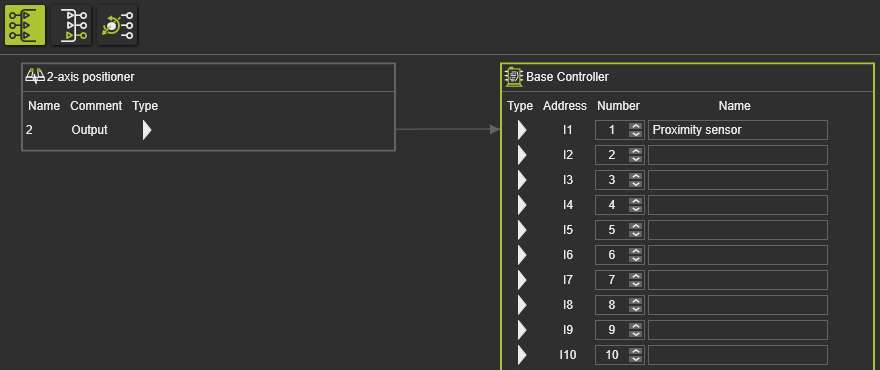 | 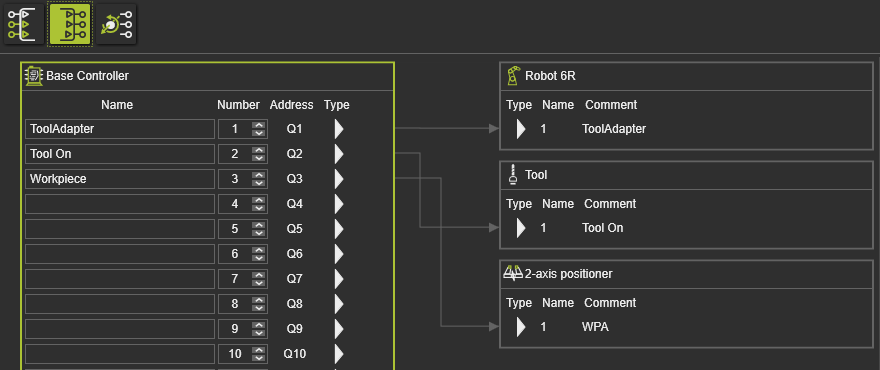 | 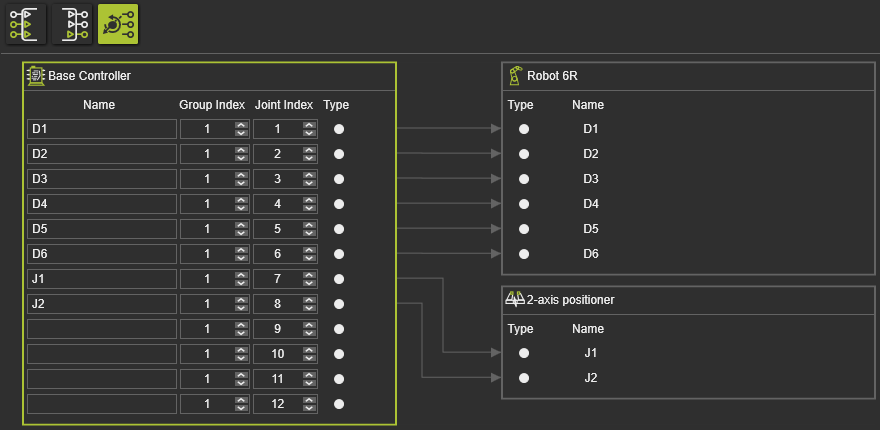 |
Für eine bessere grafische Übersicht der verbundenen Ressourcen und der Portverbindungen kann jeder Ressourcenrahmen mit der linken Maustaste erfasst und an eine andere Position innerhalb dieses Bereichs des Dashboards gezogen werden.
Logische Controller-Ports
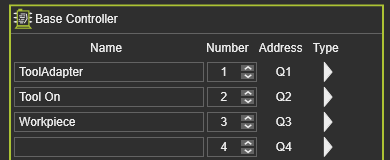
Die Anzahl der logischen Ports am Controller wird in der Port-Konfiguration im Dashboard der Controller-Eigenschaften definiert.
Ein Port verfügt über 4 Attribute.
| Attribut | Beschreibung | Bemerkung |
|---|---|---|
| Name | Der Name des Anschlusses. | Bearbeitbar. |
| Nummer | Die Nummer des Ports. | Bearbeitbar. |
| Adresse | Die Adresse des Ports. | Automatisch verteilt und durch die Portkonfiguration definiert. |
| Typ | Der Typ des Ports. | Standardmäßig vom Typ Boolean. Das Symbol stellt den Typ dar. |
Der Porttyp kann geändert werden. Am jeweiligen Port kann das Pie-Menü aufgerufen werden, um den Porttyp zu ändern.
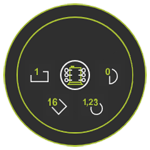
 byte (8-bit)
 32-bit float
 32-bit
Ganzzahl
32-bit
Ganzzahl
 16-bit
Ganzzahl
16-bit
Ganzzahl
Beim Ändern des Typs wird an dieser Portposition eine Gruppe mit der Anzahl von Ports erstellt, die der Typ verwendet. Die Änderung wird am Startport markiert, wie im folgenden Beispiel.
Die Edit-Taste öffnet die Portgruppe. Hier können Änderungen an den Attributen vorgenommen werden.
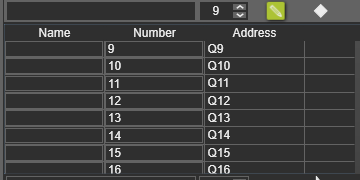
Über die Edit-Taste kann das Pie-Menü aufgerufen werden, um die Gruppe zu entfernen und den Port auf den standardmäßigen booleschen Typ zurückzusetzen.
Ändern des Porttyps ist nur möglich, wenn der Port noch nicht verbunden ist und wenn der Der Controller verfügt über genügend freie Ports, die dem neuen Typ zugewiesen werden können. Wenn eine Änderung nicht möglich ist, erscheint eine Warnmeldung. Ist dies nicht möglich, erscheint eine Warnmeldung.
Ressourcen logische Ports
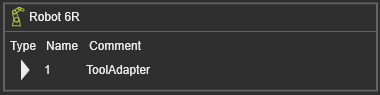
Der Ressourcenrahmen zeigt seine verfügbaren logischen Ports und deren Attribute an. Diese Attribute können hier nicht geändert werden.
Controller-Verbindungspunkte
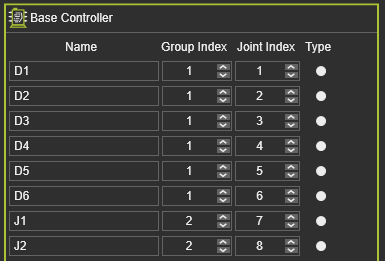
Die Anzahl der Gelenkanschlüsse am Controller wird in der Port-Konfiguration im Dashboard der Controller-Eigenschaften festgelegt.
Ein Port verfügt über 4 Attribute.
| Attribut | Beschreibung | Bemerkung |
|---|---|---|
| Name | Der Name des Anschlusses. | Bearbeitbar. Bei der Erstverbindung werden die Ressourcengelenk-Namen übernommen. |
| Gruppe | Die Gruppennummer des Ports. | Bearbeitbar. Pro angeschlossener Ressource erhöht das System die Gruppennummer bei der Erstverbindung. |
| Gelenkindex | Die Indexnummer des Ports. | Automatisch bei der Erstverbindung zugewiesen. Bearbeitbar. |
| Typ | Der Typ des Ports. | Standardmäßig vom Typ float (real). |
Ressourcen-Gelenkanschlüsse
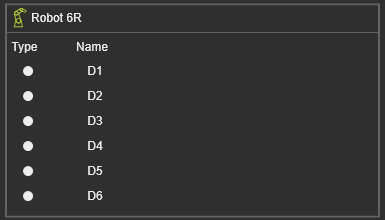
Der Ressourcenrahmen zeigt seine verfügbaren Gelenkanschlüsse und deren Attribute an. Diese Attribute können nicht geändert werden.
Signalverbindungen
Das Bewegen des Mauszeigers über einen Controller oder eine Ressource zeigt und hebt jeden Anschluss mit einem grünen Kreis hervor.
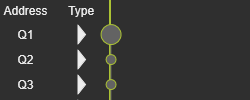
Der Kreis kann ausgewählt und gezogen werden. Es wird eine Verbindungskurve gezeichnet. Das Loslassen auf dem gegenüberliegenden Anschluss erstellt die Verbindung. Es ist offensichtlich, dass nur Anschlüsse desselben Typs verbunden werden können.
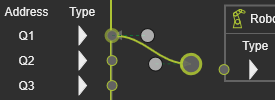
Diese Abfolge von Auswählen, Ziehen und Ablegen funktioniert in beide Richtungen.
Auf der Steuerungsseite kann das Pie-Menü am Port aufgerufen werden. Es bietet einen Befehl, um mehrere Verbindungen in einem einzigen Schritt zu erstellen.
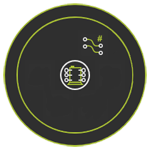

Auf der Ressourcenseite kann das Pie-Menü an einem Port aufgerufen werden, um eine Verbindung herzustellen.
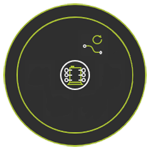

Verbindungen können ausgewählt werden, um sie zu bearbeiten. Marker werden angezeigt und können gezogen werden, um die Verbindungskurve neu zu zeichnen.
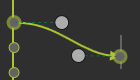
Verbindungen können mit dem Löschen-Befehl im Pie-Menü auf der Verbindungskurve gelöscht werden oder indem die Verbindung ausgewählt und die  -Taste auf der Tastatur gedrückt wird. Das Aufrufen des Pie-Menüs am Controller oder an der Ressource und die Verwendung des Löschen-Befehls entfernt alle Verbindungen der Komponente.
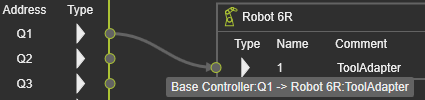
Informationen über die Verbindung werden angezeigt, wenn der Mauszeiger darüber schwebt.
Portverbindungen können nur im aktiven Layout, in dem sie erstellt wurden, bearbeitet (oder entfernt) werden. erstellt wurde. Die Verbindung wird als gestrichelte Kurve angezeigt, wenn sie kein Teil des aktiven Layouts ist.
Importieren & Exportieren
Oben links auf dem Dashboard befinden sich die Befehlsschaltflächen Import und Export.
Der Export Befehl schreibt alle Portinformationen, nicht die Verbindungen, in eine XML-Datei. Ein Standardfenster erscheint, um den Ordner auszuwählen und den Dateinamen festzulegen.
Der Befehl Import liest eine entsprechende XML-Datei mit Portinformationen ein, um diese Informationen auf das aktuelle Layout anzuwenden.
