Programmieren Sie einen konturbasierten Werkzeugweg

Befehl
Der Program toolpath-Befehl kann auf konturbasierte Prozessgeometrien des Typs globale Kontur und Schweißkontur ausgeführt werden.
Wenn der Befehl gestartet wurde, sollte ein kleines Fenster erscheinen. Hier werden die Einstellungen zur Programmierung der Kontur festgelegt.
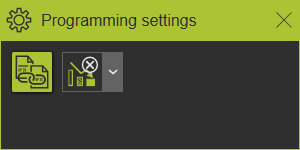
Wenn das Bedienfeld nicht erscheint, öffnen Sie das Kreis-Menü im 3D-Raum und drücken Sie die Befehls-Taste

| Einstellung | Beschreibung | Bemerkung | |
|---|---|---|---|
 | Betriebsverbindungsmodus | Programmieren Sie verbundene Operationen auf demselben Prozesskontur. | |
 | Autonome Programmierung | Optionen, ob und welche autonomen Programmiermethoden bei der Berechnung einer Operation angewendet werden dürfen. |
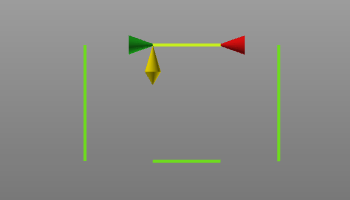
Bei der Auswahl eines Kontur-PG wird die sogenannte Fertigungsgeometrie, d. h. die Operation, angezeigt. Diese besteht aus einigen Symbolen, die auf dem PG angeordnet sind.
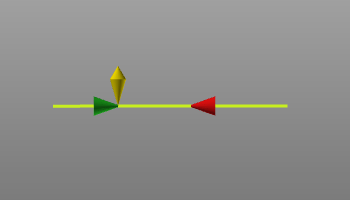
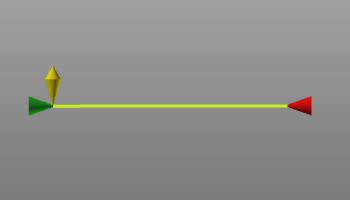 |  | Der grüne Kegel ist am Anfang der Kontur platziert und zeigt in Bewegungsrichtung. |
 | Der rote Kegel ist am Ende der Kontur platziert und zeigt auf den Anfang. | |
 | Der gelbe Doppelkegel, der am Anfang platziert ist, zeigt die (normale) Seite an, von der aus die Startposition angefahren wird. |
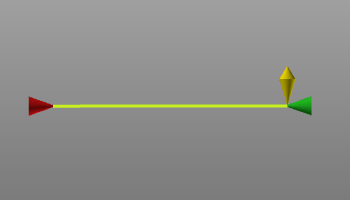
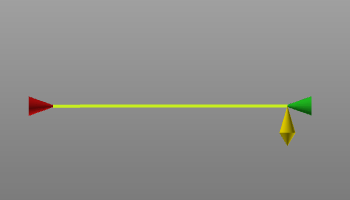
Ein Doppelklick auf einen Marker wechselt die Seite. Wenn der Start- oder Endpositionsmarker doppelt angeklickt wird, wird die Startposition zur Endposition. Bei einem Doppelklick auf den Anfahrtsmarker wird die Seite um 180 Grad gedreht.
|  |  |
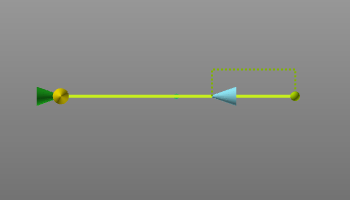
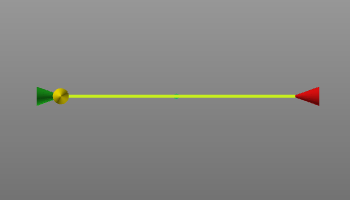
Darüber hinaus können die Start- und Endposition der Fertigungsgeometrie entlang des Konturs geändert werden. Standardmäßig wird der gesamte PG-Kontur für den zu erzeugenden Werkzeugweg ausgewählt. Durch Ziehen des Start- oder Endmarkers kann die Fertigungsgeometrie (und der resultierende Werkzeugweg) jedoch nur für einen Teil des Konturs definiert werden.
|  |
Beim Ziehen des Start- oder Endmarkers erscheint eine unterstützende gestrichelte Linie mit einer angehängten Kugel. Die Kugel zeigt den nächstgelegenen exakten Grenzpunkt am Konturelement an, über dem der Marker gezogen wird. Das Drücken der  -Taste vor dem Loslassen der linken Maustaste platziert den Marker an dieser exakten Position.
 |  |
Berechnen Sie den Werkzeugweg
Bei der Auswahl kann ein Pie-Menü geöffnet werden:
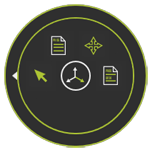


Nach der Berechnung wird der Werkzeugweg angezeigt. Die Konturprozessgeometrie wird bei der Berechnung des Werkzeugwegs approximiert. Die Methode und Genauigkeit der Approximation sind in den Programmeinstellungen definiert. Beim Erzeugen des Werkzeugwegs wird an jeder Approximationsgrenze ein Werkzeugwegelement platziert, das mit einer Pfadrichtungslinie verbunden ist.
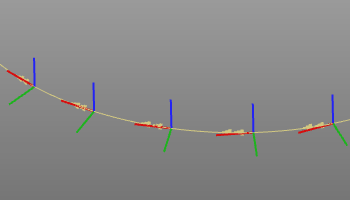
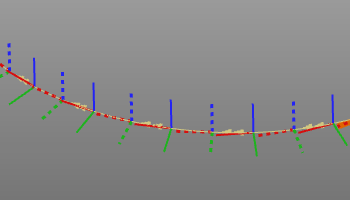
Wenn eine kreisförmige Approximation angewendet wird, wird in der Mitte jedes approximierten Bogenabschnitts ein zusätzliches Werkzeugweg-Element erstellt. Dieses Werkzeugweg-Element wird als via point bezeichnet und als gepunktete Achse dargestellt.
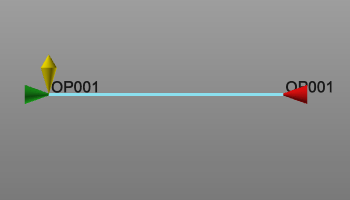
Beim Überfahren der Fertigungsgeometrie, d. h. der Operation, wird der Operationsname der Kontur angezeigt.
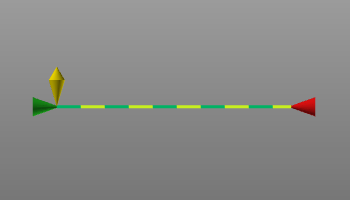
Falls sowohl die Operation als auch die Prozessgeometrie angezeigt werden (Anzeige-Filter), wechselt die Anzeige des Operationskonturs in einen gestrichelten Modus, um zu ermöglichen, dass sowohl der Prozesskontur als auch die Operation für weitere Aktionen auswählbar sind.
Vorhandene konturbasierte Werkzeugwege können modifiziert werden. Beim Auswählen des Werkzeugwegs wird die Fertigungsgeometrie angezeigt und kann angepasst werden. Ein Pie-Menü kann ebenfalls geöffnet werden, um den Befehl Move zu starten.
Hier vorgenommene Änderungen lösen sofort eine Neuberechnung des Werkzeugwegs aus.
Mehrfachauswahl und Sequenzierung
Dies gilt sowohl für das Erstellen eines neuen Werkzeugwegs als auch für die Bearbeitung eines bestehenden Werkzeugwegs.
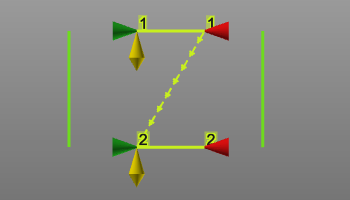
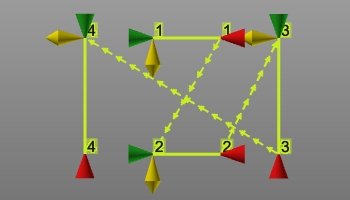
Um eine neue Operation nach dem zuletzt ausgewählten Kontur hinzuzufügen, wählen Sie einfach einen weiteren Prozesskontur aus, während die  -Taste gedrückt gehalten wird. Die neue Auswahl wird automatisch nach dem letzten Schritt hinzugefügt. Die Reihenfolge wird durch eine Sequenznummer an jedem einzelnen Kontur (Operation) angezeigt, sowie durch das Hinzufügen einer Verbindungsleitung von Ende der Operation bis zum Beginn der nächsten Operation in der Sequenz.
 |  |
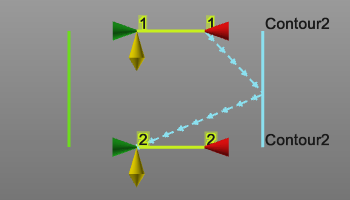
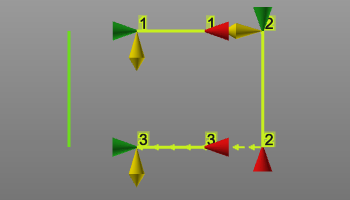
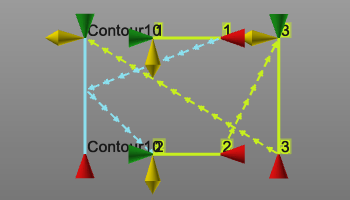
Um eine neue Operation zwischen zwei bestehenden hinzuzufügen, wird die Verbindungsleitung der Operation verwendet. Diese Leitung kann mit der linken Maustaste ausgewählt und auf die neue Prozessgeometrie gezogen werden. Das Loslassen auf dem neuen Kontur fügt diese hinzu und aktualisiert die Reihenfolge.
|  |  |
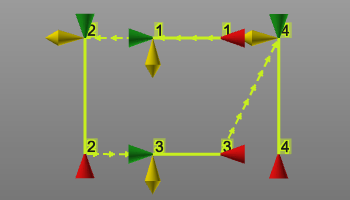
Das Ändern der Reihenfolge der Operationen funktioniert ähnlich wie das Einfügen einer Operation in eine bestehende Sequenz. Wählen Sie die Verbindungsleitung des Sequenzschritts aus, der geändert werden soll. Ziehen Sie dann diese Leitung und lassen Sie sie auf der Operation los, mit der verbunden werden soll und von der aus die Sequenz fortgesetzt werden soll.
 |  |  |
Eine Operation kann im 3D-View nicht interaktiv aus dem Werkzeugweg entfernt werden. Dazu ist das Active program Dashboard zu verwenden.
Verbundene Operationen auf Teilbereichen
Wie oben beschrieben, wird bei Auswahl einer Prozessgeometrie standardmäßig der gesamte Konturverlauf zur Programmierung des Werkzeugpfads verwendet. Ein Teil dieses Konturs kann programmiert werden, indem der Start- oder Endmarker entlang des Konturs verschoben wird.
Es kann verschiedene Gründe geben, den gesamten Konturverlauf programmieren zu wollen, jedoch in mehreren Teilbereichen, d. h. mehreren Operationen. Zum Beispiel, wenn ein Fertigungsprozess auf mehrere Maschinen (Steuerungen) verteilt werden muss, weil der zu bearbeitende Konturverlauf für eine einzelne Maschine zu lang ist.
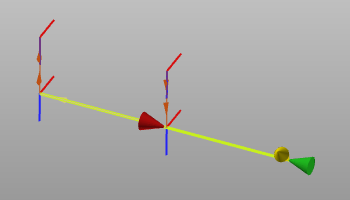
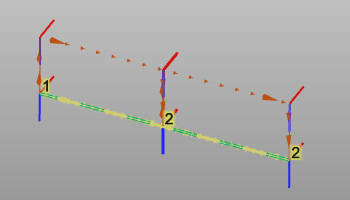
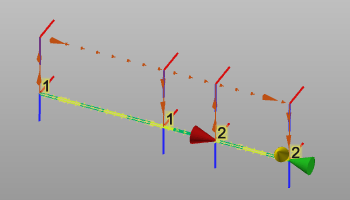
Mit deaktiviertem Attribut kann man mehrere Teilbereiche, mehrere Abschnitte des Prozesskonturs programmieren. Alle diese Operationen sind isoliert und stehen in keiner Beziehung zueinander, selbst wenn das Ende und der Anfang von zwei Operationen an derselben Position liegen. Jede Operation kann unabhängig voneinander durch ihre Start- und Endposition modifiziert werden.
 |  |  |

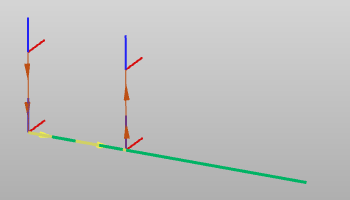
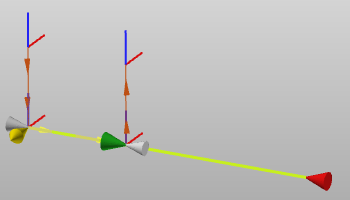
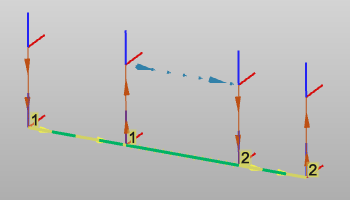
Mit aktiviertem Attribut kann nun Teilbereiche des Prozesskonturs programmiert werden, die automatisch verbunden sind, um sicherzustellen, dass keine Lücken entstehen. Sobald die Prozessgeometrie erneut zur Programmierung ausgewählt wurde, wird die bestehende(n) Operation(en) angezeigt. Der Beginn der neuen Operation setzt am Ende der bestehenden fort.
 |  |
Oder im Falle, dass die Auswahl eine Lücke zwischen bestehenden Operationen darstellt, wird diese Lücke geschlossen.
 | 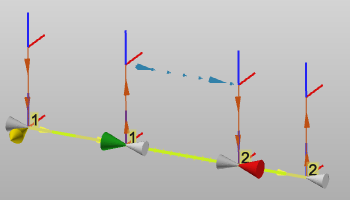 |
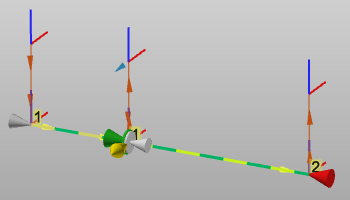
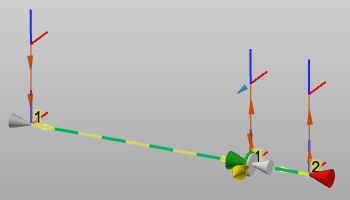
Die bereits programmierten Operationen auf dieser Prozessgeometrie werden mit grau gefärbten Markierungen angezeigt. Dies gilt auch, wenn sie in einem anderen Programm oder auf einer anderen Steuerung programmiert wurden.
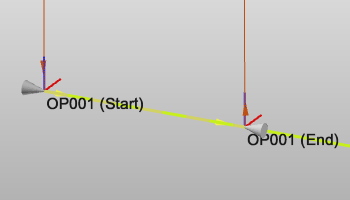 |
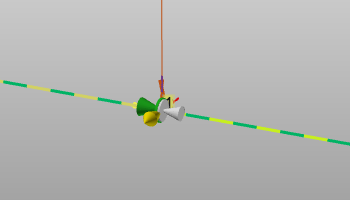
Der neu ausgewählte Teil der Kontur kann programmiert werden. Ohne jegliche Interaktion wird die neue Operation automatisch mit der bestehenden Operation verbunden. Dies wird durch eine zusätzliche Scheibe an ihrer gemeinsamen Position angezeigt. Dies bedeutet, dass eine Positionsänderung an einer der beiden Operationen beide Operationen verändert.
 |  |  |
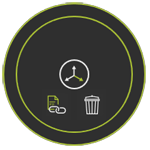
Am Operationsmarker kann das Pie-Menü aufgerufen werden:


Lichtbogenschweißnaht-Erkennung
In der Lichtbogenschweißtechnik besteht die Möglichkeit, während der Erstellung der Prozessgeometrie Nahtdetektions-Kontaktpunkte zu definieren. Wenn die Prozessgeometrie solche Kontaktpositionen enthält, werden diese beim Auswählen der Prozessgeometrie zur Erzeugung eines Werkzeugwegs hier sichtbar. Die gelben Kugeln repräsentieren diese Kontaktpositionen.
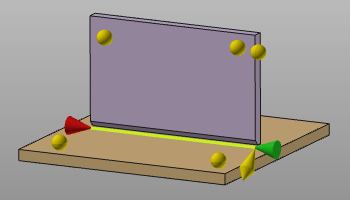
Jede Position, die gelben Kugeln, kann durch Auswählen und Ziehen an die gewünschte Stelle auf der Oberfläche neu positioniert werden. Das Ablegen der Kugel, d. h. die Position der Maus, bestimmt die neuen Koordinaten des Berührungspunkts.
Auf bestehender Prozessgeometrie ist es ebenfalls möglich, neue Berührungspunkte zur Nahtdetektion zu definieren. Nach Auswahl der Prozessgeometrie muss der Pie-Befehl Program the toolpath gestartet werden. Dies initiiert den Arbeitsablauf zur Definition dieser Berührungspunkte an den Schweißteilen. Nach Abschluss wird ein zweiter Aufruf des Befehls den Werkzeugweg zusammen mit den Berührungspunkten berechnen.
Wenn keine Berührungspunkte definiert werden sollen, muss die Befehls-Schaltfläche einfach zweimal gedrückt werden.
Bestehende Berührungspunkte können einfach durch Auswählen und Ziehen an die gewünschte neue Position verschoben werden. Das Loslassen der Kugel, d. h. die Position des Mauszeigers, bestimmt die neuen Koordinaten des Berührungspunkts. Zusätzliche Positionen können durch Auswahl ihrer Lage an der Werkstückgeometrie eingefügt werden. Das Entfernen einer Position erfolgt durch zweimaliges Klicken auf die gelbe Positionskugel.
Nach Abschluss muss im Menü der Befehl Program the toolpath gestartet werden. Dies initiiert den Arbeitsablauf zur Berechnung des Werkzeugpfads zusammen mit den Berührungskalibrierungspunkten.
Anpassungsskript
Im Allgemeinen werden alle Änderungen am Werkzeugweg, den Operationen (Gruppen) oder dem gesamten Programm manuell durchgeführt. Das System unterstützt jedoch die Möglichkeit, diese Änderungen (teilweise) zu automatisieren.
Nach dem letzten Schritt der Programmierberechnung kann ein benutzerdefiniertes Python-Skript eingebunden werden, das ausgeführt wird. Mit diesem Skript kann nicht nur der zuletzt berechnete Werkzeugweg modifiziert werden, sondern das gesamte Programm, zu dem dieser Werkzeugweg gehört. Es ermöglicht beispielsweise, die verschiedenen Operationen neu zu organisieren oder eine andere Benennungskonvention für die Operationen und Werkzeugwegpositionen einzuführen.
Dieses spezielle Skript trägt den (verpflichtenden) Namen PostProgramProcessGeometries.py und befindet sich im Plugin-Ordner <plugin>\Technologies<Technologie-Name>\AuxiliaryCommands\AutoExecute. Dies kann der Standard-Installationsplugin-Ordner oder ein anderer konfigurierter Plugin-Ordner sein.
Das Skript wird nur auf neu programmierte Prozessgeometrie ausgeführt. Jede andere Änderung, die ruft eine Neuberechnung des Werkzeugwegs oder Programms auf, wird das Skript nicht ausgeführt.
