Kontursuche über Kanten und Kurven
Die Kontursuche über Kanten und Kurven ist ein Hilfsmittel, das den Benutzer dabei unterstützt, jene Kurvenelemente einfach und komfortabel auszuwählen, die den erforderlichen Kontur bilden und als Eingabe für einen beabsichtigten nächsten Arbeitsschritt dienen.
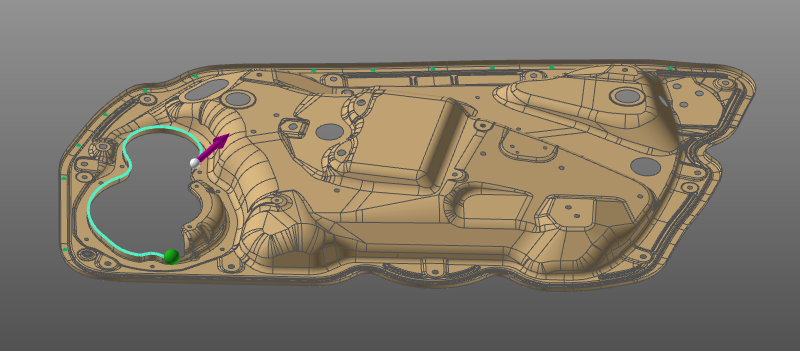
Mit dieser Kontursuchmethode können die inneren und äußeren Begrenzungen eines geometrischen Modells sowie die inneren Kanten der einzelnen Flächen dieses Objekts durchsucht werden. Dies ist jedoch nur möglich, wenn die Geometrie als exakte Geometrie mit ihrer ursprünglichen Topologie importiert wurde. Die Methode unterstützt auch die Suche entlang von Drahtgittergeometrie.
Diese Kontursuchmethode unterstützt grundsätzlich drei Suchmodi, um bei der Suche und Auswahl des erforderlichen Konturs zu helfen.
| Modus | Beschreibung | Beispiel |
|---|---|---|
 | Suchen bis Sucht und wählt die Kontur zwischen zwei ausgewählten Kurvenelementen aus. Das Ergebnis kann offen oder geschlossen sein. | 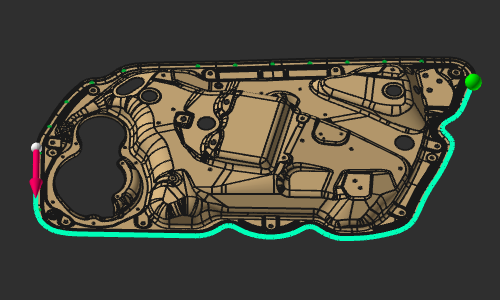 |
 | Geschlossener Kontur Sucht und wählt eine geschlossene Kontur aus, wenn ein Kurvenelement ausgewählt wurde. Wenn keine geschlossene Kontur gefunden werden konnte, kann eine manuelle Auswahl eines nächsten Elements den Prozess fortsetzen. | 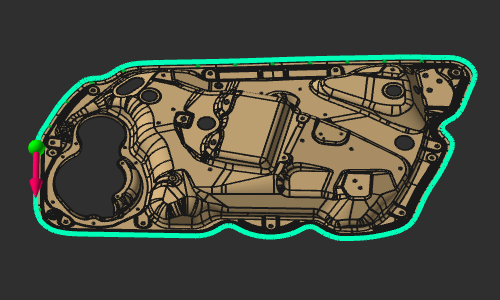 |
 | Oberflächenbegrenzung Die Auswahl einer Oberfläche sucht nach allen geschlossenen inneren (gelben) und äußeren (weißen) Konturen auf dieser Oberfläche. | 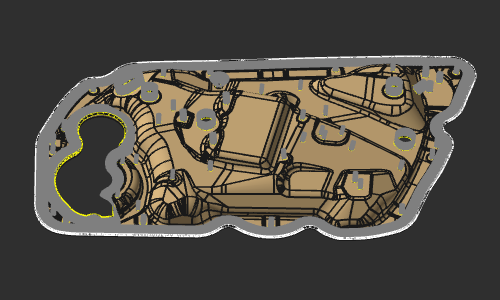 |
oder Kurven
Die Suchmaschine unterstützt mehrere Methoden, wie Kurven gesucht und zu einem Ergebnis-Kontur kombiniert werden. Im Allgemeinen funktioniert sie jedoch wie folgt:
Wenn das erste Element ausgewählt wird, verwendet die Kontursuche einige farbige Symbole, um ihr vorläufiges Ergebnis anzuzeigen.
| Element | Symbol | Beschreibung |
|---|---|---|
| Vorab ausgewählte Konturelemente | 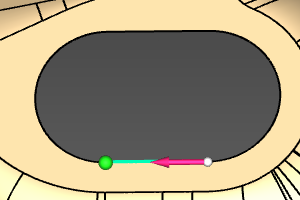  | Die vorgewählten Konturelemente sind hellblau eingefärbt. |
| Startposition |  | Ein weißer Ball mit rotem Pfeil, der die Startposition der Kontur und deren Tangentialrichtung (für die Suche) anzeigt. |
| Endposition |  | Eine grüne Kugel, die die Endposition des Konturs anzeigt und von der aus das nächste Element gesucht wird. |
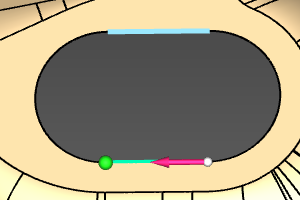
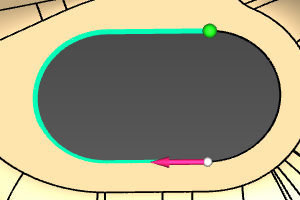
Nachdem das erste Element auf dem vorgesehenen Kontur ausgewählt wurde, ist es möglich, beliebige weitere Elemente auszuwählen, um die Kontur zu vervollständigen.
Das Auswählen zusätzlicher Elemente außerhalb des vorläufigen Suchergebnisses fügt die gefundenen Elemente der Vorauswahl hinzu.
| Start | Elementauswahl | Ergebnis |
|---|---|---|
|  |  |
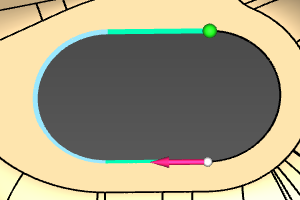
Die Auswahl eines Elements innerhalb des vorläufigen Suchergebnisses entfernt alle Elemente bis einschließlich des ausgewählten Elements aus der Vorauswahl.
| Start | Elementauswahl | Ergebnis |
|---|---|---|
|  | |
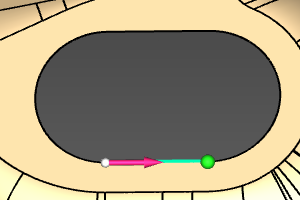
Die Auswahl des Startpfeils kehrt die Richtung um. Start- und Endposition des vorgewählten Konturs werden ausgetauscht.
| Start | Umgekehrt |
|---|---|
|  |
Der Algorithmus versucht, eine geeignete Lösung für einen Konturverlauf aus kontinuierlich verbundenen Elementen zu finden. Wenn während der Suche an einer Stelle mehrere Lösungen möglich sind, wie der Konturverlauf fortgesetzt werden kann, erscheint eine grafische Rückmeldung. An der Position, an der mehrere Suchrichtungen vorhanden sind, werden farbige Pfeile angezeigt. Der Benutzer muss den Pfeil für die Richtung auswählen, in der die Suche fortgesetzt werden soll.
| Aktion | Beschreibung |
|---|---|
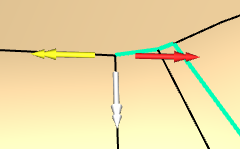  | Geht einen Schritt im Suchvorgang zurück. |
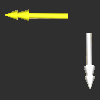 | Setzt die Suche in der ausgewählten Richtung fort. |
An jedem der Marker und am Kontur selbst kann das Kreis-Menü aufgerufen werden.



Die Suchmaschine verwendet die folgenden Parameter, um die resultierende Kontur zu finden und zu erstellen:
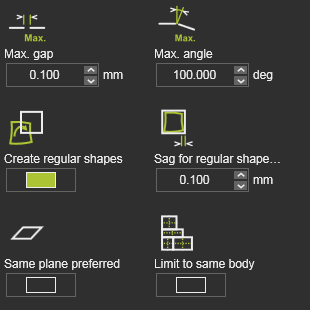
 | Spalt für Kontursuche | Die automatische Kontursuche stoppt, wenn der Abstand zwischen der bereits gefundenen Kontur und dem nächsten Kurvenelement größer als der angegebene Wert ist. |
 | Winkelabweichung | Die automatische Kontursuche stoppt, wenn der Tangentialwinkel zwischen der bereits gefundenen Kontur und dem nächsten Kurvenelement größer als der angegebene Wert ist. |
 | Regelmäßige Formen erstellen | Wenn der gefundene Konturverlauf einer regulären Form entspricht, wird er in eine solche spezielle Kontur umgewandelt. |
 | Durchbiegung für Prüfung der regelmäßigen Form | Toleranz oder zulässige Abweichung, um einen gesuchten geschlossenen Kontur in eine (bestmögliche) Kontur einer regulären Form, wie beispielsweise einen Kreis oder ein Rechteck, umzuwandeln. |
 | Bevorzugte gleiche Ebene | Die Suche kann mehrere Kanten finden, die übereinanderliegen, da jede Oberfläche ihre eigene Kante besitzt. Dies kann dazu führen, dass entlang des Ergebnis-Konturs die Kantennormalen unterschiedlich ausgerichtet sind. Die Option wählt die Kante aus, die am nächsten an einer fiktiven Ebene liegt, die durch die anderen Konturelemente definiert ist, um die Kantennormalen konstant ausgerichtet zu halten. |
 | Auf denselben Körper beschränken | Wenn ein Werkstück aus mehreren geometrischen Körpern besteht, kann die Suche auf die Kanten des ausgewählten Körpers beschränkt werden. |
Die Kontursuche auf Flächen funktioniert grundsätzlich genauso wie die Suche an Kanten. Der Unterschied besteht darin, dass in diesem Fall das Eingabeelement ein Flächenelement ist. Nach der Auswahl sucht die Suchmaschine alle inneren und äußeren Begrenzungen dieses Elements und erstellt für jede Lösung einen Kontur. Die Mehrfachauswahl von Flächenelementen wird unterstützt.
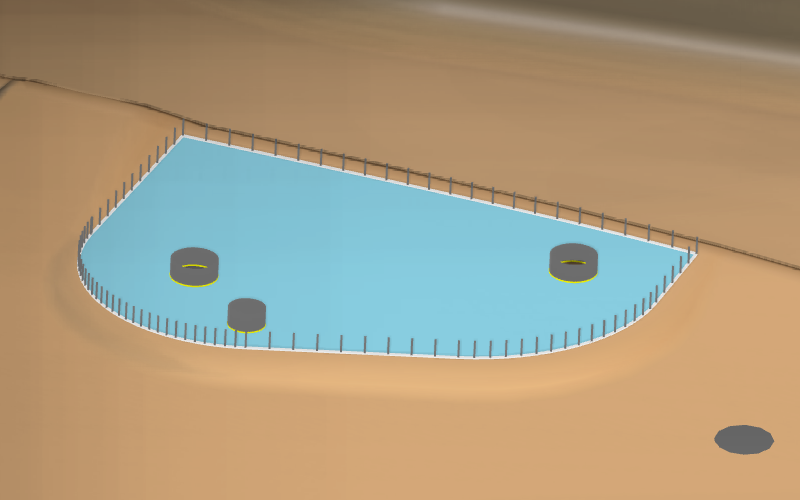
Wenn benachbarte Flächenelemente ausgewählt wurden, fasst die Suchmaschine diese Elemente zu einem einzigen Flächenobjekt zusammen, um die Außenkontur zu ermitteln.
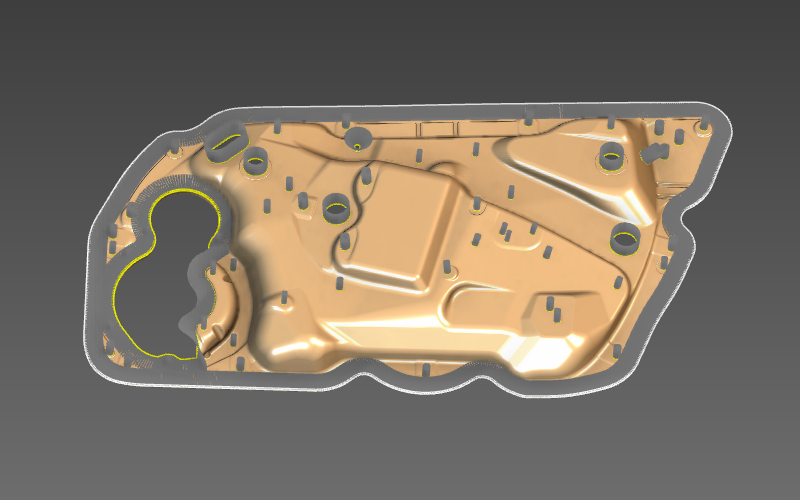
Die Oberflächenbegrenzungssuche verwendet die folgenden Parameter, um die resultierende Kontur zu erstellen:
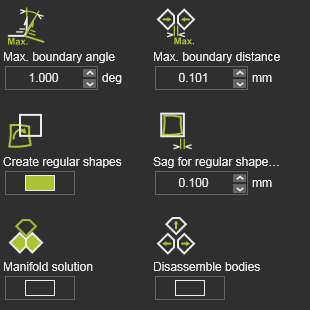
 | Max. Grenzwinkel | Adjacent surfaces are merged when the angle between the (in surface) normals at the edges is smaller than the defined angle value. 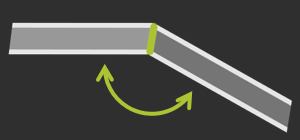 |
 | Max. Grenzabstand | Adjacent surfaces are merged when the gap between the edges is smaller than the defined distance value. 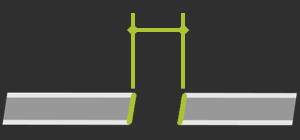 |
| Regelmäßige Formen erstellen | Wenn der gefundene Konturverlauf einer regulären Form entspricht, wird er in eine solche spezielle Kontur umgewandelt. |
| Durchbiegung für Prüfung der regelmäßigen Form | Toleranz oder zulässige Abweichung, um einen gesuchten geschlossenen Kontur in eine (bestmögliche) Kontur einer regulären Form, wie beispielsweise einen Kreis oder ein Rechteck, umzuwandeln. |
 | Eindeutige Lösung | When multiple possible solutions exist to merge adjacent surfaces, activating the option results in the solution where the angle between the adjacent surfaces is the smallest.  |
 | Körper zerlegen | Bodies can be disassembled in single surfaces, to generate other domains. 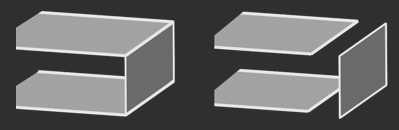 |

