Prozessgeometrie erstellen

Befehl
Der Process geometry-Befehl ist die Sammlung zum Erstellen und Bearbeiten der Prozessgeometrie am Werkstück. Er öffnet das Definitionsfenster mit dem Selektor zur Festlegung des Typs der Prozessgeometrie. Jeder Typ kann eigene spezifische zusätzliche (Unter-) Befehle und Optionen enthalten.
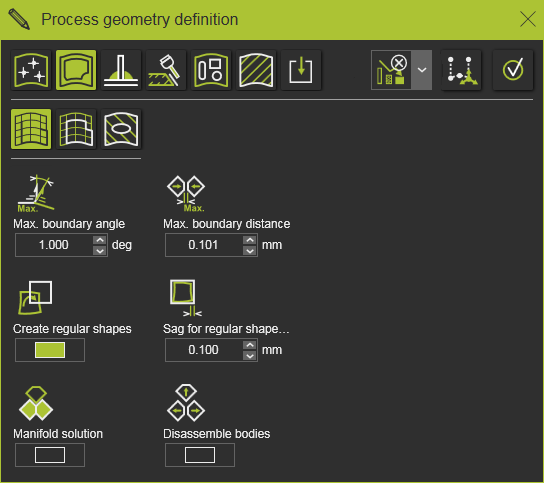
Wenn das Bedienfeld nicht erscheint, öffnen Sie das Kreis-Menü im 3D-Raum und drücken Sie die Befehls-Taste.

Prozessgeometrietyp
Im linken Teil der oberen Zeile wird der Typ der Prozessgeometrie ausgewählt, der erstellt (oder bearbeitet) werden soll. Die Zeile ist eine Mischung aus globalen geometrischen Selektoren und technologiespezifischen Prozessgeometrie-Erstellern.


Während der Arbeit in der OLP-Arbeitsumgebung kann der genaue Inhalt der Typauswahlzeile je nach der aktuell wirksamen Technologie variieren, abhängig von der aktuell gültigen Technologie.
Allgemeine Befehle und Optionen
Auf der rechten Seite der oberen Reihe werden einige zusätzliche allgemeine Befehle oder Optionen angezeigt.

Der Operation creation ist ein Umschaltknopf, der nur angezeigt wird, wenn das Bedienfeld im OLP-Arbeitsbereich geöffnet wurde.
Bei eingeschaltetem Schalter wird nicht nur die Prozessgeometrie berechnet, sondern auch automatisch eine Operation, d. h. ein Werkzeugweg, auf der neuen Prozessgeometrie ohne weitere Benutzerinteraktion erzeugt. Der Werkzeugweg wird mit den Attributen und Parameterwerten berechnet, wie sie in den Programmierstandards für die angewandte Technologie festgelegt sind. Diese Programmierstandards beinhalten die Möglichkeit, bestimmte zusätzliche (benutzerdefinierte) Skripte während der Berechnung der Werkzeugwege und des Programms auszuführen.

Die Option Immediate autonomous optimization for new operations arbeitet in Kombination mit der Operationserstellung. Sie legt fest, ob und welche autonomen Programmiermethoden bei der Berechnung der neuen Operation angewendet werden dürfen.
| Option | Beschreibung | |
|---|---|---|
 | Keine Optimierung | Der Vorgang wird berechnet. Es wird keine weitere autonome Optimierung ausgeführt. |
 | Vollständige autonome Optimierung | Nachdem der anfängliche Werkzeugweg berechnet wurde, werden alle autonomen Optimierungsmethoden ausgeführt. |
 | Automatische Prozesspfadoptimierung | Der während des Prozesses ausgeführte Teil der Operation, der Werkzeugweg, wird optimiert. |
 | Automatische Generierung des Verbindungswegs | Optimieren Sie die Bewegung, die Verbindung zwischen den Operationen, um eine kollisionsfreie Bewegung zu gewährleisten. |

Mit der Execution-Taste wird die Erstellung der Prozessgeometrie dauerhaft. In einigen Fällen wird die Prozessgeometrie nach der Auswahl des Eingangs am Werkstück automatisch erstellt. In diesem Fall muss die Ausführung nicht gestartet werden.
Eine Tastenkombination für die Ausführungstaste ist die Verwendung der

Taste auf der Tastatur.
Im 3D-Ansichtsfenster ist ein zusätzliches Kreis-Menü vorhanden.



Beim Arbeiten in einem OLP-Projekt und dem Speichern dieses Projekts werden die neu erstellten und modifizierten Prozessgeometrien in der Werkstück-.cenwpc-Datei des Projekts gespeichert. Die Geometrie wird in der Werkstück-.cenwpc-Datei des Projekts gespeichert.
