Bewertung der Werkzeugwegqualität

Qualitätsbewertung
Die Qualitätsevaluierung ist ein Prozess, bei dem jede Werkzeugwegposition analysiert und anhand einer Reihe vordefinierter Zielkriterien bewertet wird.
Die Qualitätsevaluierung wird automatisch nach jeder Berechnung eines Werkzeugwegs oder jeder Änderung des Werkzeugwegs durchgeführt. Dies umfasst einfache manuelle Eingriffe wie das Ändern eines Attributs oder das Einlernen einer Position bis hin zu Optimierungsprozessen wie der Pfadinterpolation.
Im Allgemeinen wird die Qualitätsevaluierung auf dem gesamten Werkzeugweg durchgeführt. Wenn jedoch Kriterien auf Abschnitten des Werkzeugwegs nicht gültig sind, werden diese Abschnitte automatisch von der Evaluierung ausgeschlossen. Beispielsweise ist der Prozesswinkel bei Off-Process-Abschnitten, wie dem Anfahren oder Rückziehen, nicht relevant. Die Berechnung und Evaluierung wurde daher in diesen Abschnitten des Werkzeugwegs deaktiviert.
Um eine fehlerhafte Bewertung oder eine fehlerhafte Validierung zu vermeiden, wird die Qualitätsevaluation bei Legacy-Toolpaths Daten wurden auf die Zielkriterien beschränkt, die zum Zeitpunkt des Werkzeugwegs implementiert waren. Erstellung und Speicherung. Alle neueren Zielkriterien sind dann standardmäßig deaktiviert.
Zielkriterien
Ein Zielkriterium wurde definiert durch:
-
eine Bewertungsparameterfunktion, die den Wert des zu bewertenden Kriteriums zurückgibt
-
eine spezifische Einrichtung von Qualitätswertbereichen für diesen Bewertungsparameter.
Für jedes Kriterium gibt es maximal 4 Wertebereiche.
 | Gut (grün) Der Wertebereich des Kriteriums, der als gut definiert ist. Es besteht keine Notwendigkeit zur Verbesserung. |
 | Akzeptabel (gelb) Der Wertebereich des Kriteriums, der als akzeptabel definiert ist. Obwohl das Ergebnis akzeptabel ist, wird empfohlen, hier Verbesserungen vorzunehmen. |
 | Kritisch (orange) Der Wertebereich des Kriteriums, der als kritisch definiert ist. Es wird dringend empfohlen, den Werkzeugweg zu ändern, um ihn zu verbessern. |
 | Ungültig (rot) Der Wert (und darüber) des Kriteriums, der als nicht akzeptabel definiert ist. Es ist zwingend erforderlich, den Werkzeugweg zu ändern, um ihn zu verbessern. |
Die folgenden Zielkriterien werden unterstützt, deren Vorhandensein jedoch von der angewandten Technologie sowie dem Maschinentyp oder Roboter abhängt:
| Kriterium | Beschreibung | Wertebereich | Bemerkung | |
|---|---|---|---|---|
 | Unerreichbarkeit | Bewertet unerreichbare Situationen des Roboters oder der Maschine. | Gut oder ungültig. | Die Bewertung anhand dieses Kriteriums wird stets durchgeführt. |
 | Kollision | Bewertet Kollisionen. | Gut oder ungültig. | Die Bewertung anhand dieses Kriteriums wird nur durchgeführt, wenn der Schalter für die Kollisionsanalyse in der Symbolleiste des Simulationsplayers aktiviert wurde. |
 | Singularität | Bewertet Singularitätssituationen des Roboters oder der Maschine. | Gut oder ungültig. | Die Bewertung anhand dieses Kriteriums wird stets durchgeführt. |
 | Abweichung des Prozesswinkels | Bewertet die Abweichung des Prozesswinkels von seinem Referenzwert. | Winkelbereiche von gut bis ungültig. | |
  | Abweichung des Werkzeugwinkels (Lichtbogenschweißtechnik) | Bewertet die Abweichung des Werkzeugwinkels von seinem Referenzwert. | Winkelbereiche von gut bis ungültig. | |
  | Abweichung des Fahrwinkels (Lichtbogenschweißtechnik) | Bewertet die Abweichung des Verfahrwinkels (Tangentialrichtung) von seinem Referenzwert. | Winkelbereiche von gut bis ungültig. | Nur verfügbar, wenn das Kriterium der Prozesswinkelabweichung durch getrennte Kriterien für Arbeits- und Werkzeugwinkel ersetzt wurde. |
  | Abweichung des Arbeitswinkels (Lichtbogenschweißtechnik) | Bewertet die Abweichung des Arbeitswinkels (bi-tangentiale Richtung) von seinem Referenzwert. | Winkelbereiche von gut bis ungültig. | Nur verfügbar, wenn das Kriterium der Prozesswinkelabweichung durch getrennte Kriterien für Arbeits- und Werkzeugwinkel ersetzt wurde. |
 | Achsnäherung an Grenzwerte | Bewertet die Nähe zu den Grenzen der Achse der inversen kinematischen Kette der (Fertigungs-)Ressource. Getrennter Bewertungswertbereich für lineare und rotatorische Gelenkachse. | Lineare Abstände oder Winkelbereiche von gut bis ungültig. |  Required to ensure that small differences between the computed and real axis positions do not lead to possible failure (limit reached) or other axis issues of the resource. Required to ensure that small differences between the computed and real axis positions do not lead to possible failure (limit reached) or other axis issues of the resource. |
 | Achsgeschwindigkeit | Bewertet die Achsgeschwindigkeit aller angetriebenen Achsen als (absolute) Differenz zwischen dem Start- und dem Endpunkt der Bewegung zwischen Positionen. | Prozentbereiche von gut bis ungültig. | |
 | Achsen-Minimaldelta (punktbasierte Technologie) | Bewertet alle Achsenbewegungen der Roboter bei aufeinanderfolgenden Werkzeugweg-Elementen | Prozentbereiche von gut bis ungültig. | Das Ziel ist es, die Änderung in jeder Achse so weit wie möglich zu reduzieren. Dies ist ein Attribut des Expertenmodus. |
 | Minimaler Werkzeugwinkel-Delta (punktbasierte Technologie) | Bewertet die Werkzeugtangentialorientierung auf aufeinanderfolgenden Werkzeugweg-Elementen | Winkelbereiche von gut bis ungültig. | Dies gewährleistet flüssigere Übergänge in der Werkzeugorientierung. Dies ist ein Attribut des Expertenmodus. |
Kostenbewertung
Um verschiedene Werkzeugweg-Situationen vergleichen oder den Werkzeugweg optimieren zu können, wird die Qualität des Werkzeugwegs ebenfalls in einem Kostenfaktor ausgedrückt. Dies ist ein neutraler Wert, keine Art von Währung.
Jedes Zielkriterium wurde mit einer bestimmten Kostenfunktion versehen. Diese kann linear, parabolisch oder eine andere Form haben, wie das folgende Beispiel zeigt.
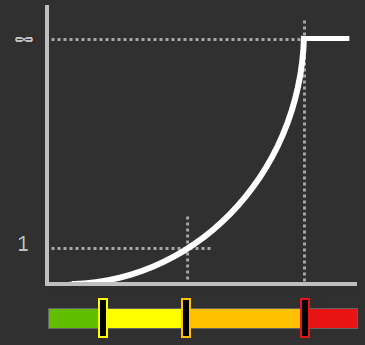
Der Qualitätsbereich entspricht einem Kostenwert von:
| Gut (grün) Es fallen keine Kosten an; d.h. die Kosten betragen 0. |
| Akzeptabel (gelb) Kostenwert zwischen 0 und 1. |
| Kritisch (orange) Kostenwert von 1 bis unendlich (∞). |
| Ungültig (rot) Kosten sind unendlich (∞). |
An jeder Werkzeugbahnposition werden die Kosten für jedes analysierte Kriterium berechnet und anschließend summiert. Um den Einfluss einer unterschiedlichen Anzahl von Werkzeugbahnpositionen zu vermeiden, die durch verschiedene Arten von Änderungen, wie die Approximation der zugrunde liegenden Geometrie, entstehen können, werden die Kosten jeder einzelnen Position mit der Länge der Werkzeugbahn an dieser Position multipliziert. Schließlich ergeben die Gesamtkosten einer Operation die Summe der Kosten der einzelnen Positionen. Dieser Vorgang wird dann für jede Operation, jede Operationsgruppe und schließlich für das gesamte Programm durchgeführt.
Das Ergebnis wird im Toolpath-Dashboard angezeigt und unmittelbar nach jeder Änderung des Werkzeugwegs aktualisiert.

Da jede Änderung die Gesamtkosten beeinflussen kann, zeigt ein Trendsymbol die Kostenänderung im Vergleich zum vorherigen Wert an.
 | Wert wurde erhöht; d.h. höhere Kostenwirkung |
 | Wert blieb unverändert; d.h. neutral oder keine Auswirkung |
 | Der Wert wurde verringert; d. h. geringere Kostenwirkung |
Beachten Sie, dass eine Änderung des Bereichs eines Zielkriteriums oder dessen Deaktivierung in der Qualitätsevaluation auch die berechneten Kosten beeinflussen wird. wirkt sich ebenfalls auf die berechneten Kosten aus.
Definition der Zielkriterien
Die Zielkriterien für die Bewertung eines bestimmten Programms, d. h. in der Technologie, werden in einem separaten Tech-Tab in den Dashboards Programmier-Standards und Aktives Programm bereitgestellt. Neben den standardmäßigen, allgemeinen Qualitätskriterien kann dieser Tab technologiespezifische Kriterien enthalten.
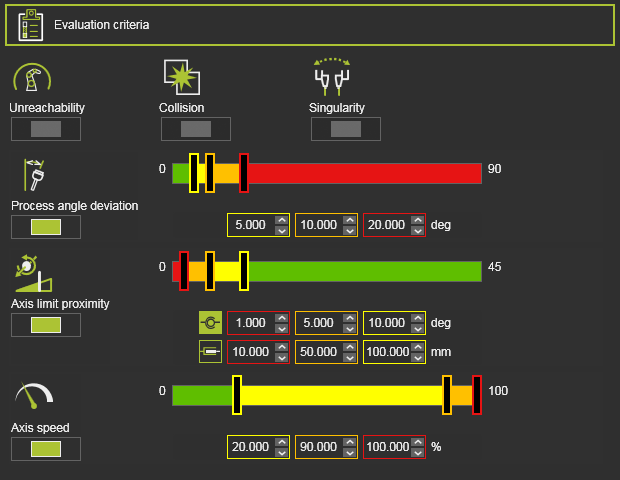
Jedes Kriterium verfügt über einen Schalter, um es in die Qualitätsbewertung einzubeziehen oder daraus auszuschließen.
Kriterien mit einem konfigurierbaren Wertebereich können individuell definiert werden. Die Grenzwerte jedes Bereichs können entweder durch Verschieben des Farbschiebereglers in der Leiste oder durch direkte Bearbeitung der Werte unterhalb der Schiebereglerleiste geändert werden.
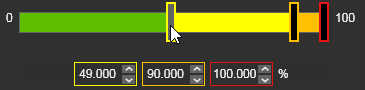
Der Kriterienbereich stellt einen Entscheidungsmarker dar, um die analysierte Werkzeugbahnposition beizubehalten oder zu ändern.
| Beginn des Sperrbereichs |  | Welcher Wert darf auf keinen Fall überschritten werden? |
| Beginn des kritischen Bereichs |  | Welcher Wert sollte nach Möglichkeit nicht überschritten werden? |
| Beginn der Bewertung |  | Bis zu welchem Wert erstreckt sich der ideale (grüne) Bereich? Ab welchem Wert ist der Status noch akzeptabel, aber nicht mehr ideal? |
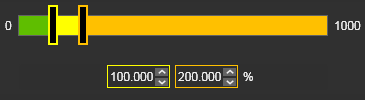
Ein Sonderfall sind die Achsgeschwindigkeitskriterien. In Technologien, bei denen die Achsgeschwindigkeit in Kombination mit der (De-)Beschleunigung keinen großen Einfluss auf den Prozess selbst hat, wie bei den meisten punktbasierten Operationen, ist es nicht erforderlich, den ungültigen roten Bereich zu definieren. In einem solchen Fall zeigt der Bereich dieses ungültige Niveau nicht an.
Vorfälle
Das aktive Programm und das Toolpath-Monitor-Dashboard zeigen die Kriterienvorfallliste an.

Das Vorfall-Symbol informiert über das Bewertungsergebnis dieses spezifischen Kriteriums. Das Vorfall-Symbol dient außerdem als Umschaltknopf, um das Bewertungsergebnis dieses spezifischen Kriteriums anzuzeigen oder auszublenden.
Das Nichtanzeigen eines Vorfalls bedeutet nicht, dass Vorfälle dieses Kriteriums nicht existieren!
Qualitätsanzeige
Vorfälle werden üblicherweise im Dashboard des aktiven Programms, im Dashboard des Toolpath-Monitors sowie im 3D-Werkzeugweg durch Farbgebung und Darstellung der Vorfallinformationen angezeigt.
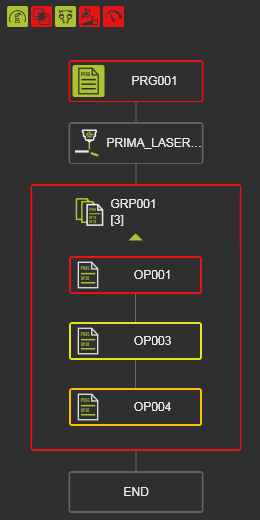 | 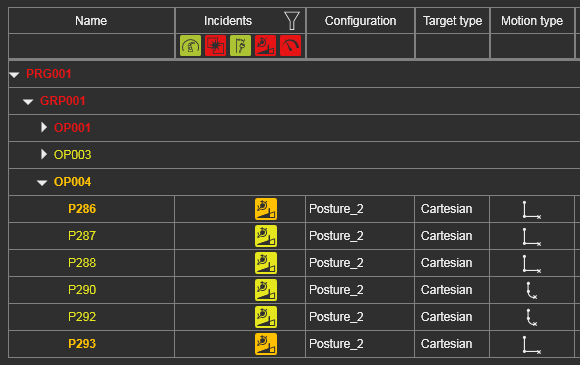 | 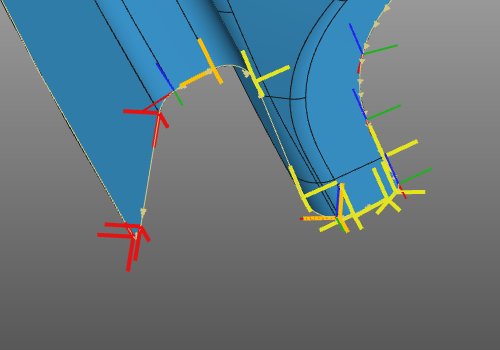 | ||
| Aktives Programm | Werkzeugweg-Überwachung | 3D-Werkzeugweg |
Werkzeugweg-Elemente, Operationen, Gruppen und Programme, die Qualitätsvorfälle aufweisen, werden mit dem höchsten (schwerwiegendsten) Vorfallniveau ihrer Bewertung eingefärbt.
Das Schweben über einem Element öffnet ein Pop-up-Fenster mit detaillierten Informationen zu den Vorfällen an diesem Element.
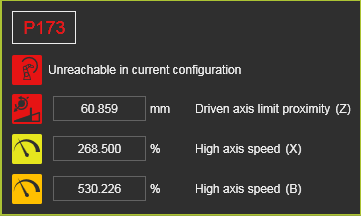
Die Anzeige der Vorfälle kann in drei verschiedenen Stufen eingestellt werden.
 | Nur die Fehlerstufe anzeigen. |
 | Anzeige der Fehler- und Kritikalitätsstufen. |
 | Alle Qualitätsstufen anzeigen. |
Das Nichtanzeigen eines Qualitätsniveaus bedeutet nicht, dass Vorfälle mit diesem bewerteten Niveau nicht existieren. existieren!

