Programmieren Sie einen punktbasierten Werkzeugweg

Befehl
Der Befehl Program toolpath kann auf punktbasierte Prozessgeometrie ausgeführt werden.
Wenn der Befehl gestartet wurde, sollte ein kleines Fenster erscheinen. Hier werden die Einstellungen zur Programmierung der Kontur festgelegt.
Wenn das Bedienfeld nicht erscheint, öffnen Sie das Kreis-Menü im 3D-Raum und drücken Sie die Befehlstaste

| Einstellung | Beschreibung | Bemerkung | |
|---|---|---|---|
 | Betriebsverbindungsmodus | Programmieren Sie verbundene Operationen auf demselben Prozesskontur. |
Vorhandene PG-Punkte können mit der linken Maustaste ausgewählt werden, unterstützt durch die verfügbaren Mehrfachauswahlmöglichkeiten. Die ausgewählten Punkte werden hervorgehoben. Dazwischen wird eine gestrichelte, mit einem Pfeilsymbol versehene Linie angezeigt, um die Bewegung zwischen zwei Operationspunkten zu kennzeichnen. Somit bestimmt die Reihenfolge der Auswahl der Prozessgeometrieobjekte automatisch die Fahrtroute des Werkzeugwegs.
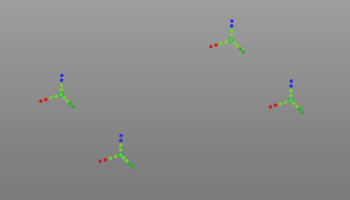 | 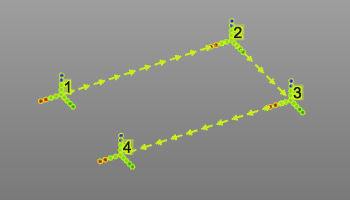 |
Solange die Auswahl noch aktiv ist und keine anderen Befehle ausgeführt wurden, kann die Auswahl der Prozesspunkte und deren Reihenfolge weiterhin geändert werden.
Sequenzierung
Um eine neue Operation nach der letzten Position des vorgewählten Pfads hinzuzufügen, wählen Sie einfach einen weiteren Prozesspunkt aus, während die  -Taste gedrückt gehalten wird. Die neue Auswahl wird automatisch nach dem letzten Schritt hinzugefügt.
Um eine neue Operation zwischen zwei bestehenden hinzuzufügen, wird die gestrichelte Verbindungsleitung der Operation verwendet. Diese Leitung kann mit der linken Maustaste ausgewählt und auf die neue Prozessgeometrie gezogen werden. Das Loslassen auf dem neuen Punkt fügt diese Position hinzu und aktualisiert die Sequenz.
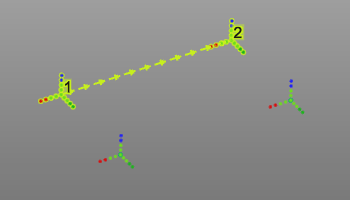 | 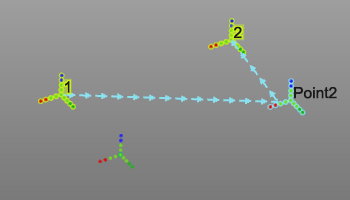 | 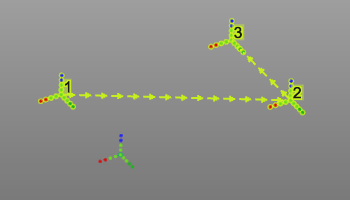 |
Das Ändern der Reihenfolge der Operationen funktioniert ähnlich wie das Einfügen einer Operation in die bestehende Reihenfolge. Wählen Sie die Verbindungsleitung des Sequenzschritts aus, der geändert werden soll. Ziehen Sie dann diese Leitung und lassen Sie sie auf der Operation los, mit der die Verbindung hergestellt werden soll und von der aus die Reihenfolge fortgesetzt werden muss.
| 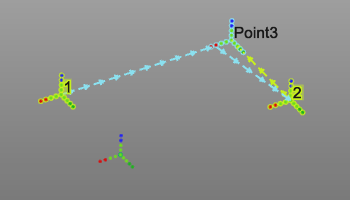 | 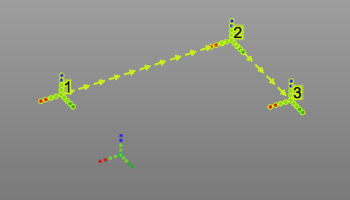 |
Das Entfernen eines ausgewählten Prozessgeometrie-Objekts aus der Auswahl ist einfach durchführbar. Das Auswählen des Punktes bei gedrückter -Taste entfernt diesen aus dem aktuellen Pfad und baut die Sequenz neu auf.
Berechnen Sie den Werkzeugweg
Bei der Auswahl kann dann das Kreis-Menü geöffnet werden:


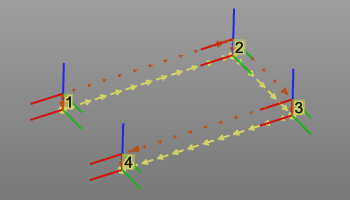
Nach der Berechnung werden der Werkzeugweg und die Operationsinformationen angezeigt. Punktbasierte Prozessgeometrie erzeugt an jedem der ausgewählten Prozessgeometriepunkte ein Werkzeugwegelement. Die Elemente sind durch einen außerprozessualen Pfad verbunden. Die Werkzeugwegnummer in der Sequenz wird ebenfalls angezeigt.
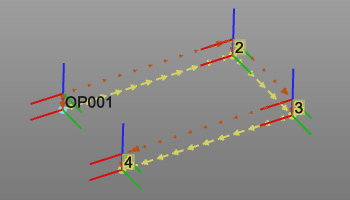
Beim Überfahren des Werkzeugweg-Elements wird dessen Operationsname angezeigt.
Nachdem der Werkzeugweg für die Prozesspunkte erstellt wurde, kann die Reihenfolge weiterhin modifiziert werden. interaktiv durch Ziehen der Verbindungsleitungen an die gewünschte Position. Der Werkzeugweg wird dann automatisch neu berechnet. automatisch neu berechnet.
Anpassungsskript
Im Allgemeinen werden alle Änderungen am Werkzeugweg, den Operationen (Gruppen) oder dem gesamten Programm manuell durchgeführt. Das System unterstützt jedoch die Möglichkeit, diese Änderungen (teilweise) zu automatisieren.
Nach dem letzten Schritt der Programmierberechnung kann ein benutzerdefiniertes Python-Skript eingebunden werden, das ausgeführt wird. Mit diesem Skript kann nicht nur der zuletzt berechnete Werkzeugweg modifiziert werden, sondern das gesamte Programm, zu dem dieser Werkzeugweg gehört. Es ermöglicht beispielsweise die Neuorganisation der verschiedenen Operationen oder die Einbindung einer anderen Benennungskonvention für die Operationen und Werkzeugwegpositionen.
Dieses spezielle Skript trägt den Namen (verpflichtend) PostProgramProcessGeometries.py und befindet sich im Plugin-Ordner <plugin>\Technologies<Technologie-Name>\AuxiliaryCommands\AutoExecute. Dies kann der Standard-Installations-Plugin-Ordner oder ein beliebiger anderer konfigurierter Plugin-Ordner sein.
