Prozesssimulationsobjekt erstellen

In dieser Version von FASTSUITE Edition 2 unterstützt die Prozesssimulationsobjekt-Umgebung (PSO) nur die Erstellung von PSO des Oberflächentyps.
Auswahl- und Suchmodus
Um einen PSO vom Oberflächentyp zu erstellen, ist der erste Schritt, die Auswahlkriterien festzulegen. Diese definieren, welche Geometrie beim Auswählen einer Fläche des Werkstücks gesucht wird.
Im 3D-Ansichtsfenster muss das Pie-Menü geöffnet werden.

 Manipulator aktivieren
 Auswahl der Prozessgeometrie
 Flächenauswahl
 Körperauswahl
 Werkstückauswahl
Es sind vier Suchfälle möglich.
| Suche | Beschreibung | |
|---|---|---|
 | Prozessgeometrie | Ein Filter ist eingestellt, der es ermöglicht, nur Prozessgeometrie auszuwählen. |
 | Fläche | Einzelne Flächen können ausgewählt werden. |
 | Körper | Beim Auswählen einer Fläche sucht die Suche nach dem übergeordneten Körper, der dann zur Auswahl wird. |
 | Werkstück | Beim Auswählen einer Fläche sucht die Suche nach dem gesamten Werkstück hinter dieser Fläche, das dann zur Auswahl wird. |
Abgesehen von diesem Suchmodus unterstützt die Auswahl weiterhin Mehrfachauswahl unter Verwendung der Ctrl key- oder der trap-Funktionalitäten.
Oberflächentyp-PSO erstellen
Nachdem die Fläche(n) oder Prozessgeometrie ausgewählt wurden, muss das Pie-Menü geöffnet werden, um das PSO auf der Auswahl zu erzeugen.


Wenn der Befehl ausgeführt wird, wird das PSO gemäß den Standardeinstellungen berechnet. Diese Einstellungen können im PSO-Dashboard definiert werden.
Es wird empfohlen, die Standard-Erstellungseinstellungen vor der Ausführung des Befehls zu überprüfen.
Ein netzbasiertes PSO wird dann erstellt. Beim Überfahren des Objekts mit der Maus werden dessen Netzdetails angezeigt.
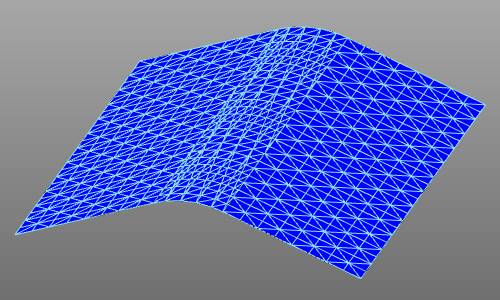
Beim Auswählen mehrerer Flächen, Körper oder des Werkstücks wird für die Auswahl nur ein einziges PSO-Element erzeugt. Der Mesh-Generator berücksichtigt jedoch die inneren Kanten der Auswahl. Im Gegensatz dazu erstellt der Mesh-Generator bei der Auswahl mehrerer Prozessgeometrien für jede Prozessgeometrie ein separates PSO-Element.
