Auswahl anzeigen / ausblenden

Mit dem Show / Hide the selection Befehl werden alle ausgewählten geometrischen Elemente oder komplette Komponenten von einem Arbeitsbereich in den anderen verschoben. Angezeigte Elemente werden ausgeblendet, ausgeblendete Elemente werden angezeigt.
| Im Anzeigebereich | Im Verstecken-Arbeitsbereich |
|---|---|
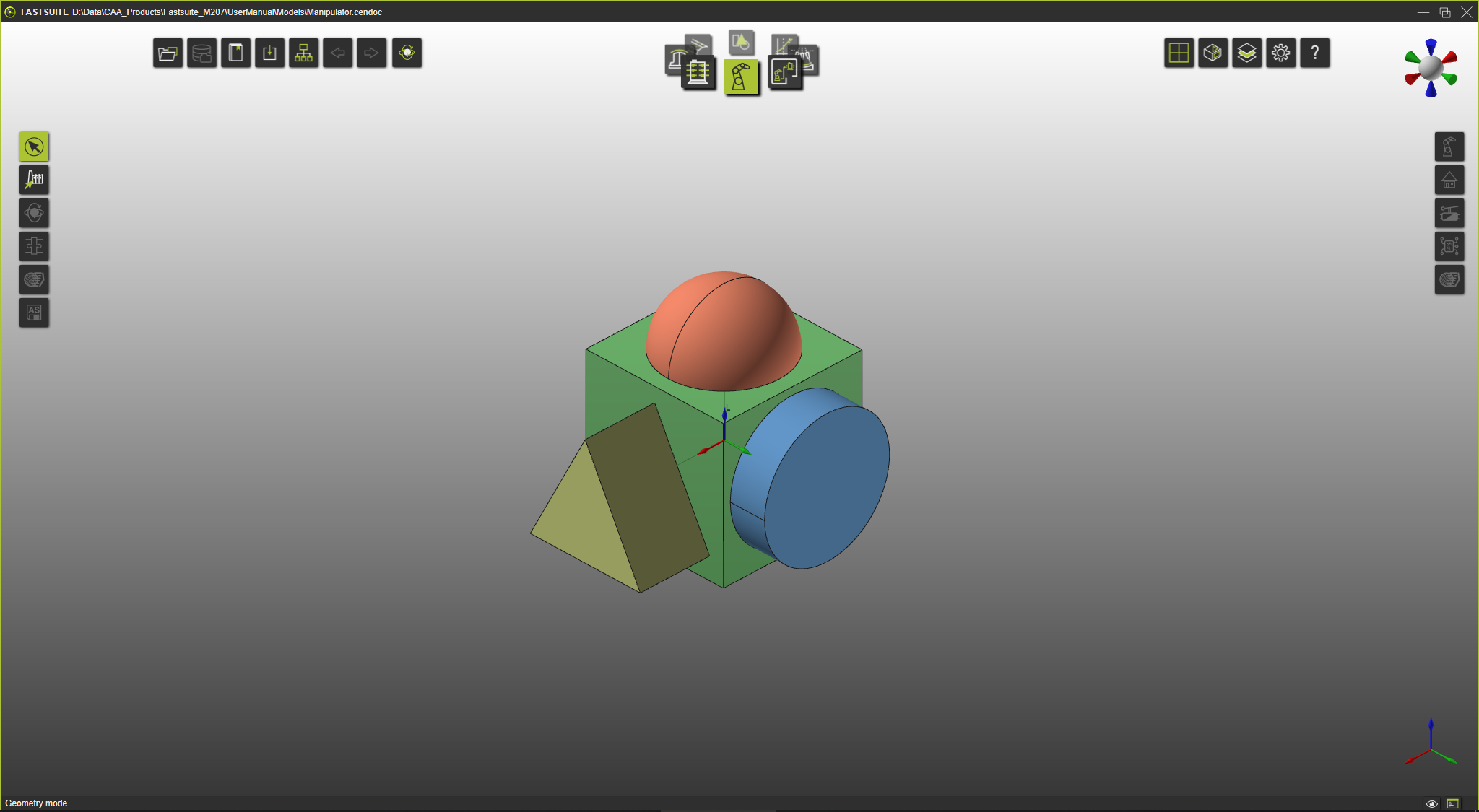 | 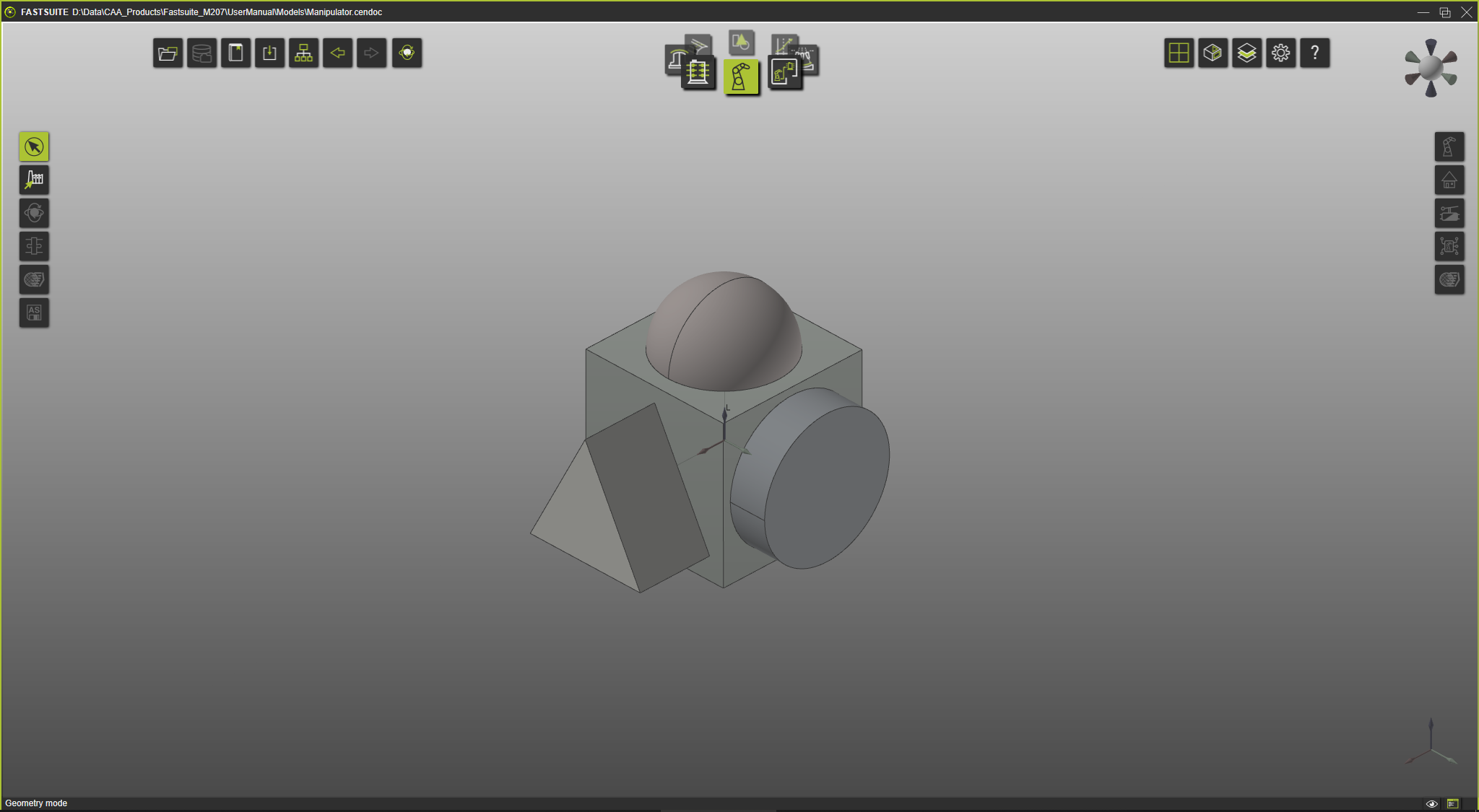 |
Der Toggle the Show / Hide workspace-Befehl muss ausgeführt werden, um zum anderen Arbeitsbereich zu wechseln, bevor die Elemente wieder platziert werden können.
Visualisierungszustand
Jedes (geometrische) Element oder jede Komponente (eine Ressource, Steuerung oder Werkstück) verfügt über einen eigenen Visualisierungszustand; angezeigt oder ausgeblendet. Das bedeutet, dass das Umschalten des Visualisierungszustands einer Komponente den Visualisierungszustand ihrer geometrischen Elemente nicht ändert und umgekehrt.
Es sind grundsätzlich 2 Situationen möglich.
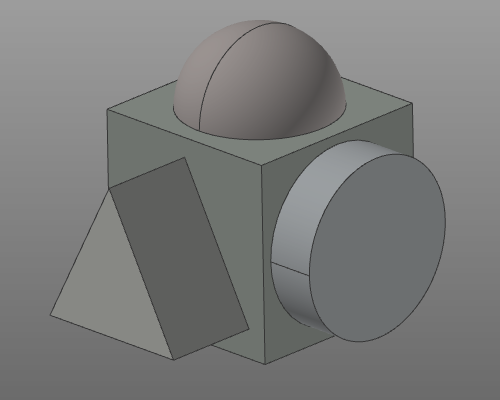
In allen Arbeitsbereichen und Betriebsarten, mit Ausnahme des Geometriemodus, bewirkt die Auswahl eines Elements den Wechsel der Visualisierung des gesamten Bauteils. Im Verstecken-Arbeitsbereich wird das Bauteil in einem ausgeblendeten, farblich abgeschwächten Stil dargestellt.
| Anzeigemodus | Auswählen | Ausblendmodus |
|---|---|---|
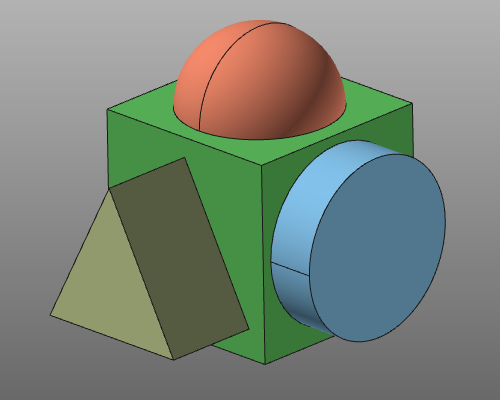 | 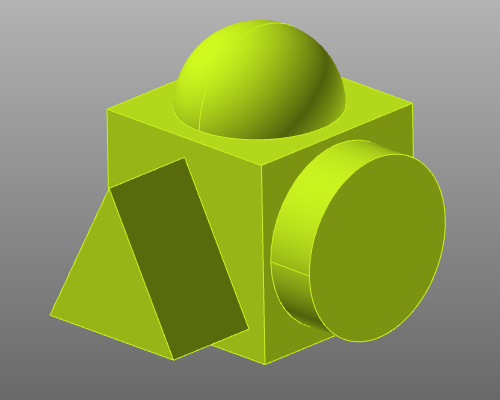 |  |
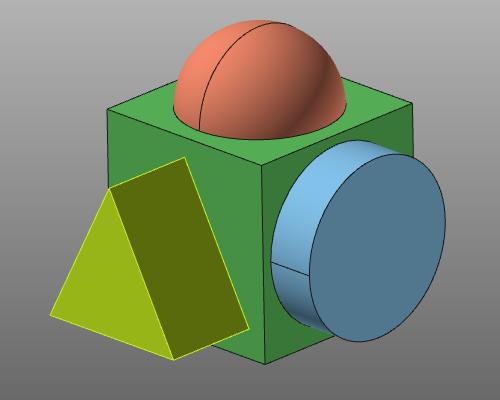
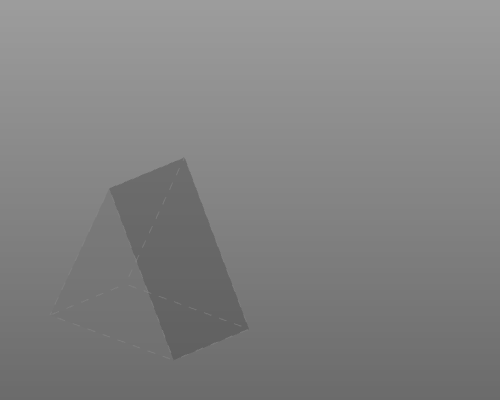
Im Geometriemodus können die einzelnen geometrischen Elemente ausgewählt werden. Nur dieses Objekt wird dann in der Visualisierung ausgetauscht. Im Verstecken-Arbeitsbereich wird die Geometrie in einem transparenten Stil mit gestrichelten Kanten dargestellt.
| Anzeigemodus | Auswählen | Ausblendmodus |
|---|---|---|
|  |  |
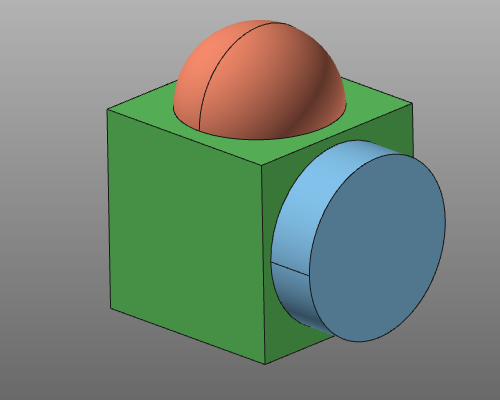
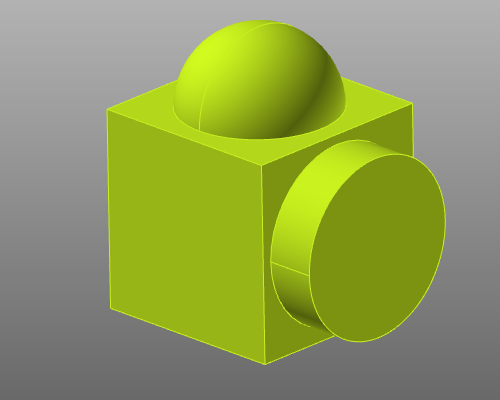
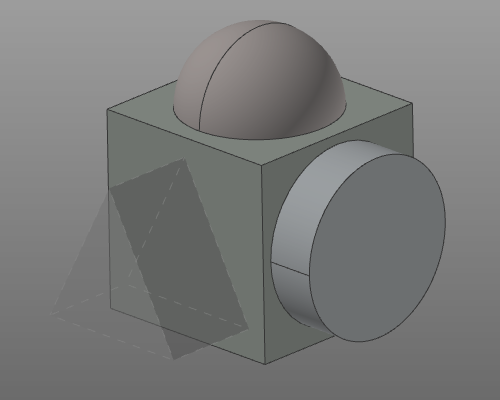
Und selbstverständlich ist jede Kombination möglich. Im untenstehenden Beispiel wurde bereits ein geometrischer Teil der Komponente ausgeblendet, anschließend wird die Komponente ebenfalls zum Ausblenden ausgewählt. Das Zurückbringen der Komponente in den Show-Arbeitsbereich lässt das geometrische Objekt im Hide-Arbeitsbereich verbleiben.
| Anzeigemodus | Auswählen | Ausblendmodus |
|---|---|---|
 |  |  |
