Schweißnahtkalibrierung - Berührungserkennung

Funktionalität der Berührungserkennung
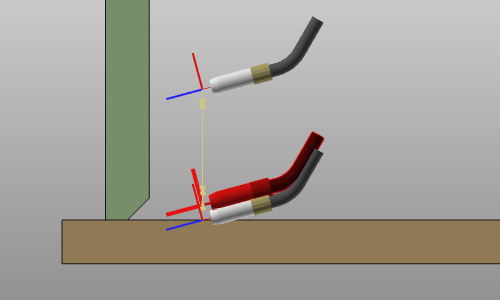
Die Berührungserkennung, oder Berührungserkennung durch Punktanzeige, ist eine Funktionalität, die nicht mit einem gewöhnlichen Befehlstaster gestartet wird. Sie ist eine Kombination aus der Definition der Berührungsbetriebsbedingungen und deren Kalibrierungspositionen am Schweißteil bzw. an den Schweißteilen. Die Betriebsbedingungen sind in der OLP-Programmierung festzulegen. Die Einstellung der Berührungspositionen kann in die Definition und Erstellung der (Schweiß-)Konturprozessgeometrie integriert werden.
Programmierstandards
Im Dashboard „Programming defaults“ im OLP-Arbeitsbereich enthält die Registerkarte „tech“ Technology base die Basisauswahl der Schweißnahtkalibrierungsmethode.
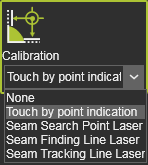
Die Registerkarte Tech Touch sensing zeigt die verfügbaren Attribute zur Berechnung des vollständigen Berührungsbetriebszyklus an.
Anzeige des Berührungspunkts
Berührungspunkte können bereits bei der Erstellung der Prozessgeometrie definiert werden. Diese Methode funktioniert jedoch derzeit nur in Kombination mit der Welding contour by projection Suchmethode.
Zu jedem Zeitpunkt während des Prozesses der Definition dieses Schweißkonturs können beliebig viele Punkte auf beliebigen Schweißteilen ausgewählt werden. Jede Position wird durch einen Mausklick auf die Oberfläche des Schweißteils mittels WYSIWYG bestimmt. Die ausgewählte Position wird durch eine blaue Kugel markiert, wie im folgenden Beispiel dargestellt.
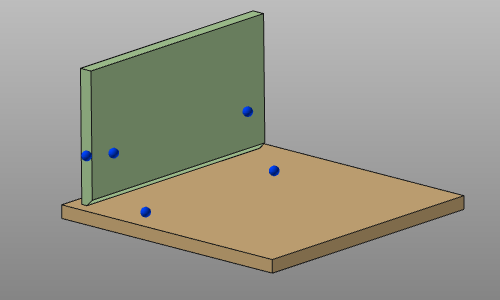
Mit dem Befehl Undo können die zuletzt erstellten Berührungspunkte wieder entfernt werden.
Die Informationen der Berührpositionen werden zusammen mit der erstellten Prozessgeometrie gespeichert. Die Positionen werden im Process geometry Dashboard angezeigt.

Ändern der Berührungsdefinition
Die Positionen der Berührungserkennungspunkte können derzeit nur bei der manuellen Programmierung des Werkzeugpfads geändert werden. Bei der Auswahl der Prozessgeometrie werden die mit der Erstellung der Prozessgeometrie definierten Berührungspunkte im 3D-Raum angezeigt. Diese können nun ausgewählt und an eine beliebige andere Stelle auf den Schweißteilen gezogen werden.
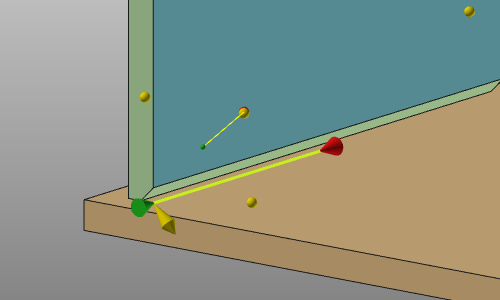
In diesem Stadium können auch neue Berührungspositionen hinzugefügt und bestehende entfernt werden. Wählen Sie einfach auf dem Schweißteil eine Position aus, um einen neuen Berührungspunkt zu definieren, oder klicken Sie auf eine vorhandene gelbe Kugel, um diese Position zu entfernen. Dies funktioniert sowohl bei Prozessgeometrien mit vordefinierten Berührungspositionen als auch bei Prozessgeometrien ohne vordefinierte Berührung.
Alle anderen Berührungsparameter können geändert werden, sobald ein Werkzeugweg auf der Prozessgeometrie berechnet wurde, die eine Berührungsposition enthält.
Für jede Erkennungsrichtung wird ein Arbeitszyklus erstellt. Mit Verwendung des Active program Dashboards im OLP-Arbeitsbereich können die Attribute jeder Berührungsoperation geändert werden.

