Project structure

Dashboard
With the Project structure command a dashboards opens to view the project tree structure.
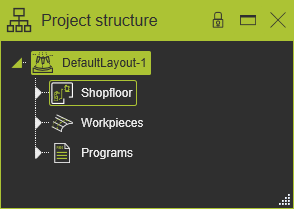
The project structure view is divided over three containers; the shopfloor, the workpieces and the programs containers. The project and the containers are expandable and collapsible by clicking on the small triangle in front of the item.
Hovering over an node in the dashboard will highlight it in the 3D View and vice verse.
Selecting a node works a little different. Selecting an object in the 3D View will select the corresponding node in the dashboard. But selecting the node in the dashboard cannot select t in the 3D View. Selecting objects in the 3D View depends on the active workbench and the in work object to that. For that reason the selection in the dashboard cannot automatically select the object in the 3D View.
The names of the nodes can be modified here. Clicking the name of the node will start the editor. For each node; the name is read from the node properties and changing it here does change the global name property of the node. Exception to this capability are the names of the three containers; they cannot be modified.
The Project structure dashboard is independent from the workbenches. It can be opened at any time and remains open while changing the workbench.
Project
The Project is the top level of the open document. Besides changing the name of the project, a Pie menu can be opened on this node.


[link:]
Shopfloor
The Shopfloor node is the root layout. It contains all the resources, the controllers and sub-layouts within the project.
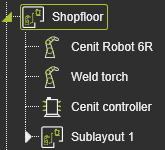
The layout node, i.e. shopfloor or sub-layout, marked with the green border is the active one. On this active layout a Pie menu can be opened.



The shopfloor node is the main node in a project structure and therefore cannot be removed.
On each single node inside the shopfloor a Pie menu is available. But some commands are only executable on the components of the active layout.

The visibility state (shown or hidden) of a component in the 3D View is indicated in the project tree. The low light gray tone in the tree marks the hidden component.
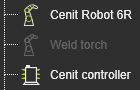
In the OLP workbench the Shopfloor layout always is the active one. Changing to the OLP workbench will set the Shopfloor active automatically when it is not active already.
The Save as command in the Layout Builder workbench stores the active (sub-) layout.
[link:]
Workpieces
The Workpieces container shows a list of all workpieces that are present in the shopfloor.
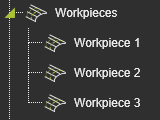
On the Workpieces container a Pie menu opens.

On each workpiece a Pie menu is available.
The workpieces container enables to build union workpieces inside the project dashboard. Picking a workpiece and then drag it to another workpiece will add the dragged one as child. The workpiece on which it has been released becomes a parent union workpiece.
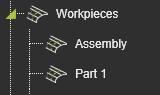 | 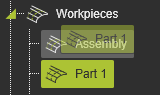 | 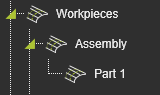 | ||
| Individual workpieces | Pick, drag and drop | Assembled workpiece (union) |
Dragging an assembled workpiece to the top level of the Workpieces container will disassemble the piece from its parent.
[link:]
Programs
In the Programs container all the controllers that are present in the shopfloor are listed. And each controller shows the programs that have been created for the controller.
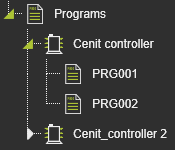
On each controller a Pie menu is available. But the commands can only be executed when the controller is active, either in the layout or in the OLP programming.

On the programs also the Pie is available. The commands can be executed on programs of the active controller.

More documents reference information
