Enseigner le parcours d’outil

Enseigner le parcours d’outil
Teach est un ensemble d’activités et d’opérations différentes visant à modifier le parcours d’outil initialement calculé. Cela peut consister à modifier le chemin lui-même dans le contexte de la position 3D, ainsi qu’à modifier la position et le mouvement de l’équipement de fabrication pour guider l’outil sur le parcours.
L’enseignement se fait de manière interactive dans la vue 3D, en utilisant le tableau de bord Teach ou le tableau de bord Toolpath Monitor.
Enseignement interactif
Avec l’enseignement interactif dans la Vue 3D, un élément de trajet d’outil, ou une gamme d’éléments, est manipulé. Sa position ou son orientation peut être modifiée par l’intervention manuelle de l’utilisateur ou par les algorithmes d’interpolation du système.
Choisir un élément de trajectoire d’outil placera le point central de l’outil (TCP) avec un manipulateur d’enseignement et ses ressources attachées, à cette position choisie. Si la position sélectionnée n’est pas accessible pour la ressource, le manipulateur y sera toujours localisé, y compris une copie transparente de l’outil pour indiquer cet état.
| TPE accessible | TPE inaccessible |
|---|---|
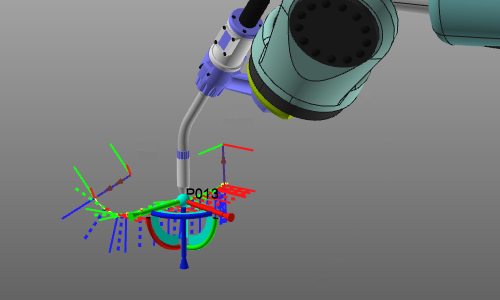 | 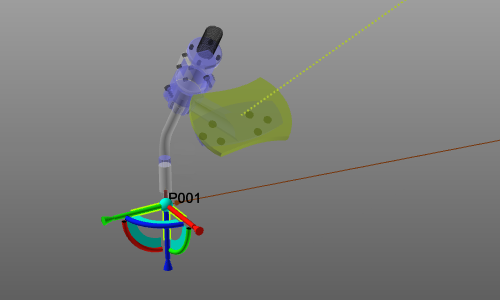 |
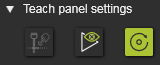
L’élément de trajet d’outil peut désormais être repositionné en déplaçant le manipulateur ou en appelant son tableau de bord de Position. Dans les deux cas, l’élément de trajet d’outil se déplace en même temps que le manipulateur. Cependant, la réponse de l’interface utilisateur offre deux possibilités. Dans les paramètres généraux et correspondants dans le tableau de bord Enseignement, il y a une option pour la façon dont le système doit répondre.
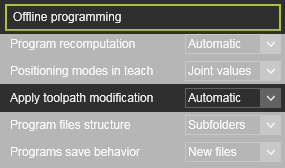 |  |
En mode Recalcul automatique du programme, le parcours d’outil est immédiatement mis à jour au changement de position(s). En mode recalcul manuel programme, la nouvelle position du manipulateur affiche trois lignes de connexion vers le parcours d’outil existant. Ici, l’utilisateur dispose d’une option à chaque ligne pour confirmer que le système doit mettre à jour le parcours outil.
| Mise à jour automatique | Confirmation manuelle |
|---|---|
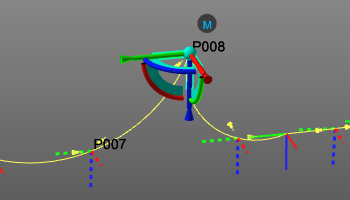 | 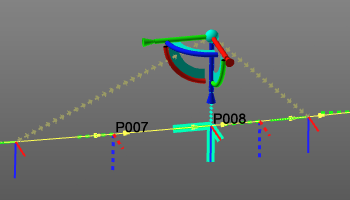 |
La ligne bleue du trajet de l’outil indique un repositionnement de l’élément du trajet de l’outil actuel. Les lignes brunes indiquent le changement de trajectoire d’outil au cas où un nouvel élément de trajectoire d’outil devait être placé à la position du manipulateur et si ce nouvel élément devait être placé avant ou après l’élément actuel.
Toute action enseignée crée automatiquement un événement de cette action. Supprimer cet événement va se réinitialiser l’élément de chemin de l’outil à son état d’origine.
L’enseignement permet de sélectionner plusieurs éléments de chemin d’outil, y compris via points, pour qu’une opération spécifique soit exécutée simultanément sur ces éléments. Cependant, lorsqu’on utilise une fenêtre piège pour la sélection multiple, les points de passage ne sont pas automatiquement inclus. Ils doivent être choisis manuellement en appuyant sur la touche Ctrl.
Le manipulateur d’enseignement sera placé sur le premier élément de la sélection.
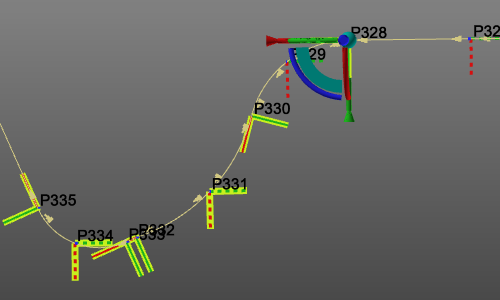
Pie menu for teach
Le menu en pie sur le manipulateur ou sur les lignes de connexion en cas de mise à jour manuelle, contient plusieurs commandes supplémentaires pour modifier le parcours de l’outil. Des éléments supplémentaires du parcours d’outil peuvent être ajoutés pour affiner le chemin et les éléments existants peuvent être inversés.


Starting with R2026.1.1, the Insert auxiliary point command is available in Events and
teach pie menu.
Manually inserted toolpath elements are given a flag Inserted, an event symbol, placed near the element.
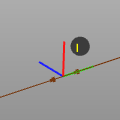
Les menus en pie sur le TPE et l’élément contour de trajectoire d’outil, lorsqu’on survole la curseur, incluent également plusieurs de ces commandes de modification. Les éléments de chemin d’outil peuvent être supprimés pour les ignorer lors du calcul du chemin. Ils peuvent aussi être inversés. Les éléments insérés peuvent être retirés. Et pour un mouvement plus fluide de l’outil, le chemin, ou certaines parties, peut être optimisé avec certains algorithmes d’interpolation.



Enseignement interactif sur le parcours d’outils via des points
Les mouvements circulaires du parcours d’outil se distinguent des mouvements linéaires ou PTP en passant un intermédiaire via un point. Le point de passage avec le point de départ et de fin d’une section de trajet d’outil détermine le rayon circulaire du chemin.
L’enseignement interactif sur un tel point de passage est supporté, mais avec des restrictions. Le chemin circulaire reste circulaire après avoir enseigné le point de passage.
| Avant d’enseigner | Après avoir enseigné via le point |
|---|---|
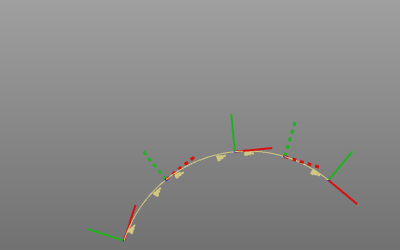 | 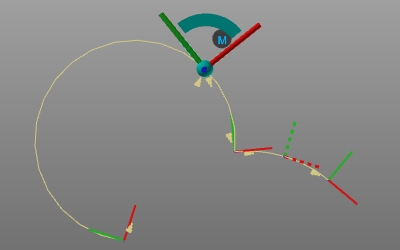 |
De plus, les points d’enseignement sur via ne supportent pas d’autres fonctions d’enseignement comme elles sont disponibles lors des postes classiques sur le parcours d’outils.
Enseignement basé sur la simulation
Lorsque le poste sur le parcours d’outils est choisi pour l’enseignement, le TCP sera placé à cette position. Le système prend en charge deux méthodes pour exécuter cela.
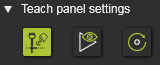
Dans les paramètres généraux et correspondants dans le tableau de bord Enseigne, la méthode recherchée doit être définie.
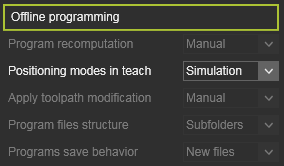 | 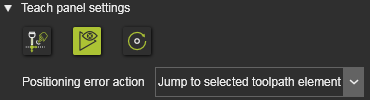 |
Avec la méthode Joint values (= désactivée dans le panneau d’enseignement), le TCP du contrôleur actif, c’est-à-dire le robot ou la machine, sera placé à la position sélectionnée du trajet d’outil en calculant simplement les valeurs des joints de sa ressource pour cette position et celles d’autres dispositifs cinématiques connectés possibles, tels que les platines.
Avec la méthode Simulation (= activée dans le panneau d’enseignement), une simulation de programme s’exécute en arrière-plan. La simulation sera simultanément analysée pour détecter les incidents survenant avant que la position recherchée ne soit atteinte.
Lorsqu’aucun incident ne se produit, le TCP est placé à la position choisie. Cependant, une action supplémentaire doit être spécifiée pour continuer en cas d’incident survenant pendant la simulation avant que la position souhaitée ne soit atteinte.
| Simulez le problème | La simulation s’arrête à la (première) position incidente et le TCP y est placé pour mettre en évidence et se concentrer sur le problème. |
| Saut à l’élément de trajectoire d’outil sélectionné | La simulation est terminée et le TCP est placé à la position sélectionnée en appliquant les valeurs des joints. |
Enseignement dynamique de plusieurs robots ou machines
En modifiant un parcours d’outil, une position ne peut être effectuée que sur le programme actif du contrôleur actif sélectionné. Dans un projet de fabrication, plusieurs contrôleurs avec leurs robots ou machines connectés peuvent fonctionner ensemble. Pour chaque contrôleur, le programme actif est alors affiché, comme dans l’exemple ci-dessous.
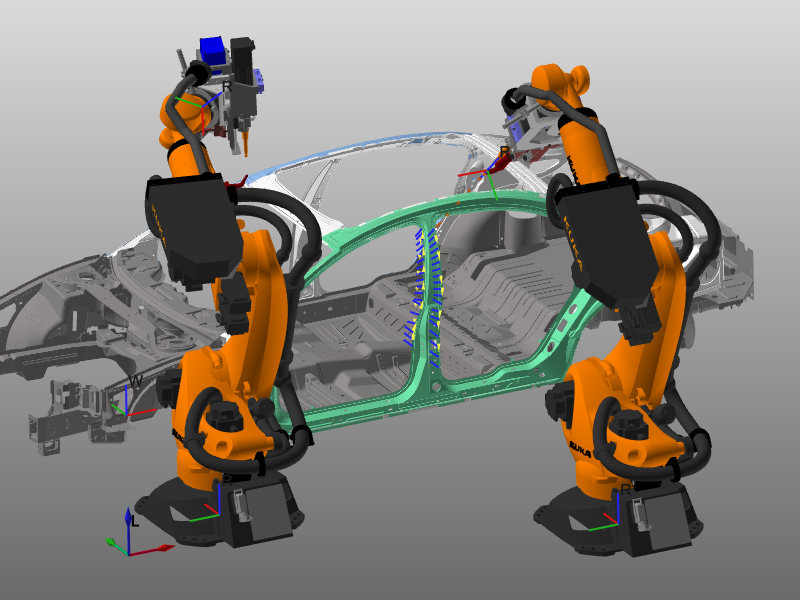
Lors de l’enseignement et du choix d’une position du parcours d’outil pour la modifier, le système changera automatiquement vers le contrôleur qui exécute le programme de ce parcours et place le TCP associé à cette position.
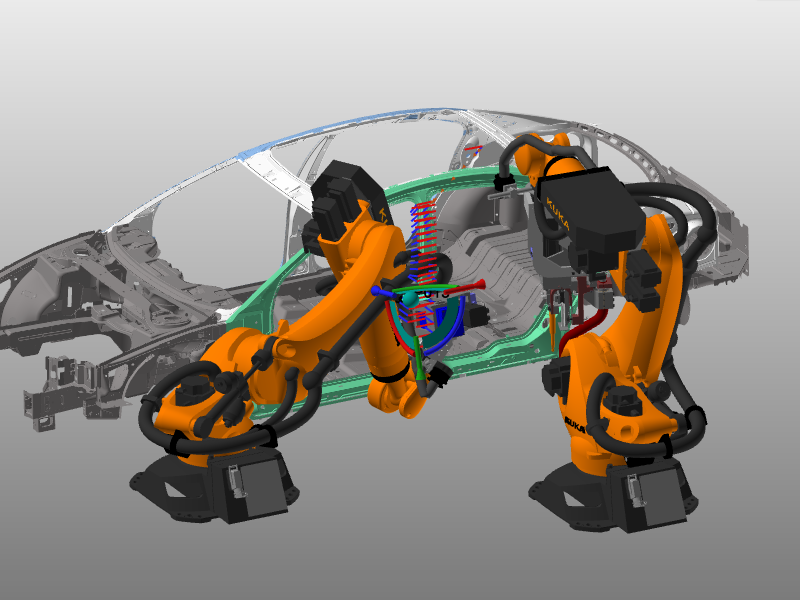 | 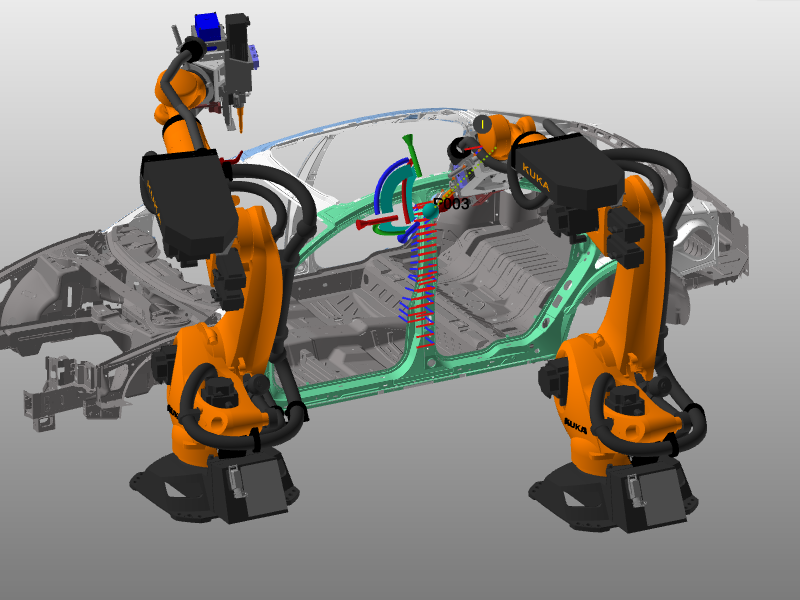 |
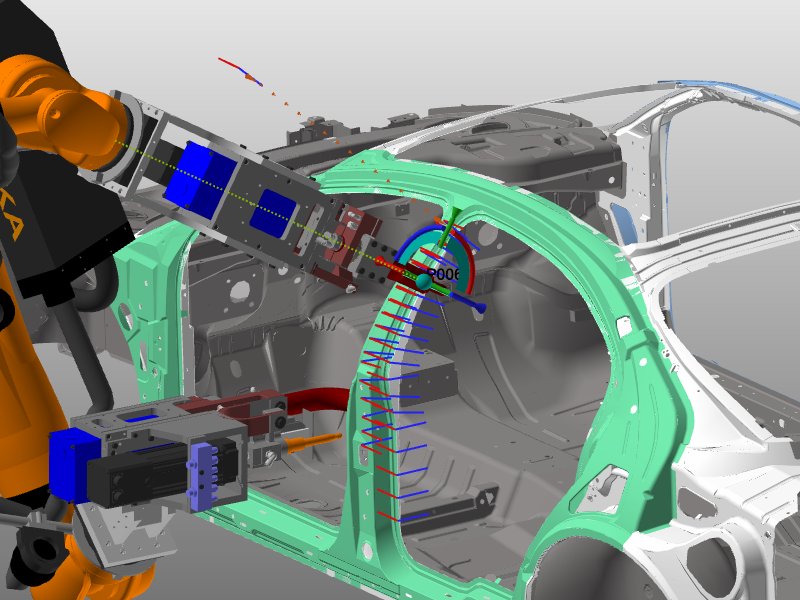
Avec le Mode de positionnement d’enseignement Fixer à Valeurs conjointes, seul le TCP du robot ou de la machine du contrôleur actif sera placé à la position choisie du trajet d’outil en appliquant les valeurs calculées des joints pour atteindre cette position. Les ressources (TCP) des autres contrôleurs restent à leur position initiale.
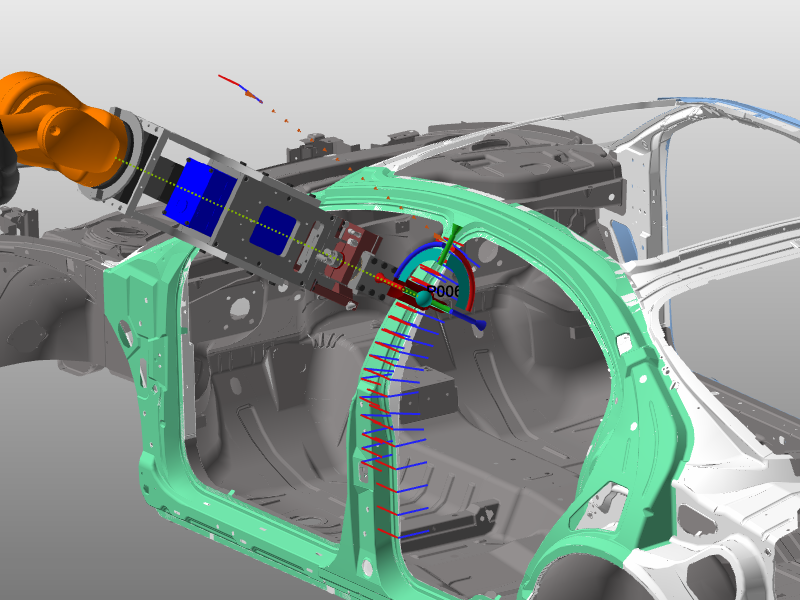
Avec le positionnement Teach mode réglé à Simulation, tous les TCP sont placés à leur position correspondante, au moment de la simulation, à la position du trajet d’outil sélectionnée. Grâce à cette fonctionnalité, l’impact d’un enseignement peut être démontré par rapport à tous les autres robots ou machines programmés et les situations d’erreur possibles peuvent être détectées plus facilement.
Enseignement des axes externes
Les axes d’enseignement des dispositifs externes fonctionnent de la même manière que pour les axes moteurs du robot ou de la machine. Mais avec une option supplémentaire : garder TCP.
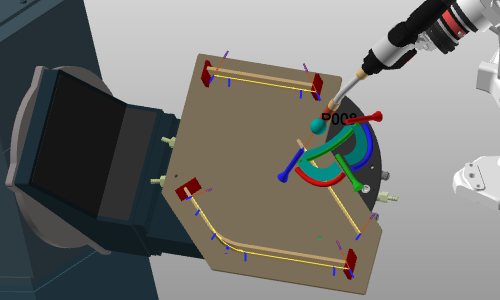
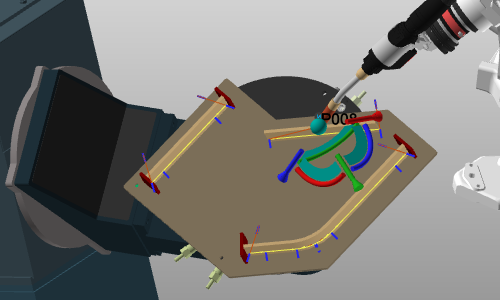
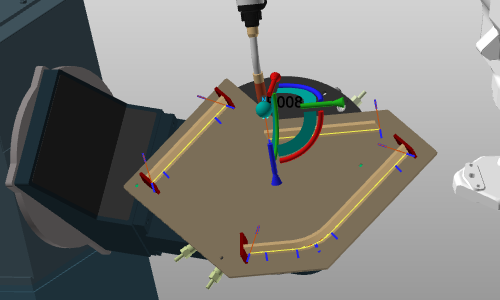
Avec cette option, il est spécifié si le point central de l’outil doit rester à sa position initiale pendant l’enseignement de l’axe externe, ou s’il doit conserver sa position relative et ainsi se déplacer avec l’axe externe enseigné.
| Avant d’enseigner | Enseigner sans garder TCP | Enseigner avec Keep TCP |
|---|---|---|
 |  |  |
Panel d’enseignement
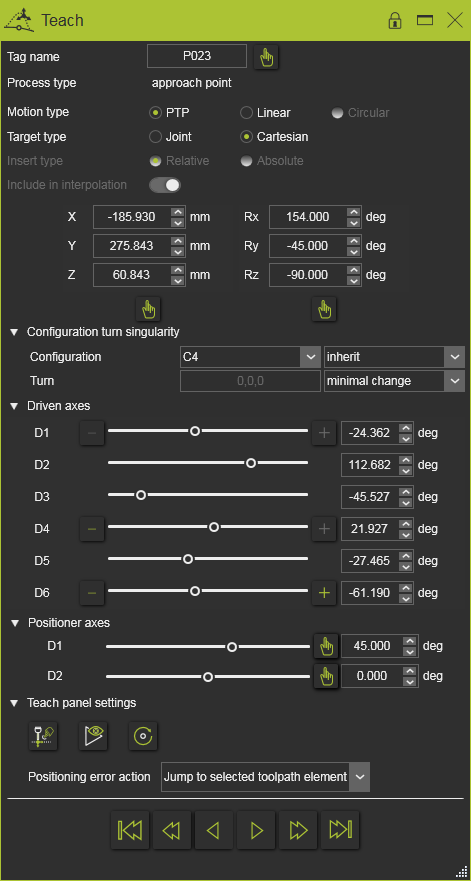
(exemple)
Dans le panneau Teach, la position des éléments de la trajectoire d’outil est affichée et peut être modifiée. De plus, le mouvement entre les éléments du parcours peut être contrôlé ici.
Outre les informations sur le trajet d’outil et ses éléments, ce panneau montre également l’état cinématique des ressources qui jouent un rôle, y compris l’external, dans la conduite de l’outil sur ce chemin. Une section concerne la configuration des ressources et la gestion des singularités. Dans l’autre section, les axes interne et externe entraînés de la cinématique de la ressource peuvent être optimisés ou utilisés pour modifier le trajet d’outil.
Moniteur de trajet d’outil
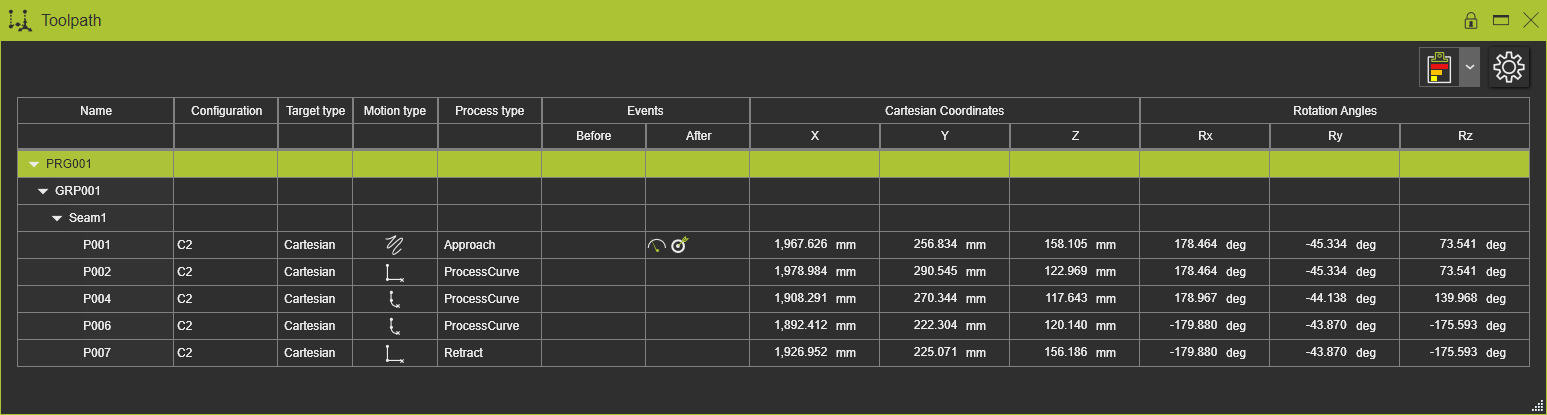
(exemple)
Le moniteur de trajectoire d’outil est l’autre tableau de bord dans lequel le parcours calculé peut être modifié ou amélioré. Une surlignure croisée entre un élément sélectionné du parcours d’outil dans la 3D et/ou dans le tableau de bord est visible.
Des commandes d’enseignement sont disponibles lors de l’appel du menu en pie sur une ou plusieurs positions du parcours de l’outil.