Évaluation de la qualité du parcours d’outil

Commandement
Le toolpath quality evaluation n’est pas une commande unique. C’est une solution intégrée qui est exécutée à chaque étape d’une action de création et de modification du parcours d’outil.
Activation
L’évaluation elle-même est exécutée automatiquement. Les critères pris en compte lors de l’évaluation sont définis dans les paramètres de programmation ou dans le tableau de bord du programme Actif.
Dans l’onglet technique Qualité du parcours d’outil, tous les critères disponibles pour la technologie actuellement appliquée sont listés.
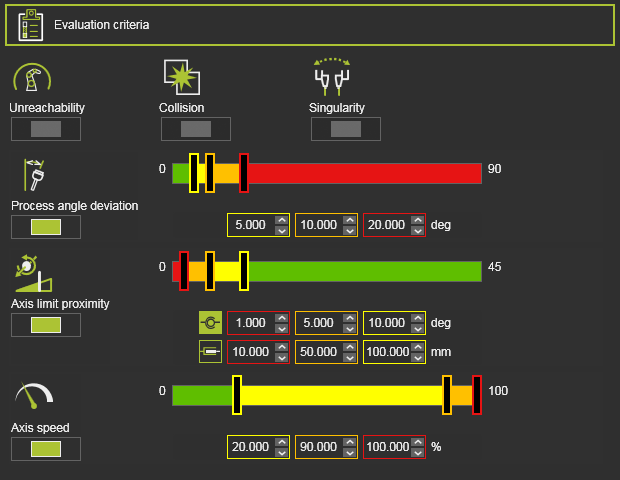
Chacun d’eux dispose d’un bouton d’interrupteur pour inclure ou exclure les critères de l’évaluation. Il suffit d’appuyer sur le bouton qui change l’état d’inclure à exclure et vice versa. À une exception près, cependant. Certains critères peuvent être activés par défaut du système et ne peuvent pas être désactivés. L’évaluation de collision est activée via l’interrupteur d’analyse dans la barre d’outils du lecteur de simulation.
Il existe deux types de critères ; celui qui ne retourne qu’une valeur vraie ou fausse et celui qui retourne une valeur mesurée ou calculée, qui est ensuite validé par rapport à une plage de qualité cible.
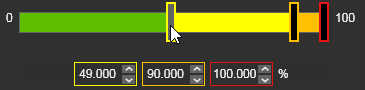
La plage totale d’évaluation a été divisée en parties colorées. Chaque couleur représente un niveau de qualité spécifique. Les valeurs limites de chaque plage peuvent être modifiées soit en déplaçant le curseur de couleur dans la barre, soit en modifiant les valeurs directement sous la barre cursante.
Retour d’incident
Le programme Active et le tableau de bord du moniteur Toolpath affichent le résultat de l’évaluation de la qualité. Tous les critères disponibles figurent dans la liste des incidents.
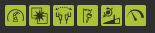
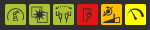
L’icône d’incident informe le résultat de l’évaluation selon ce critère spécifique.
| Niveau de qualité | |
 | Bon (vert) La plage de valeurs des critères définis comme bons. Il n’y a pas besoin de s’améliorer ici. |
 | Acceptable (jaune) : La plage de valeurs du critère défini comme acceptable. Bien que le résultat soit acceptable, il est conseillé de s’améliorer ici. |
 | Critique (orange) La plage de valeurs du critère définie comme critique. Il est fortement recommandé de modifier pour améliorer le parcours d’outil. |
 | Invalide (rouge) La valeur (et au-dessus) du critère défini comme non acceptable. Il est obligatoire de modifier pour améliorer le parcours d’outils. |
| Affichage | |
 | Black Pressing the button switches the incident display on or off. When turned off, the button is black.  Not displaying an incident does not mean that the incident does not exist! Not displaying an incident does not mean that the incident does not exist! |
 | Grisé Les critères n’ont pas été évalués. |
L’évaluation est toujours réalisée sur toutes les positions individuelles du parcours d’outil de l’ensemble du programme. Les incidents peuvent être de n’importe quel niveau de qualité, évidemment, et plusieurs incidents peuvent survenir au même endroit. Cette liste d’incidents ici montrera toujours la qualité la plus sévère des résultats trouvés, de l’invalide (ou de l’échec) jusqu’à la bonne.
Sur le bouton d’incident, un menu en pie peut s’ouvrir.

 Afficher les incidents selon tous les critères
 Affichez uniquement les incidents des critères sélectionnés
Niveau d’affichage de qualité
L’affichage des niveaux de qualité est un sélecteur pour définir quels niveaux de qualité sont affichés. En d’autres termes ; Les éléments du parcours d’outil, les opérations, les groupes d’opérations et les informations du programme seront coloriés selon les résultats de l’évaluation de la qualité.

À partir de la liste déroulante, le niveau d’affichage préféré peut être défini.
 | Affichez uniquement le niveau de défaillance. |
 | Affichez les niveaux de défaillance et critiques. |
 | Affichez tous les niveaux de qualité. |
Ne pas afficher un niveau de qualité ne signifie pas que les incidents avec ce niveau évalué ne le sont pas exister !
Affichage de qualité en 3D
Les incidents sont généralement affichés dans les tableaux de bord Active Program et Toolpath Monitor. Avec le bouton option situé à droite du niveau d’affichage, les incidents sont également indiqués sur la trajectoire 3D.
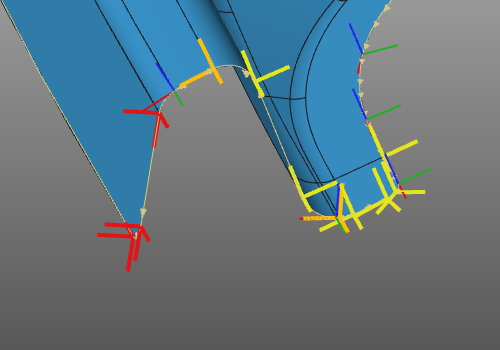
Les éléments de parcours d’outil qui comportent un incident de qualité, ou plusieurs incidents, sont colorés avec le niveau le plus élevé d’incidents trouvés.
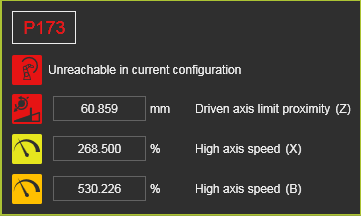
Survoler un élément ouvre une fenêtre contextuelle avec des informations détaillées sur les incidents à cet élément.
L’affichage qualité sur le parcours d’outil 3D peut également être activé ou désactivé avec the

Raccourci clavier.
Affichage qualité dans le tableau de bord du programme Active
Dans le tableau de bord du programme Actif, le niveau d’incident est affiché dans le diagramme de flux du programme.
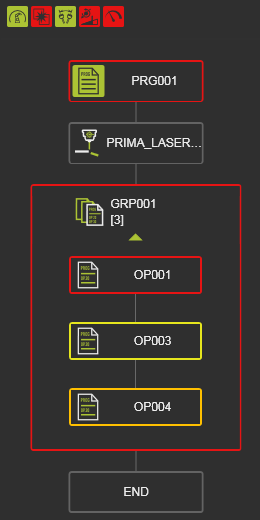
Comme aucun élément de parcours d’outil dans ce tableau de bord n’est listé, l’état incident n’est visible que sur les opérations, les groupes d’opérations et le programme. La qualité aux positions individuelles du parcours d’outil ne peut pas être analysée ici.
Le niveau de qualité indiqué est le plus élevé recueilli auprès de tous les enfants.
Par exemple ; lorsqu’une seule position du parcours de l’outil présente une défaillance, son opération retourne une défaillance, le groupe d’opérations parent retourne une défaillance et le programme retourne une défaillance.
Affichage qualité dans le tableau de bord du moniteur Toolpath
Dans le tableau de bord du moniteur de parcours d’outil, le niveau d’incident est affiché à chaque position du parcours d’outil. En cas d’incidents sur une position, chaque incident est indiqué par son symbole avec la couleur du niveau de qualité évaluée et le nom du poste est écrit en la couleur de niveau de qualité la plus élevée.
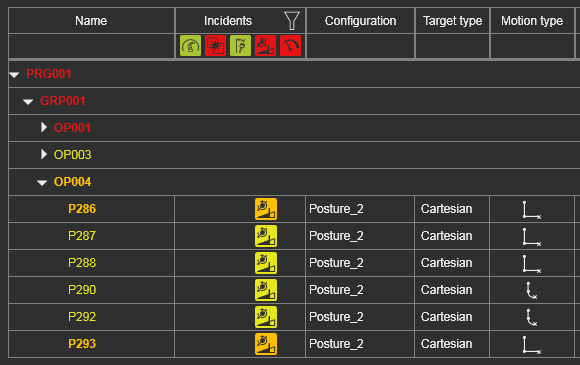
En survolant un incident, une fenêtre contextuelle affiche des informations détaillées sur l’incident.

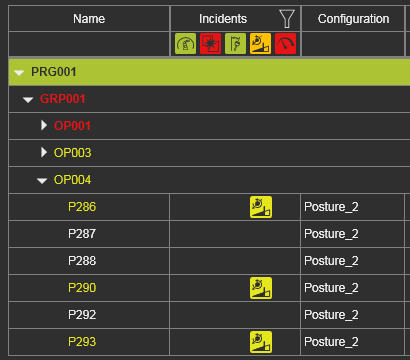
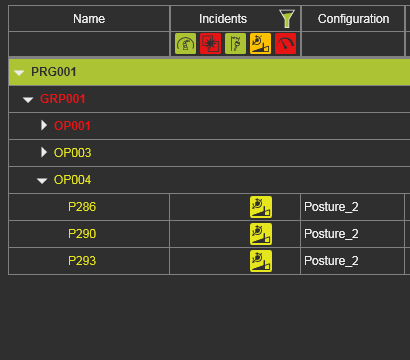
L’en-tête de la table des incidents inclut une option de filtrage. Appuyer sur l’icône du filtre masquera toutes les positions qui ne correspondent pas au niveau d’affichage et au statut d’incident affiché.
| Non filtré | Filtré |
|---|---|
 |  |
Affichage de qualité sur les sous-programmes
Les programmes sont évalués selon les critères et les valeurs lorsqu’ils sont actifs. Lorsqu’on inclut un programme en tant que sous-programme dans un autre programme principal, l’évaluation reste calculée avec ces Définitions des critères. En d’autres termes ; Un sous-programme ne sera pas évalué selon les critères et valeurs du programme actif dans lequel il a été inclus. Les résultats de l’évaluation sur le sous-forum l’appel de programme peut donc ne pas correspondre à l’affichage du niveau de qualité du programme principal actif.
Retour sur les coûts
Pour pouvoir comparer différentes situations de parcours d’outil ou optimiser le parcours d’outil, la qualité de ce parcours est également exprimée sous forme de factor. C’est une valeur neutre, pas une monnaie quelconque.
À chaque position du parcours d’outil, les coûts sont calculés pour chaque critère analysé puis additionnés. Pour éviter l’influence d’avoir un nombre différent de positions de trajet d’outil, selon différents types de modifications, comme l’approximation de la géométrie sous-jacente, chaque coût individuel de position est multiplié par la distance du trajet d’outil de cette position. Enfin, le coût total d’une opération est la somme de ses coûts individuels de position. Cela est ensuite fait pour chaque opération, chaque groupe d’opérations et enfin pour le programme complet.
Le résultat est affiché dans le tableau de bord du moniteur du parcours d’outil et est mis à jour immédiatement après toute modification du parcours d’outil.

Parce que chaque modification du parcours d’outil peut impacter les coûts globaux, un symbole de tendance indique que les coûts changent par rapport à sa valeur précédente.
 | La valeur a été augmentée ; c’est-à-dire un effet de coûts plus élevé |
 | La valeur resta la même ; c’est-à-dire neutre ou sans effet |
 | La valeur a diminué ; c’est-à-dire un effet de coûts plus faible |
