Géométrie du procédé des contours
La géométrie des procédés de contour est construite à partir des surfaces et de leurs frontières. La géométrie du processus est définie par un ensemble de points de contrôle situés à la surface. Un moteur de recherche relie ces points de contrôle à un élément de courbe. Les éléments de la courbe ont une définition de direction normale qui a été dérivée de la surface de référence.
Crée
Il y a au moins deux points de contrôle nécessaires pour lancer le moteur de recherche par contours.
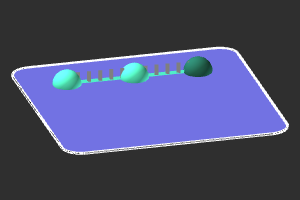
Les pintes de contrôle sont affichées sous forme de sphères. Les bleus sont les points de départ et intermédiaires, le vert est la position finale de la courbe de niveau. Dès que deux points ont été placés sur la surface de référence, le contour entre eux est recherché et affiché en bleu. Des marqueurs vectoriels sont affichés le long de l’élément de contour pour indiquer l’orientation normale de la courbe de niveau, en référence à la direction normale locale de la surface de référence.
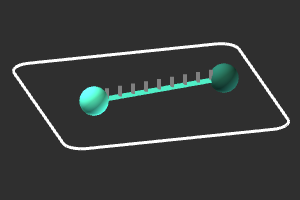
Lors de la création d’un contour libre ou de l’édition d’un contour existant, les points de contrôle sont positionnés selon WYSIWYG, c’est-à-dire la position choisie à l’écran. De nouveaux points peuvent être ajoutés à la dernière position simplement en choisissant une nouvelle position sur la surface de référence. Elle prolonge le contour avec un nouvel élément.
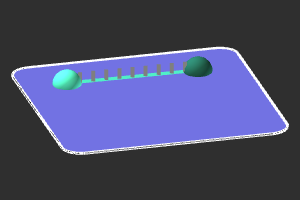 | 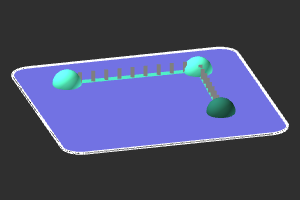 |
Ou bien survoler un élément de contour permet d’insérer un point de contrôle et de diviser l’élément en deux nouveaux.
| 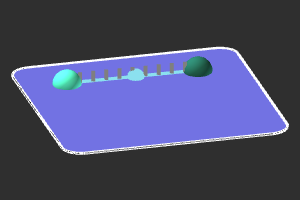 |  |
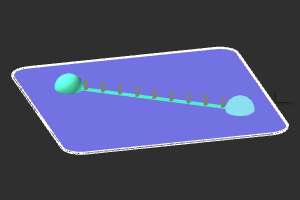
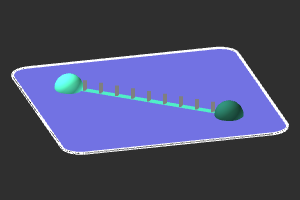
Les points de contrôle peuvent être déplacés librement. Choisir un point permet de le déplacer n’importe où sur la surface de référence.
|  |  |
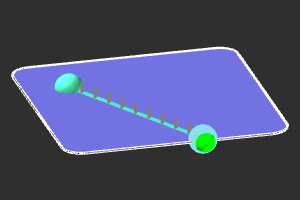
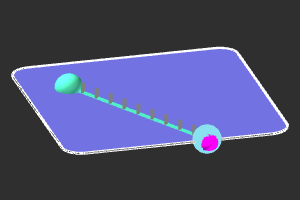
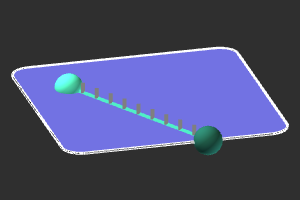
En le déplaçant près de la frontière de référence, un marqueur vert apparaît pour le déposer exactement sur la frontière. Appuyer sur la touche  devient le marqueur violet pour indiquer l’action exacte de tomber. Relâcher le point de contrôle le fait alors tomber sur la limite.
 |  |  |
Sur un point de contrôle, le menu en pie peut être ouvert pour accéder à d’autres fonctionnalités de manipulation.



L’élément contour dispose d’un menu en secteur pour modifier la stratégie de recherche par contours.



Et sur les marqueurs normaux, le menu en pie peut être appelé pour manipuler la direction normale.



Moteur de recherche Contour
Un moteur de recherche tente de connecter deux points de contrôle entre eux pour construire le contour. Comme différentes solutions seraient possibles, le moteur de recherche utilise une stratégie pour trouver un résultat. Le logiciel prend en charge trois stratégies.
 | Recherche la piste la plus courte au-dessus des limites extérieures des surfaces de référence. | 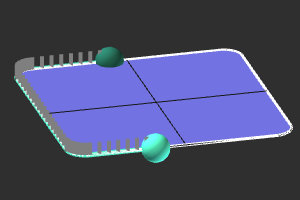 |
 | Recherche la piste la plus courte sur les bords intérieurs des surfaces de référence. | 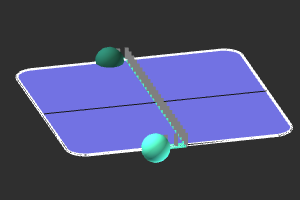 |
 | Recherche la distance la plus courte entre les points de contrôle, sur les surfaces de référence. | 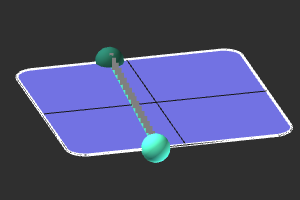 |
Les stratégies illustrées ci-dessus sont listées par ordre de priorité. Au départ, la recherche de la limite extérieure, qui consiste à chercher la piste la plus courte le long de cette frontière, est la stratégie par défaut lors de la création d’une nouvelle géométrie de processus. Cependant, lorsqu’elle ne peut pas être appliquée ou ne conduit à aucun résultat possible, la seconde stratégie en ligne est appliquée. Et lorsque cette stratégie ne mène à aucun résultat, la dernière stratégie est appliquée, où les points de contrôle sont linéaires et connexes, la distance la plus courte possible entre eux.
Les arêtes de bord et intérieures ne peuvent être trouvées que lorsque au moins deux points de contrôle en ligne se trouvent exactement sur la frontière ou arête intérieure.
Une fois une solution trouvée, pour chaque élément de contour, la stratégie peut être définie individuellement, comme dans l’exemple ci-dessous.
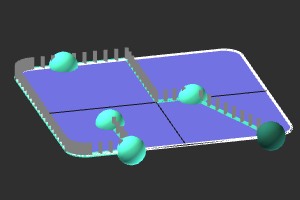
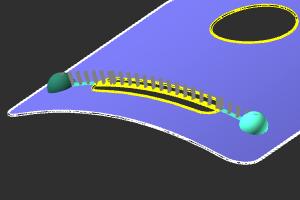
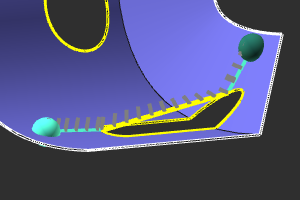
La recherche de courbes de niveau est un moteur intelligent capable de croiser des espaces et des trous dans la surface de référence.
Lorsque possible, l’écart ou le trou est comblé en utilisant les informations (interpolées) de la surface de référence. Sinon, l’espace ou le trou est fermé par une connexion linéaire.
 |  |
Surface de référence
Les points de contrôle sont positionnés sur une surface de référence. Le point ne peut pas être déplacé hors des limites de cette surface.
Si la surface de la pièce est construite à partir de plusieurs domaines de surface, le résultat initial peut ne pas être attendu.
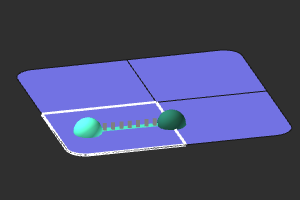
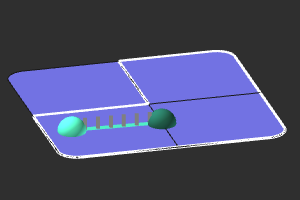
La surface de référence peut être modifiée. En surface, il faut appeler le menu Pie.


Ensuite, les surfaces peuvent être ajoutées ou supprimées de la zone de référence. L’ajout de surfaces à la surface ne peut être effectué que lorsque des surfaces adjacentes remplissent certains critères permettant de les fusionner. Ces critères sont définis dans les paramètres Recherche.
Une fois terminé, il faut appeler à nouveau le menu Pie pour sortir de la surface de référence.


Ce qui conduit alors à la possibilité de modifier le contour.
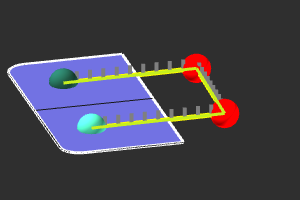
Lorsqu’un point de contrôle se trouve sur une partie de la zone de référence qui a été retirée, le point de contrôle perd cette référence. Elle devient immédiatement rouge pour indiquer cette situation
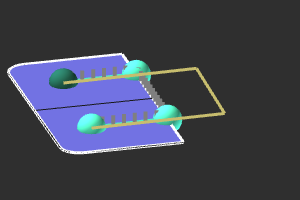
Le menu Pie sur ce point de contrôle non lié offre une fonctionnalité pour résoudre le problème. Le point de contrôle sera déplacé à la limite la plus proche de la zone de référence actuelle.
Plus d’informations de référence sur les contours