Géométrie de procédé basée sur la surface

Commandement
Avec la commande Surface process geometry, ce type de géométrie de processus peut être créé et modifié.
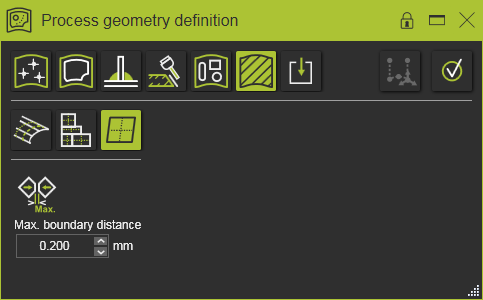
Créer
Trois modes de sélection sont disponibles. Le mode définit quel objet géométrique sera recherché lors du choix d’une face de la pièce.
 | Une pièce à travailler : Lors du choix d’une face, la recherche recherche la pièce complète derrière cette face, ce qui devient alors la sélection. | 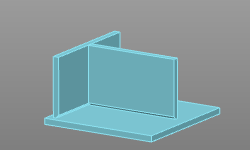 |
 | Corps Lors du choix d’un visage, la recherche cherchera son corps parent, qui devient alors la sélection. | 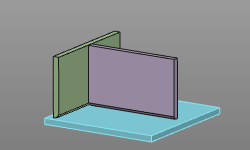 |
 | Visage : Des visages individuels peuvent être sélectionnés. | 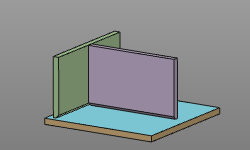 |
Néanmoins, les modes de sélection Corps et Face prennent en charge la sélection multiple avec la sélection et la désélection Ctrl-key ou trap. Il est même possible de changer le mode de sélection lors de la définition des surfaces souhaitées.
Après la sélection, il ne reste plus qu’à le confirmer et la géométrie du procédé de surface est générée.
| Sélection | Géométrie des procédés |
|---|---|
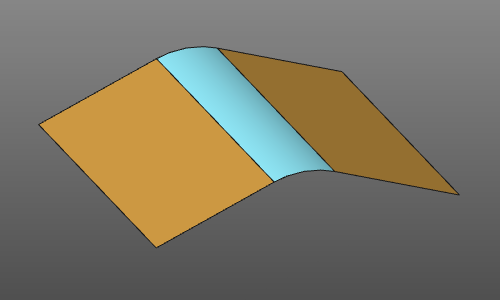 | 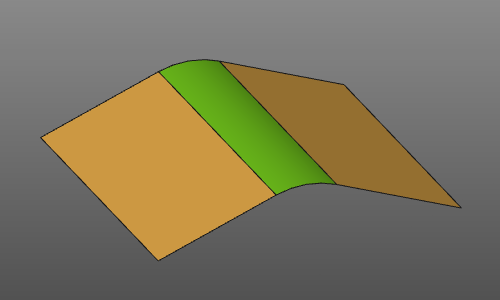 |
Même lorsque la sélection consiste en plusieurs domaines de surfaces non adjacentes, le résultat sera un seul objet géométrique de processus
| Sélection | Géométrie des procédés |
|---|---|
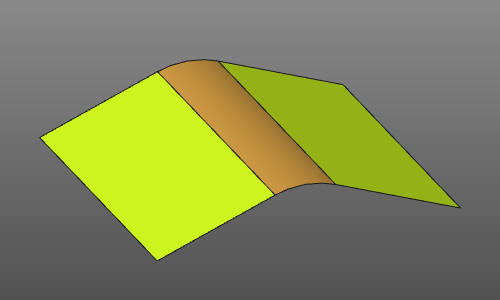 | 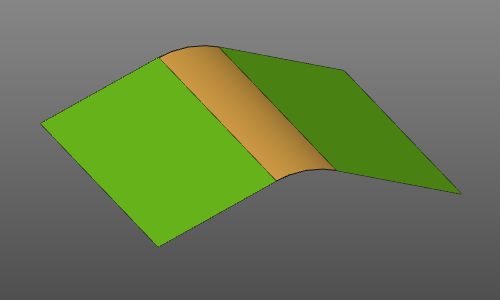 |
Le moteur de recherche de surface utilise les paramètres suivants :
 | Distance maximale de la frontière | Adjacent surfaces are merged when the gap between the edges is smaller than the defined distance value.  |
Créer via un menu en forme de pizza
Après avoir fait une sélection, une autre option consiste à ouvrir le menu de tartes.



Édit
Lors du choix de la géométrie du procédé, une flèche au centre de la boîte englobante indique le côté avant (et arrière) de la géométrie du procédé. Un double-clic sur cette flèche inverse sa direction.
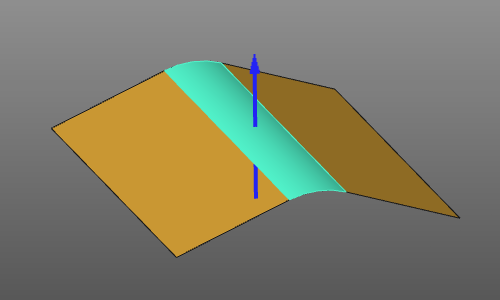
Sinon, un menu en pie peut être appelé directement sur la flèche, incluant un bouton de commande pour inverser la direction.


Sur l’objet géométrie du processus lui-même, un menu en pie peut s’ouvrir pour modifier l’objet PG.



Après que des modifications ont été apportées avec la commande Edit, le menu en pie doit être appelé pour mettre à jour la géométrie du processus.