Moniteur de trajet d’outil

Tableau de bord
Le Toolpath monitor indique le programme actif dans sa séquence d’exécution. Pour chaque opération (groupe), toutes les étapes, c’est-à-dire toutes les positions apprendables, sont affichées avec leurs propriétés, comme montré dans l’exemple ci-dessous.
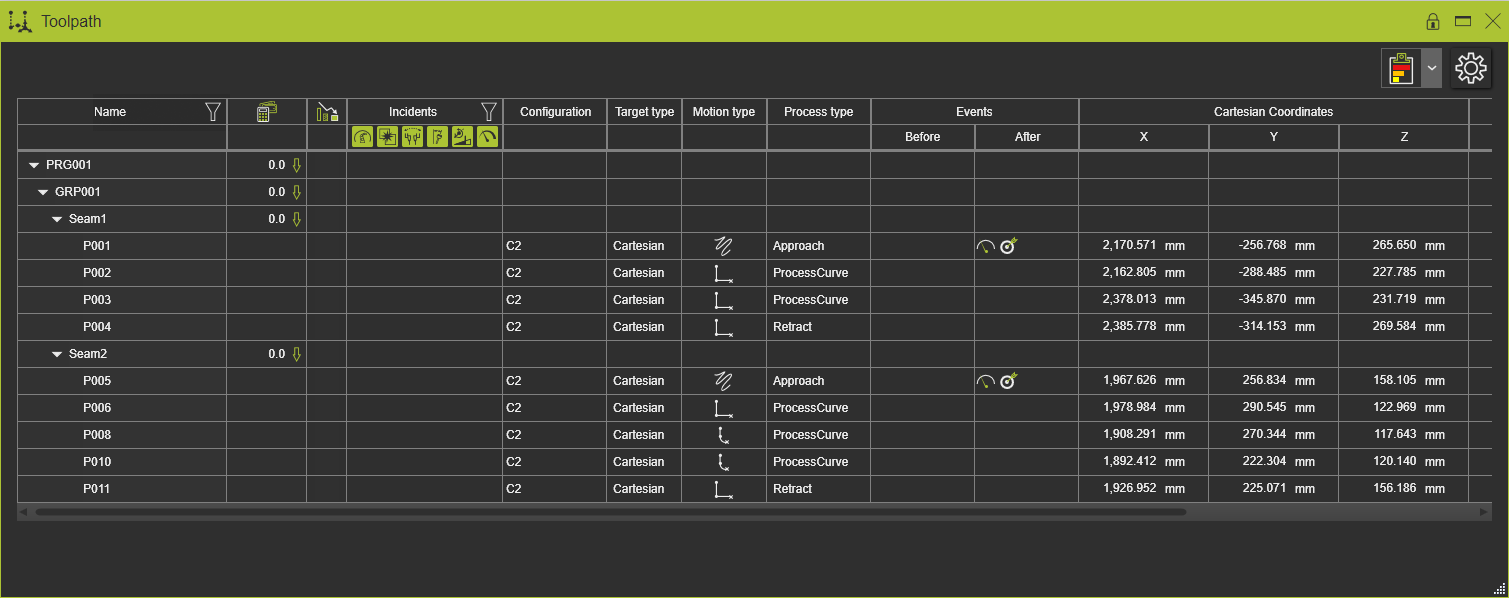
Le moniteur est un tableau avec plusieurs colonnes.
| Nom | Le nom du programme, de l’appel du programme, du groupe d’opérations, de l’élément d’opération ou du parcours d’outil (nom de l’étiquette). Chaque programme, groupe d’opérations ou opération peut être développé ou replié en cliquant sur le marqueur triangulaire devant le nom. |
| Coûts d’évaluation | Indicateur de valeur et de tendance des coûts de qualité du parcours d’outil. |
| Statut d’optimisation | Indication de statut si l’optimisation automatique a été exécutée. |
| Incidents | Rapport de l’évaluation de la qualité du parcours d’outil. L’évaluation de la qualité du parcours d’outil et son rapport sont décrits sur une page séparée. Voir cette page ci-dessous pour un lien vers la page d’évaluation de la qualité du parcours d’outil. |
| Configuration | La configuration de la ressource à cette position de tag. |
| Type de cible | Le type de cible pour la position de la balise. Cela peut être de type conjoint ou cartésien. |
| Type de mouvement | The motion of the resource for the tag position. The system supports three different motion types.  Linear Linear  PTP PTP  Circular Pressing the motion icon opens the selector and enables to change the motion here. Circular Pressing the motion icon opens the selector and enables to change the motion here. |
| Type de procédé | Les informations spécifiques au processus concernant la position de l’étiquette. |
| Taux d’avance | La vitesse d’avance avec laquelle le cadre de l’outil se déplace le long du trajet de l’outil. |
| Événements avant et après | Les deux colonnes affichent les événements appliqués pour la position du tag. |
| Coordonnées et rotation | Colonnes pour les coordonnées cartésiennes et les valeurs de rotation d’un robot, les coordonnées d’une machine et les valeurs des axes externes. |
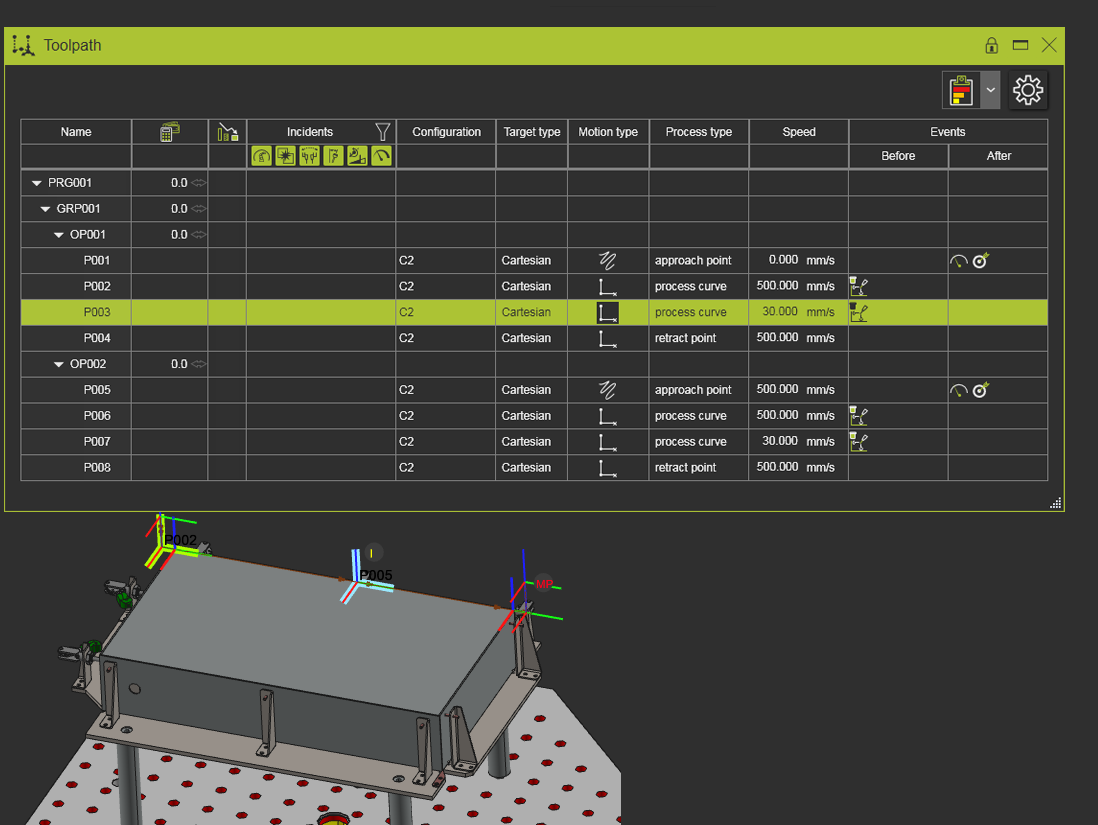
Le tableau de bord supporte la surlignure croisée entre les éléments du tableau et les éléments du parcours d’outil dans la vue 3D.
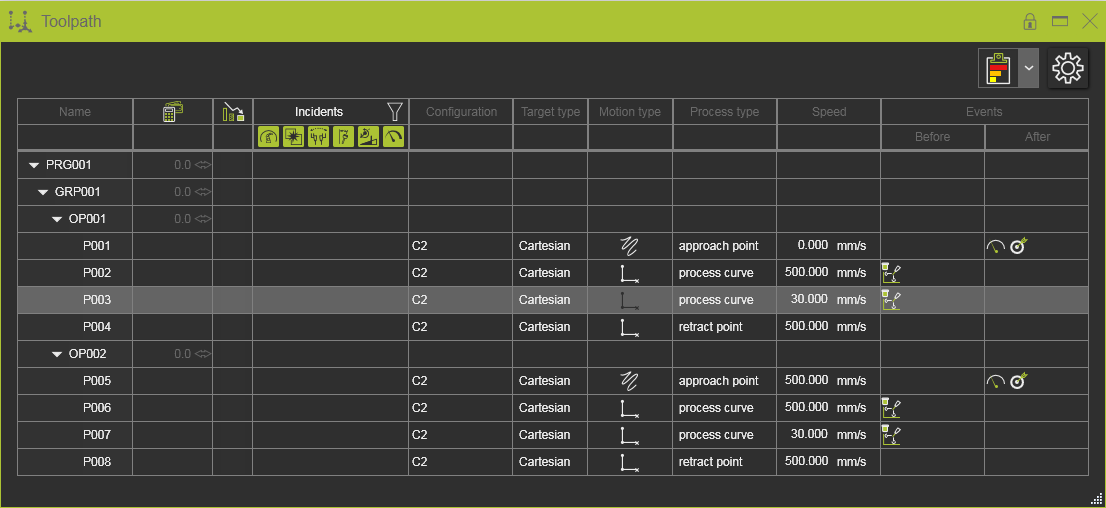
Lors de la simulation d’un programme, la position réelle de l’outil le long de la trajectoire est également indiquée dans ce tableau de bord.
Option d’affichage des colonnes de tableau
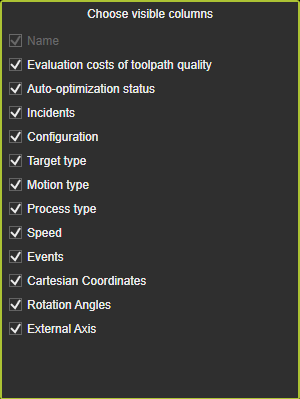
Le tableau des trajets d’outils comprend plusieurs colonnes avec certaines informations. Pour montrer toutes ces colonnes, la fenêtre peut devenir trop grande pour être utilisée en relation avec l’espace 3D. En haut à droite du tableau de bord, une commande de paramètres est placée.

La commande ouvre un panneau avec toutes les colonnes présentes listées. Chacun peut être coché ou décoché pour qu’il apparaisse dans le tableau.
Affichage d’évaluation de la qualité du parcours d’outil
En haut à droite du tableau de bord, les paramètres d’affichage pour l’évaluation de la qualité du parcours d’outil sont placés. Avec ces réglages, il est défini comment le résultat de l’évaluation qualité est visualisé dans le tableau de bord et dans la vue 3D.

Les options d’affichage sont également disponibles dans d’autres tableaux de bord et leur utilisation est synchronisée sur ces tableaux.
Évaluation des coûts de qualité du parcours d’outil
Chaque critère de qualité a reçu une fonction de coûts. Le résultat est une valeur numérique, pas une monnaie quelconque. Dans cette colonne, les coûts calculés du parcours d’outil sont affichés.

Parce que chaque modification du parcours d’outil peut impacter les coûts globaux, un symbole de tendance indique que les coûts changent par rapport à sa valeur précédente.
 | La valeur a été augmentée ; c’est-à-dire un effet de coûts plus élevé |
 | La valeur resta la même ; c’est-à-dire neutre ou sans effet |
 | La valeur a diminué ; c’est-à-dire un effet de coûts plus faible |
Optimisation automatique de la qualité du parcours d’outil

Pour améliorer la qualité et le niveau d’indication des coûts associé, certains algorithmes d’optimisation automatique sont disponibles. Les commandes disponibles pour exécuter une optimisation automatique du parcours d’outil se trouvent dans le menu en secteur.



La table du parcours d’outil indique l’état de l’optimisation.
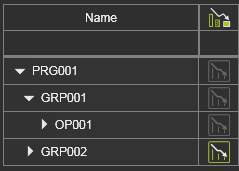
La colonne ici indique sur quelles parties de l’ensemble du programme le processus d’optimisation a été exécuté et quel est son statut.
 | Vide ; Aucune optimisation automatique n’a été lancée jusqu’à présent. |
 | L’optimisation automatique a été exécutée et reste valide. |
 | L’optimisation automatique a été exécutée, mais elle est obsolète (c’est-à-dire dépassée) à cause d’autres modifications (supplémentaires). |
Le résultat effectif est montré dans les colonnes des coûts et des incidents de qualité ainsi que sur le parcours d’outil 3D lui-même.
Dans la colonne de l’optimisation du parcours d’outil, un menu en pie peut être appelé.

Modification des positions du trajet d’outil
Le menu en pie peut être ouvert à chaque position individuelle du parcours d’outil dans la table. La sélection multiple est également possible. Le menu en pie inclut plusieurs commandes d’édition.



En outre, une opération, un groupe d’opérations ou un programme complet peut être modifié lors de l’appel du menu en pie sur ces éléments dans la table.

Le menu en pie inclut quelques commandes pour agrandir ou regrouper rapidement les lignes de la table du parcours d’outil.

