Programmer un parcours d’outil

Commandement
La commande Program toolpath est principalement exécutée pour générer de nouveaux parcours d’outils, construits sur la géométrie du procédé. Le type de géométrie de procédé pouvant être choisi dépend de la technologie appliquée.
Avec cette commande, un panneau Paramètres de programmation apparaît avec des réglages et des options.
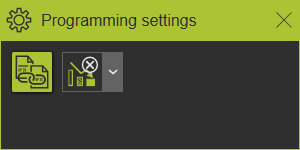
Les réglages de programmation suivants sont disponibles :
 | Opérations de contour connectées au programme sur les sous-zones |
 | Programmation autonome |
Lorsque le panneau n’apparaît pas, ouvrez le menu en pie dans l’espace 3D et appuyez sur la commande Paramètres
bouton. 
Flux de travail de programmation
Le flux de travail pour programmer un parcours d’outil est globalement commun à tous les types de géométrie de procédé. La géométrie du procédé est sélectionnée en premier. Le résultat est alors affiché sous forme de géométrie dite de fabrication, c’est-à-dire l’opération.
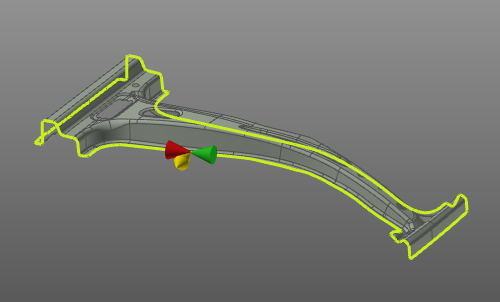
Cette géométrie de fabrication permet d’organiser et de manipuler la ou les parties et la manière dont le trajet d’outil sera calculé le long de la géométrie ou des géométries du procédé sans affecter la géométrie du procédé d’origine elle-même. Enfin, la commande de programmation doit être exécutée depuis le menu en pie sur la géométrie de fabrication.
En fonction des valeurs par défaut de tous les différents attributs de programmation (spécifiques à la technologie) issus de l’Édition 2 standard et/ou des plug-ins personnalisés, le parcours d’outil est calculé et affiché dans la vue 3D.
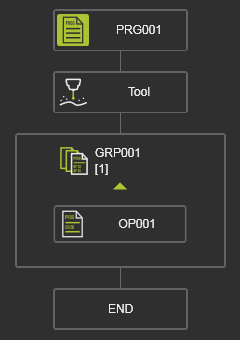
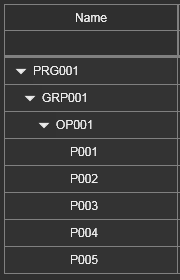
Dans le tableau de bord du programme Actif, un organigramme du parcours d’outil programmé est affiché et, dans le moniteur du parcours d’outil, toutes les positions individuelles du parcours sont listées dans un tableau. De nouveaux parcours d’outils calculés sont ajoutés au programme actif. Si un tel programme actif n’existe pas, le système créera automatiquement un nouveau programme. Tout autre parcours d’outil calculé sera ajouté comme une nouvelle opération, soit à un groupe d’opérations existant, soit comme un nouveau groupe d’opérations de groupe.
| Tableau de bord actif du programme | Moniteur de trajet d’outil |
|---|---|
 |  |
Modifier et mettre à jour
À ce niveau, le trajet d’outil peut être modifié en choisissant la géométrie de fabrication de celui-ci. Les conditions aux limites du parcours outil, telles que la position de départ ou la direction d’approche, peuvent alors être modifiées, après quoi le trajet d’outil doit être recalculé. D’autres modifications ou améliorations peuvent être effectuées avec la commande Events & enseignement, dans le tableau de bord du programme Actif, dans le moniteur Toolpath et dans le panneau Enseignement.
Le recalcul du parcours d’outil, c’est-à-dire du programme, peut être configuré pour être exécuté automatiquement. Dans ce cas, le programme sera recalculé après chaque modification. Pour collecter les modifications puis exécuter la mise à jour, le recalcul manuel peut être configuré dans le Settings. Dans ce cas, un bouton de commande de recalcul apparaît en haut à gauche de l’espace 3D pour indiquer si un recalcul est nécessaire ou non.
| Aucun recalcul n’est requis | Recalcul requis |
|---|---|
 |  |
Script de personnalisation
En général, toutes les modifications du parcours d’outil, des opérations (groupe) ou de l’ensemble du programme sont effectuées manuellement. Le système permet cependant d’automatiser (partiellement) ces modifications.
Après la dernière étape du calcul de programmation, un script python défini par l’utilisateur peut être inclus pour l’exécution. Avec ce script, non seulement le dernier parcours d’outil calculé peut être modifié, mais aussi l’ensemble du programme auquel ce parcours appartient. Il permet, par exemple, de réorganiser les différentes opérations ou d’inclure une autre convention de nommage pour les opérations et les positions du parcours d’outil.
Ce script dédié est nommé (obligatoire) PostProgramProcessGeometries.py et se trouve dans le dossier du plugin <plugin>\Technologies<nom technologique>\AuxiliaryCommands\AutoExecute. Cela peut être le plugin d’installation par défaut ou tout autre dossier de plugin configuré.
Le script ne sera exécuté que sur la géométrie du processus nouvellement programmée. Ainsi, tout autre changement que appels un recalcul du parcours d’outil ou du programme n’exécute pas le script.
Autres fonctionnalités de programmation
La programmation d’un parcours d’outil est en outre prise en charge directement depuis une ressource ou un dispositif contrôleur dans la mise en page du projet.
Sur une ressource de fabrication, comme un robot ou une machine, le menu en tarte peut être appelé.


Sur la manette, le menu en pie peut être appelé.