Propriétés des acteurs de ressources

Tableau de bord
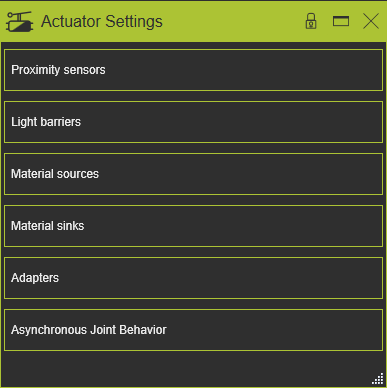
Le tableau de bord Actuators donne un aperçu des actionneurs disponibles dans la ressource pour la simulation et la programmation hors ligne, comme montré dans les exemples ci-dessous.
Capteurs de proximité
Ce conteneur montre les capteurs de proximité disponibles situés sur la ressource.
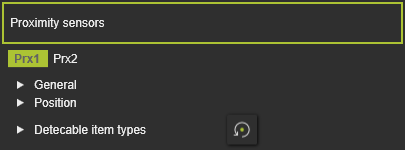
Pour chaque capteur, les attributs suivants sont définis et peuvent être modifiés ici.
| Attribut | Description | Remarque |
|---|---|---|
 | ||
| Nom | Le nom du capteur de proximité. | Un nom vierge est autorisé. |
| Type de port | Le type de port du capteur, c’est-à-dire le comportement de l’interrupteur lors de la détection. | The sensor supports two types:  normally open NO normally closed NC normally open NO normally closed NC |
| Diamètre de commutation | Le diamètre de la zone de détection du capteur. | |
| Distance de commutation | La hauteur de la zone de détection du capteur. | |
 | ||
| X, Y, Z | Les coordonnées X, Y et Z du capteur. | Les coordonnées sont définies selon le système global de coordonnées du composant. |
| Roulis(X), Tangage(Y), Lacet(Z) | Le roulis, l’inclinaison et l’orientation en lacet du capteur. | Les angles d’orientation sont fixés selon le système de coordonnées global du composant. |
 | Définit quelles classes de composants le capteur peut détecter. Sélection via l’icône de classe correspondante. | La commande Reset ramène la définition à la configuration de base. |
The class workpieces.  | ||
The resource classes.  | Choisir l’icône de catégorie définit tous les composants de la catégorie. | |
The class humans.  |
Barrières lumineuses
Ce conteneur montre les capteurs de proximité disponibles situés sur la ressource.
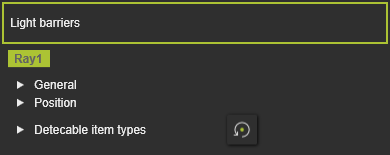
Pour chaque capteur, les attributs suivants sont définis et peuvent être modifiés ici.
| Attribut | Description | Remarque |
|---|---|---|
| ||
| Nom | Le nom du capteur de proximité. | Un nom vierge est autorisé. |
| Type de port | Le type de port du capteur, c’est-à-dire le comportement de l’interrupteur lors de la détection. | The sensor supports two types: normally open NO normally closed NC |
| Diamètre de commutation | Le diamètre de la zone de détection du capteur. | |
| Distance de commutation | La hauteur de la zone de détection du capteur. | |
| ||
| X, Y, Z | Les coordonnées X, Y et Z du capteur. | Les coordonnées sont définies selon le système global de coordonnées du composant. |
| Roulis(X), Tangage(Y), Lacet(Z) | Le roulis, l’inclinaison et l’orientation en lacet du capteur. | Les angles d’orientation sont fixés selon le système de coordonnées global du composant. |
| Définit quelles classes de composants le capteur peut détecter. Sélection via l’icône de classe correspondante. | La commande Reset ramène la définition à la configuration de base. |
| The class workpieces. | ||
| The resource classes. | Choisir l’icône de catégorie définit tous les composants de la catégorie. | |
| The class humans. |
Sources matérielles
Ce conteneur montre les sources disponibles pour la simulation de l’écoulement des matériaux.
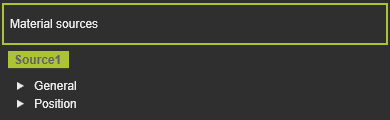
Pour chaque source, les attributs suivants sont définis et peuvent être modifiés ici.
| Attribut | Description | Remarque |
|---|---|---|
| ||
| Nom | Le nom de la source du matériau. | Un nom vierge est autorisé. |
| ||
| X, Y, Z | Les coordonnées X, Y et Z de la source. | Les coordonnées sont définies selon le système global de coordonnées du composant. |
| Roulis(X), Tangage(Y), Lacet(Z) | Le roulis, l’inclinaison et l’orientation en lacet de la source. | Les angles d’orientation sont fixés selon le système de coordonnées global du composant. |
Puits de matériaux
Ce conteneur montre les puits disponibles pour la simulation de l’écoulement des matériaux.
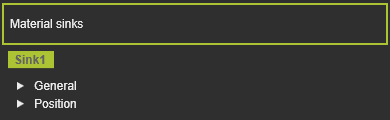
Pour chaque puits d’eau, les attributs suivants sont définis et peuvent être modifiés ici.
| Attribut | Description | Remarque |
|---|---|---|
| ||
| Nom | Le nom du matériau à l’évier. | Un nom vierge est autorisé. |
| Largeur (X), Profondeur (Y), Hauteur (Z) | La taille de la boîte d’activation de l’évier. | Les dimensions de la boîte sont définies à partir de l’origine de l’évier. |
| ||
| X, Y, Z | Les coordonnées X, Y et Z du drain. | Les coordonnées sont définies selon le système global de coordonnées du composant. |
| Roulis(X), Tangage(Y), Lacet(Z) | Le roulis, l’inclinaison et l’orientation du lacet. | Les angles d’orientation sont fixés selon le système de coordonnées global du composant. |
Adaptateurs
Ce conteneur montre l’état des adaptateurs de ressources.
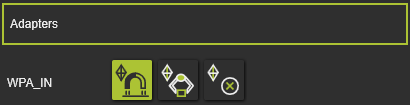
Les adaptateurs de prise mécanique (parents) sont listés ici. Pour chaque adaptateur, le comportement de connexion mécanique à un adaptateur de prise peut être défini en appuyant sur le symbole correspondant.
 | Snap | Pendant la simulation, l’adaptateur de prise s’accroche à l’adaptateur de prise, c’est-à-dire que le composant peut changer sa position relative (et son orientation) par rapport au composant parent où il a été branché. |
 | Attrape | Pendant la simulation, l’adaptateur de prise reste sa position relative par rapport à l’adaptateur de prise, c’est-à-dire que le composant reste sa position relative (et son orientation) par rapport au composant parent auquel il a été branché. |
 | Aucun | Pendant la simulation, la connexion avec l’adaptateur de prise reste telle quelle et ne peut pas être modifiée. |
Comportement des joints asynchrones
Ce conteneur montre les joints asynchrones des ressources et comment ils sont contrôlés pendant la simulation.
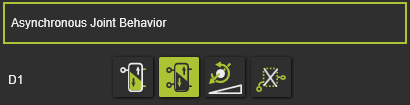
Tous les joints asynchrones de la ressource sont listés ici. Pour chaque articulation, le contrôle de comportement peut être configuré en appuyant sur le symbole correspondant.
 | Mono stable | The joint moves in the dedicated direction as long as the corresponding input signal does not change. When that signal changes, the joint will move uncontrolled in the opposite direction. The dedicated, active direction of the monostable actor can be inverted with the icon command  |
 | Bi stable | Le joint ne se déplace en direction positive que lorsque le signal du port maximal est vrai. Elle ne se déplace en sens opposé que lorsque le port minimum du signal est vrai. L’articulation ne bouge pas lorsque les deux signaux sont vrais ou faux. |
 | Valeur commune | L’articulation se déplace vers la valeur qui a été fixée. |
 | Aucun | L’articulation n’est pas contrôlée. |
