Rejoignez les visages

La commande Join the faces relie les visages sélectionnés dans un nouveau corps.
Après le lancement de la commande, une petite fenêtre apparaît.
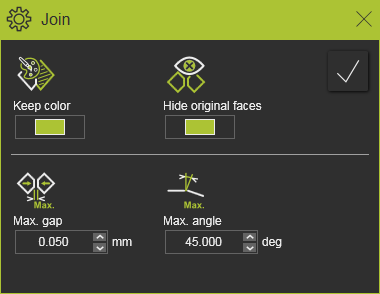
| Visualisation | ||
 | Gardez la couleur | Le corps résultant des faces jointes aura la même couleur que la face d’où la commande a été exécutée. |
 | Cacher les visages originaux | Les faces originales du corps du résultat seront déplacées vers l’espace de travail de masque. |
| Critères de propagation | ||
 | Maximum. Écart | La propagation fusionne la face adjacente lorsque l’écart entre les arêtes est plus petit que la valeur de distance définie. |
 | Angle Max. | La propagation fusionne la face adjacente lorsque l’angle entre les deux normales d’arête est inférieur à la valeur définie. |
Avant que la jointure ne soit exécutée, la sélection des faces peut être étendue ou réduite.
Avec la touche CTRL, des faces supplémentaires peuvent être ajoutées à la sélection, ou des faces présélectionnées peuvent être retirées de la sélection. Et grâce aux capacités de piège, la sélection peut être étendue grâce à une opération de crochet et de glissage.
La sélection peut également être étendue sur la propagation. Pour cela, le menu de la tarte doit être appelé sur une face sélectionnée.

 Activez le Manipulateur
 Incluez le corps complet
 Propagation par couleur
 Propagation basée sur la continuité
 | Incluez le corps complet | Sélectionne toutes les faces appartenant au même corps. |
 | Propagation par couleur | Sélectionne toutes les faces adjacentes de la même couleur, par rapport aux paramètres de propagation applicables. |
 | Propagation basée sur la continuité | Sélectionne toutes les faces adjacentes, par rapport aux paramètres de propagation applicables. |

Après la sélection, le résultat de la jonction peut être généré en appuyant sur le bouton Execution en haut à droite de la fenêtre.
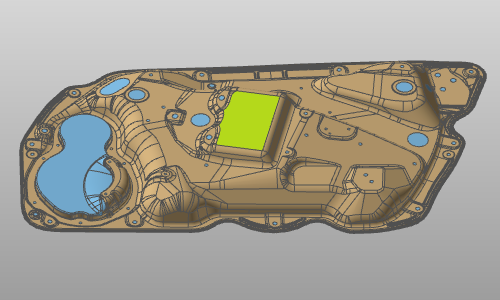
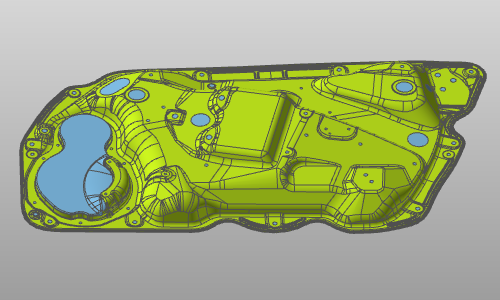
Exemple :
| Commencer à rejoindre | Propagation par couleur | Visages joints |
|---|---|---|
 |  | 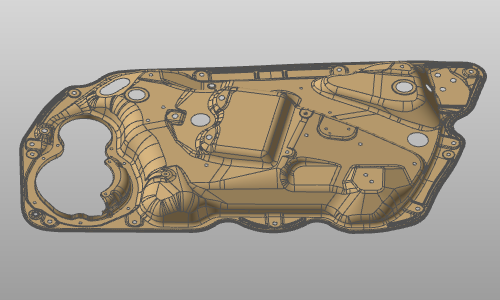 |
Il est tout à fait possible de construire un résultat joint qui a été calculé à partir de plusieurs faces non adjacentes. Dans ce cas, un message d’avertissement apparaît :