Programmez un parcours d’outil basé sur la surface

Commandement
La commande Program toolpath peut être exécutée sur la géométrie de procédé basée sur la surface.
Lorsque la commande est lancée, une petite fenêtre doit apparaître. Ici, les réglages pour programmer le contour sont définis.
Lorsque le panneau n’apparaît pas, ouvrez le menu en secteur dans l’espace 3D et appuyez sur la commande paramètres bouton.
| Cadre | Description | Remarque | |
|---|---|---|---|
 | Mode de connexion de fonctionnement | Programmes connexions aux opérations sur le même contour de procédé. | |
 | Mode de positionnement dans Teach | Dentition de la façon dont un outil sera placé à un emplacement choisi sur le trajet de l’outil. Cela peut être réalisé avec les valeurs de jonction du robot ou de la machine pour atteindre cette position, ou en simulant le trajet de l’outil jusqu’à ce que la position soit atteinte. | Cela s’applique lors de l’enseignement d’un poste existant sur le parcours des outils. |
Calculer le trajet d’outil
Lors de la sélection de la surface PG, la géométrie de fabrication, c’est-à-dire l’opération, avec ses informations auxiliaires est affichée. Il existe une légère différence dans l’affichage de la géométrie de fabrication, selon la stratégie appliquée pour calculer le parcours d’outil. Cette stratégie définit la courbe de référence utilisée pour la direction principale de la voie et l’orientation du trajet d’outil.
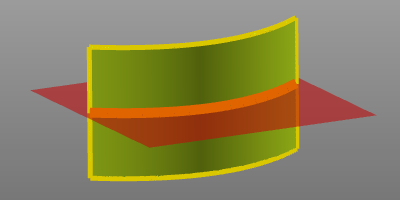 | 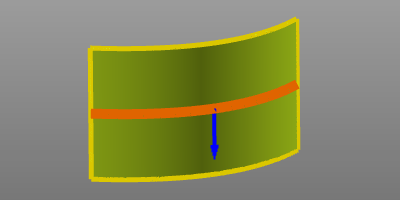 | |
| Par plan d’intersection | Par courbe de niveau |
Le carré rouge représente le plan qui se croise. Ce plan intersecte la surface pour créer la courbe guide orange. Cette courbe sert de base pour calculer les pistes de trajet d’outil couvrant la surface. Le contour jaune indique la limite extérieure. Le parcours d’outil est calculé pour la surface située à l’intérieur de cette frontière.
Pour modifier le plan d’intersection de la courbe de guidage, ce plan rouge peut être choisi. Le Manipulateur apparaît et la position et/ou l’orientation peuvent être modifiées.
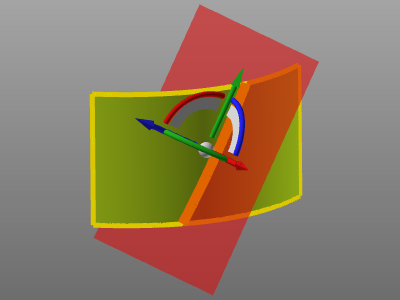
Pour modifier le contour, le menu en pie peut être ouvert directement sur le contour de la courbe guide orange.
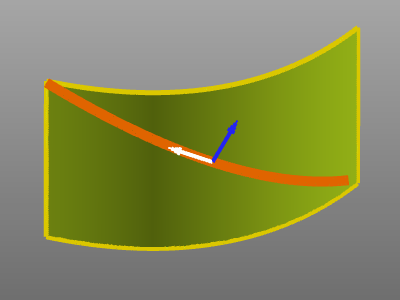



La courbe de frontière peut être utilisée pour définir une aire différente, c’est-à-dire modifiée, sur la géométrie du procédé pour laquelle le trajet de l’outil sera calculé.
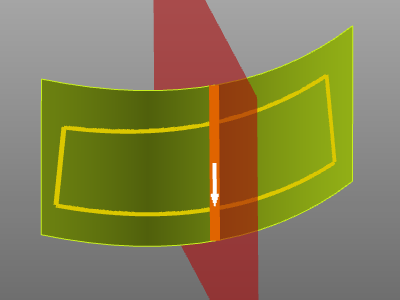
Avec le menu en forme de secteur sur la frontière, cette frontière peut être modifiée.


Enfin, après avoir défini optionnellement la courbe de la frontière et de la courbe guide, le menu en secteur peut s’ouvrir sur la ou les surfaces sélectionnées.



Le parcours d’outil sera calculé à l’aide de plusieurs attributs. Dans le tableau de bord par défaut de la programmation, ces attributs sont listés et leurs valeurs peuvent être définies.
Après le calcul, le parcours de l’outil est affiché.
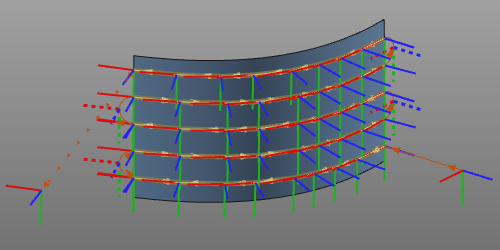
En survolant la géométrie de fabrication, c’est-à-dire l’opération, on affiche le nom de l’opération de la surface.
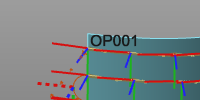
Si l’opération et la géométrie du procédé sont toutes deux affichées (filtres d’affichage), l’affichage du contour d’opération passe en mode pointillé pour permettre à la fois la sélection du contour et de l’opération pour toute action ultérieure.
Sélection multiple et séquençage
Cela s’applique à la fois à la création d’un nouveau parcours outil et à la modification d’un parcours existant.
Pour ajouter une nouvelle opération après la dernière surface sélectionnée, il suffit de choisir une autre surface de procédé en appuyant sur le  clavier. La nouvelle sélection est automatiquement ajoutée après la dernière étape. La séquence est affichée avec un numéro de séquence à chaque surface individuelle (opération) et l’ajout d’une ligne de connexion d’opération de l’opération jusqu’à l’opération suivante dans la séquence.
Pour ajouter une nouvelle opération entre deux opérations existantes, on utilise la ligne de connexion d’opérations. Cette ligne peut être choisie avec le bouton gauche de la souris et glissée au-dessus de la nouvelle géométrie du processus. Le relâcher sur la nouvelle surface l’ajoute et met à jour la séquence.
Changer la séquence des opérations fonctionne comme ajouter une opération entre la séquence existante. Choisissez la ligne de connexion de l’étape de séquence qui va être modifiée. Ensuite, cette ligne est traînée et relâchée sur l’opération pour se connecter à et depuis l’endroit où la séquence doit se poursuivre.
Une opération ne peut pas être retirée de la trajectoire d’outil interactive dans la vue 3D. Pour cela, il faut utiliser le tableau de bord Active program.
Modifier le parcours d’outil
Les parcours d’outils existants peuvent être modifiés ici. Après sélection, la géométrie de fabrication et le parcours d’outil sont affichés. Les modifications apportées ici déclenchent immédiatement un recalcul du parcours d’outil.
Sur la géométrie de fabrication, le menu en pie peut s’ouvrir.
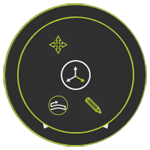
La courbe guide est colorée orange. Il a été créé soit à partir du plan d’intersection, soit à partir d’un contour (défini par l’utilisateur).
Lorsque la courbe guide a été créée à partir d’un plan qui s’intersecte, ce plan peut être modifié en le choisissant. Le manipulateur semble changer la position du plan d’intersection.
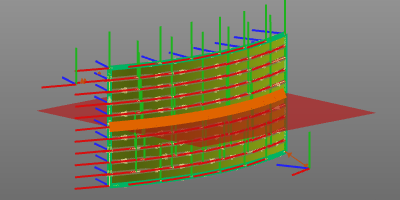 | 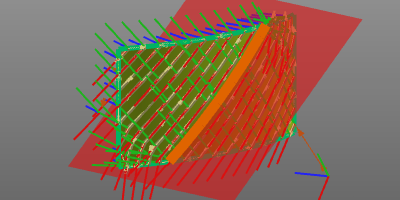 |
Si la courbe guide est un contour, le contour orange est surligné, avec une flèche bleue.
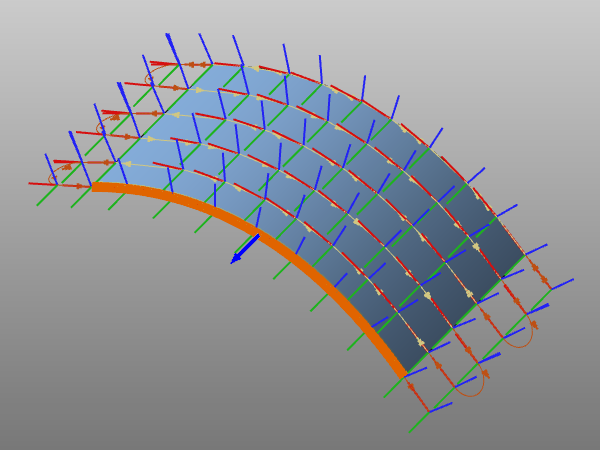
Le menu en pie peut être ouvert sur la courbe guide pour le modifier.
La flèche bleue à la courbe de guidage indique la direction du trajet d’outil. Un double-clic sur cette flèche inverse la direction.
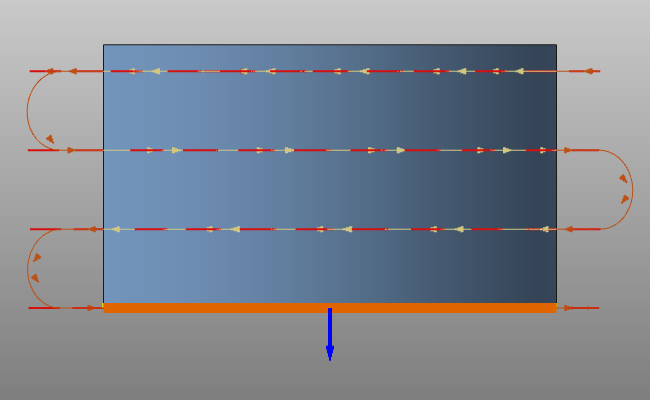 | 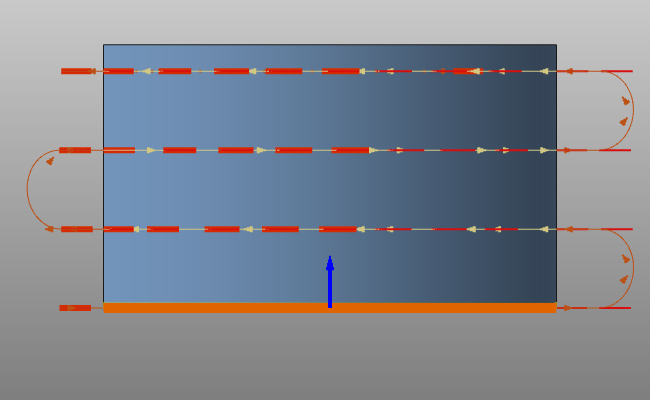 |
Enfin, le menu en pie peut s’ouvrir sur le contour de la frontière pour le modifier.
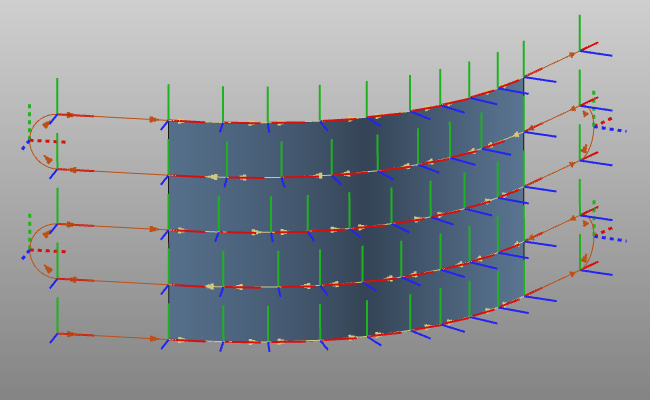 | 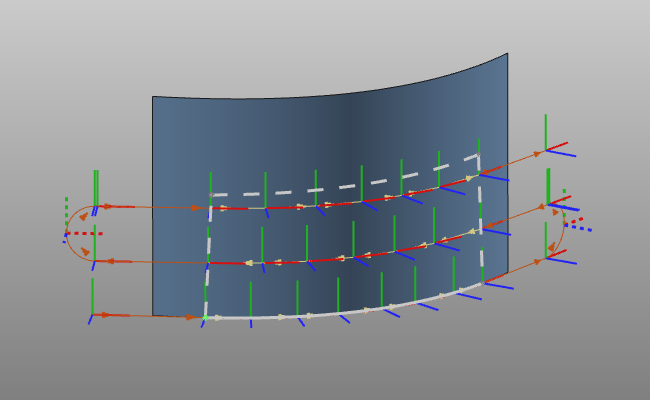 |
Script de personnalisation
En général, toutes les modifications du parcours d’outil, des opérations (groupe) ou de l’ensemble du programme sont effectuées manuellement. Le système permet cependant d’automatiser (partiellement) ces modifications.
Après la dernière étape du calcul de programmation, un script python défini par l’utilisateur peut être inclus pour l’exécution. Avec ce script, non seulement le dernier parcours d’outil calculé peut être modifié, mais aussi l’ensemble du programme auquel ce parcours appartient. Il permet, par exemple, de réorganiser les différentes opérations ou d’inclure une autre convention de nommage pour les opérations et les positions du parcours d’outil.
Ce script dédié est nommé (obligatoire) PostProgramProcessGeometries.py et se trouve dans le dossier du plugin <plugin>\Technologies<nom technologique>\AuxiliaryCommands\AutoExecute. Cela peut être le plugin d’installation par défaut ou tout autre dossier de plugin configuré.
Le script ne sera exécuté que sur la géométrie du processus nouvellement programmée. Ainsi, tout autre changement que appels un recalcul du parcours d’outil ou du programme n’exécute pas le script.
