Détection tactile par soudure à l’arc

Détection tactile
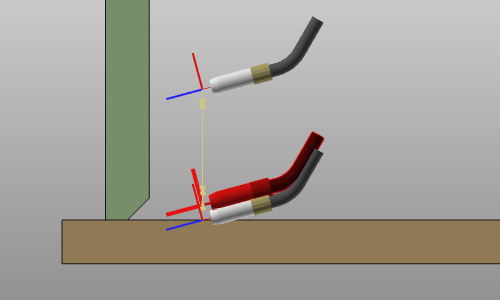
La détection tactile est une fonctionnalité qui ne se déclenche pas avec un bouton de commande. Il s’agit d’un mélange de la définition des conditions de fonctionnement par contact et de leurs positions sur les pièces de soudure. Les conditions de fonctionnement doivent être définies dans la programmation OLP. Le réglage des positions de toucher est intégré dans la définition et la création de la géométrie du procédé de contour (soudure).
[lien :]
Paramètres par défaut de programmation
Dans le tableau de bord par défaut Programmation de l’établi OLP, l’onglet tech Technology base inclut la sélection de base de la définition de détection tactile.
 | Indication de point par contact Définir les points de détection en sélectionnant manuellement les pièces de soudure. |
L’onglet tech Touch sensing affichera les attributs disponibles pour calculer le cycle complet de l’opération tactile.
[lien :]
Indication de toucher par point
Cette méthode ne fonctionne actuellement qu’en combinaison avec le contour de soudage par commande de projection pour générer la géométrie du procédé de soudage.
À tout moment lors de la définition du contour de soudure, un nombre quelconque de points peut être choisi sur n’importe quelle pièce de soudure. Chaque position est déterminée par un clic de souris sur la surface de la pièce soudée via WYSIWYG. La position choisie est marquée par une sphère bleue, comme dans l’exemple ci-dessous.
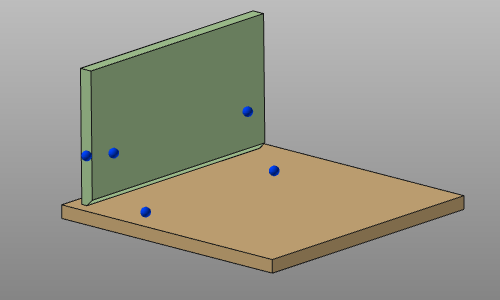
Avec la commande Undo, le(s) dernier(s) point de contact créé peut être supprimé à nouveau.
L’information sur les positions de toucher est stockée avec la géométrie du procédé en cours de création. Les positions sont affichées dans le tableau de bord géométrique des procédés.

[lien :]
Modification de la définition tactile
Les positions des points de détection tactile ne peuvent actuellement être modifiées que lors de la programmation manuelle du parcours de l’outil. Lors de la sélection de la géométrie du procédé, les points de contact définis lors de la création de la géométrie du procédé sont affichés dans l’espace 3D. Ils peuvent désormais être ramassés et traînés à n’importe quel autre endroit sur les pièces de soudure.
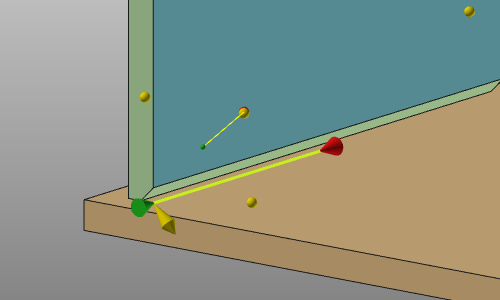
À ce stade, de nouvelles positions tactiles peuvent également être ajoutées et celles existantes peuvent être supprimées. Il suffit de choisir la partie soudage, une position pour définir un nouveau point de contact ou de cliquer sur une esthétique jaune sortie pour enlever cette position. Cela fonctionne sur la géométrie de procédé qui inclut des positions de toucher prédéfinies et sur la géométrie de procédé qui n’a pas de toucher prédéfini.
Tous les autres paramètres de toucher peuvent être modifiés une fois qu’un parcours d’outil a été calculé sur la géométrie du procédé incluant une position de toucher.
Pour chaque direction de détection, un cycle d’opération est créé. Grâce à l’utilisation du tableau de bord Active Program dans l’établi OLP, les attributs de chaque opération tactile peuvent être modifiés.
[lien :]
Plus d’informations de référence


Automatique :
Lors de la création de la géométrie du procédé de contour (soudure), le système crée automatiquement une position de contact à toute pièce de soudure utilisée pour générer cette géométrie de procédé de contour. Au départ, l’utilisateur doit seulement définir dans les paramètres par défaut de programmation s’il souhaite générer ces positions de toucher au début et/ou à la fin du contour et dans quelle direction de toucher.
Il n’y aura pas d’aperçu de ces positions tactiles, comme avec l’indication manuelle. Cependant, les positions sont affichées dans le tableau de bord géométrique du procédé.
Dans le tableau de bord par défaut Programmation de l’établi OLP, l’onglet tech Technology base inclut la sélection de base de la définition de détection tactile. Deux méthodes pour générer les positions tactiles sont disponibles.
| Indication de point par contact Définir les points de détection en sélectionnant manuellement les pièces de soudure. |
 | Tactile automatique Routine automatique pour définir les points de détection requis sur les pièces de soudure. |
Pour chaque façon, l’onglet technique Touch sensing affichera les attributs disponibles pour calculer le cycle complet de l’opération tactile.