Propriétés des ressources

Tableau de bord
La commande Resource ouvre le tableau de bord avec la définition complète des ressources, les propriétés et les attributs. Les informations sont réparties en cinq contenants et peuvent être vérifiées ou modifiées si nécessaire ici.
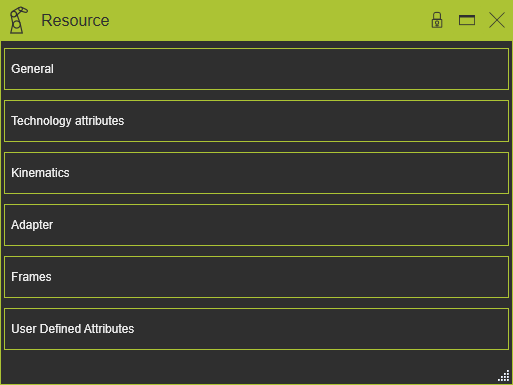
Généralités
Ce conteneur ouvre les informations générales de la ressource.
La ressource possède les attributs généraux suivants. Lors de la création de la ressource, les valeurs par défaut des attributs sont données par le logiciel, selon le type de ressource choisi. Les attributs sont affichés et modifiables dans la fonction tableau de bord de l’établi Resource Builder Workbench.

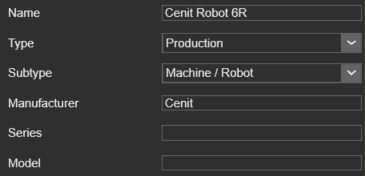
Le conteneur General s’ouvre sur une liste verticale avec tous les attributs définis au sein du composant, indiqués par leurs noms. En sélectionnant l’un d’eux, ses attributs sont classés en deux groupes. Un surlignage croisé dans la vue 3D et l’interface du tableau de bord apparaît.
| Attribut | Description | Remarque |
|---|---|---|
| Nom | Le nom de la ressource | Un nom pour la ressource est obligatoire. |
| Type | Le type de ressource selon la classification. | |
| Sous-type | Le sous-type de la ressource selon la classification. | |
| Fabricant | Le nom du fabricant de la ressource. | L’attribut peut être laissé vide. |
| Séries | Le nom de la série de la ressource. | L’attribut peut être laissé vide. |
| Modèle | Le nom du modèle de la ressource. | L’attribut peut être laissé vide. |
Selon le (sous-)type de la ressource, elle possède quelques attributs supplémentaires.

| Attribut | Description | S’applique à |
|---|---|---|
| Technologie | The manufacturing technology for which the resource has been designed or for which it will be set up. 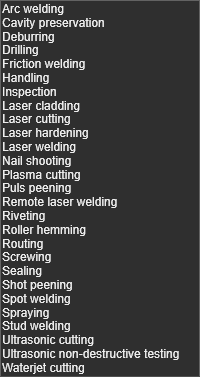 |  Robots and machines Robots and machines  End effector End effector  Tool Tool |
Attributs technologiques
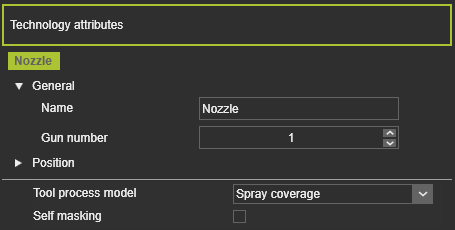
Ce conteneur ouvre les attributs technologiques de la ressource. Pour certaines technologies, une ressource d’outil peut générer une représentation mathématique, c’est-à-dire un modèle du processus de fabrication. Avec ce modèle, une simulation de procédé peut être calculée pour analyser l’effet et l’impact de ce procédé sur une surface de travail, par exemple l’épaisseur du revêtement lors d’une opération de peinture.
Le contenu de ce contenant peut varier selon la technologie. L’image ci-dessus en montre un exemple.
Comme le modèle de procédé nécessite une référence technologique comme origine pour le calcul, il y aura une section avec ces référentiels. Pour chaque référentiel de la ressource, les attributs sont affichés et peuvent être modifiés ici.
| Attribut | Description | Remarque |
|---|---|---|
 | ||
| Nom | Le nom de la référence. | Un nom vierge est autorisé. |
| Numéro du canon | Le numéro de la sortie de procédé. | Un outil peut avoir plusieurs armes, plusieurs sorties de procédé. |
 | ||
| X, Y, Z | Les coordonnées X, Y et Z de la référence. | Les coordonnées sont définies selon le système global de coordonnées du composant. |
| Roulis(X), Tangage(Y), Lacet(Z) | Le roulis, l’orientation du tangage et du lacet de la référence. | Les angles d’orientation sont fixés selon le système de coordonnées global du composant. |
La deuxième section du conteneur contient les attributs spécifiques à la technologie. Cette section peut ne pas être présente.
Le conteneur n’apparaît dans le tableau de bord que lorsque la technologie assignée est sur la ressource de l’outil prend en charge un modèle de simulation de procédé.
Cinématique
Ce conteneur ouvre l’information cinématique de la ressource. L’éditeur montre les articulations individuelles et leur définition. Sélectionner une articulation fera passer en surligne la jointure dans la vue 3D ainsi que son nom dans la liste.
Le conteneur Kinematics s’ouvre sur une liste contenant tous les attributs définis au sein du composant, indiqués par leurs noms. En sélectionnant l’un d’eux, ses attributs sont classés en six groupes. Un surlignage croisé dans la vue 3D et l’interface du tableau de bord apparaît.
Dans le cas où la ressource est de type production avec un squelette cinématique, le conteneur Kinematic inclut certains attributs de comportement spécifiques.
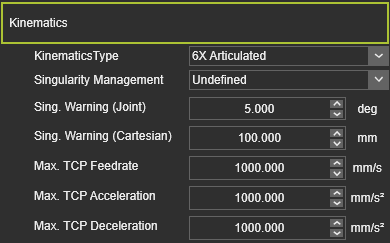
| Attribut | Description | S’applique à |
|---|---|---|
| Type cinématique | The characteristics of the kinematic behavior of the resource. 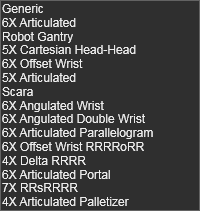 | Robots and machines |
| Gestion des singularités | Le comportement de la ressource lorsqu’elle atteint sa position de singularité. | Robots and machines |
| Chantez. Articulation d’Avertissement | L’angle de l’articulation est pour afficher un avertissement lorsque la ressource atteint presque sa position de singularité. | Robots and machines |
| Chante. Avertissement cartésien | La distance pour afficher un avertissement lorsque la ressource atteint presque sa position de singularité. | Robots and machines |
| Débit maximal TCP | La vitesse de fonctionnement du TCP de la ressource ; valeur en mm/s. | Robots and machines |
| Accélération max. TCP | L’accélération maximale du TCP ; Valeur en mm/s2. | Robots and machines |
| Décélération max. TCP | La décélération maximale du TCP, valeur en mm/s2. | Robots and machines |
Une articulation cinématique possède les attributs de base suivants. À la création de l’articulation, les valeurs par défaut des attributs sont données par le logiciel, selon le type de joint choisi. Les attributs sont affichés et modifiables dans les fonctions du tableau de bord des différents établis qui soutiennent la création des joints cinématiques.
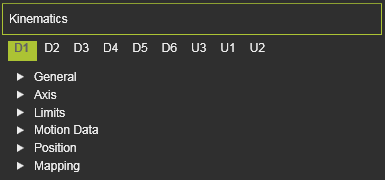
| Attribut | Description | Remarque |
|---|---|---|
| ||
| Nom | Le nom du lieu. | Un nom vierge est autorisé. |
| Type cinématique | The type of the joint according to the classification as described above.  | |
| Type d’articulation | The class of the joint according to the classification as described above. 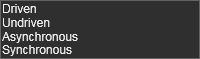 | |
| Valeur actuelle | La valeur actuelle de la capacité de mouvement, par rapport à sa position de conception. | Valeur en mm ou degré. |
 | ||
| Axe indexé | Un interrupteur pour définir si le mouvement de l’axe indique la position de l’axe, c’est-à-dire prédéfini en pas au lieu d’un mouvement libre. Une fois réglés, les attributs suivants apparaissent : | S’applique uniquement au type de joint asynchrone |
| Taille des pas | La valeur incrémentale dans laquelle l’axe se déplace vers sa position suivante. | |
| Décalage | La valeur de départ est décalée par rapport à la position initiale la plus basse. Les pas indexés sont ensuite exécutés à partir de cette position décalée. | |
 | ||
| X, Y, Z | Le vecteur de mouvement de l’articulation. | Les coordonnées sont définies selon le système global de coordonnées du composant. |
 | ||
| Minimum, Maximum | La valeur minimale et maximale du mouvement articulaire. | Valeur en mm ou degré. |
 | ||
| Vitesse | La vitesse avec laquelle l’articulation bouge. | Valeur en mm/s. |
| Accélération | L’accélération de l’articulation pour atteindre sa vitesse. | Valeur en mm/s2. |
| Décélération | La décélération de l’articulation pour s’arrêter. | Valeur en mm/s2. |
| ||
| X, Y, Z | Les coordonnées X, Y et Z de l’articulation. | Les coordonnées sont définies selon le système global de coordonnées du composant. |
| Roulis(X), Tangage(Y), Lacet(Z) | Le roulis, l’orientation du tangage et du lacet de l’adaptateur. | Les angles d’orientation sont fixés selon le système de coordonnées global du composant. |
 | ||
| Définir la valeur actuelle | Définit la valeur que la position actuelle doit représenter. Cela peut différer de la valeur selon le design ou une autre source d’information. | Valeur en mm ou degré. |
| Décalage vers modèle mathématique | Définit la valeur que la position actuelle doit être décalée par rapport au modèle mathématique utilisé par le logiciel pour générer la position. | Valeur en mm ou degré. |
Adaptateur
Ce conteneur ouvre les informations d’adaptateur de la ressource. L’éditeur montre les adaptateurs individuels et leur définition. Sélectionner un adaptateur le fera passer en surligne dans la vue 3D et son nom dans la liste.
L’adaptateur possède les attributs de base suivants. Lors de la création de l’adaptateur, les valeurs par défaut des attributs sont données par le logiciel, selon le type d’adaptateur choisi. Les attributs sont affichés et modifiables dans l’une des fonctions du tableau de bord des différents établis qui supportent la création d’adaptateurs.
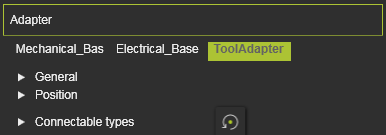
Le conteneur Adapter s’ouvre sur une liste verticale avec tous les attributs définis au sein du composant, indiqués par leurs noms. En sélectionnant l’un d’eux, ses attributs sont classés en deux groupes. Un surlignage croisé dans la vue 3D et l’interface du tableau de bord apparaît.
| Attribut | Description | Remarque |
|---|---|---|
| ||
| Nom | Le nom de l’adaptateur. | Un nom vierge est autorisé. |
| Type | The type of the adapter according to the classification. 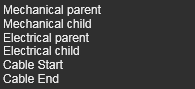 | |
| Capacité | Définit combien d’adaptateurs peuvent être connectés à celui-ci. | Cela ne concerne que les adaptateurs de type douille. |
| ||
| X, Y, Z | Les coordonnées X, Y et Z de l’adaptateur. | Les coordonnées sont définies selon le système global de coordonnées du composant. |
| Roulis(X), Tangage(Y), Lacet(Z) | Le roulis, l’orientation du tangage et du lacet de l’adaptateur. | Les angles d’orientation sont fixés selon le système de coordonnées global du composant. |
 | Définit quelles classes de composants peuvent être branchées sur cet adaptateur. Sélection via l’icône de classe correspondante. | Cela ne concerne que les adaptateurs de prise mécanique. La commande Reset ramène la définition à la configuration de base |
The resource classes. 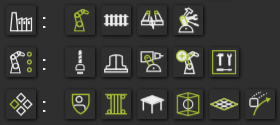 | Choisir l’icône de catégorie définit tous les composants de la catégorie. | |
The classes humans, controller and workpiece.  |
Cadres
Ce conteneur ouvre les informations de cadre de la ressource. L’éditeur montre les cadres individuels et leur définition. Sélectionner une image la fera passer en surligne croisé dans la vue 3D et son nom dans la liste.
Le cadre possède les attributs de base suivants. Lors de la création de la trame, les valeurs par défaut des attributs sont données par le logiciel, selon le type de trame choisi. Les attributs sont affichés et modifiables dans l’une des fonctions du tableau de bord des différents établis qui supportent la création de cadres.
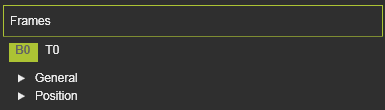
Le conteneur Frames s’ouvre sur une liste verticale avec tous les attributs définis au sein du composant, indiqués par leurs noms. En sélectionnant l’un d’eux, ses attributs sont classés en deux groupes. Un surlignage croisé dans la vue 3D et l’interface du tableau de bord apparaît.
| Attribut | Description | Remarque |
|---|---|---|
| ||
| Nom | Le nom du cadre. | Un nom vierge est autorisé. |
| Type | The type of the frame according to the classification as described above.  | |
| Cadre de vision | Le cadre sera assigné comme référence supplémentaire pour l’outil. | Cela s’applique uniquement aux cadres d’outils (ressources). Les cadres de vision sont utilisés dans différentes applications, technologies ou fonctions pour des solutions dédiées, comme la calibration des coutures par soudure à l’arc. |
| ||
| X, Y, Z | Les coordonnées X, Y et Z du référentiel. | Les coordonnées sont définies selon le système global de coordonnées du composant. |
| Roulis(X), Tangage(Y), Lacet(Z) | Le roulis, l’inclinaison et l’orientation du lacet du châssis. | Les angles d’orientation sont fixés selon le système de coordonnées global du composant. |
Attributs définis par l’utilisateur
Ce conteneur ouvre les attributs définis par l’utilisateur de la ressource. L’éditeur affiche les attributs et leur définition. Les attributs définis par l’utilisateur peuvent être ajoutés, modifiés et supprimés ici.
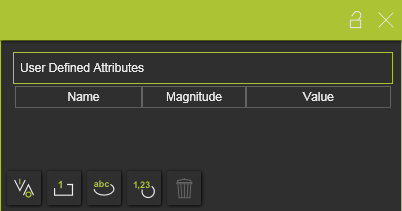
Il existe quatre principaux types d’attributs définis par l’utilisation.
| Type | Description | Remarque | |
|---|---|---|---|
| Booléen |  | Un attribut ayant la valeur soit Vrai, soit Faux. | The value is set True by pressing the value button 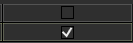 |
| Entier |  | Un nombre entier de grandeurs différentes. Pour chaque magnitude, l’unité est réglée et affichée automatiquement. | A drop down list is available to specify the required magnitude 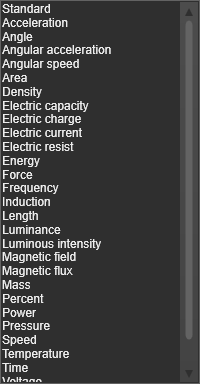 |
| Corde |  | Un attribut basé sur le texte. | |
| Flotteur |  | Un vrai nombre de magnitudes différentes. Pour chaque magnitude, l’unité est réglée et affichée automatiquement. | Une liste déroulante, comme pour l’attribut entier, est disponible pour spécifier la magnitude spécifique. |
L’attribut défini par l’utilisateur peut être ajouté en cliquant sur le bouton type d’attribut. L’attribut sera ajouté à la liste et reçoit un nom et une valeur par défaut. Sélectionner le nom ou la valeur permet de le modifier.
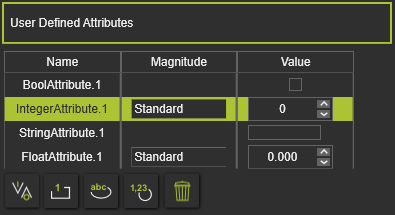
L’attribut actuellement actif, sélectionné et défini par l’utilisateur peut être supprimé en appuyant sur le bouton de commande Supprimer  .
.
