Loading documents into a session
Loading documents into the running session starts different processes, depending on from what situation the document is going to be opened.
Loading documents
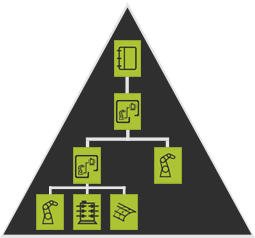
Starting a FASTSUITE Edition 2 session with the standard start command automatically creates a new .cendoc document with a layout (.cenlay) as the top level. The session then always starts up in the Layout Builder Workbench.
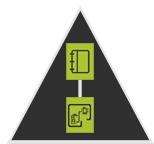
From this point there are several ways to open or add other documents, each with their specific result.
New

Opening a new document with the New command from the File menu has the same effect as starting a new session. A document structure as shown above will be created automatically. The only exception here is that in case a document was open already, the software will ask if the open document has to be saved first before closing it.
Create
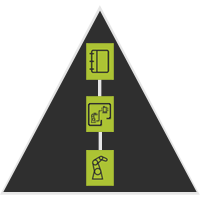
It is possible to create a new component (resource, controller or workpiece) in the open document. In that case the component is added as the next level child of the top level layout. The File Manager will display that link structure.
|  |  |
Open

The Open command from the File menu can load any FASTSUITE Edition 2 document type. It is going to replace the existing document in the running session. Thus, it will not be added to the project, it will be loaded new. The user will be asked if the current document has to be saved prior to closing it. After confirmation or rejection the selected document is loaded. This process is cannot be reversed with the Undo command.
| |  |
Add

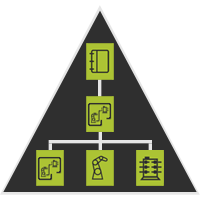
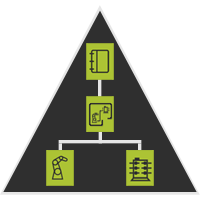
The Add existing component command in the either the File menu or in the different pie menus of the Project structure dashboard will always add the selected document to the currently active layout.
|  |  |
|  |  |
The added document will always be positioned in such way that its own origin is placed at and aligned with the origin of the active layout in which it is loaded.
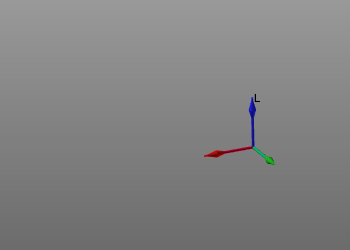 | 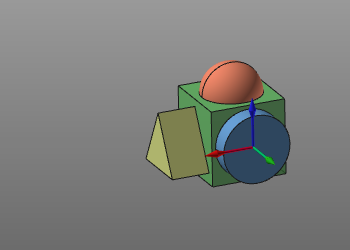 | |
| Start | Added |
Drag and drop
FASTSUITE Edition 2 documents can be dragged from a file explorer into the application. But because the system does not support multiple document windows, the document will always be dropped in the open project.
.cendoc
Picking a .cendoc file and drop it into FASTSUITE Edition 2 will be the same as opening that document from within the application. The existing document will be closed first, where the user will be asked first if the open document needs to be saved.
.cenxxx
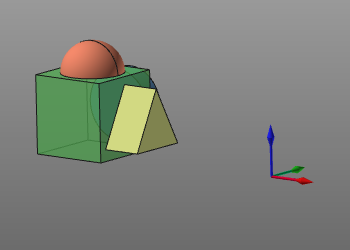
All other FASTSUITE Edition 2 document types, i.e. the resources, controllers, workpieces and layouts, will be added to the open project document and placed in the active layout, when picked and dragged into the 3D view.
The component or layout will be placed at the mouse pointer position in the 3D view where it is dropped. Its orientation is the same as that of the origin of the active layout.
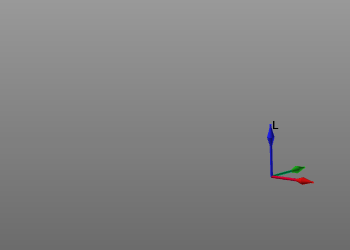 |  | |
| Start | Dropped |
Document search
Each time a layout (.cenlay) or project (.cenprj) file is opened, the File Manager is started in the background. Its task is to verify if all individual components of the layout or project that need to be loaded, can be found and resolved from their locations. It follows always the same search routine to find these components. First the components are searched for in the same, current folder from where the main document will be loaded. In the second step, for the components that are not found yet, the system will read the meta-data information from the components to search in other folders for them. And when still not having found them, the system will search in the folders that have been specified in the Search Paths Settings.
When all components have been found, the layout or project will be opened and loaded in the session. If however a problem arises, the File Manager then opens a warning window, like the example below.
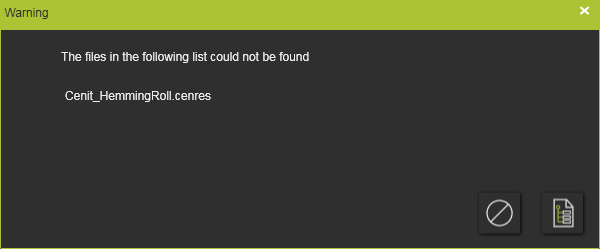
In this window a list appears of the files that are part of the layout, or project, but that could not be found. At this point the loading process can be interrupted and stopped with the Cancel button  . No files are opened in the session then.
To continue, the File Manager can be called by pressing its command button  in the warning window. It will open the File Manager window.
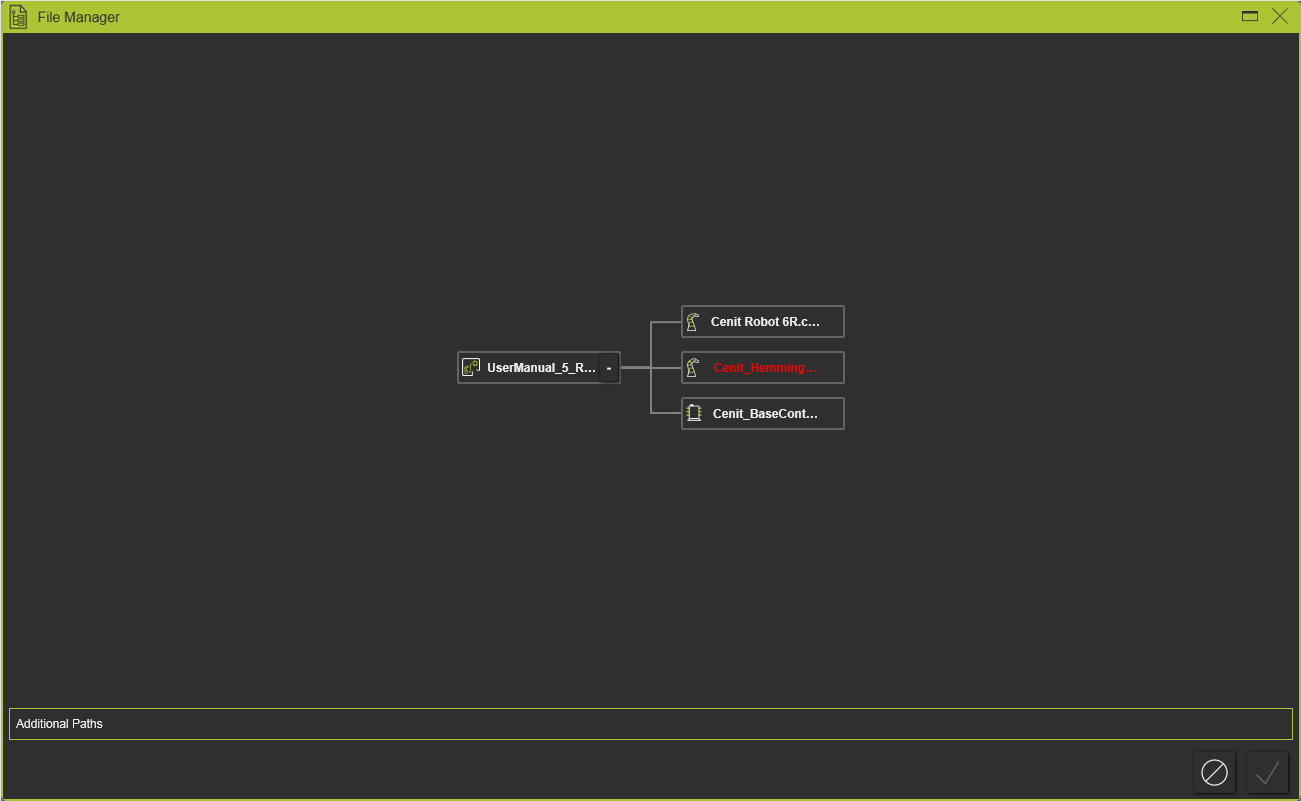
The window displays the expected files and link structure of the opened document. The missing file is colored red. When the (sub-) assembly is collapsed but does have a missing file, the expand symbol at the end of the name is colored red to indicate this state of missing a child document.

Pressing the left mouse button, and keeping it down, in the empty space of the window enables to move the content inside the window. Scrolling with the wheel of the mouse will move the tree structure up or down. A horizontal and vertical scroll bar is shown too to move the graphics.
From here the missing files can be searched for.
Manual search
At the missing document in the layout structure the Pie menu can be called for.



The Find command opens a file browser to search and select the required document manually.
Other search paths
The File Manager window supports to define and apply additional search paths for the documents to be found.
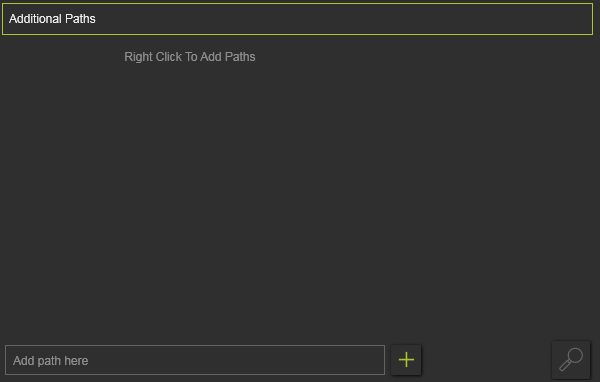
Additional paths directly can be added to the list by simply typing the path name in the edit field at the bottom. Confirmation with the Enter key on the keyboard or by pressing the Store path command icon at the right side saves the path.

The system supports both absolute and relative paths. The specified folder is added to the list. Multiple new folders can be defined.
A Pie menu can be called from the background of this window section to define additional search paths. It supports to add single or multiple search paths by user selection or by import of a predefined text file containing the search paths. And furthermore the list op paths here can be exported to an external text file.



Opening the Pie menu on a path definition enables some editing functions.



When a drive or folder, that has been defined here does not exist anymore or somehow else cannot be resolved by the software, it will be displayed in red after re-opening the settings, like in the example below.

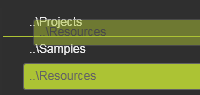
The folder search order is simply moving top down in the list. To manipulate the search, paths in the list can be re-ordered. Picking a path member with the left mouse button enables a drag operation. Then moving the mouse up or down will highlight a green bar between two other members. Releasing the mouse button will drop the picked member at that new location in the list. But keep in mind that this operation only works on the main path members in the list. The underlying sub folders cannot be re-ordered. Exception here is that they can be dragged out of the sub folder structure to become a main member. This process however is irreversible.
 |  |  | ||
| Pick | Drag | Drop |

All paths, both absolute and relative, are exactly applied as specified. The definition does not have any function for the software to automatically search for possible children tree folders.
After the other search paths have been specified, with the Check command button  the search can be re-initiated.
When all the components of the opened document are resolved the Continue command button  will become active. Pressing it will now load all the components into the session.
The whole process can be interrupted and terminated with the Cancel button . Any previous action before cancellation will be ignored and thus is not executed.
FASTSUITE Edition 2 documents being used in
More document reference information
