Split screen

The Split Screen command enables to split the 3D View in multiple windows to simultaneously look at the 3D model from different main camera positions.
The 3D View has 8 different screen layouts:
| Icon | Description |
|---|---|
 | single window horizontal and vertical split in four windows vertical split in two windows vertical split plus horizontal split of right window horizontal split in two windows horizontal split plus vertical split of bottom window vertical split plus horizontal split of left window horizontal split plus vertical split of top window |
When changing to a multiple window style, the screen will be split in the selected number of windows. Each window divided in equal sizes, related to the style. The windows are split by a white colored border that can be picked with the left mouse button and dragged up and down or left and right to change the window size manually.
The first window of a multiple window style will keep the same camera view (direction and zoom factor) as before changing the window style. All the other windows will be generated with a dimetric camera view, where each additional window will change the dimetric view through a 90° rotation around the Z-axis.
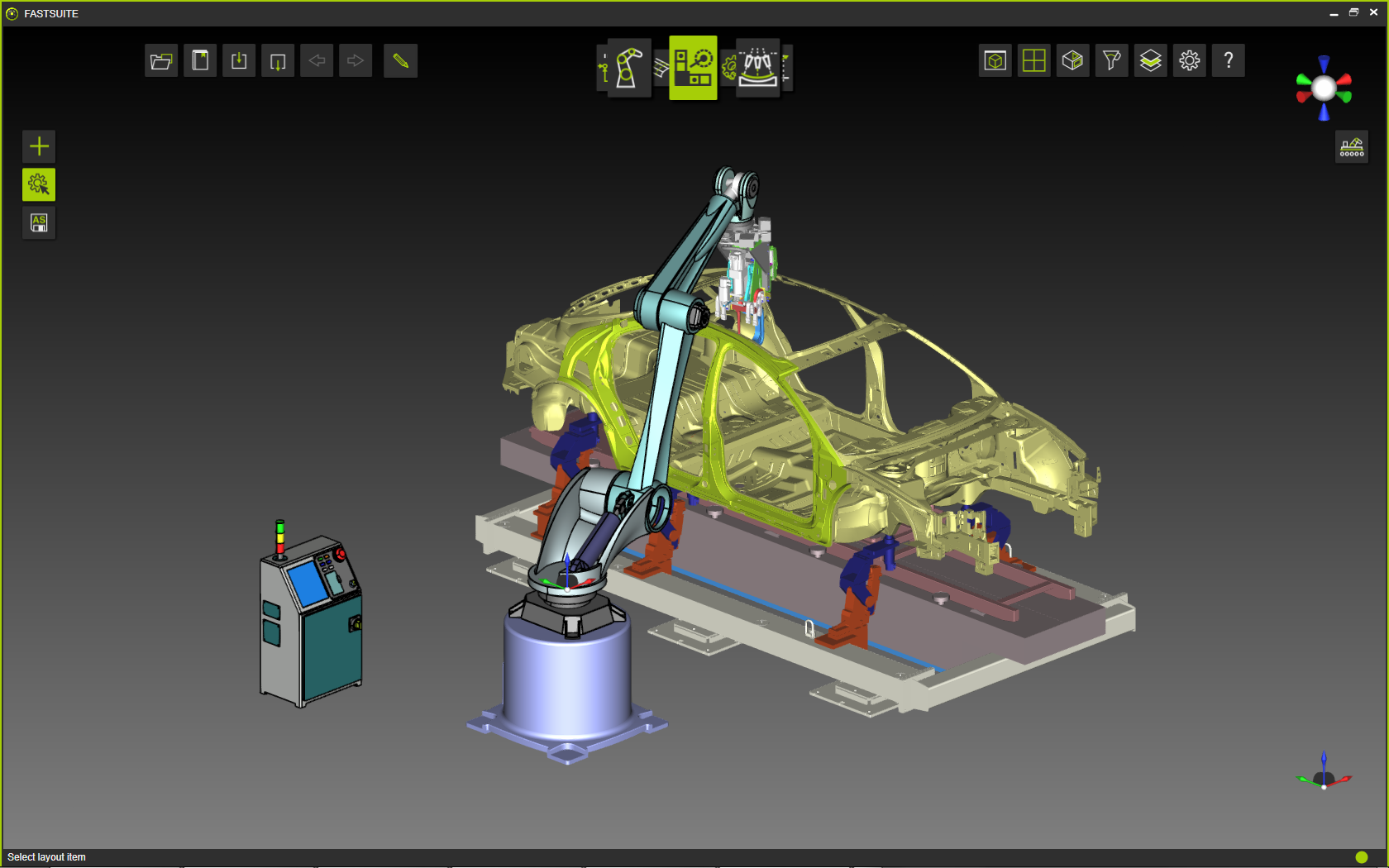 | 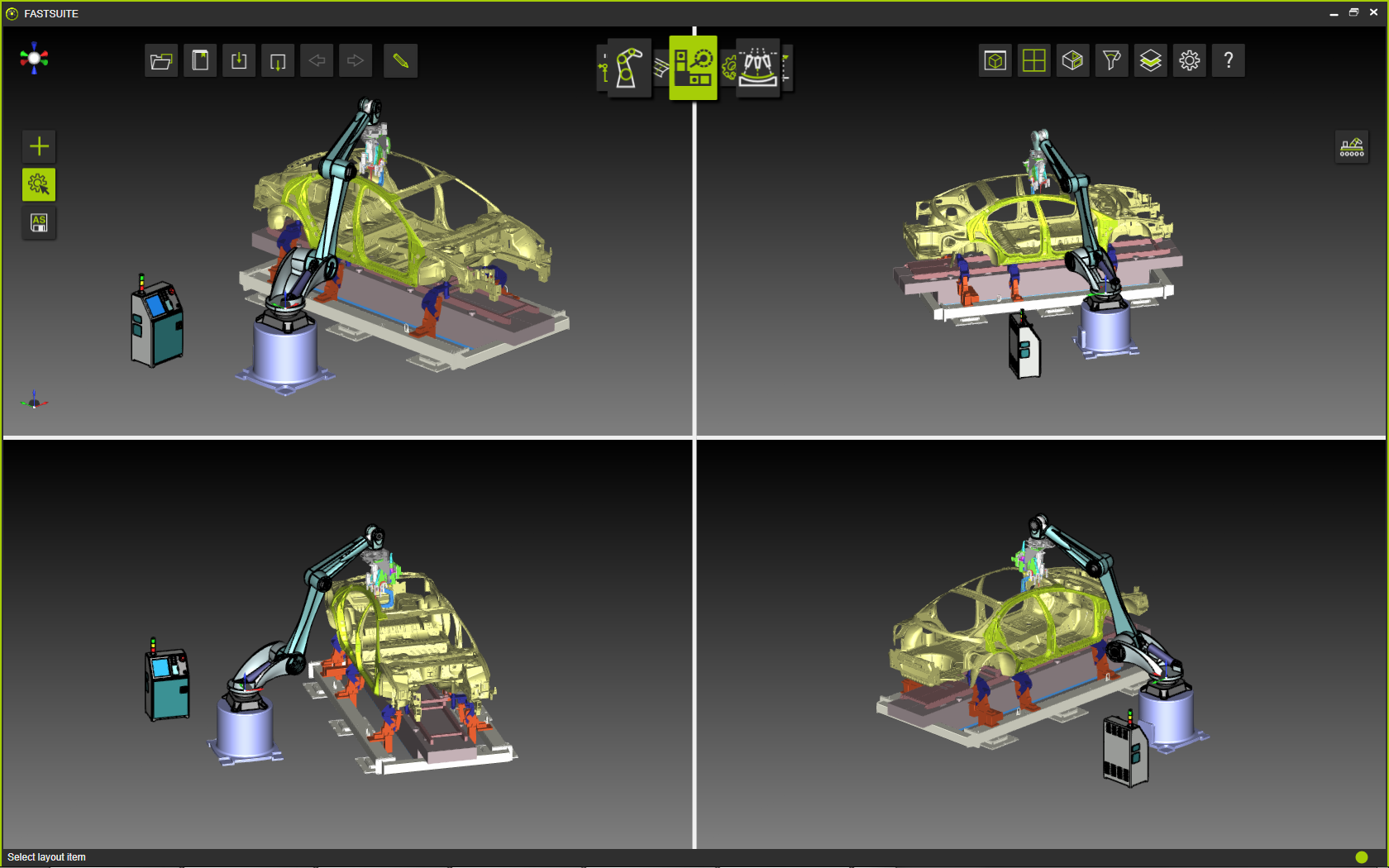 | 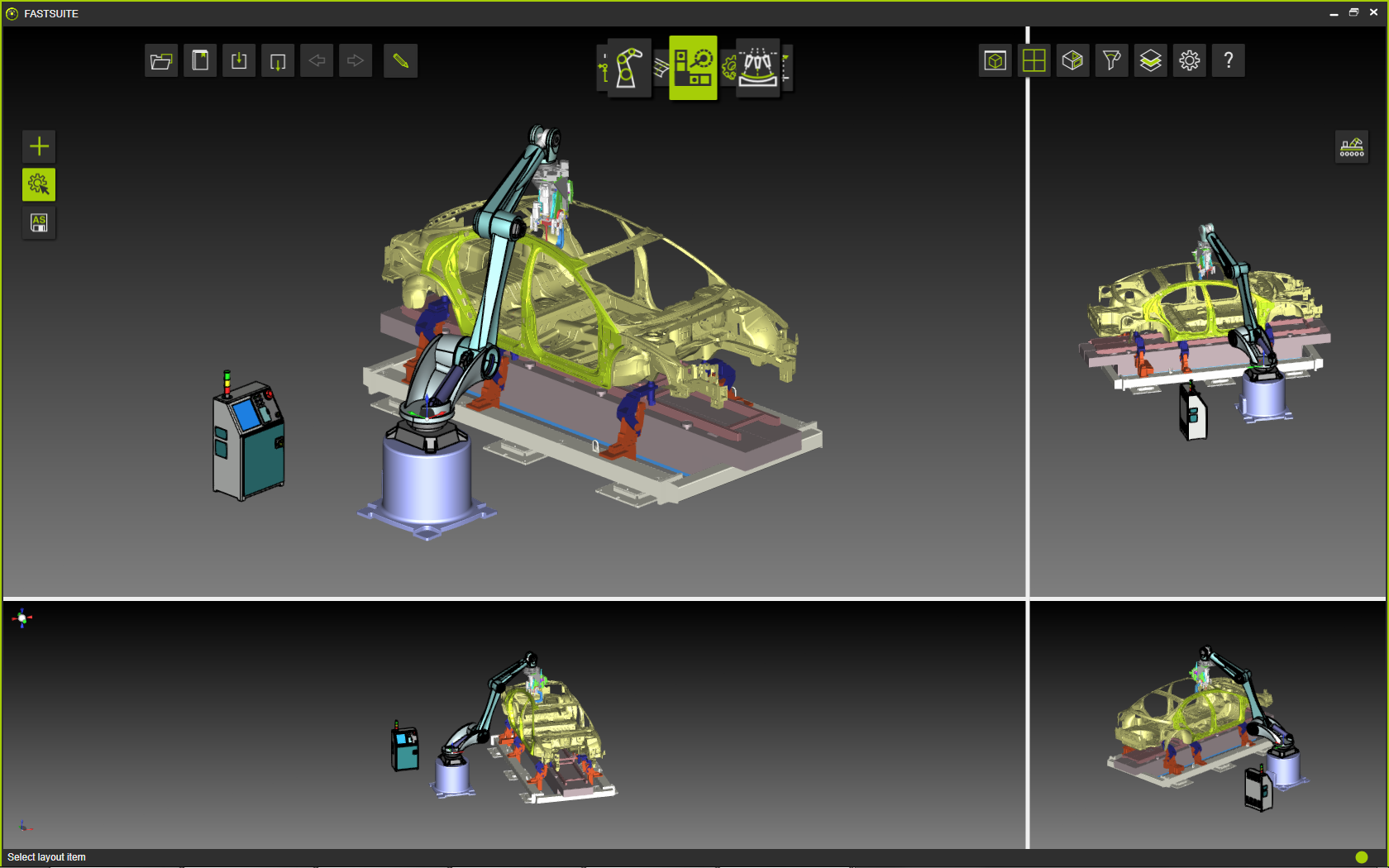 | ||
| One Window | Four Windows default size | Four Window manual size |
For each window that will be shown, a separate 3D View layout is generated. This means that each window will have its own 3D manipulation options including the View Compass. Once the mouse is located in the window, that window automatically becomes the active one and all 3D manipulations are applied here. One can see that the View Compass will move with the mouse to the active window.

The multiple window option should not be confused with a multiple document situation, where different models are loaded simultaneously and viewed in separated windows. This version of the software does not support that possibility.