Werkstück herstellen
Zweck
FASTSUITE Edition 2 unterscheidet zwischen dem Werkstück und der Vorrichtungsressource. Das Werkstück wird aus einer externen Datei erstellt, die die Geometrie des Teils enthält.
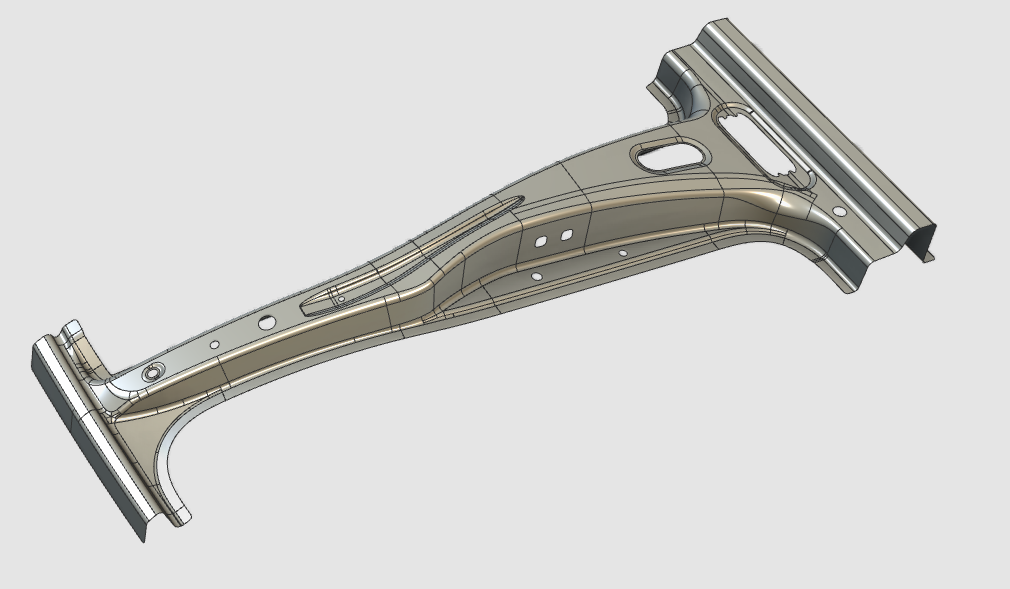
Das spezifische Werkstückdokument wird erstellt. Die Geometrie aus der externen Datei wird importiert, um dem Bauteil Form zu verleihen. Anschließend werden spezielle Informationen zugewiesen, um die Offline-Programmierung in einem späteren Projektstadium zu starten.
Schritte
1. Vorbereitung
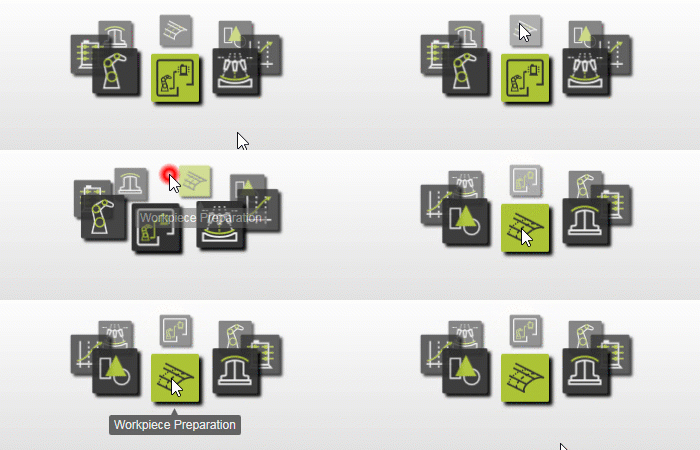
1.1 Wechseln Sie zur Arbeitsvorbereitungs-Vorrichtung.

Werkstück-Vorrichtung
1.2 Erstellen Sie ein neues leeres Dokument (falls erforderlich)
Wenn in der laufenden Sitzung bereits ein anderes Dokument geöffnet ist, muss dieser Schritt ausgeführt werden. Andernfalls kann dieser Schritt übersprungen werden.

Erstellen Sie ein neues Dokument
![[link:Ref_UI_DocToolbar]](/_next/static/media/help_32.a83448e5.png)
2. Definieren Sie das Werkstück
2.1 Überprüfen der Einstellungen für den Geometrieimport
Um das Werkstück im Offline-Programmieren korrekt zu verwenden, importieren Sie die Geometrie als exakte Geometrie.

Importeinstellungen überprüfen
2.2 Geometrie aus B_Pillar.stp importieren
Importieren Sie die Geometrie aus der Datei B_Pillar.stp, die sich in den Trainingsdaten befindet.

Geometrie importieren
2.3 Erstellen Sie ein Werkstück für die importierte Geometrie

Werkstück erstellen
2.4 Vergeben Sie dem Werkstück einen geeigneten Namen
Benennen Sie das Werkstück
3. Erstellen Sie die Werkstückform
3.1 Befestigen Sie die importierte Geometrie an dem Werkstück

Geometrie anbringen
4. Werkstück speichern
4.1 Speichern Sie das Werkstück
Starten Sie den Befehl Werkstück speichern. Wählen Sie den gewünschten Pfad zum Speichern des Werkstücks aus. Standardmäßig wird der Name des Werkstücks verwendet.

Werkstück speichern
5. Optionale One-Click-Alternative
Die Absätze 2 und 3 erläutern, wie ein Werkstück Schritt für Schritt von Grund auf aufgebaut wird. Zur Vereinfachung können diese Schritte in einem einzigen Vorgang ausgeführt werden.
Falls diese automatisierte Erstellung aus irgendeinem Grund fehlschlägt, verwenden Sie die manuellen Schritte aus den Absätzen 2 und 3.
5.1 Verwendung der Ein-Klick-Werkstückerstellung
Beim Ablegen der Step-Datei aus dem Datei-Explorer in das neue Dokument halten Sie die W-Taste gedrückt. Überprüfen Sie, ob das Werkstück erstellt wurde und die Geometrie automatisch angefügt wurde.
Vergessen Sie nicht, das Werkstück zu speichern. Klicken Sie im Dateimanager mit der rechten Maustaste auf das Werkstück-Element in der Grafik, um den Befehl Speichern zu starten, und wählen Sie anschließend den gewünschten Pfad aus.
Ein-Klick-Werkstückerstellung