Programmierung eines Schweißvorgangs
Zweck
In diesem Kapitel werden die grundlegenden Schritte zur Programmierung eines Schweißvorgangs vermittelt.
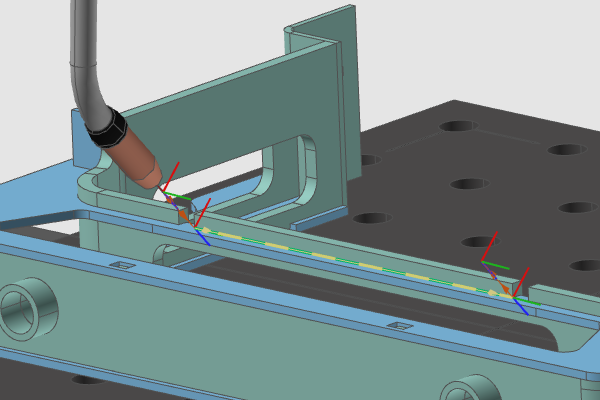
Die grundlegenden Schritte dienen dazu, den Schweißpfad auf den verschiedenen Schweißkonturen zu erzeugen. Die Ergebnisse werden simuliert.
Schritte
1. Vorbereitung
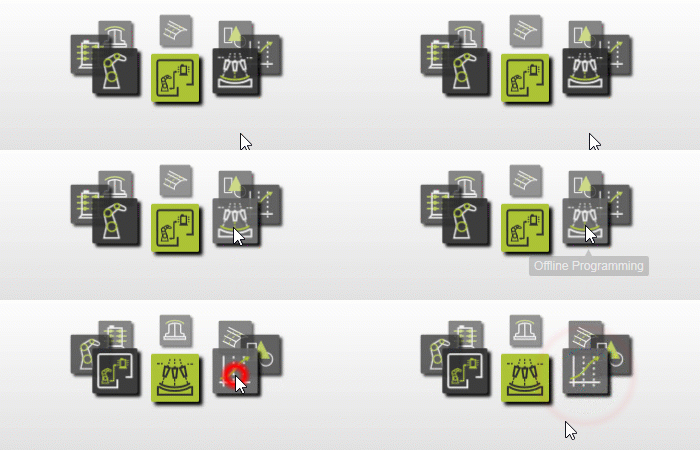
1.1 Wechseln Sie zur Offline-Programmierung-Arbeitsumgebung.

Wechseln Sie zur OLP-Arbeitsumgebung
1.2 Projektdatei öffnen
Öffnen Sie das Datei-Menü und wählen Sie den Befehl Öffnen, um das zuvor gespeicherte Projekt zu laden. Wenn das Projekt in der Liste der kürzlich geöffneten Dokumente erscheint, wählen Sie es dort aus. Andernfalls drücken Sie die Schaltfläche Dateibrowser, um einen Datei-Explorer zu öffnen und nach dem Projekt zu suchen.

Ein Projekt öffnen
![[link:Ref_Doc_Types]](/_next/static/media/help_32.a83448e5.png)
1.3 Steuerungseinheit auswählen
Die erste automatisch im OLP-Arbeitsbereich geöffnete Anweisung ist die Auswahl der Steuerungseinheit. Hier können Sie die Steuerung auswählen, für die die Schweißprogramme erstellt werden sollen. Die ausgewählte Steuerung und ihre angeschlossenen Fertigungsressourcen werden hervorgehoben. Offensichtlich ist hier nichts zu tun, wenn das Projekt, d. h. die Arbeitszelle, nur eine Steuerung besitzt.

Steuereinheit
1.4 Befehl zur Einrichtung der Einheit
Starten Sie den Befehl „Unit setup“ und überprüfen Sie, ob ein Werkzeugrahmen und ein Basisrahmen vorausgewählt wurden. Das Vorhandensein beider Rahmen ist zwingend erforderlich, um eine beliebige Operation programmieren zu können.
Einrichtung der Einheit
2. Ein Home-Position anlernen
2.1 Einstellungen zur Werkzeugbahnänderung anwenden
Für den Zweck dieses Kurses muss jede Änderung an der Position eines Schweißpfads bestätigt werden. Überprüfen Sie die Einstellungen für die Offline-Programmierung. Stellen Sie sicher, dass die Option Apply toolpath modification auf Manuell gesetzt ist.

Einstellungen für OLP
2.2 Programmieren Sie mit dem Befehl Start teach eine erste Position am Roboter.

Lehren Sie eine Ausgangsposition an
2.3 Die eingefügte Position ändern
Wechseln Sie zu Events und lehren Sie, die eingefügte Position zu ändern. Eine Möglichkeit besteht darin, einfach eine Roboterachse auszuwählen und zu ziehen. Alternativ kann der Manipulator verwendet werden, um die Position zu ändern. Bestätigen Sie die geänderte Position mit dem Befehl Änderungen übernehmen.

Position des Schweißpfads ändern
3. Erstellen Sie die Geometrie des Schweißprozesses; d. h. die Schweißkontur
3.1 Öffnen Sie das Bedienfeld zur Definition der Prozessgeometrie
Führen Sie den Befehl Prozessgeometrie generieren aus und überprüfen Sie, ob das Dashboard zur Definition der Prozessgeometrie angezeigt wird. Falls nicht, können Sie es anzeigen, indem Sie mit der rechten Maustaste auf den leeren 3D-Raum klicken und den Befehl Definitionspanel öffnen auswählen.

Öffnen Sie das Bedienfeld zur Definition der Prozessgeometrie
3.2 Definieren der Kehlnähte
Wählen Sie die Definitionsmethode Schweißnahtkontur durch Projektion, um die Kehlnähte zu definieren. Wählen Sie die erste Werkstückplatte aus, ziehen Sie dann zur zweiten Platte und lassen Sie dort los. Diese Methode sucht die Kontur durch Projektion der Kante der ersten Platte auf die zweite Platte.

Definition der Kehlnähte
3.3 Passen Sie die Werkzeug- und Vorschubwinkel an
Drücken Sie die Pfeiltasten links und rechts auf der Tastatur, um den Werkzeugwinkel zu ändern. Drücken Sie die Pfeiltasten nach oben und unten, um den Vorschubwinkel zu ändern.
Ändern Sie den Werkzeugwinkel
4. Programmieren Sie den Schweißweg
4.1 Automatische Generierung des Schweißpfads
Wählen Sie die Option Automatisch Werkzeugweg generieren und Akzeptieren Sie die Kontur. Der Schweißvorgang, einschließlich aller Positionen des Schweißpfads, wird berechnet.
Berechnen Sie den Schweißpfad
4.2 Simulation des Schweißprogramms
Drücken Sie die Wiedergabetaste in der Simulationssymbolleiste, um eine Simulation des erstellten Programms auszuführen.

Simulieren Sie das Programm
4.3 Startzustand zurücksetzen
Klicken Sie in der Simulationsleiste auf Startzustand zurücksetzen. Der Startzustand wird automatisch generiert, wenn die erste Operation erstellt wird.

Startzustand
5. Entlang des Schweißpfads navigieren
5.1 Verwenden von Events und Teach zur Navigation entlang der Pfadpunkte
Wechseln Sie zu Events und Teach. Diese Mikro-Umgebung ermöglicht es Ihnen, einzelne Positionen des Schweißpfads zu navigieren, zu ändern und zu optimieren. Wählen Sie eines der Pfadelemente aus, damit der Roboter zu diesem springt. Wenn zwei Pfadelemente zu nah beieinander liegen, erscheint ein Selektor, um das gewünschte auszuwählen.
Entlang des Schweißpfads navigieren
5.2 Entlang des Schweißpfads mit der Tastatur navigieren
Sobald ein Ziel ausgewählt ist, verwenden Sie die Rückwärts- und Vorwärtstasten auf der Tastatur, um entlang des Schweißpfads nach links oder rechts zu navigieren.
Entlang des Schweißpfads navigieren
5.3 Navigation entlang des Schweißpfads mit dem Teach-Panel
Öffnen Sie das Teach-Panel. Klicken Sie auf die mittleren Pfeile, um entlang des Schweißpfads vor- und zurückzunavigieren. Klicken Sie auf die äußeren Pfeile, um zum Anfang oder Ende der Vorgangsgruppe zu springen.
Entlang des Schweißpfads navigieren