Werkstück aufbauen
Zweck
Verwenden Sie die Arbeitsstück-Erstellungs-Vorrichtung, um die Arbeitsstückoberfläche für den Reinigungsprozess zu erstellen und sie für die Offline-Programmierung und Simulation vorzubereiten.
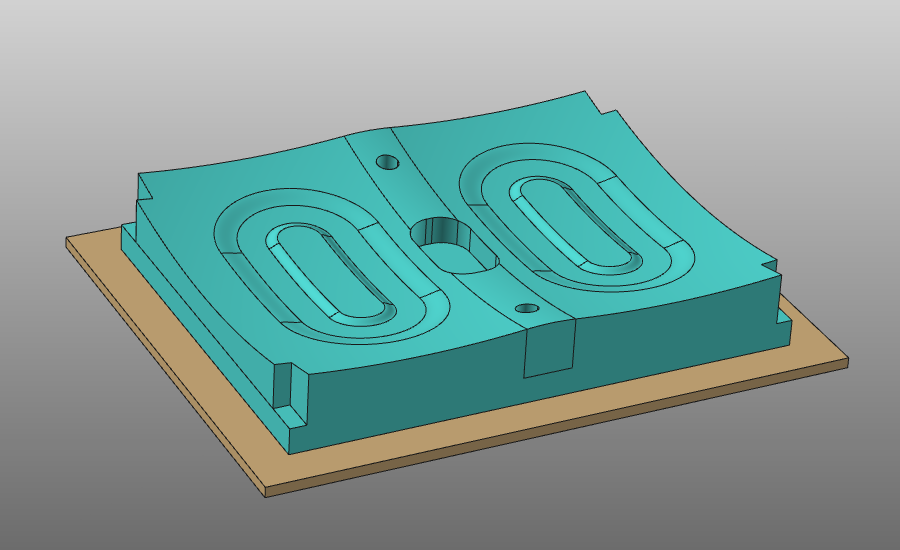
Das Werkstückdokument wird aus importierter Geometrie erstellt. Anschließend werden spezielle Einrichtungsinformationen, Prozessgeometrie und Simulationsdaten hinzugefügt, bevor das Werkstück für spätere Projektschritte gespeichert wird.
Schritte
1. Vorbereitung
1.1 Erstellen Sie ein neues leeres Dokument (falls erforderlich)
Wenn in der laufenden Sitzung bereits ein anderes Dokument geöffnet ist, erstellen Sie ein neues leeres Dokument. Wenn kein Dokument geöffnet ist, können Sie diesen Schritt überspringen.

Erstellen Sie ein neues Dokument
Öffnen Sie das Menü Datei und wählen Sie Neu. Falls eine Aufforderung erscheint, entscheiden Sie, ob das aktuell geöffnete Dokument gespeichert, ohne Speichern geschlossen oder der Vorgang abgebrochen werden soll.
2. Definieren Sie das Werkstück
2.1 Überprüfen der Einstellungen für den Geometrieimport
Um das Werkstück in der Offline-Programmierung korrekt zu verwenden, importieren Sie die Geometrie als exakte Geometrie.

Überprüfen Sie die Importeinstellungen
2.2 Geometrie aus Mold_Workpiece.stp importieren
Importieren Sie die Geometrie aus der Datei Mold_Workpiece.stp in den Trainingsdaten.

Geometrie importieren
2.3 Erstellen Sie ein Werkstück für die importierte Geometrie

Werkstück erstellen
3. Erstellen Sie die Werkstückform
3.1 Befestigen Sie die Bauteilgeometrie an der Vorrichtung

Geometrie anbringen
4. Definieren Sie die Prozessgeometrie
Erstellen Sie die Prozessgeometrie für den Reinigungsprozess.
4.1 Anzeigeoptionen für die Geometrieverarbeitung festlegen
Definieren Sie Einstellungen, die die Geometrieauswahl erleichtern.
Anzeigeoptionen festlegen
4.2 Prozessgeometriemodus auf Fläche einstellen

Prozessgeometriemodus einstellen
4.3 Auswahl der einzuschließenden Flächen
Verwenden Sie die Fangauswahl, um Flächen für die Prozessgeometrie einzubeziehen. Die Ziehrichtung bestimmt, ob die Auswahl strikt (nur innerhalb) oder berührungsbasiert erfolgt.

Flächen auswählen (hinzufügen)
4.4 Unerwünschte Flächen entfernen
Drücken Sie Ctrl und verwenden Sie die Fangauswahl, um Flächen aus der Menge zu entfernen.
Flächen auswählen (entfernen)
4.5 Prozessgeometrie erstellen
Erstellen Sie die Prozessgeometrie auf der ausgewählten Oberfläche.
Erstellen Sie die Prozessgeometrie
4.6 Überprüfung der Ausrichtung der Prozessgeometrie
Überprüfen und gegebenenfalls die Orientierung der Oberflächenprozessgeometrie anpassen.
Prozessgeometrie bearbeiten
4.7 Globale Anzeigeeinstellungen wiederherstellen (optional)
Anzeigeeinstellungen wiederherstellen
5. Definieren Sie das Simulationsobjekt
Das Simulationsobjekt wird verwendet, um den Prozesseinfluss auf die Oberfläche zu berechnen, beispielsweise die Sprühkontaktzeit.
5.1 Erstellen eines Prozess-Simulationsobjekts
Erstellen Sie ein Prozess-Simulationsobjekt für das gesamte Werkstück.

Simulationsobjekt erstellen
5.2 Anpassung der Simulationsnetzparameter
Ändern Sie die Netzparameter des Simulationsobjekts, wie beispielsweise die globale Dreieckgröße.
Simulationsobjekt bearbeiten
6. Werkstück speichern
6.1 Werkstück benennen und speichern
Geben Sie dem Werkstück einen geeigneten Namen und speichern Sie es auf der Festplatte.
Speichern Sie das Werkstück
Nächster Schritt
-> Bauen Sie die Wasserstrahl-Reinigungsanlage